Euro Truck Simulator 2

Euro Truck Simulator 2

29 ratings
Logitech Steering Wheel - Scripts and Shift Keys
By NaytoE
This is a tutorial showing you how to use the script feature in the Logitech Gaming Software to make the most out of your wheels buttons. Includes full tutorial for making shift keys to have multiple functions assigned to one key.
   
Award
Favorite
Favorited
Unfavorite
*Update*
This guide was originally for setting up the buttons on a Logitech Steering Wheel so that it could be used to look left/right and have the view snap back to the centre. The methods in the guide can be used to do anything you want, you just have to swap out the buttons for the ones of your choice.

I’ve now updated the guide to include some slightly more advanced scripting. To go to the new content, click the “Advanced - Shift Keys and Toggles” in the Index Guide on the right.


**Notice**
Assigning your buttons using the Logitech Scripting system will make it so the game can no longer detect those buttons being pressed. For example, setting the Left/Right D-Pad from the basic tutorial section, will prevent you from assigning the Up/Down buttons within the game. I just add my keys into the script to save myself hassle.

Another thing to note, if you already have keys assigned in the game, but then add them into a script, the game will apply both actions when the button is pressed.
For example, you assign 'A' to the horn, but then in the script to set it to the windscreen wipers. In game, pressing 'A' will cause the windscreen wipers to come on, but also honk your horn.


The Basics - Intro
This tutorial will guide you through the very basics of creating a script in the Logitech Gaming Software and make the D-Pad buttons change the truck view to look left or right and then centre back once released.

In Euro Truck Simulator 2, there's several keys for changing the camera angle from within the truck’s cab, by default these are set to the Number Keypad. The ones I'm most interested in (and you too probably) are the ones for looking left, centre and right, these are keys 4, 5 and 6.

On my Logitech G920 wheel, I assigned these buttons to my D-Pad, so that I could look left and right, but you also have to assign a button to centre the view again. I wanted view to only look left or right whilst the button was being pressed. This is where the Logitech Gaming Software comes into play.

As said above, I have the G920, but the scripts should function the same for all Logitech wheels and other peripherals (Mouse, Keyboard, Gamepad, etc). This will obviously work in other games too, you just need to make a profile for that game and make the script for it.

If you don't fancy reading all this tutorial, you can skip to the scripts at the bottom.


The Basics - The Logitech Gaming Software
Firstly, make sure you have the most up to date version of the Logitech Gaming Software installed and that your devices Firmware is up to date (see the Logitech Site[www.logitech.com]).

Tucked away inside the Logitech Gaming Software (Referred from here as 'LGS') is a scripting feature, something you've probably never used before, because the basic interface does pretty much everything you want it to. Unless, of course, you want something very specific to happen when you press a button, in this case, we want to make it so that when our D-Pad button is pressed, the game looks left/right, and when it is released, the view centres back.

More specifically, this is what we're trying to do:
  • D-Pad Left Pressed:
  • -- Num Key 4 Pressed & Released

  • D-Pad Left Released:
  • -- Num Key 5 Pressed & Released

Now, you can't do this using the basic interface, so we're going to use the more advanced scripting feature.


The Basics - Finding and Opening the Scripting Interface
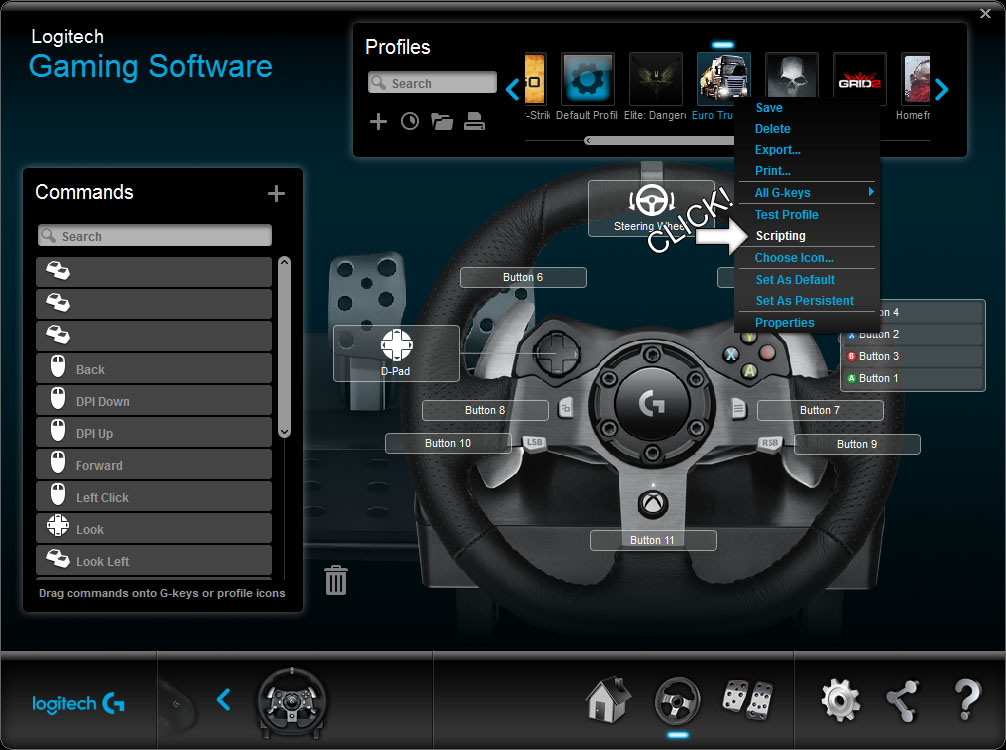
Inside the LGS you need to make your way to your Euro Truck Simulator 2 profile for the wheel, if you don't have one, make one. You don't need to assign any buttons in here, instead, we just want to right click on its little icon. In the drop down menu select 'Scripting'.


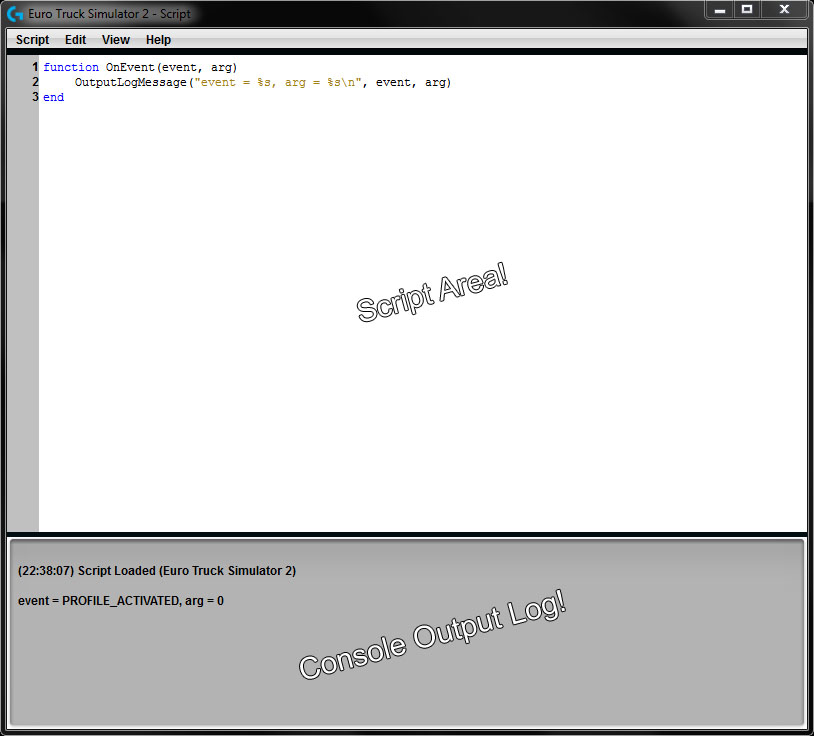
Now then, you should be greeted with this little window:


If this is your first time looking at scripts, don't panic, it's all rather straight forward and I'll explain what's happening as we go forward.


The Basics - Finding our Buttons
There should be a little script already in place, if not and you have a blank file, copy and paste this into it:

function OnEvent(event, arg) OutputLogMessage("event = %s, arg = %s\n", event, arg) end

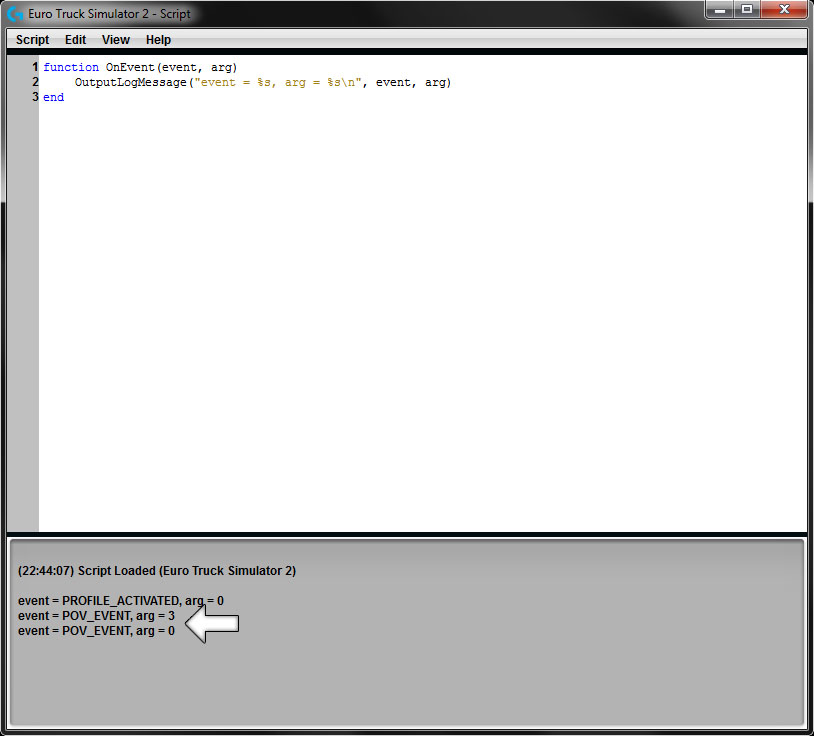
Now, what this amazing piece of code does is it makes any button presses you make on your wheel appear in the Console Output Log at the bottom of the scripting window, as seen below:


This is very useful for us, as there's no list of interface entries within the support documents. So, what's it telling us? In the picture above I have pressed and released the Left D-Pad button, which has given me the following line in the console window:
event = POV_EVENT, arg = 3 event = POV_EVENT, arg = 0

So this has given me all the information I need to script an event to happen when the D-Pad left is pressed and released. The 'POV_EVENT' is the code for an action on the D-Pad, the 'arg = 3' is the number for the direction pressed, in this case left. And finally, the 'arg = 0' on the second line is the number for when no direction is being pressed. It’s worth noting that the D-Pad is unique as it doesn’t have a ‘press’ and ‘release’ action like all the other buttons do, it simply registers a direction, or no direction. Bare this in mind when you are writing your own scripts.

Here's a quick list of some of the events for the buttons:

D-Pad
Event:
  • POV_EVENT

Arguments:
  • Up = 1
  • Left = 3
  • Down = 5
  • Right = 7

Buttons
Events:
  • GAME_CONTROLLER_BUTTON_PRESSED
  • GAME_CONTROLLER_BUTTON_RELEASED

Arguments:
  • A = 1
  • B = 2
  • X = 3
  • Y = 4


The Basics - Scripting Basics
Now for the fun part, writing code! So, first things first, before the 'end' in the script, we want to make a few extra lines so we can write our own script. I like to put a little ‘comment’ in there so that I can easily see where my script is. Comments aren't actioned when a script runs, so you can write anything you like in them. You can do this by using two hyphens:
--Blah Blah Blah, this is a comment and the script ignores me!
It's really handy when you make longer scripts, or for when you come to edit your script in future and can't quite remember what is going on.
So my script now looks like this:
function OnEvent(event, arg) OutputLogMessage("event = %s, arg = %s\n", event, arg) -- Scripts Start Here -- Scripts End Here end

You can use indents to help order events and actions. This helps you when you're looking at the script so you know that those two lines of code are only actioned when that first line of code activates. Here's a silly example:
if 1 + 2 == 3 then do a dance end
Here, you only do a dance when 1 + 2 = 3. If it equals anything else, no dance happens, but when glancing through the script you can easily see that the dance is a part of that statement, which at times is helpful.

Well, let's get on with it and write the script!


The Basics - Scripting the D-Pad (Left)
Now then, we want the script to check to see if the left D-Pad is being pressed, to do this we simply ask it like so:
if (event == "POV_EVENT" and arg == 3) then
As you can see, the script is checking the event against the 'POV_EVENT' and argument ('3') from before, if this is true (if it's being pressed) it will continue to the 'then' part. This is where we add our actions:
PressAndReleaseKey("num4");
Again, this is using the default keys, so if you have changed your keys, either write in the ones you've changed them too, or change them back within the game. As you can see, this action makes the script simulate the 'Num Key 4' ("num4") being pressed and then released again. There's more actions like this, including the simple 'PressKey' and 'ReleaseKey' which does exactly what it says.

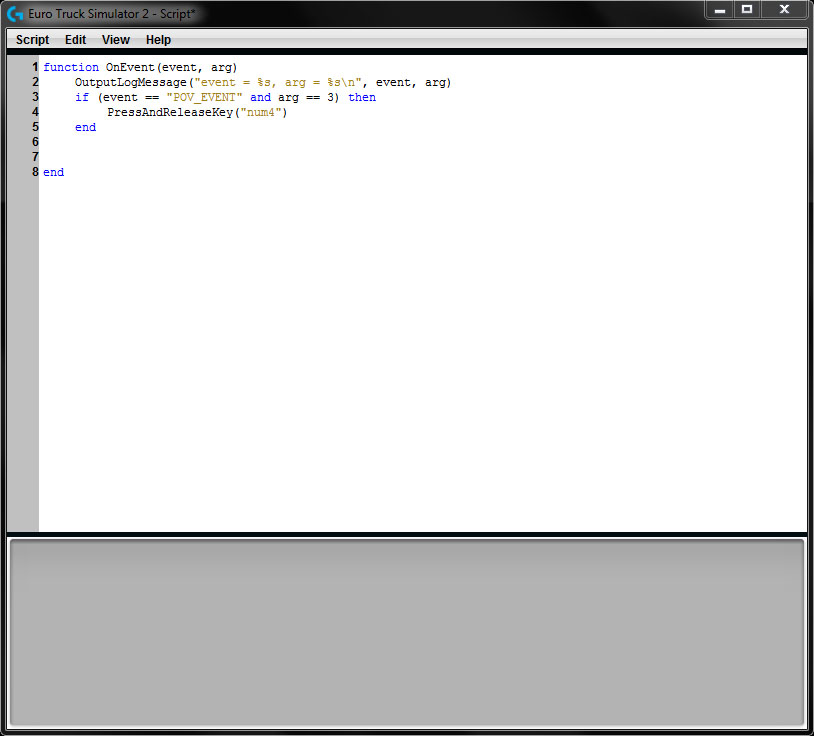
Finally, you want to end this action with a simple 'end' command. You should have something that looks a little like this:


Here is the code:
if (event == "POV_EVENT" and arg == 3) then PressAndReleaseKey("num4"); end


The Basics - Scripting the D-Pad (Right)
Now lets do the same thing, but for the Right D-Pad.
The code is exactly the same as above, but we change the argument number to '7' and the Num Key to 6 like so:
if (event == "POV_EVENT" and arg == 7) then PressAndReleaseKey("num6"); end

Easy peasy, no?


The Basics - Scripting the D-Pad (Auto-Centre)
Now for the most important part. If you were to test this script right now, it would behave exactly the same as it did before in game. But we want to make the camera auto centre when we release the D-Pad.
The D-Pad has a central state, it's argument '0', it's also something that can't be assigned in the normal user interface. Here we're going to make the '0' state of the D-Pad press and release the number 5 key, which as we know, centres the view in the cab:
if (event == "POV_EVENT" and arg == 0) then PressAndReleaseKey("num5"); end

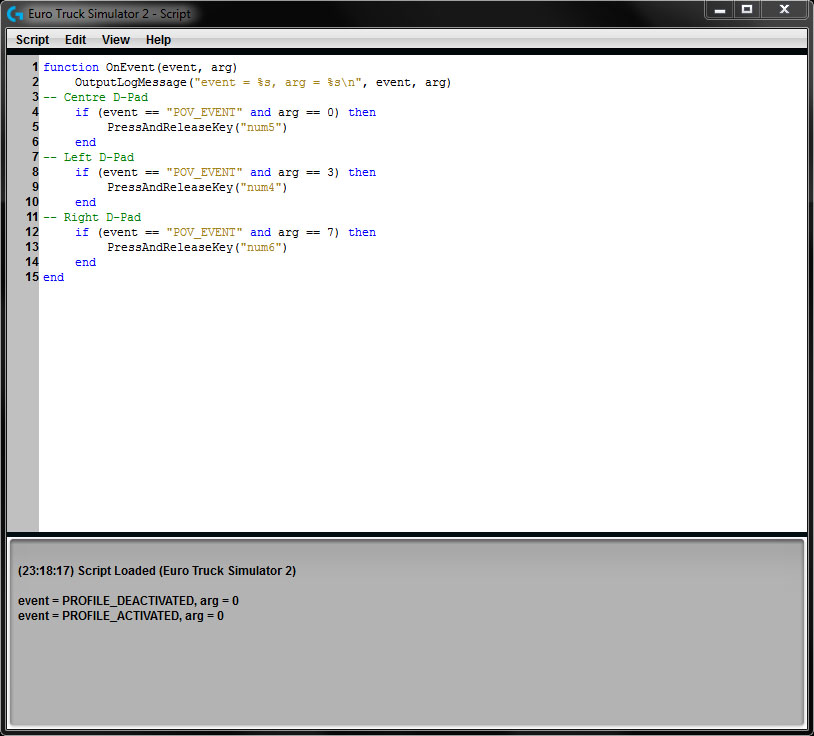
That's it, you should have something that looks a little bit like this:

The final task is to click 'Script' and 'Save' and you're good to go! There's no need to do anything else inside the LGS. Note: Make sure your buttons aren't assigned within the game, or you'll get both functions happening at once.


The Basics - Scripting the Buttons
Scripting a button is slightly different from the D-Pad as the buttons have separate pressed and released events, but it all works pretty much the same way. I'm going to use buttons 'A' and 'B' in this guide, but you can substitute them for any of the others.

So, the A button is referred to as argument '1' which we found at the beginning of the guide. We also know that when the button is pressed the software logs the "GAME_CONTROLLER_BUTTON_PRESSED" event and one for when it's released. So using these we ask the following:
if (event == "GAME_CONTROLLER_BUTTON_PRESSED, arg == 1) then

this asks if the button is being pressed, and if it is, it will move on and execute the following:
PressAndReleaseKey(num4);

Finally, don't forget to end the action and you should have something a little like this:
if (event == "GAME_CONTROLLER_BUTTON_PRESSED, arg == 1) then PressAndReleaseKey(num4); end

Now, we just want to make the camera go back to centre when we let go of the button. To do this, we write almost exactly the same thing as above, but this time instead of checking for PRESSED we check for RELEASED like so:
if (event == "GAME_CONTROLLER_BUTTON_RELEASED arg == 1) then

And finally, when the button is released we want it to press the Num Key 5 to centre the view, so we do the same as above, but change the key number:
PressAndReleaseKey(num5);

So our script should look like this so far:
if (event == "GAME_CONTROLLER_BUTTON_PRESSED, arg == 1) then PressAndReleaseKey(num4); end if (event == "GAME_CONTROLLER_BUTTON_RELEASED, arg == 1) then PressAndReleaseKey(num5); end

You can now do exactly the same script again, this time replace the 'arg == 1' with 'arg == 2' andthe 'num4' with 'num6' and you'll make the 'B' button look right!
if (event == "GAME_CONTROLLER_BUTTON_PRESSED, arg == 2) then PressAndReleaseKey(num6); end if (event == "GAME_CONTROLLER_BUTTON_RELEASED, arg == 2) then PressAndReleaseKey(num5); end
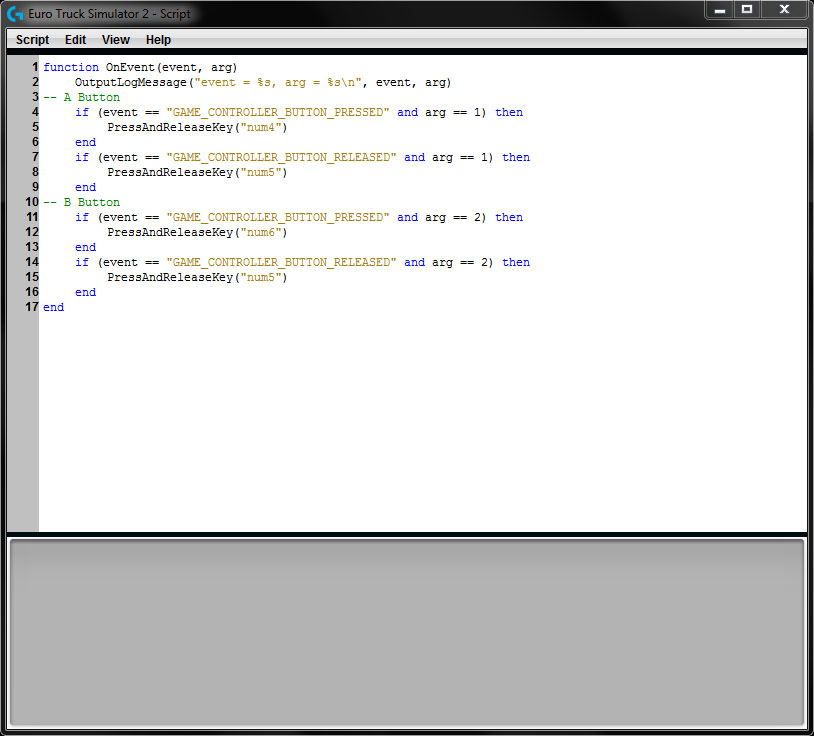
The finished arcticle should look a little like this:

The final task is to click 'Script' and 'Save' and you're good to go! There's no need to do anything else inside the LGS. Note: Make sure your buttons aren't assigned within the game, or you'll get both functions happening at once.


The Basics - Example Scripts
Well done! You've made a script that makes the game turn your cab camera and auto-centre afterwards! If, however, it was a bit too much, here's the full scripts for you!

Big Notice: Make sure the buttons you use aren't assigned within the game as this will cause both functions to happen.

D-Pad Script
I’ve added the Up and Down positions to this script.
function OnEvent(event, arg) OutputLogMessage("event = %s, arg = %s\n", event, arg) -- Centre D-Pad if (event == "POV_EVENT" and arg == 0) then PressAndReleaseKey("num5"); ReleaseKey("H") ; ReleaseKey("J"); end -- Left D-Pad if (event == "POV_EVENT" and arg == 3) then PressAndReleaseKey("num4"); end -- Right D-Pad if (event == "POV_EVENT" and arg == 7) then PressAndReleaseKey("num6"); end -- Up D-Pad if (event == "POV_EVENT" and arg == 1) then PressKey("J"); end -- Down D-Pad if (event == "POV_EVENT" and arg == 5) then PressAndReleaseKey("H"); end end


Buttons Scipt (A+B)
function OnEvent(event, arg) OutputLogMessage("event = %s, arg = %s\n", event, arg) -- A Button if (event == "GAME_CONTROLLER_BUTTON_PRESSED" and arg == 1) then PressAndReleaseKey("num4"); end if (event == "GAME_CONTROLLER_BUTTON_RELEASED" and arg == 1) then PressAndReleaseKey("num5"); end -- B Button if (event == "GAME_CONTROLLER_BUTTON_PRESSED" and arg == 2) then PressAndReleaseKey("num6"); end if (event == "GAME_CONTROLLER_BUTTON_RELEASED" and arg == 2) then PressAndReleaseKey("num5"); end end


Advanced - Shift Keys and Toggles *NEW*
Using the same principles as above, we can actually turn one or more of our buttons into shift keys, or toggles. These are buttons that can make other buttons do a different command when pressed or held (like how the shift key makes the number keys produce symbols when held). This essentially allows you to add multiple functions to all the buttons, whilst sacrificing one to act as a shift.

If you change 2 buttons to be shift keys, you’ll have a total of 52 different key presses you can perform.

I’ll cover two types of shift keys here in this guide, one will be your standard 'Press and Hold' shift and the other will be a ‘press to turn on, press again to turn off’ toggle. You can use both these types at the same time to create a configuration that works for you. So, onto the basics!


Advanced - Basic Press and Hold Shift
The first thing you need to do is decide what you want to achieve and what buttons you want to use to do this. For this example I'm going to use the ‘Start’ button as my shift key and use it to change what the ‘A’ button does.

So, how do we make a shift key? Well, it’s really quite simple. All we do is assign what’s called a variable within the script and simply change the variables state when the key is pressed. We can name this variable almost anything we want, but for this tutorial we’re simply going to call it ‘shift_key’.

So first, we’ll tell the Start button to change its state when pressed and released.
if (event=="GAME_CONTROLLER_BUTTON_PRESSED" and arg==7) then shift_key=1; end if (event=="GAME_CONTROLLER_BUTTON_RELEASED" and arg==7) then shift_key=nil; end

As you can see in the code, the variable ‘shift_key’ is changed to ‘1’ when the start button is pressed and when the start button is released, ‘shift_key’ is changed to ‘nil’.

Now this is the fun part. What we’re going to do it make it so that when the ‘A’ button is pressed, it checks to see what the ‘shift_key’ variable is set to, and depending on its state, it will perform a different action.

if (event == "GAME_CONTROLLER_BUTTON_PRESSED" and arg == 1) then if (shift_key==null) then PressKey("H"); elseif (shift_key==1) then PressKey("E"); end end if (event == "GAME_CONTROLLER_BUTTON_PRESSED" and arg == 1) then ReleaseKey("H"); ReleaseKey("E"); end

So, this code, along with the part above it, can be used to make the ‘A’ button either sound the horn, or turn on/off the engine, all depending on if the ‘Start Button’ is being held. Notice the final part which will release the key. If you read the first part of the tutorial you’ll know that this is because the horn key needs to be held to work, so isn’t released until you release the ‘A’ button.

You can do this for even more buttons and even add another shift key.

Take a look at this example:
--Check for shift_1 if (event=="GAME_CONTROLLER_BUTTON_PRESSED" and arg==7) then shift_1=1; end if (event=="GAME_CONTROLLER_BUTTON_RELEASED" and arg==7) then shift_1=nil; end --Check for shift_2 if (event=="GAME_CONTROLLER_BUTTON_PRESSED" and arg==8) then shift_2=1; end if (event=="GAME_CONTROLLER_BUTTON_RELEASED" and arg==8) then shift_2=nil; end -- (A) Button if (event == "GAME_CONTROLLER_BUTTON_PRESSED" and arg == 1) then if (shift_1==1) then PressKey("E"); elseif (shift_2==1) then PressKey("J"); elseif (shift_1==null) and (shift_2==null) then PressKey("H"); end end if (event == "GAME_CONTROLLER_BUTTON_RELEASED" and arg == 1) then ReleaseKey("H"); ReleaseKey("J"); ReleaseKey("E"); end -- (B) Button if (event == "GAME_CONTROLLER_BUTTON_PRESSED" and arg == 2) then if (shift_1==1) then PressKey("P"); elseif (shift_2==1) then PressKey("F"); elseif (shift_1==null) and (shift_2==null) then PressKey("spacebar"); end end if (event == "GAME_CONTROLLER_BUTTON_RELEASED" and arg == 2) then ReleaseKey("P"); ReleaseKey("F"); ReleaseKey("spacebar"); end

Here we have two different toggle variables, ‘shift_1’ and ‘shift_2’. They are changed using different buttons, ‘shift_1’ is changed by the start button and ‘shift_2’ is changed by the back button.
After that, I have told the script to check the state of each of the shift key variables every time the ‘A’ or ‘B’ button is pressed. If ‘shift_1’ is active, the ‘E’ key is pressed, if ‘shift_2’ is active the ‘O’ key is pressed. The final command checks both of the variables to see if they are both ‘null’, this would mean that neither of the toggle keys are being held. When this happens, the ‘H’ key is pressed. The same applies for the 'B' button beneath it.

You may be wondering, "what if I have both shift keys held down?" Well, you can add that too, simply by checking if both shift key variables are set to one:
if (event == "GAME_CONTROLLER_BUTTON_PRESSED" and arg == 2) then if (shift_1==1) then -- Start is held elseif (shift_2==1) then -- Back is held elseif (shift_1==null) and (shift_2==null) then -- Nothing is held elseif (shift_1==1) and (shift_2==1) then -- Both are held end end


Advanced - On/Off Toggle Key
An on/off toggle key acts like a light switch, you press the key once to turn it on and you press it again to turn it off. This can be useful for various different things as the key only needs to be pressed once to change what your chosen keys do, instead of having to be held down like in the above examples.

This is nice and simple as everything works exactly like it does in the above example, there’s just one small change, and that’s with the toggle check system at the very beginning of the script.
I’m going to use the variable ‘toggle’ here, to make it easily distinguishable from a shift style key.

if (event=="GAME_CONTROLLER_BUTTON_PRESSED" and arg==7) then if (toggle==null) then toggle=1; elseif (toggle==1) then toggle=nil; end end

Here, every time the ‘Start’ button is pressed, the state of the ‘toggle’ variable is changed to its opposite. So if it is on (‘1’), it is changed to odd (‘nil’) and vice versa. And that creates a switching toggle.

So our previous example can be changed to look like this:
-- toggle_1 if (event=="GAME_CONTROLLER_BUTTON_PRESSED" and arg==7) then if (toggle_1==null) then toggle_1=1; elseif (toggle_1==1) then toggle_1=nil; end End -- toggle_2 if (event=="GAME_CONTROLLER_BUTTON_PRESSED" and arg==8) then if (toggle_2==null) then toggle_2=1; elseif (toggle_2==1) then toggle_2=nil; end End -- (A) Button if (event == "GAME_CONTROLLER_BUTTON_PRESSED" and arg == 1) then if (toggle_1==1) and (toggle_2==null) then PressKey("E"); elseif (toggle_1==null) and (toggle_2==1) then PressKey("J"); elseif (toggle_1==null) and (toggle_2==null) then PressKey("H"); elseif (toggle_1==1) and (toggle_2==1) then PressKey("L"); end end if (event == "GAME_CONTROLLER_BUTTON_RELEASED" and arg == 2) then ReleaseKey("E"); ReleaseKey("J"); ReleaseKey("H"); ReleaseKey("L"); end

In my opinion, on/off toggle keys work best when in combination with the standard shift key. This way you can toggle between 2 different key layouts and then have a shift key you can hold to change up the controls again. This is much easier to remember than trying to remember which key you’ve currently got on or off.


Advanced - Example Script
This script has the Start button as a shift key and the Back button as a toggle key. It also includes the ‘Look Left / Right’ D-Pad script from this guide. All other buttons are left blank. You will need to fill these in with the keyboard buttons. If you want a button to do the same thing, regardless of whether there is a shift key being held, just put the same letter into the other fields.

function OnEvent(event, arg) OutputLogMessage("event = %s, arg = %s\n", event, arg) -- Scripts Start here -------------------------------------- -- SHIFT KEYS ---------------------------------------------- -- Check for shift_1 - START if (event=="GAME_CONTROLLER_BUTTON_PRESSED" and arg==7) then shift_1=1; end if (event=="GAME_CONTROLLER_BUTTON_RELEASED" and arg==7) then shift_1=nil; end -- Check for toggle_1 -- BACK if (event=="GAME_CONTROLLER_BUTTON_PRESSED" and arg==8) then if (toggle_1==null) then toggle_1=1; elseif (toggle_1==1) then toggle_1=nil; end end -- D-Pad --------------------------------------------------- -- Centre D-Pad if (event == "POV_EVENT" and arg == 0) then PressAndReleaseKey("num5"); -- Centre View ReleaseKey(""); -- Add Key ReleaseKey(""); -- Add Key end -- Left D-Pad if (event == "POV_EVENT" and arg == 3) then PressAndReleaseKey("num4"); -- Look Left end -- Right D-Pad if (event == "POV_EVENT" and arg == 7) then PressAndReleaseKey("num6"); -- Look Right end -- Up D-Pad if (event == "POV_EVENT" and arg == 1) then PressKey(""); -- Add Key end -- Down D-Pad if (event == "POV_EVENT" and arg == 5) then PressKey(""); -- Add Key end -- MAIN BUTTONS -------------------------------------------- -- (A) Button if (event == "GAME_CONTROLLER_BUTTON_PRESSED" and arg == 1) then if (shift_1==null) and (toggle_1==null) then -- (No Modifiers) PressKey(""); -- Add Key elseif (shift_1==1)and (toggle_1==null then -- (START is Held) PressKey(""); -- Add Key elseif (shift_1==null) and (shift_2==1) then -- (BACK is ON) PressKey(""); -- Add Key elseif (shift_1==1) and (shift_2==1) then -- (START is held & BACK is ON) PressKey(""); -- Add Key end end if (event == "GAME_CONTROLLER_BUTTON_RELEASED" and arg == 1) then ReleaseKey(""); -- Add Keys From Above ReleaseKey(""); ReleaseKey(""); ReleaseKey(""); end -- (B) Button if (event == "GAME_CONTROLLER_BUTTON_PRESSED" and arg == 2) then if (shift_1==null) and (toggle_1==null) then -- (No Modifiers) PressKey(""); -- Add Key elseif (shift_1==1)and (toggle_1==null then -- (START is Held) PressKey(""); -- Add Key elseif (shift_1==null) and (shift_2==1) then -- (BACK is ON) PressKey(""); -- Add Key elseif (shift_1==1) and (shift_2==1) then -- (START is held & BACK is ON) PressKey(""); -- Add Key end end if (event == "GAME_CONTROLLER_BUTTON_RELEASED" and arg == 2) then ReleaseKey(""); -- Add Keys From Above ReleaseKey(""); ReleaseKey(""); ReleaseKey(""); end -- (X) Button if (event == "GAME_CONTROLLER_BUTTON_PRESSED" and arg == 3) then if (shift_1==null) and (toggle_1==null) then -- (No Modifiers) PressKey(""); -- Add Key elseif (shift_1==1)and (toggle_1==null then -- (START is Held) PressKey(""); -- Add Key elseif (shift_1==null) and (shift_2==1) then -- (BACK is ON) PressKey(""); -- Add Key elseif (shift_1==1) and (shift_2==1) then -- (START is held & BACK is ON) PressKey(""); -- Add Key end end if (event == "GAME_CONTROLLER_BUTTON_RELEASED" and arg == 1) then ReleaseKey(""); -- Add Keys From Above ReleaseKey(""); ReleaseKey(""); ReleaseKey(""); end -- (Y) Button if (event == "GAME_CONTROLLER_BUTTON_PRESSED" and arg == 4) then if (shift_1==null) and (toggle_1==null) then -- (No Modifiers) PressKey(""); -- Add Key elseif (shift_1==1)and (toggle_1==null then -- (START is Held) PressKey(""); -- Add Key elseif (shift_1==null) and (shift_2==1) then -- (BACK is ON) PressKey(""); -- Add Key elseif (shift_1==1) and (shift_2==1) then -- (START is held & BACK is ON) PressKey(""); -- Add Key end end if (event == "GAME_CONTROLLER_BUTTON_RELEASED" and arg == 4) then ReleaseKey(""); -- Add Keys From Above ReleaseKey(""); ReleaseKey(""); ReleaseKey(""); end -- (RB) Button if (event == "GAME_CONTROLLER_BUTTON_PRESSED" and arg == 5) then if (shift_1==null) and (toggle_1==null) then -- (No Modifiers) PressKey(""); -- Add Key elseif (shift_1==1)and (toggle_1==null then -- (START is Held) PressKey(""); -- Add Key elseif (shift_1==null) and (shift_2==1) then -- (BACK is ON) PressKey(""); -- Add Key elseif (shift_1==1) and (shift_2==1) then -- (START is held & BACK is ON) PressKey(""); -- Add Key end end if (event == "GAME_CONTROLLER_BUTTON_RELEASED" and arg == 5) then ReleaseKey(""); -- Add Keys From Above ReleaseKey(""); ReleaseKey(""); ReleaseKey(""); end -- (LB) Button if (event == "GAME_CONTROLLER_BUTTON_PRESSED" and arg == 6) then if (shift_1==null) and (toggle_1==null) then -- (No Modifiers) PressKey(""); -- Add Key elseif (shift_1==1)and (toggle_1==null then -- (START is Held) PressKey(""); -- Add Key elseif (shift_1==null) and (shift_2==1) then -- (BACK is ON) PressKey(""); -- Add Key elseif (shift_1==1) and (shift_2==1) then -- (START is held & BACK is ON) PressKey(""); -- Add Key end end if (event == "GAME_CONTROLLER_BUTTON_RELEASED" and arg == 6) then ReleaseKey(""); -- Add Keys From Above ReleaseKey(""); ReleaseKey(""); ReleaseKey(""); end -- (RSB) Button if (event == "GAME_CONTROLLER_BUTTON_PRESSED" and arg == 9) then if (shift_1==null) and (toggle_1==null) then -- (No Modifiers) PressKey(""); -- Add Key elseif (shift_1==1)and (toggle_1==null then -- (START is Held) PressKey(""); -- Add Key elseif (shift_1==null) and (shift_2==1) then -- (BACK is ON) PressKey(""); -- Add Key elseif (shift_1==1) and (shift_2==1) then -- (START is held & BACK is ON) PressKey(""); -- Add Key end end if (event == "GAME_CONTROLLER_BUTTON_RELEASED" and arg == 9) then ReleaseKey(""); -- Add Keys From Above ReleaseKey(""); ReleaseKey(""); ReleaseKey(""); end -- (LSB) Button if (event == "GAME_CONTROLLER_BUTTON_PRESSED" and arg == 10) then if (shift_1==null) and (toggle_1==null) then -- (No Modifiers) PressKey(""); -- Add Key elseif (shift_1==1)and (toggle_1==null then -- (START is Held) PressKey(""); -- Add Key elseif (shift_1==null) and (shift_2==1) then -- (BACK is ON) PressKey(""); -- Add Key elseif (shift_1==1) and (shift_2==1) then -- (START is held & BACK is ON) PressKey(""); -- Add Key end end if (event == "GAME_CONTROLLER_BUTTON_RELEASED" and arg == 10) then ReleaseKey(""); -- Add Keys From Above ReleaseKey(""); ReleaseKey(""); ReleaseKey(""); end -- (XBox) Button if (event == "GAME_CONTROLLER_BUTTON_PRESSED" and arg == 11) then if (shift_1==null) and (toggle_1==null) then -- (No Modifiers) PressKey(""); -- Add Key elseif (shift_1==1)and (toggle_1==null then -- (START is Held) PressKey(""); -- Add Key elseif (shift_1==null) and (shift_2==1) then -- (BACK is ON) PressKey(""); -- Add Key elseif (shift_1==1) and (shift_2==1) then -- (START is held & BACK is ON) PressKey(""); -- Add Key end end if (event == "GAME_CONTROLLER_BUTTON_RELEASED" and arg == 11) then ReleaseKey(""); -- Add Keys From Above ReleaseKey(""); ReleaseKey(""); ReleaseKey(""); end -- Scripts End here ---------------------------------------- end


Button and Key Reference
These are all the buttons associated with the G920 Steering Wheel.
Button
arg == #
Button
arg == #
A
1
Start
7
B
2
Back
8
X
3
RSB
9
Y
4
LSB
10
RB
5
XBox
11
LB
6

Keyboard keys can be found at the very bottom of the "Scripting API" document. You can find this by going to 'Help > Scripting API' in the scripting window. Just use the Keyname in quotes as shown throughout this guide.


Example - View Toggle with Left/Right Look
This script, created by qwerty, is great if you like switching between different views.

It uses the D-Pad Up to switch between internal, bumper and top cameras, whilst using the D-Pad Left & Right to switch to the internal view and look left/right, then when released, switch back to previous camera. This script is ready to go, you just need to add a command to the D=Pad Down section.

function OnEvent(event, arg) OutputLogMessage("event = %s, arg = %s\n", event, arg) -- Scripts Start here -------------------------------------- -- Center D-Pad if (event == "POV_EVENT" and arg == 0) then PressAndReleaseKey(tostring(cameraToggle)); end -- Left D-Pad if (event == "POV_EVENT" and arg == 3) then PressAndReleaseKey("1") Sleep(30) PressAndReleaseKey("num4") end -- Right D-Pad if (event == "POV_EVENT" and arg == 7) then PressAndReleaseKey("1") Sleep(30) PressAndReleaseKey("num6") end -- Up D-Pad if (event == "POV_EVENT" and arg == 1) then if( cameraToggle == nil or cameraToggle == 3) then cameraToggle = 1; -- interier camera elseif ( cameraToggle == 1 ) then cameraToggle = 6; -- bumper camera elseif ( cameraToggle == 6 ) then cameraToggle = 3; -- top camera end PressAndReleaseKey(tostring(cameraToggle)); end -- Down D-Pad if (event == "POV_EVENT" and arg == 5) then --Enter your key here. end -- Scripts End here ---------------------------------------- end

Big thanks to qwerty for this, it's a fantastic example of what can be achieved when you're creative with the scripting feature!


Thanks for Reading!
Thanks for reading, I really hope it helps you out and you give it a thumbs up!

If you have any problems, just post in the comments and I'll try and help you out the best I can.

Thanks again and keep on trucking!
11 Comments
jackijackdarth Jan 23, 2024 @ 3:48pm 
strange... i can see the events of my mouse being clicked but not my g920. any idea?
danielpalfrey May 21, 2023 @ 2:37am 
Just an update, I have tried the script on the older version, it actually picks up the button presses which is great, but in game, the script does nothing :(
danielpalfrey May 21, 2023 @ 1:31am 
it doesnt work on the new g suit just to let you know:) might get the older version and ive it a go!
NaytoE  [author] May 20, 2023 @ 5:31am 
Hey danielpalfrey, last time I checked this still worked. I am using a G920, Win 10 and the old LGS software version 9.02.65. I don't know about the new G-Suit thing that Logitech released as I've never managed to get it to work with my (it installed the wrong drivers and adds incorrect registries which are a pain to remove).

I'll give it a check when I get some spare time. :steamthumbsup:
danielpalfrey May 11, 2023 @ 12:46pm 
Does this still work or has the code now changed? trying it with the G920 and getting no where.
qwerty Jan 14, 2020 @ 9:33am 
Hi NaytoE, could we talk in chat for a while please? Trying to solve two scripting issues but cant fix them myself. Thanks.
NaytoE  [author] Jun 18, 2019 @ 9:58am 
@Patola [Linux] #L2G - Umm, yup. You could also use AutoHotKey or XPadder, doesn't invalidate anything written here though. Not quite sure how much less complicated I can make it, since it's step-by-step, fully explains in detail what everything does and has the complete scripts for copy/pasting?.

Thanks for the constructive feedback. <3
Patola [Linux] Jun 17, 2019 @ 10:52pm 
Too complex. In Linux, I used antimicro to just program the button in advanced mode to e.g. KP_LEFT (keypad 4) - release 0.01s - KP_BEGIN (keypad 5) and that was enough. Antimicro is available for windows too. Also, it's open source software, not closed source crap.
DreamCatcher Jun 12, 2019 @ 2:52pm 
@NaytoE Sure, it would be awesome! That way we could assign all the needed function to wheel and forget about using keyboard! Definitely please update. =)
NaytoE  [author] Jun 12, 2019 @ 12:35pm 
@xzanich No problem, glad you liked it! :D:

I've been considering updating this guide with a section on setting up "toggle" keys, so you can set buttons to do different things when another button is being held. If you'd be interested in that, let me know.