Rising Storm 2: Vietnam

Rising Storm 2: Vietnam

35 ratings
Using ReShade to make the game look better
By Daniel
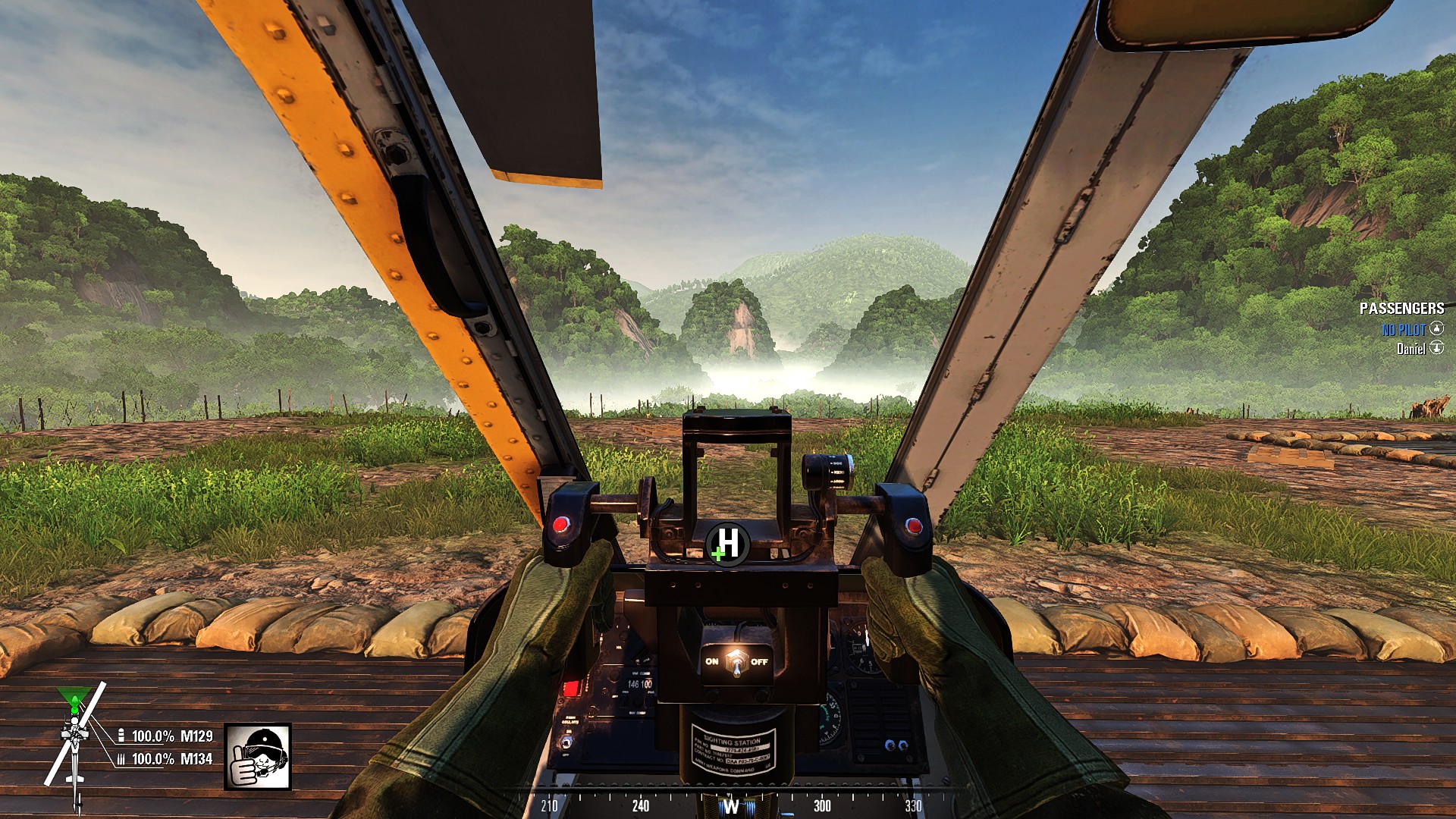
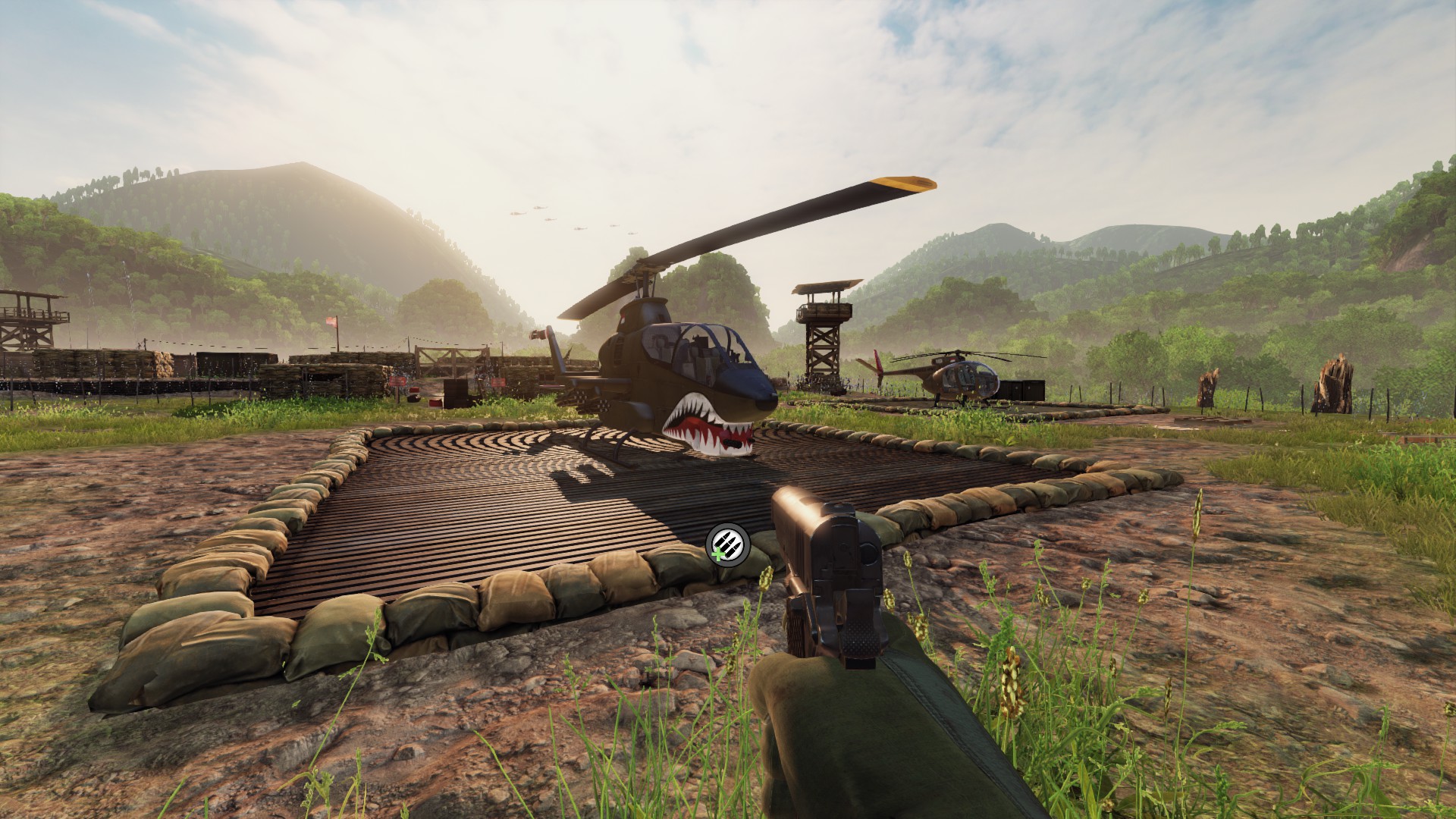
A quick guide on how to improve the visuals(sharper and less blurry) by adding ReShade 3.0.
   
Award
Favorite
Favorited
Unfavorite
Guide
Follow these steps.

1. Download ReShade 3.0 from their official website[www.reshade.me].

2. Run the installer and when it says "Select game", chose ..\Steam\steamapps\common\Rising Storm 2\Binaries\Win64\VNGame.exe. Once you have selected the .exe remember to click the DirectX10+ option.

3. When it asks you to download the shader types click Yes but select only Adaptive Sharpen, Clarity and HDR. You can use others but I haven't tried it so I can't recommend any.

4. Once the install is complete you start up the game by running the same executable you selected earlier(VNGame.exe). This is a one time deal only so later you can just start it up from Steam like you normally do. This step isn't always necessary. It depends on the game.

5. Once the game starts up you should see a box appear in the top left corner saying "bla bla ReShade successfully installed", or something along those lines. That means that it worked.

6. Once you're either in the main menu or ingame you press Shift+F2 to get the ReShade menu to open. When that's done you just follow the easy tutorial which shouldn't take more than a few seconds. After you click "Finish", remember to check the little boxes on the left to activate them. You can also go in the ReShade settings menu to change the toggle button(I prefer Home) to see clearly see the effect ReShade has.

7. When the tutorial is complete you can mess around with the settings, select which shaders work best for you, or just delete it if you're unhappy with the final result. The only change I made was to turn ClarityStrenght down to 0.1
Screenshots
Notes
Use ReShade at your own risk.
ReShade does not alter any of the game's files so you shouldn't necessarily worry about getting banned. I've been using it for years and I've never had a problem. That being said it would be good if a developer could give us the all clear, just in case.

I haven't really checked but I do know that after using ReShade for 50+ hours(beta) on RS2 I haven't experienced any major changes in my FPS. Your results may differ.

To delete it go into the Rising Storm 2\Binaries\Win32 folder. Then delete dxgi.ini, dxgi.dll and the reshade-shaders folder.

Note that this exact "recipe" can be used for many other games. I've had big success with it on Battlegrounds, Call of the Wild, Arma 3, R6: Siege and more.
45 Comments
Me suckie-suckie Feb 19, 2021 @ 11:16pm 
Can do that with just my monitor settings.
Siixo Mar 17, 2020 @ 8:05am 
Adaptive Sharpen, Clarity, HDR, and daltonize
ProxyAgent Mar 16, 2020 @ 12:02pm 
using reshade to make dark corners even darker
migbac Mar 20, 2019 @ 7:31pm 
reshade doesnt work for RS2 anymore :(
♥♥♥ Commando Apr 5, 2018 @ 10:16pm 
update: bugsplat isn't a fan. won't launch now
bofeity Mar 17, 2018 @ 8:26pm 
"download reshade to make RS2 more saturated"
Bad 💀 Motha Mar 16, 2018 @ 4:06am 
Should really watch using these in MP games; its one way to get banned.
PARCS Feb 8, 2018 @ 9:32am 
Using filters Adaptive Sharpen, Clarity and HDR with ReShade_Setup_3.0.8 and it works great.

While the filters initialize the main menu will flicker, just have to open and close the overlay to resolve this.
your mate dennis Jan 12, 2018 @ 8:20am 
The latest Reshade update doesn't work with Rising Storm 2 yet, try an earlier version.
Hyragon Dec 26, 2017 @ 12:00pm 
I have the same problem