Portal 2

Portal 2

45 ratings
How to Install actual version of BEE2?
By S I N T


This is the only and most understandable guide to installing BEE2 from all over Steam.
No unnecessary or superfluous information, just the essentials.

This guide will continue to be updated.
In future updates I will detail the mechanics of the mod, tools, styles and additional modifications.

To keep track of updates to the guide, don't forget to add it to your favorites!
2
   
Award
Favorite
Favorited
Unfavorite
Introduction


Before you ask questions, I highly recommend reading the comments, perhaps your question has already been answered.

What is a BEE2?
BEE2 - is a set of tools for the Portal 2 editor. This modification allows you to create interesting maps with new mechanics.
 
Download BEE2


Download latest version of the BEE2

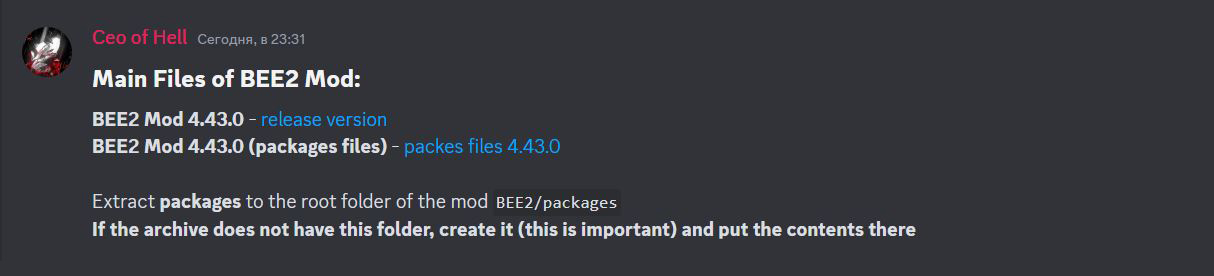
You can find a link to it in my Discord server. Also there you will find my collection of additional addons for the mod. Join! You are waiting for different plushies and other bonuses, the more of you, the more interesting material! Also, there is additional information about the installation!

Link to my Discord Server[discord.gg]

 
Depending on your system, download the archive for either a 32x or a 64 bit system.


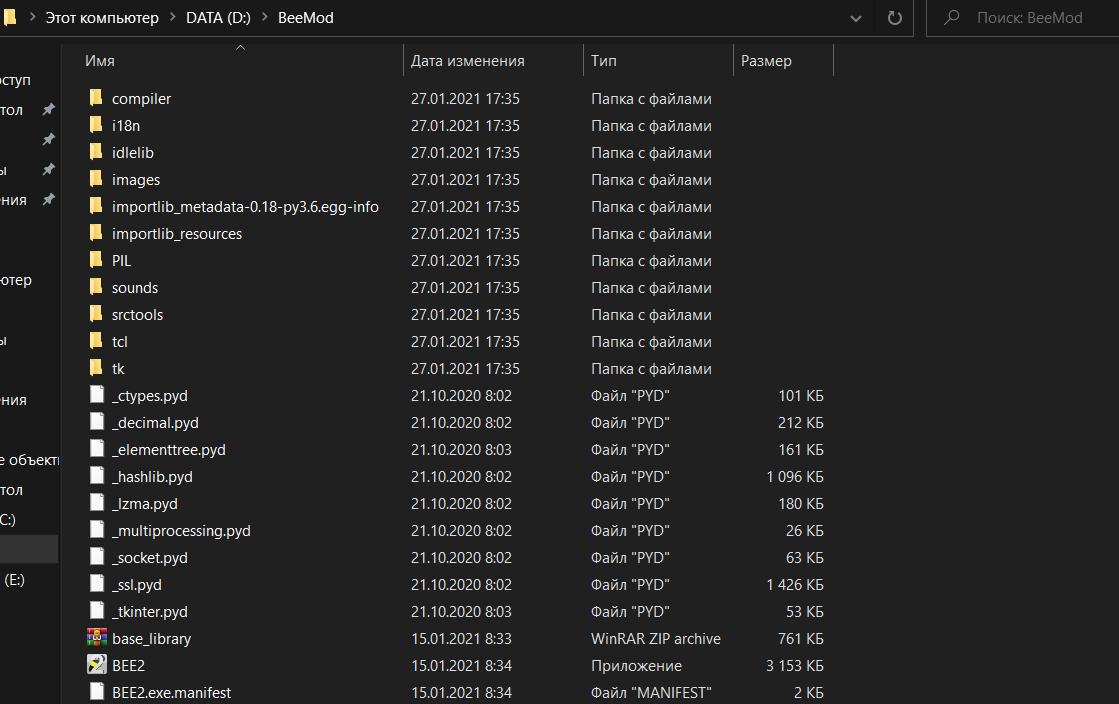
After installing the archive, unzip the contents to any convenient location.
(Preferably on the same disc as the game)

D:\BEE2\
 
 
Downloading Tools

 
  After we have installed the BEE2 launcher, we must install the toolkit
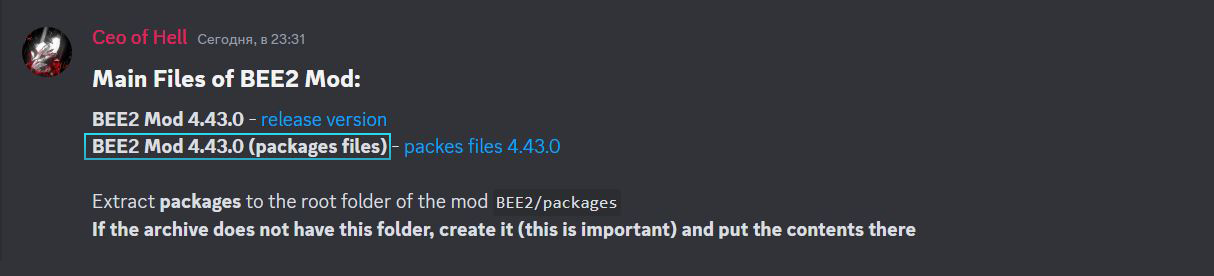
  Download the tools from the second link in my Discord Channel[discord.gg]
 
 
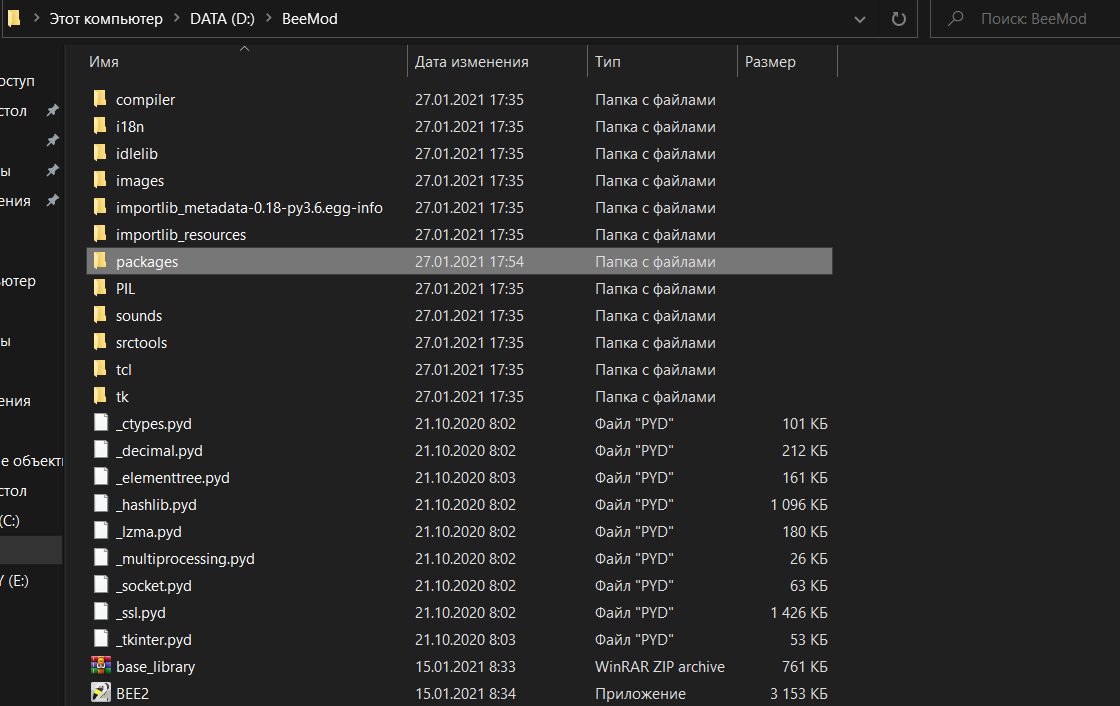
  Create «packages» folder and unpack the archive with the tools into it.
  Please read carefully before writing to me that there is no "packages" folder there. This folder should be created in the root directory of BEE2
 
D:\BeeMod\packages\


How to using the BEE2

 
Open BEE2:
We are done with the installation, now we can open our BEE2.
Open the file:
 
D:\BeeMod\BEE2.exe
 
 
Adding Tools:
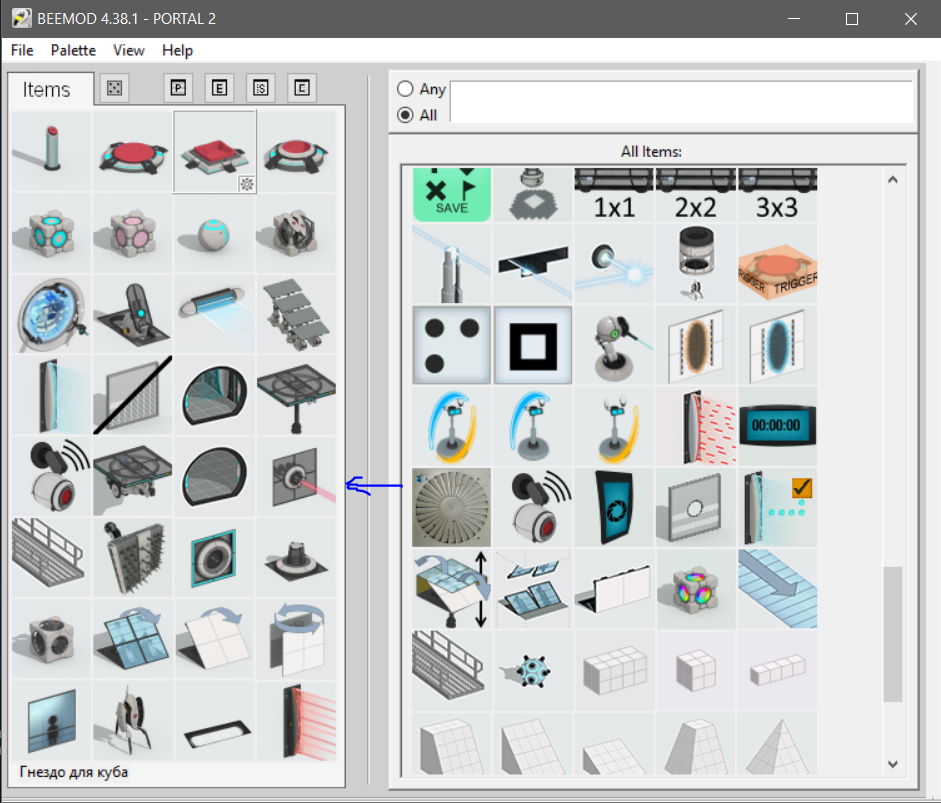
To add items of interest, simply drag any tool on the right to the panel on the left.
 
 
After that, click the File button and select Export to "PORTAL 2. The loading will start, and then you will be prompted to launch Portal 2. Click Yes and enter the editor.
 
Useful Information

Fill Pallete
When used, fills the palette
with random objects.

 
Select Pallete
Open pallete settings window.
Here you can set palette options.

 
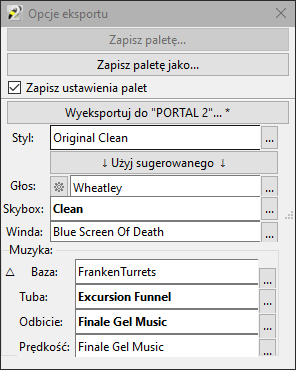
Export Options

 
Very useful and essential section for creating test chamber.

In this section you will be able to save the palette, select the "Save Settings in Palette" section, make exports to the game, select style, voice, skybox, elevator video (if supported), and select background music.

In addition, there is a useful function "Use Suggested". By selecting the desired style and then pressing this button, the voice, skybox, elevator video and music will be automatically selected. Very useful feature and sometimes can very much help and reduce the time of selecting styles.


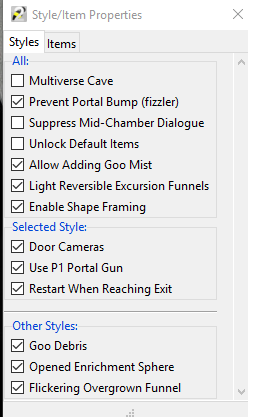
Properties of styles and Element window
Useful section for fine-tuning test chambers.
Let's take a closer look at.
 
Cave Multiverse - If you enable this, Cave Jhonson before the start of the test chamber spout all sorts of crap about the multiverse;

Protect against portals (anti-exposure field) - Soon;

Unlock standard items - if you enable this item you can remove obligatory (in the vanilla editor) items, such as entrance and exit doors, a large hall of observation, as well as you can place them yourself, even several pieces at once;

Add fog over the toxic liquid - well the name says it all;

Illumination of unfolded excursion funnels - excursion funnels will create light, if you include this item;

Symbol Frames - Helps to better distinguish the connection symbols in the test chambers;

Door Cameras - if enabled, cameras will appear at the entrance and exit;

Restart When Reaching Exit - If you disable it, test chambers will not restart, after passing;

Goo Debris - When the "Overgrown" style is turned on, different structures will be generated in the acid;

Opened Enrichment Sphere - Soon;

Flickering Overgrown Funnel - Soon;

Open 1P Entrance - Entrance and Exit in Portal 1 styles;

Use P1 Fizzler FX - Use the anti-expropriation field from the Portal 1, also uses the old sounds;

Use P1 Portal Gun - Use the Portal Gun from Portal 1, also uses old sounds.
 
 
Compilation Options
(In Process...)

An essential section for advanced configuration of the test chambers. It also contains two subsections.

Compilation Configuration

Preview:
Auto - BEE2 will automatically take a screenshots at any moment in the game
PeTi - Standart Editor Preview.

Light Settings:
Fast - A bad quality of light, usings in checks for your test Chambers.
Full - Fully detailed lighting, which used in the finished maps.
17 Comments
Jäger Dec 1, 2024 @ 11:18pm 
Is this mod still kept up to date?
CT Nov 22, 2024 @ 10:32pm 
I still can't install this mod (i'm starting to thank that this is mallwer)
S I N T  [author] Aug 16, 2023 @ 1:03pm 
Thanks.
Darealxbox Aug 15, 2023 @ 12:19pm 
wish this existed back when I tried downloading Bee2
Mrgaming Aug 12, 2023 @ 8:14pm 
BEE cool, man
S I N T  [author] Aug 4, 2023 @ 2:42am 
Guide updated.
S I N T  [author] Jul 8, 2023 @ 10:50am 
If the files glither, you must download another BEE2 mod version. And, packages for him.
S I N T  [author] Jul 8, 2023 @ 10:49am 
You must to create packages folder.
Dodyssey Jul 4, 2023 @ 12:44pm 
how do the conveyor belts work?
76561198839048219 Jul 2, 2023 @ 6:17pm 
where the hell is packages