



Install Steam
sign in
|
language
简体中文 (Simplified Chinese)
繁體中文 (Traditional Chinese)
日本語 (Japanese)
한국어 (Korean)
ไทย (Thai)
Български (Bulgarian)
Čeština (Czech)
Dansk (Danish)
Deutsch (German)
Español - España (Spanish - Spain)
Español - Latinoamérica (Spanish - Latin America)
Ελληνικά (Greek)
Français (French)
Italiano (Italian)
Bahasa Indonesia (Indonesian)
Magyar (Hungarian)
Nederlands (Dutch)
Norsk (Norwegian)
Polski (Polish)
Português (Portuguese - Portugal)
Português - Brasil (Portuguese - Brazil)
Română (Romanian)
Русский (Russian)
Suomi (Finnish)
Svenska (Swedish)
Türkçe (Turkish)
Tiếng Việt (Vietnamese)
Українська (Ukrainian)
Report a translation problem



 Many of you have already started using our Dedicated Server app. It works just fine for most people on its default settings, but it is not exactly “headless”. The app still shows a simplified UI that lets you configure basic gameplay options. In some cases, this is a problem, especially if you want to control the server fully remotely. While we do offer a Command Line Interface (CLI), it’s not exactly trivial to figure out how to configure the app, especially since it is still our custom-built game engine. Today, we want to give you a crash course on how to set up the Dedicated Server app so that you can “run it and forget it” - without the need to click any buttons whatsoever.
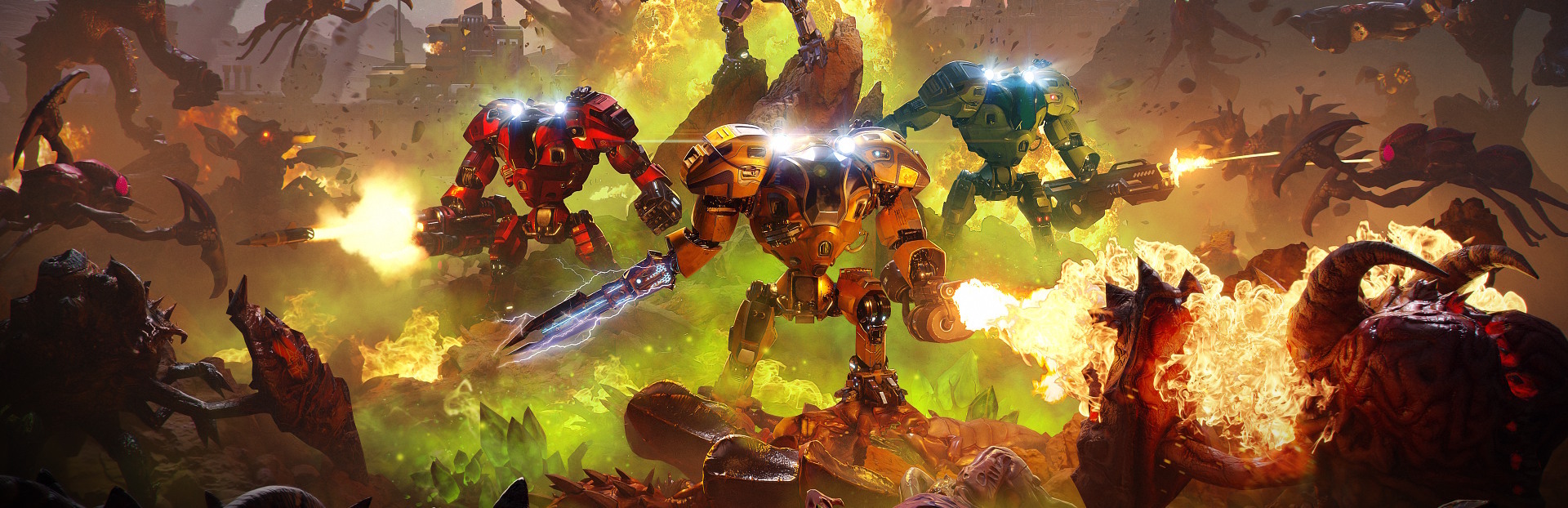 As we mentioned, the server launches in GUI mode by default. The app shows you a window with several options that allow you to configure the basic server settings - the name of your server, game mode, map, difficulty level, and a couple of others. These are all crucial parameters for the app to run - without them, it simply doesn’t know what it should do. It’s not a big deal when you’re running the server on a PC that you can control directly. A couple of clicks, and you’re in the game.
  Things are not so simple when dealing with completely remote servers managed via the command line. The Dedicated Server app supports Command Line Interface mode, which skips the GUI altogether. This mode is enabled by adding the following parameter to the command line while starting the app:
 Now, you can run the game with the following parameters:
  Simply uncomment the options you want to run, and you’re all set! If you have any additional questions about running the Dedicated Server, customizing its options, or changing its behavior, feel free to let us know. We will do our best to help you!


 Award
Award 26
26


 Enemy Resistance and Vulnerabilities
 All Codes


 RIFTBREAKER CODES


 Campaign Brutal 500% (Post 2.0)


 How to prepare for Mega Structures from the beginning and reduce the grind to reach the end












 Loading

