
Into the Radius VR

Into the Radius VR

Not enough ratings
Finding & Installing mods + Troubleshooting (Updated: 23.12.27)
By HUNjozsi
If you are looking to find mods for Into The Radius, - and troubleshoot if necessary - you are in the right place!
This will be your ultimate mod installation guide
It's relatively in-depth, so feel free to use the table of contents for ease of navigation.
3
   
Award
Favorite
Favorited
Unfavorite
#0.1 Setting expectations
Before we get started finding mods that suit your needs..

You must set your expectations - as currently there are some things that are not possible.
This section will explain a few of these limitations

First things first, don't fret - even though some aspects are limited, there is still quite a wide selection of fun mods to choose from.

At the time of writing this ( 23.06.19 ) there is no official mod support for the game.
(More on this in section #4.0 Official Mod Support)
What this means is that the currently available mods are done in a way that is essentially "brute forcing"

Therefore, not everything can be changed about the game, for example:
  • New items can not be added, they can only be replaced
Example 1: In the game, there is a single drinkable item that exists - you might want to have a second variant, but it is not currently possible, if you want to have that, you must replace the original.

Example 2: There are a few posters available in the game, you want something fresh, but you would also like to keep the original - this is currently not possible, you can only replace them.

  • Similarly, due to not having proper mod support, there are some other aspects in the game that can't be changed, such as skeletal meshes - this means that currently no new enemies can be added, but in this case, they can't even be replaced due to their nature.

However, there are still fun and exciting tweaks available for the game, such as increased enemy spawn rates, completely replaced loot-tables - and of course weapon; model; texture and sound replacements.

Random words of wisdom
Even if you are looking for something that is not quite possible yet - I encourage you to take a look at the mod selection, the community have put together a lot of cool things that might still peak your interest.
#1.1 Getting Started | Finding mods
Finding mods

Option 1 | Nexus Mods
If you are looking for mods, the best place to start with is Nexus Mods
Link[www.nexusmods.com]

The site is pretty straightforward to use, so navigating it should be a breeze, even if you are new to modding - as such I won't go into detail about it here, just take a look around - there are quite a few categories to browse from - do keep in mind however, that you will need to register a free account in order to access the downloads.

With that being said, there is one important thing to mention

While browsing on Nexus, you sometimes have the option to install mods by using Vortex, it's a 3rd party tool that is designed to be easy to use, and quite simply it will automate installing mods for you.
By using it, you won't need to locate your game folder manually, or copy&paste files on your own - the software will do it for you.

But, not all mods can be installed with Vortex, as it's integration with ITR happened relatively late, some mods were made before it happened, and not all of those mods were retro-fitted with the option.

With that being said, if you decide to use Vortex, it's always a good idea to make sure that it has installed the mods correctly
(More on this in section #2.0 Troubleshooting)

Option 2 | The official ITTR Discord
Discord Invite[discord.gg]

Before mods were put on Nexus, they were shared on the Discord.
By their nature, some of these will most likely be outdated (If you want to play the older version of the game you'll be right at home however) - and in general, you might have some luck finding things that aren't available elsewhere.

..Plus you get to hang out with the community, and receive modding help
(Again, more on this in a later section: #3.5 Bonus)
#1.2 Mod Installation | Without Vortex
Installing those amazing mods you found
..is quite simple

Without using Vortex
- First step
Locate your download(s), it will most likely be in a .rar or .zip format - you will need to extract them with an appropriate tool such as 7-Zip, or with Windows' built in tool.

- Second step
Navigate to your game folder
This can be done in two ways, either manually - or by simple using Steam

  • Steam method


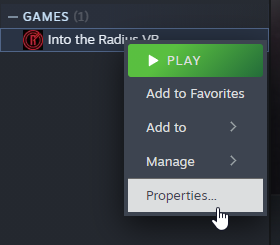
Locate the game in your Steam library, and right click it - then click on Properties

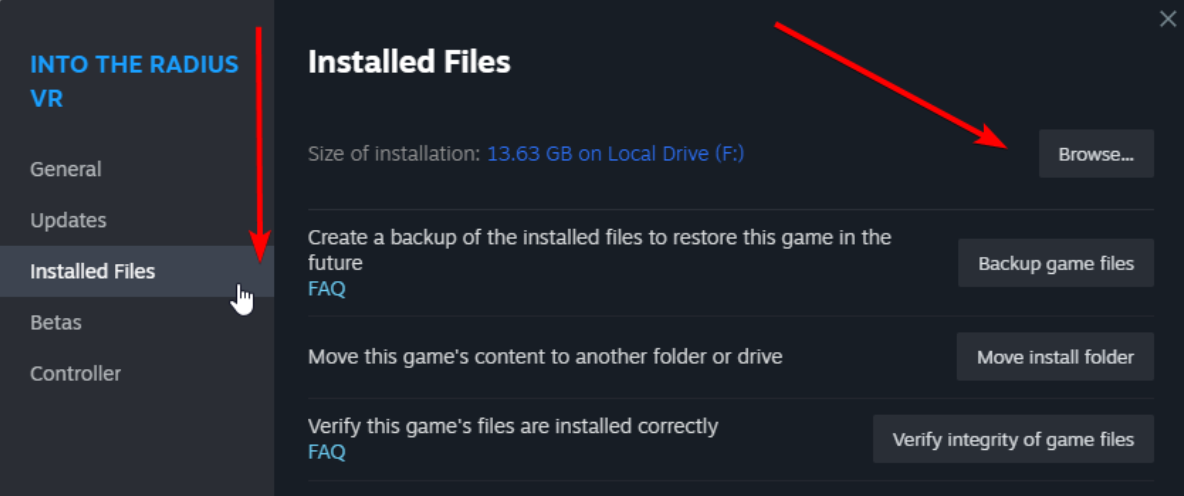
Once you've done that, you will see this window.
Click on "Installed Files" and then choose the "Browse..." button on the right side.

From here on out, the steps are identical with the Manual method, therefore..
  • Manual method

- First step
Navigate to your game folder - which is is usually found at, unless you have changed it manually.
"C:\Program Files\Steam\steamapps\common\IntoTheRadius"
If you used the Steam method - you are already here.

- Second step
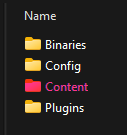
You should see the game's exe, and two additional folders - open the folder named 'IntoTheRadius'

You should see the following contents - open the 'Content' folder


- Third step
You should see a folder inside called Paks - open it.

Copy your extracted mod files, and paste them in this folder.
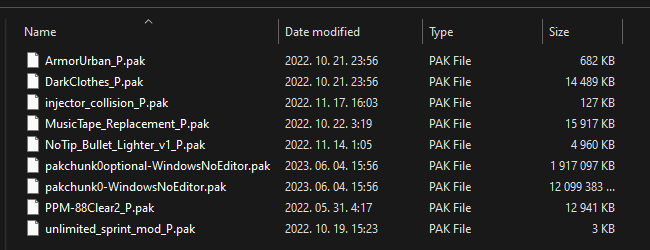
Make sure that the mod files are in .pak format - and that their names all end with a '_P' (Case sensitive!)
If you have done everything right, it should look something like this
(With your own mods of course)

Also take note of the two files named 'pakchunk..' in this folder - do not modify them, as they are important game files - you will ruin your game install.


- Fourth step
Enjoy your mods!

If something goes wrong while launching your game,
head over to section #2.0 Troubleshooting

For installations with Vortex, head over to section #1.3 Vortex
#1.3 Mod Installation | Using Vortex
Using Vortex to install your mods
..is even simpler

- First step
Download Vortex from Nexus[www.nexusmods.com]

- Second step
Install Vortex - and login with your Nexus credentials.
Then set it up to work with ITR, here's how:

On the left hand side, click on ' Games '
In the 'Search for a game' text box - type in Into The Radius (Duh)
Click on it and follow the on-screen prompts

If you have done that, you might get a message saying:
"Game not discovered"
Don't worry - simply navigate to your game folder
Usually found in:
' C:\Program Files\Steam\steamapps\common\IntoTheRadius '

That's all there is to it
If you need further help, on the same page you should see a few videos from the Vortex team that will guide you through on how to use the software.

- Third step
Now you can minimize Vortex, and head back on Nexus - find your desired mod(s)

- Fourth step

If the mod has a ' Vortex ' button - click it.
In case it doesn't, you will have to do a manual install - head back to section #1.2

The mods will download automatically, and should be enabled by default.
Do keep an eye out on notifications inside Vortex however, as they sometimes have important info

- Fifth step
Enjoy your mods!
If you want to make sure, you can double check to see if Vortex has installed the mod(s) correctly - for this you'll have to navigate to the game's folder:
"C:\Program Files\Steam\steamapps\common\IntoTheRadius"

If the mod was put in a folder inside Paks, that is okay. - See section #3.5 for more info

That's all there is to it - enjoy your mods!

In case something went wrong during the game's launch - or mods are not working, head over to section #2.0 Troubleshooting)
For installations without Vortex, head back to section #1.2 Manual Install
#2.0 Troubleshooting | Crashes
Uh oh.. my game crashed

  • First, take note of when / where you are crashing

- Is it during the game's launch, before even reaching the main menu?
- Perhaps you only crash when approaching a specific location in-game?
- Or is it while handling a specific item?
To identify the root of the problem, you must answer these questions first

  • Crashing while handling a specific item / weapon

Have you recently installed a weapon mod, and you just happened to crash while using it?
Remove it - and try again without having it installed.
If the issue goes away, that mod in particular might be the reason - but it can be due to a couple other reasons..

- First, the mod could be outdated - try to see if you can find any info about the tested game versions in the mod's description - this isn't always provided, but it's a good place to start.
In the event that it is outdated, see if there is an updated version, sometimes these can be found under the Optional Files section on the Downloads page (On Nexus)

- It's also a good idea to check if your own game is up-to-date, perhaps the mod was made for a newer version in mind, and you haven't updated yet.

- The third option is the possibility of a mod-conflict, see if you have installed any other mods that may interfere with each other.
Sticking to the weapon mod as an example, this should be simple enough to check - as having two mods that both affect the same gun is likely to cause a conflict
(But not in all cases, see section #3.5 Bonus for more info)

- Sometimes the mod developer will list mods that are known to cause conflicts, see if you can find it in the mod's description - or take a look in the comment section, and check if someone else is having similar issues.


  • Crash before reaching the menu / while loading

- If you are experiencing crashes before even reaching the main menu (Or perhaps while loading into a save) - the easiest way to troubleshoot is by removing all mods, and re-installing them one by one, this should eventually show you the culprit.
After you found the culprit, you can refer to the basic troubleshooting steps above - the mod could simply be outdated, or there is a conflict.

- Generally speaking, if a mod causes crashes while loading into the game - it's most likely not due to a simple texture change, so it's a good idea to suspect the mod(s) that make changes in the game on a deeper level.
This may not always be the case, but it could be a somewhat reliable way to find the problem, without having to remove everything.

  • Crash when approaching a specific in-game area
- Unfortunately this issue is just as mysterious as crashes while loading in, and as such you will most likely need to remove all mods that were recently installed - and start from there.
By it's nature, it's hard to pinpoint what exactly may be causing the crash, as the game locations house various items and entities, any of them could be the culprit - so depending on what exactly you've downloaded, it could be any number of things.


It is also worth mentioning that not all crashes are mod related, it could be the game itself.
#2.5 Troubleshooting | Performance & Missing Mods
Mods are seemingly not showing up


Since there is no way to see if mods are active with an in-game mod menu, you will need to check it yourself, manually.
This means that sometimes you may not know that something is not working until much later.

Fortunately, or rather unfortunately - in most cases it will be obvious, maybe you've installed a weapon mod - but upon picking up your shiny weapon, it's still the old model, textures and sound - what gives?

- First things first, double-check that your mod has been installed correctly
- Is it in the right folder?
- Did you properly extract the files?
- Make sure that all files are present, and that they are in the .pak format
- While doing so, check that their filenames end with ' _P '

These same steps also apply for verifying Vortex installations

In the event that any of the things listed are not correct, the game will load up the original files instead. Resulting in the mod(s) not working

It is also necessary to check if any of the mods are outdated, and that you are on the correct game version - it could be the case that your desired mod is simply not up-to-date, or it was made for a specific game version, and it only works there.


Performance issues


Since mods modify the game (And water is wet), you may end up with performance loss, this is to be expected in some cases, if you are using mods that change the game's graphics (For ex. the view distance changer mod)
But in the event that you didn't install anything of the sort, and you are suddenly experiencing framerate issues, try to pinpoint the source - it should be relatively simple

  • Is it happening while handling a specific weapon or item?
If so, after identifying it - simply remove the mod and see if the issue persists.
It could simply be a case of a model not being optimized well enough - if you want to, you can notify the mod developer about it, as long as you are sure that the mod in particular is the culprit.

Alternatively, see if you are on the most up-to-date version of the game - the developers are constantly working on optimizations, and it could be that you are simply running an outdated version.
#3.0 TL;DR
Too lazy to read my wall of text?
..Can't blame you

  • Finding mods
- You can find mods on Nexus Mods[www.nexusmods.com]
- Or by joining the Discord server[discord.gg] (Somewhat limited) most mods are on Nexus these days


  • Installing mods
- Without Vortex

1. Navigate to your game folder
' C:\Program Files\Steam\steamapps\common\IntoTheRadius\IntoTheRadius '

2. Extract mod files anywhere - and then copy&paste the files into the game folder
(Inside the folder: Content\Paks)

3. Check if the file format is correct ( .pak ) and that their names end with ' _P '

- With Vortex
1. Install Vortex, and set it up to work with ITR

2. Find your desired mod, make sure it is available to be installed with Vortex
(It either has a Vortex button, or not)

3. That's it - keep an eye out for notifications inside Vortex however.


  • Troubleshooting missing mods
- Check if the file format and filename is correct |
Name ends with ' _P ' | File format is ' .pak '

- Check for outdated mods

- Check for mod conflicts

- Check if you have installed the mod(s) in the correct folder
(Content\Paks)

- Make sure you're running the proper version of the game, if the mod specified it

  • Troubleshooting crashes
- Take a note of when / where you are crashing
( Loading, specific location, using a specific item? )

- Depending on which one of the above is happening to you:
Either remove all mods
Or remove them one by one until the issue goes away

- Check for mod conflicts

- Check your game version

- Check if the mod is outdated


  • Troubleshooting performance issues
- If you didn't install any graphics enhancing / changing mod - try to remove all mods, re-install them one by one

- If you installed any mod that alters the graphics, start by removing it - and see if the issue persists

- Try to pinpoint the culprit by taking a look at what exactly makes you lag, specific weapon? Location? Find it and remove it

- Update your game / mod(s) if possible
#3.5 Bonus - Good to know
Official ITR Discord Server

Before moving on, I must mention the official ITR Discord once again
It is a great resource for getting help with mods, chatting with the community, etc.
ITR Discord Invite Link [discord.gg]


Tips and tricks?

Having multiple mods that change the same thing | Load order

In some cases you might get away with having multiple mods that change the same thing, but beware - as this is not a foolproof!

This is possible because the game has somewhat of a load order.
It will load mods in an alphabetical order, so by changing the filename ( Again, do not touch the ' _P' at the end, it is essential ) you can make it so that one mod loads before the other

In theory, this should mean that the 2nd mod is essentially non-existent, and it should not cause any issues.
However, in the event that the 2nd mod has files that the 1st mod did not replace - it could very well be loaded, and depending on what it is - it could cause unforeseen consequences.

The best practice is to remove the ' _P ' from the filename (But only in this one case) - or simply move the files to another folder, maybe even the trash can (Be careful with that though)

If you are absolutely sure that there will be no conflicts, renaming a file can be sometimes less tedious as opposed to deleting / relocating a mod and re-installing later.

Organize your mods

If you create folders inside your Pak folder, the game will still load the mods just fine.
So if you have many mod files scattered around, and your folder looks like a mess, simply create new folders to organize things
Maybe a folder for your weapon mods? One for sounds, and another for texture replacements?

It will still load the contents alphabetically - and as far as I know, the folder name itself is not taken into consideration.

Downgrading your game
If you are curious about how the game looked in the old version, or perhaps you found mods for it that you want to check out, you will need to downgrade your game.

Luckily you don't need to be a time traveler to do this, simply head into your Steam Library, right click on the game - and navigate over to the 'Betas' tab
Then select the drop down menu at the ' Beta Participation ' section - and select whichever option suits your needs.

With this method, you can go back to the game's 1.0 version - which is a vastly different experience.
If you want to go to a specific version, then you will need this guide:
Reddit ITR Guide

Making your own mods for Into The Radius

Are you interested in making your own mods for the game?
By joining the Discord you can find multiple mod making guides right away, and you can request help from the community if you ever get stuck - there are a lot of talented and helpful people there.
#4.0 Official Mod support & Quest 2 version | Closing Thoughts
Official Mod Support

The 2.8 update with Mod Support has been cancelled.
Official announcement from CM Games https://store.steampowered.com/news/app/1012790/view/3790402175232278604?l=english
The original announcement regarding mod support can be found here - but since it has been cancelled, this is only for archival's sake.
https://store.steampowered.com/news/app/1012790/view/3702565493872690400?l=english

Quest 2 version modding

If you're a Quest user who stumbled upon this guide, you may or may not know that..
Currently the Quest 2 version of the game does not support any kind of modding

There is no way to get around this, due to strict limitations - but as per the announcement, this might change in the future.
For now however, the only way to have a play-through with mods is by playing with the PCVR version

Closing Thoughts
If you reached this far into the guide, thank you for reading.
Have a cookie, it's on the house.

This was my first guide, so if you have any thoughts, feedback - or in case I missed something, or if you have any questions at all - don't hesitate to reach out in the comment section.
If anything changes in regards to modding - I will update this guide to be accurate, as soon as possible.

Have a nice day, and stay safe inside the Radius
1 Comments
Sep 19, 2023 @ 1:40pm 
thanks for the cookie