Steam for Linux

Steam for Linux

410 Bewertungen
Optimizing Linux for Gaming
Von Houtworm
In this guide i will do my best to explain how to optimize Linux for gaming, The steps are pretty simple and anybody should be able to follow along. If you have any questions or suggestions please leave a comment :)
18
8
7
6
3
3
2
2
2
58
   
Preis verleihen
Favorisieren
Favorisiert
Entfernen
Introduction
This guide is only for Arch and Ubuntu. Any derivatives like Manjaro, Mint, PopOS, etc should also work.

If your Distro is not here, you run into any problems or have any more additions to this guide, Leave a comment and I will add it. Any help is more than welcome :)

If you are not a Linux user, check out my other guide on How to choose the right Distro Install it and then come back to optimize it for gaming :)
Enable Multilib
Multilib is required by Steam, So if you are running Steam you can skip this step, If you can not find Steam in your repositories this is your issue.

Arch Linux, Manjaro, Chakra, etc.:

Edit /etc/pacman.conf and uncomment the multilib section.
sudo nano /etc/pacman.conf

Remove the # in front of all the multilib section lines, then save and exit with CTRL + X and run
sudo pacman -Syyuu

If you are running KDE be sure to install lib32-fontconfig with the following command
sudo pacman -S lib32-fontconfig

Ubuntu, PopOS, Mint, Elementary, etc.:

Add the architecture.
sudo dpkg --add-architecture i386

Update the package manager
sudo apt-get update

Upgrade to newer packages
sudo apt-get dist-upgrade
GPU Drivers
Having the right GPU drivers is imporant, else games won't run properly.

If you have a GTX9xx or newer you need driver version 430. If you have a GTX 8xx or lower you need driver version 418 and if you have a GTX5xx or lower you need driver version 390. Pick the right driver version. If you even have an older card, manually check which driver you need: https://www.nvidia.com/Download/index.aspx?lang=en-us

If you have an AMD card you just need the newest version.

Arch Linux, Manjaro, Chakra, etc.:

Nvidia
For the newest Nvidia you need these packages so install them.
sudo pacman -S nvidia nvidia-settings nvidia-utils lib32-nvidia-utils lib32-opencl-nvidia opencl-nvidia libvdpau libxnvctrl vulkan-icd-loader lib32-vulkan-icd-loader

For Nvidia 390 you need these packages so install them.
sudo pacman -S nvidia-390xx nvidia-390xx-settings nvidia-390xx-utils lib32-nvidia-390xx-utils lib32-opencl-nvidia-390xx opencl-nvidia-390xx libvdpau libxnvctrl-390xx vulkan-icd-loader lib32-vulkan-icd-loader

AMD
you need these packages so install them if you have a AMD GPU
sudo pacman -S mesa lib32-mesa mesa-vdpau lib32-mesa-vdpau lib32-vulkan-radeon vulkan-radeon glu lib32-glu vulkan-icd-loader lib32-vulkan-icd-loader

Both
Now update and reboot
sudo pacman -Syu && sudo reboot

Ubuntu, PopOS, Mint, Elementary, etc.:

Nvidia
For Nvidia you need to add a repository
sudo add-apt-repository ppa:graphics-drivers/ppa && sudo apt-get upgrade

For Nvidia 440 you need these packages so install them.
sudo apt install nvidia-graphics-drivers-440 nvidia-settings vulkan vulkan-utils

For Nvidia 430 you need these packages so install them.
sudo apt install nvidia-graphics-drivers-430 nvidia-settings vulkan vulkan-utils

For Nvidia 418 you need these packages so install them.
sudo apt install nvidia-graphics-drivers-418 nvidia-settings vulkan vulkan-utils

For Nvidia 390 you need these packages so install them.
sudo apt install nvidia-graphics-drivers-390 nvidia-settings vulkan vulkan-utils

For Nvidia 340 you need these packages so install them.
sudo apt install nvidia-graphics-drivers-340 nvidia-settings vulkan vulkan-utils

AMD
For AMD GPUs you also need to add a repository
sudo add-apt-repository ppa:oibaf/graphics-drivers && sudo apt-get update && sudo apt-get upgrade

Next install the needed files for AMD GPUs
sudo apt-get install libvulkan1 mesa-vulkan-drivers vulkan-utils

Both
Now reboot
sudo reboot

If you use Gnome or GDM you might need to disable Wayland, This is not always the case, But I include it here just in case, If your System won't reboot you can try this

sudo nano /etc/gdm/custom.conf

Remove the # in front of the #WaylandEnable=false line and it should force Xorg.
Linux kernel
Installing the newest kernel is generally the easiest kernel switch, There are other kernels available, I will include them later.

To install the newest kernel

Arch Linux, Manjaro, Chakra, etc.:

This is the default in Arch, no need to do anything, the newest kernel will be present.

Ubuntu, PopOS, Mint, Elementary, etc.:

The easiest way is to use ukuu, First we need to install it.
sudo add-apt-repository ppa:teejee2008/ppa && sudo apt-get update && sudo apt-get install ukuu

Now ukuu is installed, in this program you can select the newest stable kernel click install and when you reboot the new kernel is used. Do not remove your old kernel. If anything goes wrong you can select which kernel to boot in the grub screen at startup and remove the kernel that gives you trouble.

Feral Gamemode
Gamemode[github.com] puts all your hardware in performance mode, it fixes some common problems and it just sounds cool :P

Arch Linux, Manjaro, Chakra, etc.:

Gamemode is in the AUR run the following commands to install gamemode.
git clone https://aur.archlinux.org/gamemode.git && cd gamemode && makepkg -si && cd

same thing for 32bit gamemode.
git clone https://aur.archlinux.org/lib32-gamemode.git && cd lib32-gamemode && makepkg -si && cd

Ubuntu, PopOS, Mint, Elementary, etc.:

Install the dependencies
apt install meson libsystemd-dev pkg-config ninja-build git libdbus-1-dev libinih-dev

Clone the repository

Change the directory into the just downloaded folder
cd gamemode

Change the tree to the newest version
git checkout 1.5.1

Run the install script
./bootstrap.sh

All distros including Arch and Ubuntu

Now that it is installed we need to enable the service with this command
systemctl --user enable gamemoded && systemctl --user start gamemoded

To use gamemode for supertuxkart for example, run this terminal
gamemoderun supertuxkart

To use it in Steam edit the launch option for the desired game to
gamemoderun %command%

If gamemode does not run try to make it executable:
sudo chmod +x /usr/bin/gamemoderun

If gamemoderun does not work for you try this as a launch command:
LD_PRELOAD=$LD_PRELOAD:/usr/lib/x86_64-linux-gnu/libgamemodeauto.so.0 %command%
Nvidia Improvements
Nvidia users might want to enable all options listed here to improve performance in games

Force Full Composition Pipeline avoids screen tearing by letting the GPU do all the scaling.
Triple Buffer avoids stuttering gameplay It allows for a stream of data instead of chunks of data.
IndirectGLXProtocol forces the game to directly communicate with the Nvidia drivers.
Coolbits enables your card to be overclocked which gamemode will make use of.

Arch Linux, Manjaro, Chakra, etc.:

Create a Xorg Config file:
sudo nvidia-xconfig

Move it to the right directory:
sudo mv /etc/X11/xorg.conf /etc/X11/xorg.conf.d/20-nvidia.conf

Edit the file with the following command
sudo nano /etc/X11/xorg.conf.d/20-nvidia.conf

Add in these lines under the "Device" section between the other options
Option "TripleBuffer" "on" Option "Coolbits" "28"

Add in these lines under the "Screen" section between the other options.
Option "metamodes" "nvidia-auto-select +0+0 {ForceCompositionPipeline=On, ForceFullCompositionPipeline=On}" Option "AllowIndirectGLXProtocol" "off"

Try this one with risk, It will be sure to crash GNOME, I am not sure about other DEs

just add it to the end of the file
Section "Extensions" Option "Composite" "Disable" EndSection

If you run into any problems, just hit CTRL ALT F3 to switch to a different tty login, run the command to edit the file again and put a # in front of the options that are giving you trouble and reboot

Alternatively you can just completely remove the file with the following command and reboot
sudo rm /etc/X11/xorg.conf.d/20-nvidia.conf

Ubuntu, PopOS, Mint, Elementary, etc.:

Create a Xorg Config file:
sudo nvidia-xconfig

Edit the file with the following command
sudo nano /etc/X11/xorg.conf

Add in these lines under the "Device" section between the other options
Option "TripleBuffer" "on" Option "Coolbits" "28"

Add in these lines under the "Screen" section between the other options.
Option "metamodes" "nvidia-auto-select +0+0 {ForceCompositionPipeline=On, ForceFullCompositionPipeline=On}" Option "AllowIndirectGLXProtocol" "off"

Try this one with risk, It will be sure to crash GNOME, I am not sure about other DEs

just add it to the end of the file
Section "Extensions" Option "Composite" "Disable" EndSection

If you run into any problems, just hit CTRL ALT F3 to switch to a different tty login, run the command to edit the file again and put a # in front of the options that are giving you trouble, Most likely the last one

Alternatively you can just completely remove the file with the following command
sudo rm /etc/X11/xorg.conf
Libstrangle
Libstrangle[gitlab.com] is a tool that helps you control framerates but also vsync settings. This is especially handy for games that do not support these features, You would like to half your framerate to make it run better save some power or just give your hardware a break.

If you run Arch it will be in the AUR, for other distros you have to run the following commands


Libstrangle can be used in multiple ways depending on what you want to achieve.

To use libstrangle you can simply type strangle and then the amount of frames you want to run. There are some examples below, But the features you will probably use are Vsync which you use by using the -v option, the rules for OpenGL and Vulkan are different, Here is what each number does for the different apis.

OpenGL 0 Force off, 1 Force on, n - Sync to refresh rate
Vulkan 0 Force off, 1 Mailbox mode, 2 Traditional vsync, 3 Adaptive vsync

You can also limit the game depending on the power state of your device, Set it to 60 while charging and on 30 while discharging for example. You do this by adding a second number right after a colon. in example, strangle 60:30. There are more features but they are not that commonly used, you can check the gitlab link above or simply type strangle -h for more information.

To limit the framerate of supertuxkart to 30 simply run

strangle 30 supertuxkart

To Force enable vsync on 60 fps for an OpenGL Steam game set the launch option to

strangle -v 1 60 %command%

To set the framerate of a vulkan game on Steam to 120 fps but 60 on battery power with adaptive vsync set this as your launch command

strangle -v 3 120:60 %command%
Mangohud
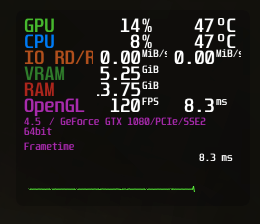
Mangohud[github.com] is a monitoring tool for Vulkan and OpenGL applications. It can show CPU and GPU usage, temps, But also framerates, frametimes and a lot more.


If you are on Arch you can find it in the AUR, If you are on Fedora you can find it in your repos.

For other distros execute the following commands.

git clone --recurse-submodules https://github.com/flightlessmango/MangoHud.git && cd MangoHud && ./build.sh build && ./build.sh package && ./build.sh install

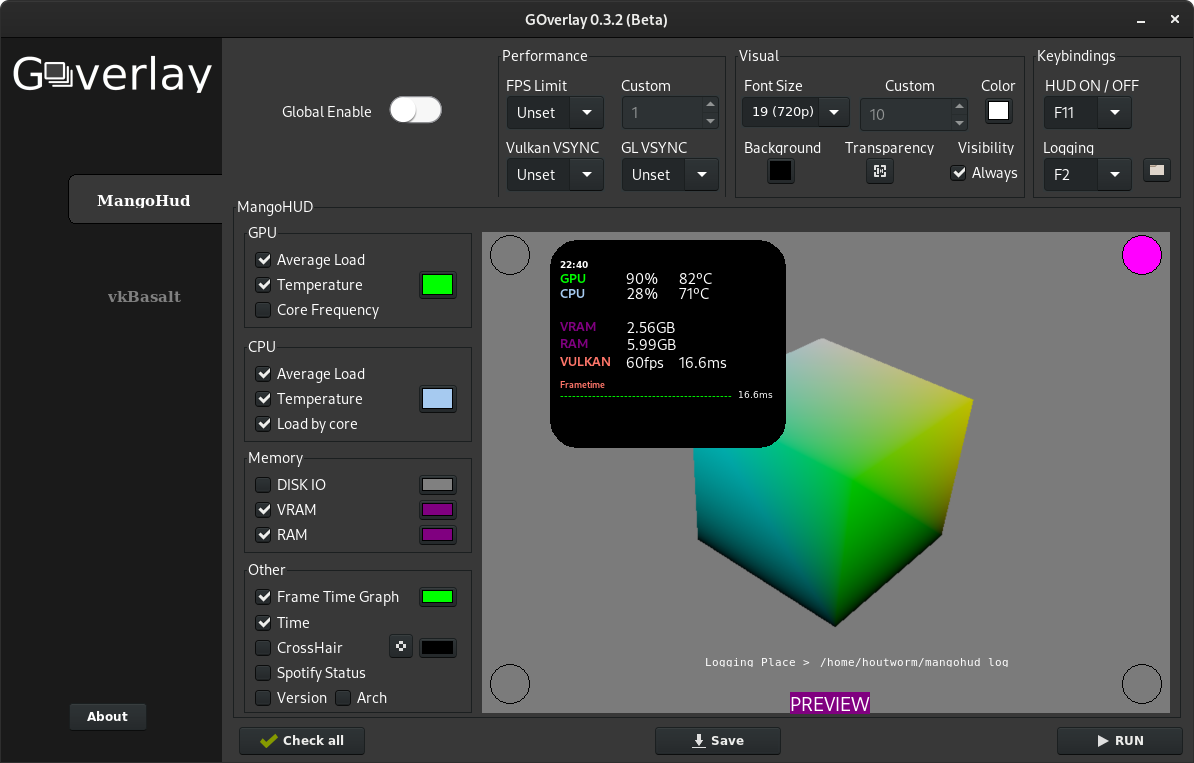
To configure it with a GUI you can check out GOverlay below. For a manual configuration you can edit

~/.config/MangoHud/MangoHud.conf

If you want exactly my configuration you can just copy this into it without the need for GOverlay.

background_alpha=0.3 font_size=20 background_color=020202 text_color=ffffff position=top-right no_display toggle_hud=F11 cpu_stats cpu_temp cpu_color=007AFA gpu_stats gpu_temp gpu_color=00BD00 ram ram_color=B3000A vram vram_color=00801B io_read io_write io_color=B84700 arch engine_color=B200B0 frame_timing=1 frametime_color=00ff00 #output_file=/home/houtworm/mangohud_log_ #fps_limit 120 #media_player #toggle_logging=F10

You can tweak all the little things you want here. You can also create different configurations per game by adding a MangoHud.conf file to the game directory.

To use it for any game change its launch option to

mangohud %command%

To use it with non Steam games use the following command

mangohud supertuxkart

Some games might need the 32 bit version, try this if the normal command fails.

mangohud.x86 %command%
VKBasalt
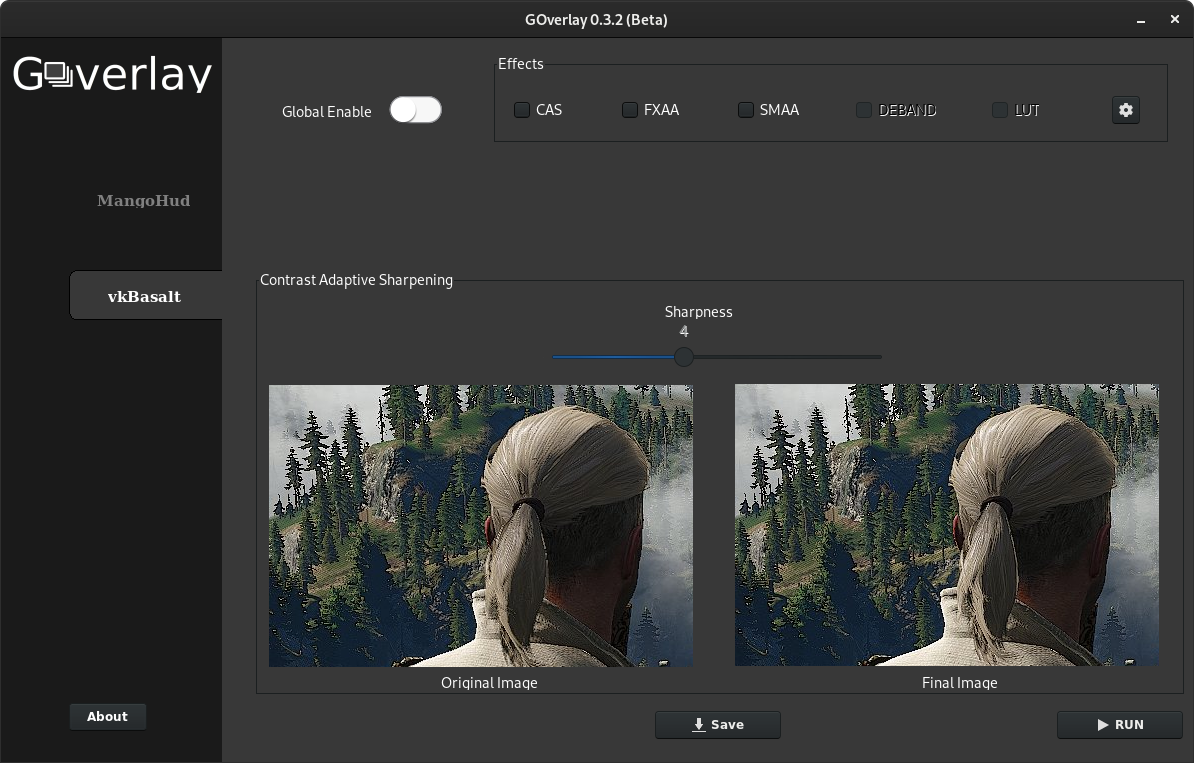
VKBasalt[github.com] is a post processing layer for Vulkan which enables you to enhance graphics further. It only works with Vulkan, This includes all Proton games.

If you are on Arch, it will be in the AUR, Just look for Basalt using your package manager.

If you are on a different distro you need to manually build it.

git clone https://github.com/DadSchoorse/vkBasalt.git && cd vkBasalt && meson --buildtype=release builddir && ninja -C builddir install

To configure it first you need to create a config file, Run the following command to copy the example to a folder you can edit as the user.
mkdir ~/.config/vkBasalt && cp /usr/share/vkBasalt/vkBasalt.conf.example ~/.config/vkBasalt/vkBasalt.conf

You can tweak all the little things you want here. You can also create different configurations per game by adding a vkBasalt.conf file to the game directory.

To use VKBasalt for any particular game enter this as a launch option.

ENABLE_VKBASALT=1 %command%

You can also start non Steam games this way by typing the following command

ENABLE_VKBASALT=1 supertuxkart
GOverlay
GOverlay[github.com] is a Graphical User Interface for managing MangoHud and VKBasalt

If you are on a Arch based distro you can find it in the AUR, just install it with your favorite package manager. You can also find it in your repos if you are on Fedora.

If you are on a different Linux distro you can install it manually.

First install Lazarus and git with your package manager, it should be in your repositories, and maybe it is already installed. I will list the installation method for Debian based systems, change the first command if you are on a different distro.

sudo apt-get install lazarus git


cd goverlay

lazbuild -B goverlay.lpi

mesa-demos and vulkan-tools are optional, You need them if you want to show the previews. You can find them in your distros repository
Xbox One Controller
xpad works great, is the default on modern Linux distros and supports a wide range of controllers, But if you are like me and you only Xbox One controllers then using xpadneo is much better.

For Bluetooth to work with xpad and the Xbox One controllers you need to disable ertm (This is not needed for xpadneo)

create the config file

sudo nano /etc/modprobe.d/xbox_bt.conf

Add the following line to the document and save and exit with CTRL + X.

options bluetooth disable_ertm=1

xpadneo[atar-axis.github.io] supports Xbox One controllers wired and over bluetooth, It enables Force Feedback even the vibration inside the triggers, It supports battery level indication, It also fixes the mapping in many many games that where previously unplayable with a Xbox One controller on Linux.

Arch Linux, Manjaro, Chakra, etc.:

Install the dependencies
sudo pacman -S dkms linux-headers bluez bluez-utils

Install xpadneo from the AUR
git clone https://aur.archlinux.org/xpadneo-dkms-git.git && cd xpadneo-dkms-git && makepkg -si

Ubuntu, PopOS, Mint, Elementary, etc.:

Install the dependencies
sudo apt-get install dkms linux-headers-`uname -r`

Install xpadneo from Github
git clone https://github.com/atar-axis/xpadneo.git && cd xpadneo && sudo ./install.sh

Now you should be able to reboot and it should be all good, Having the controllers vibrate for a second when connected is a good indicator that it works.
Conclusion
Your Linux distribution should now be optimized for gaming, Have fun :)

If you have run into any problems, Have any suggestions or additions or you are missing your favorite distro, Please let me know, and i will do my best make this guide complete.

If you have no fonts in steam run the following command

sudo pacman -S lib32-fontconfig
77 Kommentare
NguyenVanArch 16. Apr. um 6:50 
Dieser Kommentar wurde noch nicht von unserer automatischen Inhaltsprüfung analysiert. Er bleibt vorübergehend versteckt, bis die Überprüfung abgeschlossen ist und bestätigt, dass er keine schädlichen Inhalte enthält (z. B. Links zu Informationen stehlenden Websites).
TheKineeTiC 10. Jan. um 10:25 
TYbrother
Moister 6. Jan. um 5:37 
This guide is somewhat outdated, some things have been streamlined/changed
zbik 10. Dez. 2025 um 13:30 
most of this stuff is outdated and shouldn't be followed
Nemesis2k7 6. Dez. 2025 um 14:46 
Oibaf ppa is known to be unstable and also slower. The kisak mesa ppa is much better
gatoquantico 22. Okt. 2025 um 15:50 
Hi, OP and everyone. Thank you for this guide, I'm currently following it and I came across this line: "Coolbits enables your card to be overclocked which gamemode will make use of." I'm not particularly fond of overclocking anything in fear of damaging my PC components. Would this overclock by Coolbits have a chance of damaging the GPU? How would it work? Thank you
Yannick Noix 11. Okt. 2025 um 3:11 
Thanks a lot for the guide! Gotta say though, just creating the NVidia Improvement file on Linux Mint makes all my games crash my OS at startup (I'm not even adding the options you put in the guide). Anybody having the same problem ? Just curious. But thanks for the rest :)
Odyssefs 12. Jun. 2025 um 14:32 
Update info, the installation from app store was really bad, all the problems from mic and latency of time to entrance the game with result the error 4004, they are past, the new installation from steam link working perfect, i am really happy for that, i shall thanks all of you for this great work.
I just switched over to mint from w11, man gaming has sucked really bad so far:(. I have a GTX 1080, I used the driver manager to be up to date on drivers, and most games feel very, very choppy. e.g I played a little bit of halo ce, and the game basically flies in terms of avg FPS, like its always above 300 FPS at all times, but the game feels choppy as hell! In w11 it felt soooooo buttery smooth, but in mint it feels like everything is interpolated at like 45 frames or something.
Odyssefs 19. Mai 2025 um 14:04 
Although I am a relatively new Linux user I have installed Steam a week ago, after the installation of the last Ubuntu, I did not face any problems, The first game I installed was Dayz, my impressions are the one, in 15 seconds, it can't connect, in 1:15 it can, in the graphics I didn't have any problems, In the sound of the game no problem, the only issue I have is with my microphone, Steam does not recognize it, so I can't use it, basically it doesn't bother me too much, I feel very well generally the steam in the Linux.