Microsoft Flight Simulator X: Steam Edition

Microsoft Flight Simulator X: Steam Edition

Not enough ratings
Use your SSD for Steam Games
By Kabacus
Boot from an SSD but have your Steam games on a conventional disk? Picked up an additional SSD in the sales? This guide describes how to use spare SSD space for Steam games without reconfiguring your libraries (and any associated messing about).
   
Award
Favorite
Favorited
Unfavorite
Preamble
A lot of people now boot from an SSD, but due to their limited size and high cost use a conventional drive to host applications and games. This appears to defeat the point of having an SSD to a degree as you just get to launch a slow game quicker.

This guide will demonstrate how to move a game onto an additional SSD, the same process can be applied to move them onto the boot SSD if you have sufficient space. This move can be temporary and doesn't require any re-configuration of the Steam client. I personally move my "flavour of the month" games onto SSD and then move them back when I am no longer playing them as much.

The process utilises "disk junction points", these junction points place a folder shortcut that points to an existing folder in another location, even on another HDD/SSD. They are a bit like "wormholes" and have been around since DOS. They are effectively transparent to the operating system and applications that use them.

I have described how to move "No Man's Sky", you may consider trying this out on a smaller "less important" game until you are comfortable with the process. Once moved Steam will be unaware of what has happened and will continue to launch and update the game as though nothing has changed.
How it's done
I am now going to document how to move "No Man's Sky" from my Steam library onto a secondary SSD that I picked up cheap in a sale.

The SSD is drive F: on my system and I will be using the default Steam installation path of C:\Program Files (x86)\Steam (though if you are booting from an SSD your Steam path may differ).

Step1

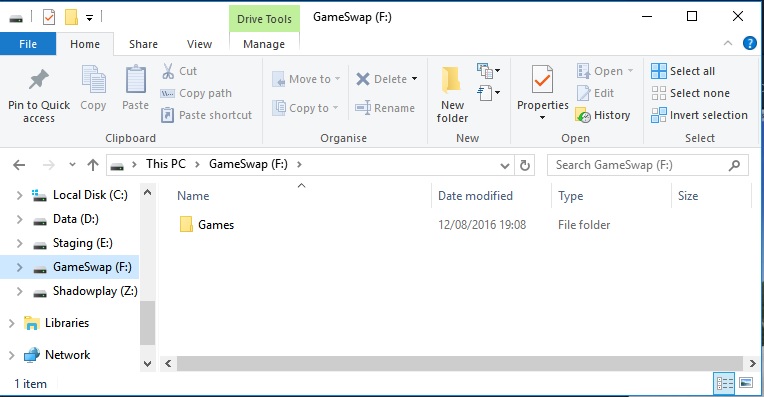
On the SSD make a folder at the root where the moved games are going to be located. I have used "Games".


Step 2

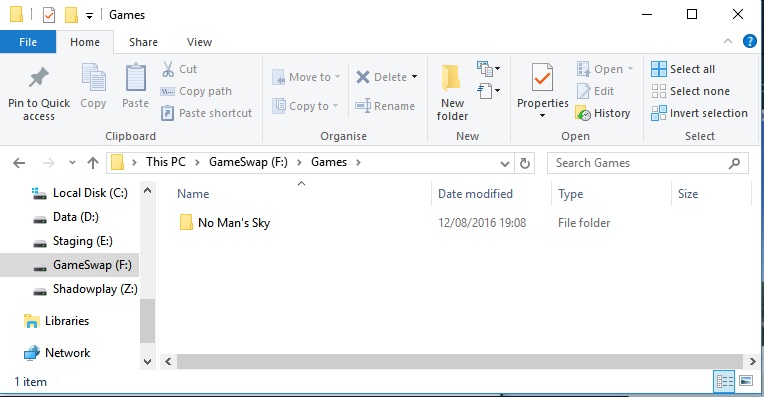
Navigate to "C:\Program Files (x86)\Steam\steamapps\common" (or wherever Steam is installed for you) and copy the "No Man's Sky" folder, paste it into "F:\Games".


Once the copy has completed rename "C:\Program Files (x86)\Steam\steamapps\common\No Man's Sky" to "C:\Program Files (x86)\Steam\steamapps\common\No Man's Sky_Orig"

Step 3

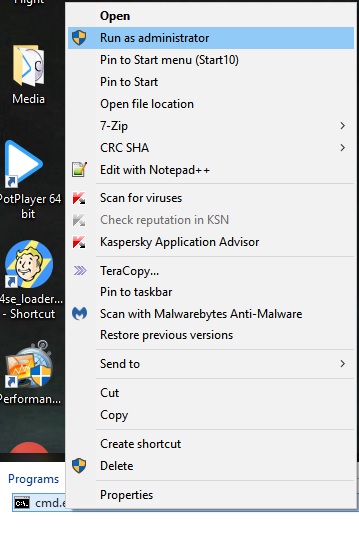
Click "Start" -> "Run", or "Windows" button -> "Search" and type "cmd", right click on the found application and click on "Run as administrator"


The following commands need to be typed at the command prompt:

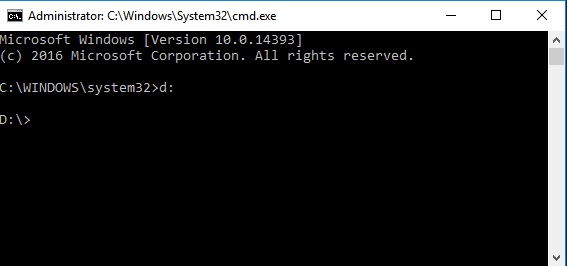
If your installation of Steam is on a different drive to C: type the drive letter it is installed on followed by a colon then the return key


Now enter the following to navigate to the correct steam folder:

type:
cd \
followed by return (this ensures you are at the root of the disk)

type:
cd "program Files (x86)\Steam\steamapps\common"
followed by return (adjust the path to suit your installation of Steam)

Now create the junction point, type:
mklink /J "No Man's Sky" "F:\Games\No Man's Sky"
followed by return

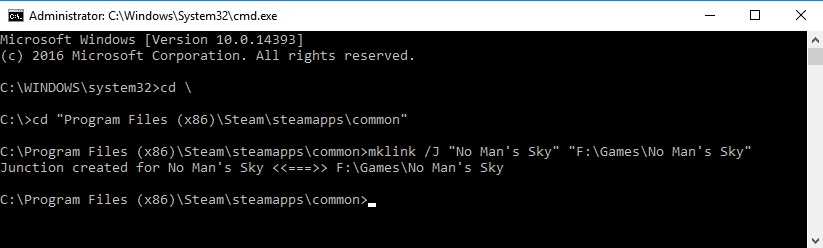
You cmd window should look something like this


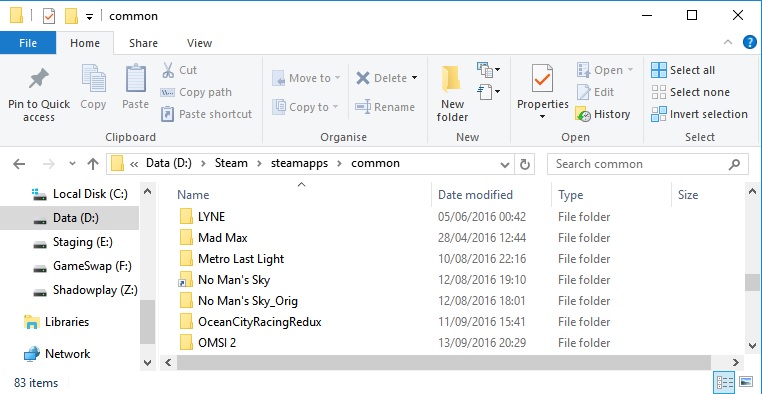
and in the Steam\Steamapps\common folder you should see something like this (please note, this image show my installation on drive D: the folder contents would look the same on drive C: as described in this process)


Double clicking on the "No Man's Sky" icon (with the shortcut arrow on it) will take you into the folder located on the SSD.

All that is left to do now is launch the game. Once you are happy that it works you can delete the renamed copy from Steam\steamapps\common (in this case "No Man's Sky_Orig").
Moving things back
When you no longer want the game on your SSD moving things back is relatively straight forward.

Locate the program folder in Steam\steamapps\common, in this case it is "No Man's Sky" (with the shortcut arrow on the icon), and just delete it. Don't worry you are only deleting the junction.

Go to your SSD and copy the folder for the game, in this case "F:\Games\No Man's Sky" then paste it back into "Steam\steamapps\common". Fire up the game to make sure things work then delete the folder "F:\Games\No Man's Sky".
3 Comments
stanman66547 Jan 29, 2024 @ 12:22pm 
awesome:steamhappy: and thanks
Erazer Jan 1, 2019 @ 1:40am 
You might like to write an article on partitioning larger, and faster, SSDs so that Steam can be installed in its own partition. All the document folders, especially large video files, can be easily moved to a slower HDD, especially given that Windows 10 trims SSDs automatically, taking over this task from the manufacturer's firmware.

This is something I have always done. When early SSDs were too small* I would make partitions on a large HDD for Documents, Software, Maintenance and Repair Tools and another for FSX.

[*64GB Micron RealSSD C400 2.5 SATA 6Gb/s]

I use Macrorit Partition Expert free edition, as it is very easy to use.
Erazer Dec 31, 2018 @ 12:52am 
BTW This organisation has some 244 HP business computers and - all - of them report that "No problems have been found on this computer." after running>perfmon /report on the first working day of each month.

It's still the quickest way to determine the overall health of the system In Our Opinion.