Project Zomboid

Project Zomboid

51 ratings
How to Create basic Clothing mod.[B41/B42+]
By Nik
A guide on how to create Basic Clothing mod. If i missed anything, or something requires further explanation, do let me know. Basic Game and Blender Knowledge is Required.
4
2
   
Award
Favorite
Favorited
Unfavorite
Begining
So you're intrested in creating clothing mods, but aren't sure how to start?
I'll go through some basic stuff to get you started. After reading this guide you should be able to create simple Clothing items similar to vanila like Hoodies, Hats, which as you gain experience will lead to even greater creations.

I am not gonna lie, a basic knowledge in Blender is Required, as i won't be going through them with this guide. The things you should be able to do in order to make a Simple 3d Model for clothing is:
  • Basic Blender navigation,
  • Knowing what Extruding/Inserting/ UV unwrapping is (unless you make it from Player's character, but it still might be usefull),
  • If you don't have external Texturing tools, Knowing how to do so in Blender, model without texture won't show in game,
  • Overall being able to Create a simple model, that you can use.
  • Reading,

Here is list of Things that are usefull and will cover areas, in greater detail than me
Creating 3D Hoodie from Player's Character Model
At the top we will start with creating of 3d Model
After all whats good from the rest of guide, if we don't have a working 3d Model?
We will be using Blend file linked at the start.

First decide what you want to create. In my case i decided to make a Shirt/Hoodie with visible Player character stomach (because why not).
In case you have "camera inside model" issue, adjusting "clip start" might fix it. In some cases its better to scale model up, work on it, then when everything is done, scale it down.
We will be using already available player models. There is many reasons to use them:
You don't have to worry about UV maps, as long as you don't modify them, or mesh To much. Small edits can be done, mesh can be subdivided, faces inserted, shape changed ect. If you decide to add new mesh you might require to unwrap it and potentialy weight paint it. If its made from existing Part of cut out player model, it should keep its weights, however if it will be looking good depends on what exacly has been done.
I usually mark areas where clothing ends with Seams, as it makes it easier to select it with Select linked>seams. You can select those by hand if you want, i just thought i include my workflow and how i do certain things.
I do scale it for modifiers to work properly. Remember to apply scale for effect.
We scale player character for visual aid, you don't have to apply scale here as we will be reverting it.
Depending on clothing type you might be able to get away with clipping with using masks, but thats something that will be mentioned later.
As mentioned at the begining, you can modify mesh to some extends, you can even remove parts of it if you want for example cut out shape in it and have player's skin visible.
Overall we end up with:
In case of firearms, scale or even Rotation is important, however for clothes its no issue, but better safe than sorry and keep it the same.
With doing it this way you Don't really need to worry about Weight Painting your model, UNLESS you've added some extra stuff to it, in which case its worth checking out that part to see how it will be affected by certain bones.
Creating 2D Clothingitem
Further down below will be explained how to make your Clothingitem 3D or 2D, But i thought i'll include overall idea behind making 2d Clothing
Rest of player model should have no texture/be transparent.

Something to remember:
Making Hats/Custom Clothing items and WeighPainting
This part is related to using a model made from scratch. In this case we will be weight painting a Hat. There are 2 ways of making hats, or items which will be afected by single bone (not bending, or anything), which are usually Hats/Headgear, but are not limited to. You can make things such as holsters, even shoes (though we need one shoe model for each footand it will require each shoe to be weighted by feet bone it will be moving with.
Now Parenting Our model to player's armature.
Some Explanation of XML files, which are required
After Creating our models its time to start creating our custom Clothing item...

But first let's go over what is needed In order for Clothing items to work:


Let's take a look at one of Vanila Clothing Item:

  • <m_MaleModel> and <m_FemaleModel> - Lines gives us option to specify which model ( what we exported from blender) will be used for each player model. Some models can look okay on both, while some will need adjustment, however keep in mind that those both models will be using same texture files, IF YOU'RE MAKING 2D CLOTHING ITEM, LEAVE THEM EMPTY

  • <m_GUID> - Line is for unique GUID, which i don't think anyone but Devs know why is needed.
    However its required it to be unique. I personaly use GuidGenerator thats linked at the begining. The same guide will be needed in other XML file named "fileGuidTable".

  • <m_Static>false</m_Static> - I personaly always have it set to false, but i heard if its Set to True, it will be able to be placed on ground/dropped and use it as Ground model, instead of needing to create one, though i never used it myself. The Indie Stone uses it for Hats, and most likely some other clothing items.

  • <m_AllowRandomHue> and <m_AllowRandomTint> - Are there to allow you to use PZ Randomly assigned Colors for Clothing. I personaly found no diffrence in setting Hue one to True, but enabling Tint to true makes it so if you have, White'ish texture assinged to this clothing item, it will asing random color to it and "colorize" whole item.

  • <m_AttachBone></m_AttachBone> - Here you can insert name of a bone from Player's armature, and "Parent" model to it, Thing is its not really reliable as the placement for items is weird, and to modify it you require blender or other 3d software anyway, so its just easier to Weight Paint it. I don't think you can have more than one bone affecting it, meaning its only "usefull" for things like hat's, which again, require special placement of origin point in blender/3d software.

  • <m_Masks></m_Masks> - is a system to hide certain parts of Player's character models and clothes that are "under" our custom clothing item, in order to prevent Clipping issues.
    You can insert multiple masks, for example:
    <m_Masks>12</m_Masks>
    <m_Masks>13</m_Masks>
    <m_Masks>14</m_Masks>
    <m_Masks>3</m_Masks>
    <m_Masks>5</m_Masks>
    They need to be separate*

  • <m_UnderlayMasksFolder></m_UnderlayMasksFolder>" - This to my limited knowledge in this area is to customize certain "masks" from above, in case you want "adjust" certain mask to not hide certain part, or hide more of it. I myself never used it.
Attention

  • <textureChoices>clothes\jumper\jumper_poloneck</textureChoices> - This line assings texture, or multiple textures (same as masks, requires new line for each texture choice) to this clothing item.
There is also one in case you are making a 2d Clothing item, without model:

  • <m_BaseTextures>bodydmg\malebody01_bandages_right_foot</m_BaseTextures> -

    Again, Multiple textures can be assigned. In order for it to work there can't be any model assigned to either male or female player character, example:

    <?xml version="1.0" encoding="utf-8"?>
    <clothingItem>
    <m_MaleModel></m_MaleModel>
    <m_FemaleModel></m_FemaleModel>
    <m_GUID>041a3ab6-6dea-4c1c-b3d4-3cf50ba68565</m_GUID>
    <m_Static>false</m_Static>
    <m_AllowRandomTint>false</m_AllowRandomTint>
    <m_AttachBone></m_AttachBone>
    <m_BaseTextures>clothes\shirt_tshirt_textures\shirt_baseball_rangers</m_BaseTextures>
    </clothingItem>


  • <m_HatCategory></m_HatCategory> - Lines to assing to Hats (though not limited, so you can even set shoes or underwear to use it) Which makes Player's character Hair models change depending on Hairstyle, aswell as models assinged to this HatCategory by HairStyle, Suggested approach in creating hats is to find vanila item as closest to yours and use its HatGroup to prevent potential cliping, or minimalize it, There are Lines that even Make you bald and Hide your beard.

  • <m_MasksFolder>media/textures/Clothes/Hat/Masks</m_MasksFolder> - Most powerfull and "abused" by me. Don't make word "hat" fool you, This line makes it so no Masks affect this Clothing item. Its not affected by Damage/Blood display system (visually), and can't be hidden using "<m_Masks>5</m_Masks> or any other, Its named "Double edged Sword" by some of modders.
    Let's put an example: You have a nice Clothing model, but it does not follow UV maps of Player model. Were you to use it, it would act funny, display holes/not render in certain areas depending on UV, and other clothing items worn on top would make it even more noticeable. This line will prevent it, but then any item that goes on top of it (if it's Body location doesn't hide the model) will Still be rendered, making it Clip through other models. This line is mostly used in Hats/Glasses/Custom3D shoes/Armors and such.

Using Vanila files Create own custom Item
As first Clothing mod is a good thing to use whats already available in Vanila game.
I searched for ClothingItem.xml of Item that is Similar to my Hoodie in terms of model and Body location and values i want to give it, I've copied it to my mod's files, renamed, made sure it uses my new custom model. I did not create custom texture for it, as for the sake of guide there was no need and i had other ones available, which fit it. aswell as Changed GUID to new one and then inserted it also into fileGuidTable file.

Project Zomboid Wiki [pzwiki.net] Explaining which line does what, just in case.


Here is picture to compare how masks work:


The same things Apply pretty much to every Clothing item, our hat included.
Where at it lets go back to our Hat and let me show you how powerfull <m_MasksFolder>media/textures/Clothes/Hat/Masks</m_MasksFolder> Is.
Finale
With what is above you should be able to slowly create basic Clothing items and as you gain experience, create even more advanced things.
After that its up to you to decide, if items you made will be available through crafting, spawn in containers around world, or maybe will be available on custom zombies only? I won't be going through these sort of things, as it differs from Modder to modder to some extend. What i suggest again and again is to reverse engineer a mod, that has something similar of what you want to achieve and see what makes it tick and remember to Check out Zomboid vanila files too, they're easy to access, can be pretty much opened by any text editor.

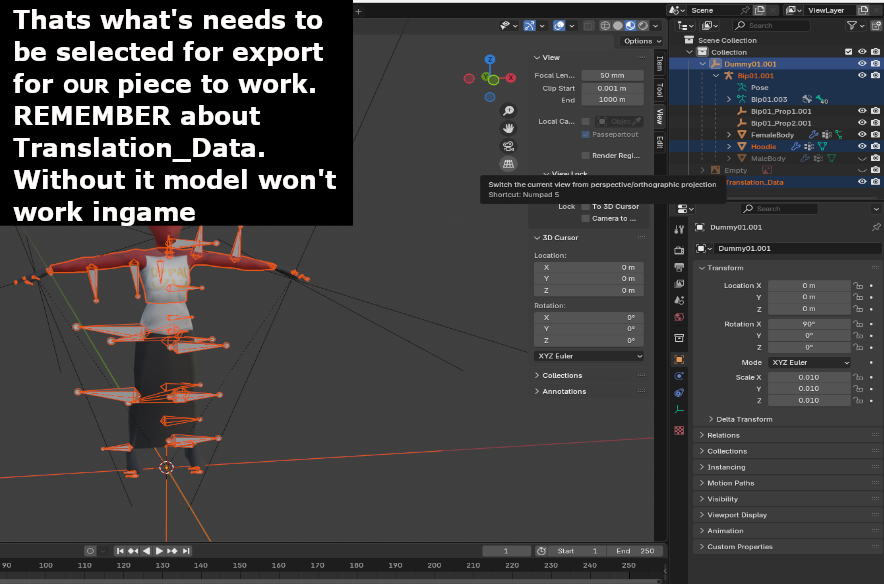
Remember:
6 Comments
Nik  [author] Dec 5 @ 12:38pm 
New Blend file has been added (blender 5.0). This has Replaced Male player model (with flawed UV maps in certains spots) with actual player model extracted from game files, meaning no more silly gaps when drawing texture on this model, importing it to game only to realize your 2d Clothing has some kind of gap/texture warping at the back. The old one is still included.
Gummy Gummy Gumdrops Aug 31 @ 5:07am 
Tysm!
JUANcok Jun 8 @ 11:38pm 
helpful
Mastodonte Mar 30 @ 2:32pm 
Managed to make my own mod with this guide, thanks a lot Nik!
Fauzto Mar 22 @ 2:35am 
Loves your guide. Need to practice more blender tho hahaha
s1mp Mar 19 @ 7:13pm 
all this hard work for a guide not many people got to read. +1 :gman::steamthumbsup: