Borderlands: The Pre-Sequel

Borderlands: The Pre-Sequel

37 ratings
How to Replay Missions
By Chatmak and 1 collaborators
Yet again with another Borderlands comes another wall between you and mission replayability. Let's face it, after a while it becomes tedious to keep creating new characters or start new playthroughs for one thing that you want to achieve. This is where the power of save editing comes in! If you have looked at or used my Borderlands 2 guide on how to replay missions, this should be easy enough for you as it is the exact same process. =)

If you have any questions please post them in the comments below and I will do my best to answer them and sort out any issues!

Guide was created by Chatmak and filled in with info by RedDeadKiller.
   
Award
Favorite
Favorited
Unfavorite
Notes
A few things to note before we begin:
  • This guide focuses ONLY on replaying missions, every other functionality of the save editor is not important and should not be used throughout the guide.
  • This DOES work with Xbox 360 and PlayStation 3 as long as you can transfer the saves from the console to PC and vice versa without trouble.
  • If you are missing the piece of software, don't worry, I will provide a link for it.
  • Do NOT abuse this program to a big advantage (giving yourself OP guns, shields, etc...), doing so results in cheating.
  • If you are not feeling OK with using the save editor, don't use this method. I, as of now, do not see a different way of doing this.
  • Make a BACKUP of your save file, this ensures that you do not forever lose your character in case of any errors
  • This program is updated every time a new piece of DLC is released so keep your eye on the DLC's. The download link will be updated with the latest version.
Step 0 - Checking and Backing
Step 0 is easy. For this you just need to make sure you back up the save(s) you are going to edit in case of a tragic accident (rare). As well as make sure you have the editor needed for this method. Surely, checking that Borderlands: The Pre-Sequel is installed doesn't hurt either.... or that you have Steam installed, etc.... you get the idea.
Step 1 - Beginning of an edit
Well done, you made it this far.

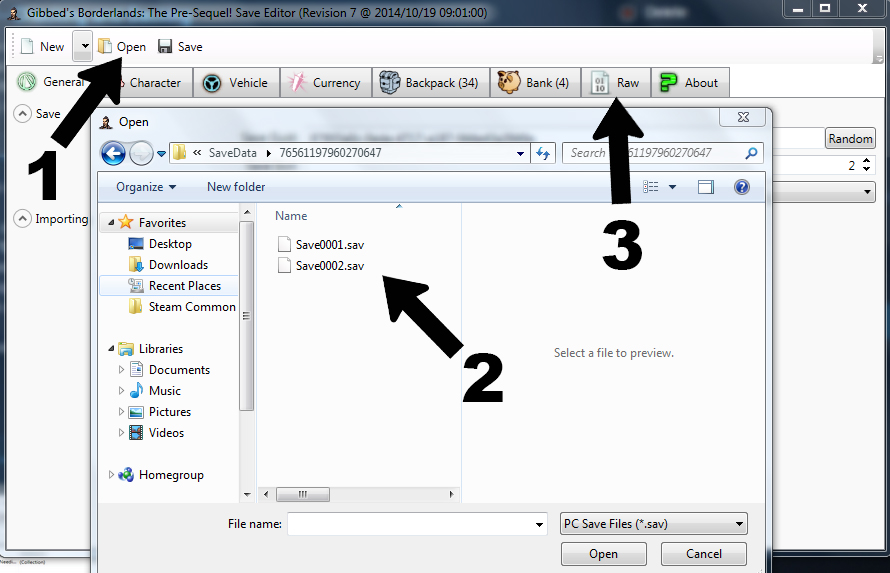
For this, you need to open the save editor. Then click on "Open" and look for the character(s) you want to edit. Choose the one you wish to edit and click on open. Now you need to go across the tabs and click on "Raw".

See? That wasn't so hard.
Step 2 - Things are heating up
Didn't expect you to get this far, but oh well.

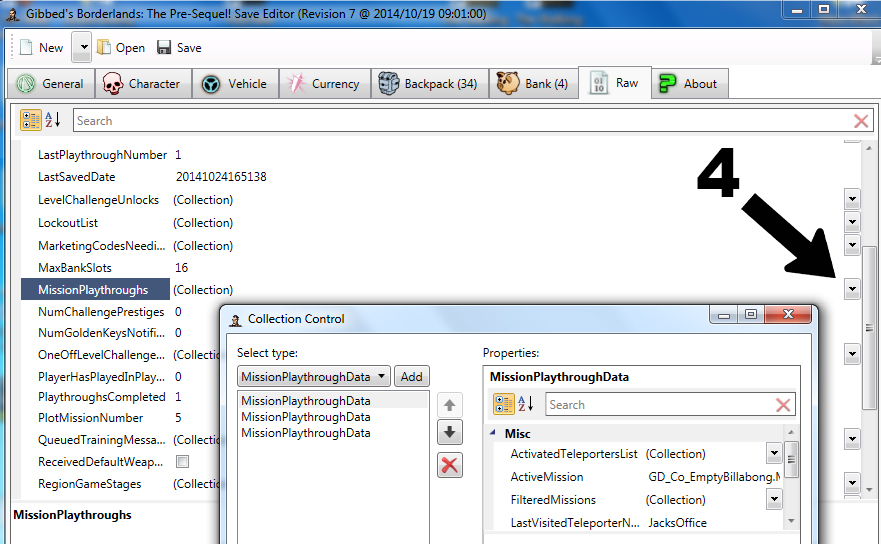
This time you have to scoll down about half-way down until you find "MissionsPlaythroughs" on the left of the window.

You found that? Good. You just need to go across and click on that simple arrow pointing down to open another window called "Collection Editor" or "Collection Control".
Step 3 - Opening them windows
Nice, your chance of completing this guide has increased approximately by 0.00000012570% (Source: GLaDOS).

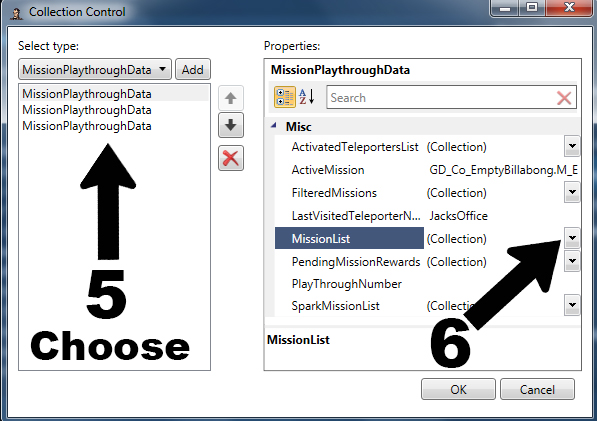
Once you have the "Collection Editor" window opened, you gotta get confused... because it's OK to be at this point. Here you will find three "MissionPlaythroughData" lines, these represent each playthrough. Top one is Normal Mode, middle one is True Vault Hunter Mode and the bottom one is Ultimate Vault Hunter Mode (UVHM has not been released but I'm sure it's safe to assume it is coming, DO NOT mess around with that for now!). You have to choose which playthrough you want to edit and click it. You should see the "ActiveMission" bit change in the "Misc" area as you highlight each playthrough (unless you have the same mission active in both or all playthroughs). When you have chosen the playthrough, find "MissionList" and click on the arrow down next to it.
Step 4 - Almost there
I have to say, your dedication to this guide really warms my heart.

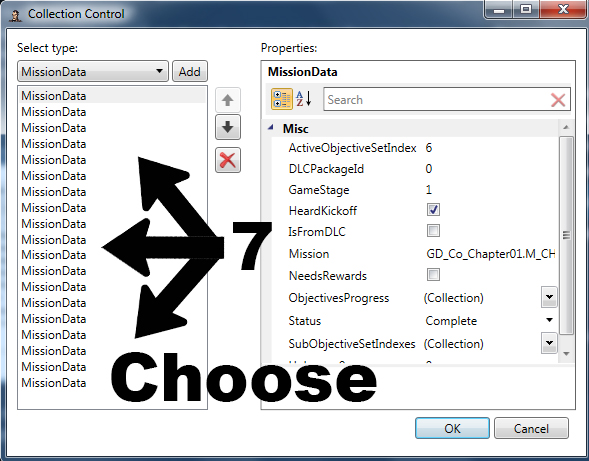
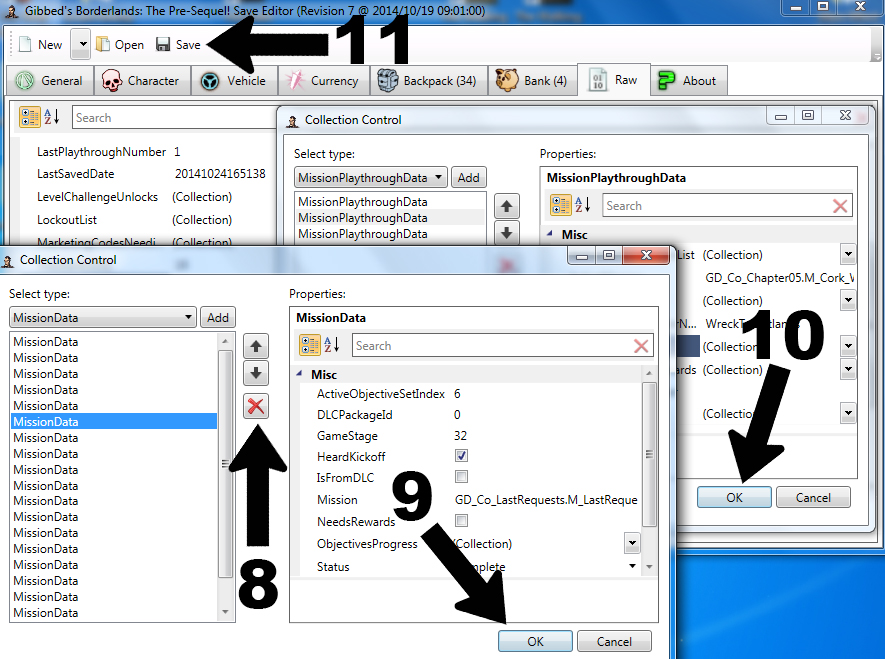
Now that you have clicked on the arrow next to "MissionData" and have another "Collection Editor" window opened, you might be saying to yourself: "DAFUQ IZ DIS CR4P?!1" Well let me explain; that window contains everything for every mission you have ever completed, is currently active or even available in that playthrough.

The tricky bit is that you have no idea which one of those "MissionData" thingies is the mission you want!! Don't cry, the way to find your mission is to scroll through the missions and keep your eye on the "Misc" section on the right, particulary the "Mission" bit.

Quick example: I know that the mission Ice Holes from Nurse Nina is "GD_Co_IceHoles.M_Co_IceHoles"... because of the last bit.

THAT is how you find your mission.

TIP: DLC missions are usually categorised at the bottom of this list.
Step 5 - Wrapping up
You made it this far, why not just finish this up, eh?

Once you found your mission, PLEASE ignore the "Status" bit of that mission because that is not the function for bringing the mission back. Instead, you have to highlight your mission and click the big "red X". I know that you have been taught to never click a big red button, but this is necessary. Clicking the "red X" makes that mission disappear from your playthrough as well as the list. This renders the game unable to recognize that your mission has ever been completed or even started, which allows replayability by giving you the mission of your choice to be replayed in order for it to be completed. So now that you have gotten rid off the mission you want to replay, click on that nice "OK" button next to that nasty cancel. Then "OK" again on the very first "Collection Control" window you opened up.

The last, and most important bit, is saving the gamesave. For this, you will have to press the "Save" button at the top and overwrite your save file. If you have forgotten what number that save is, then visit your doctor and have him check if your memory is intact go to the "General" tab and look at the save slot number at the top.... yes, that IS your gamesave number.

TIP: (THIS IS NOT REQUIRED) You may also change the save number. This basically duplicates the character and leaves the changes intact. To create a duplicate, simply go to the General tab, choose a number, then save as "save000#" where # = any number 1-9, a letter a-z and not used already as name for a different save file. To prevent any glitches and whatnot, make sure the number in the General tab that you've chosen corresponds to the #. For example, if my save slot number is 9, then the file should be "save0009.sav", if it is 10, then it should be "save000a.sav". Basically, if the save slot number is ≥10, then appropriate letters of a-z should be used for the .sav file as shown in the example.

YOUR ARE DONE!!!! HOORAY!!.... OK celebrations over. Have fun replaying the missions! DON'T OVER USE THIS TO A BIG ADVANTAGE (e.g. fast leveling up) BECAUSE THAT IS CONSIDERED CHEATING AND RUINS THE FUN!!!!

All is left is you loading up that save in the game and activating your chosen mission by visiting its origin (person or thing that gives the mission to you). =D
Video Guide
I've spent a good time putting this together and editing it. At least leave a like!... please?

If the video doesn't work, you can watch it directly on YouTube here OR make sure you have Adobe installed for other browsers so it can suit Steam: http://get.adobe.com/flashplayer/otherversions/

Links
Download Gibbed Borderlands: The Pre-Sequel Save Editor (Rev. 33):

NOTICE: Steam detects MediaFire as a threat to prevent phishing, please use this link to download the save editor, otherwise go onto my YouTube guide and look for the link in the description!

From Gibbed website: http://blog.gib.me/2015/03/23/borderlands-the-pre-sequel-save-editor-revision-33/
--------------------------------------------------------------------------------------------------------------
Gibbed website: http://blog.gib.me/
--------------------------------------------------------------------------------------------------------------
My YouTube channel: http://www.youtube.com/nerijus359
--------------------------------------------------------------------------------------------------------------
Adobe Flash Player: https://get.adobe.com/flashplayer/otherversions/

Psst, hey, links not working? Let me know in the comments!
Credits & Info
Guide created by: RedDeadKiller, Chatmak
Sources of information: Forums around the internet, YouTube
Programs used: Gibbed Borderlands: The Pre-Sequel Save Editor (Rev. 7), Steam
OS used: Windows 7 Home Premium (64-bit)
7 Comments
SuupaSayajiin Jan 12, 2018 @ 3:48pm 
Thanks for this. Grabbed the wrong reward for Temple of Boom.
Onlags Aug 7, 2016 @ 1:25pm 
Thanks for the guide. Accidentally entered claptrastic dlc on my first playtrough before finishing main story.
Zerithos May 28, 2016 @ 9:44pm 
So, I've opened up my Borderlands saves folder, they are SAV files, but they have the icon of another game. (Vindictus) Should this be a concern?
senornacho Feb 16, 2015 @ 12:50pm 
Thanks for this. I somehow borked the "To Arms!" mission and was able to redo that annoying quest with this guide. Appreciate it!
Magic Gonads Dec 2, 2014 @ 4:20am 
I remember from BL2 all things you do as host are saved at different points to what you do as guest. Each quest you do does get added to the list, BUT some of the quests do not have the same Status or Objectives tags, this is how the Fast Forward mechanic works. Your problem isn't real, mission names are weird sometimes, just test and test, you'l find them eventually.
R.I.P. Pope "DJ" Francis  [author] Nov 7, 2014 @ 10:56am 
@FreeMetal That could be a possibility. All the times that I have done this were times when I was hosting the game. However, I'm going to need to test that at some point to confirm it.
FreeMetal Nov 5, 2014 @ 4:59am 
Usefull, but i can't find some quests. I think that when you do them when you join a game instead of hosting it, the file is missing in the editor.