Call of Duty (2003)

Call of Duty (2003)

63 ratings
Call of Duty - Custom Resolutions and Additional Enhancements (No direct CFG File editing required!)
By Majlo
A simple guide to playing the original Call of Duty with modern resolutions and a few additional enhancements - all without having to directly edit the CFG File.
2
5
   
Award
Favorite
Favorited
Unfavorite
Custom Resolutions
Four-Step Guide to Custom Resolutions
Although the original Call of Duty does not natively support most modern resolutions, that does not mean it's impossible or even hard to play in your desired resolution.


The first step to play with your desired resolution is this command that enables the custom resolution function:
+set r_mode -1


The second step is to decide what resolution you want to play with by assigning the desired width and height using these commands:
+set r_customwidth +set r_customheight
Some common resolutions are 1920x1080 and 2560x1440, where the number on the left is the width and the number on the right is the height.
Remember to not mix up width and height or there may be unforeseen consequences!


The third step is to set the aspect ratio of the resolution to make sure everything scales correctly:
+set r_customaspect
The number you are supposed to set this to depends on the aspect ratio of the resolution.
4:3 uses 1.3
16:10 uses 1.6
16:9 uses 1.7
If your resolution is not one of these three aspect ratios you can calculate the aspect ratio decimal by dividing the resolution's width by it's height.


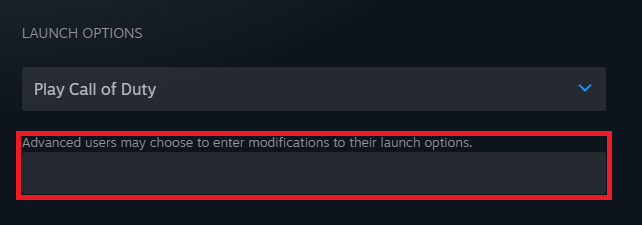
The fourth and final step to playing with your custom resolution is to put everything into the Launch Options.
It should look something like this:
+set r_mode -1 +set r_customwidth 1920 +set r_customheight 1080 +set r_customaspect 1.7
Additional Enhancements
Skipping the intro
It's possible to skip the intro video that plays whenever you launch the game with this Launch Option:
+set introplayed 1
Skipping the introduction video that plays some sound and developer logos saves some time and loads the main menu faster.


Field of view (FOV)
It's possible to change the game's field of view (FOV) to your preference with this Launch Option:
+set cg_fov
The field of view (FOV) is by default set to 80.
Higher FOV values might break the game's view models and reload animations!


FPS limit
As long as you disable Sync Every Frame in the game's options menu it's possible to limit the game's FPS with this Launch Option:
+set com_maxfps
By default the FPS limit is set to 0, which is uncapped.
No direct CFG File editing required!
Finding and editing the game's config file isn't actually all that hard or complicated but there is no need to worry about any of that, because we have Launch Options!

Launch Options are a lot more straight forward than editing config files, all you need to know is what modifications are available so you can type them into the Launch Option depending on what you want.


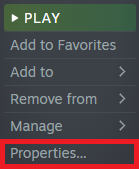
To input Launch Options all you have to do is right-click the desired game in your Steam Library and click Properties...

Then you simply write the Launch option(s) you want here:

Launch Options will not automatically transfer between the Singleplayer and Multiplayer Call of Duty clients, so remember to launch the version you want to play directly through Steam rather than from inside the game client.


Now go and play the original Call of Duty experience in your desired resolution!
19 Comments
|Zyan45 Nov 25 @ 2:25pm 
Thank you, this guide was very helpful!
Bogdasha Oct 18 @ 11:15am 
ragebait, dont listen to spewz guy
Majlo  [author] Oct 11 @ 12:22am 
What settings did you apply to your game?
SPITZ Oct 10 @ 3:37pm 
game is zoomed in and unplayable, ♥♥♥♥ guide
Majlo  [author] Oct 7 @ 9:21pm 
I do not.
106.| kuca Oct 7 @ 11:26am 
Do u know how to Patch the Game from 1.4 to 1.5 or 1.51?
Doc Oct 8, 2024 @ 2:01am 
Thank you so much for this <3
OGUIwalter Jun 6, 2024 @ 2:35am 
thanks for the tuto
jesusm1708 Feb 25, 2024 @ 7:17pm 
excellent guide, thank you so much
Waschbalsam Feb 8, 2024 @ 6:21am 
Nice guide thanks!