Spore
Not enough ratings
60fps Spore + Creepy & Cute Parts Pack (without "Galactic Adventures" DLC)
By finsku@lantrek
Compared to previous guides, this tutorial is for players who own only Spore and the Creepy & Cute Part Pack (no Galactic Adventures expansion installed).

The tutorial also describes how to enable 60, 90, 120, or other frame rates.

This guide requires you to uninstall Creepy & Cute Parts Pack and to verify Spore files, which - in other words - redownloads all the ~1500 files (3.4Gb)
2
2
   
Award
Favorite
Favorited
Unfavorite
Introduction
TL;DR: Check steps from the right side.

TL;DR(2): Comparing to other tutorials we just copy one ".package" file from one folder to another after installing the game and the C&C Pack.

There is already a great tutorial that helps you to unlock the FPS cap. However, this may not work if you have only the Creepy & Cute Parts Pack installed. Also, the tutorial works if a person has only Spore or Spore, SPORE Galactic Adventures and SPORE Creepy & Cute Part Pack installed.

For some reason, the C&C files affect the game somehow and the extra lines (which enables better frame rates) will not affect anymore. But if Galactic Adventures is installed, then the tutorial works.
How odd...

Check Neatrior's and Lake's guide "How to configure Spore to run at 60fps". It includes detailed steps with screenshots:
https://steamcommunity.com/sharedfiles/filedetails/?id=473993303
Thanks for the Chocice75 and their post, which I tried and which solved my issue:
https://steamcommunity.com/sharedfiles/filedetails/?id=1263748057
Also, shoutout for the original guide poster, "emd", which can be found here:
http://davoonline.com/phpBB3/viewtopic.php?f=6&p=22668#p22666
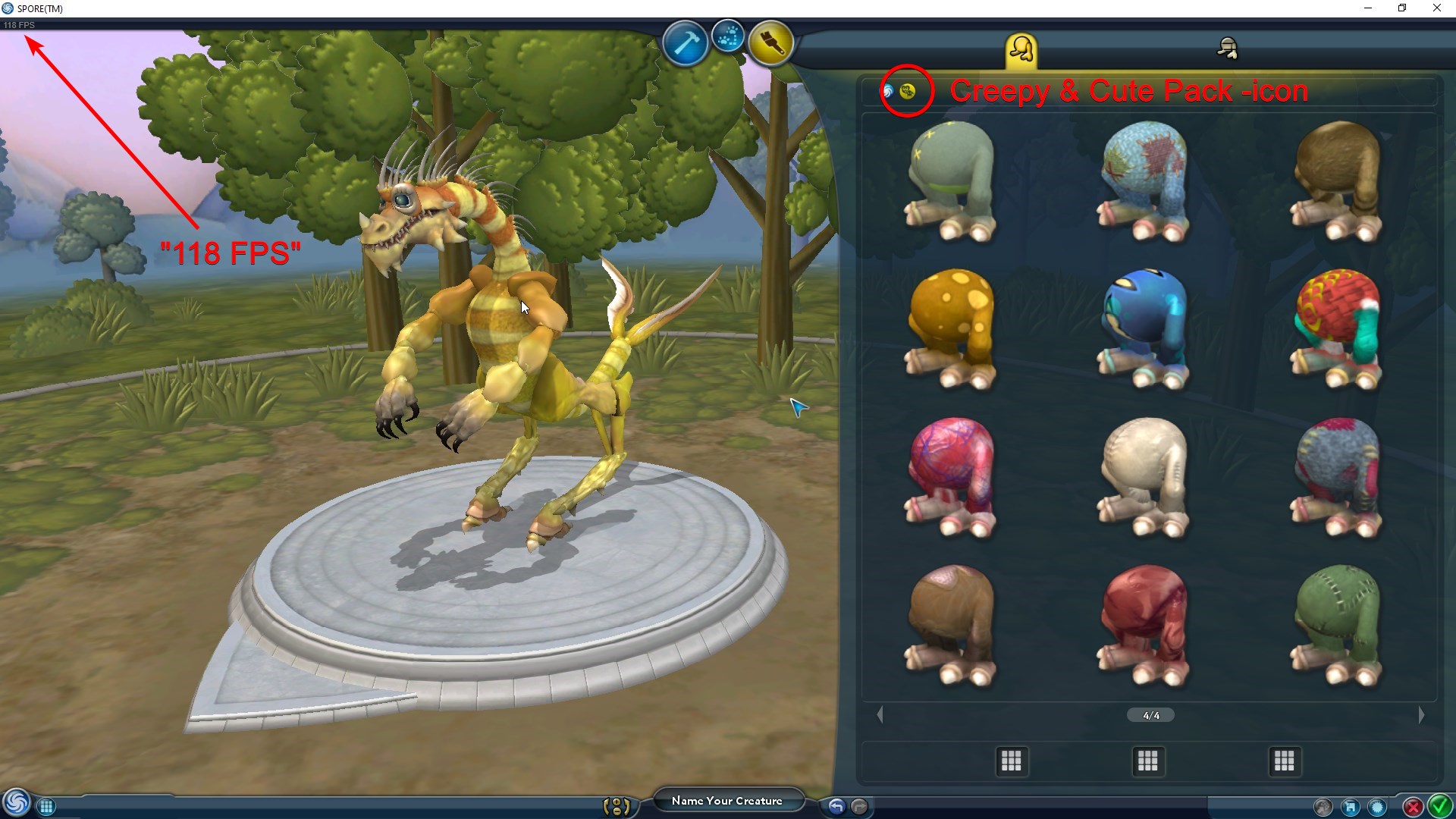
Optional: Enable Steam's FPS counter
To know the exact frame rate value, you can enable the In-game FPS counter from Steam Settings:

Steam window > Steam (top-left corner of the window) > Settings > In-Game > "In-game FPS counter" to something else than "off". Press "OK".

With this, you should see a counter in a specific corner when playing Steam games.
Step 1: Uninstall Creepy & Cute Pack
Uninstall Creepy & Cute Pack.

Right-click the game on Steam Library > Manage > Uninstall.
Step 2: Verify Spore files
Right-click Spore on Steam Library > Properties > Local Files > "Verify integrity of game cache".

This checks game's files, removes unnecessary files, and adds missing files.
Step 3: Install Creepy & Cute Pack (Don't launch it!)
Nothing special, just install it.

Again, do not launch it!
Step 4: Copy "BoosterPack_01.package" into "\Spore\Data\."
To be sure the package file is where it should be, let's check that the file is in the correct folder.

The file can be found from Creepy & Cute Pack folder:
"steamapps \ common \ Spore \ Data \ BP1Content \"

Copy this file into folder:
"steamapps \ common \ Spore \ Data \"
Step 5: Configure Properties.txt
Again, for detailed steps with screenshots use the guide linked in the first chapter.

The file can be found from "steamapps \ common \ Spore \ Data \ Config \"

Add all or part of the code to the bottom of the file:
# Framerate property frameLimitMS 44 int

"# Framerate" row is unnecessary but makes it more clear what the row below does.
You can just copy the row "property frameLimitMS 44 int" if you want.

"ez". Next!
Step 6: Configure ConfigManager.txt
The file is in the same folder ("steamapps \ common \ Spore \ Data \ Config \")

Add all or part of the code to the bottom of the file:
# Framerate # Remove "#" to enable specific framerate (1000ms/frameLimitMS = x "fps") # The value needs to be INT (no decimal number) #intProp frameLimitMS 33 # 30fps (default) #intProp frameLimitMS 17 # "60fps" (exact value 58,824) #intProp frameLimitMS 11 # 90fps (90,91) #intProp frameLimitMS 8 # 125fps
Rows starting with "#" are comments meaning the file doesn't require these. Extra comments describe how the code works, what the rows mean, and what framerates the specific row will enable.

If you want to enable 60 fps, remove "#". The row should look like this:
intProp frameLimitMS 17
And if 125 fps, then...
intProp frameLimitMS 8
Again, no "#" at beginning.

If you want to have better framerate, you can calculate it with
f(x) = 1000 / x = value
where "x" is wanted fps number.

For example, 60fps is f(60) = 1000 / 60 = 16,66667, but because we don't want/can't use decimals, we use value 17.

Okay okay, "nerd", let's continue...
Step 7: Launch Spore and enjoy
The game should run in the wanted frame rate and should have the C&C Pack installed.

8 Comments
Khaziir Everflight Dec 1 @ 4:07am 
Adding to this in regard to the FPS thing specifically:
IF you play through GoG (like I am) and haven't noticed yourself yet, no file editing is needed for 60/120 FPS. Just go to the games additional executables within the GoG launcher (no idea how to do it without the launcher) and start "GoG Game Configurator" and set it up as you desire there.
8bitKittyKat Oct 14 @ 11:26am 
I'm playing through the EA App, so I'm not 100% sure how relevant it will be for Steam, but I got the FPS fix to work with C&C by simply copying the Spore\Data\Config folder to Spore\Sporebin\Config.
finsku@lantrek  [author] Aug 18, 2024 @ 10:38am 
Clad to hear these steps still works 🤞
[SVK] Andrej Jul 26, 2024 @ 2:48am 
Oh my god! It really worked. I've done everyting correctly and it actually works (in 2024). Thank you so much. :steamthumbsup::steamthis:
El Sexo De Roth Nov 5, 2023 @ 7:36pm 
I adore you
Sr.Owowa wakala walika May 26, 2023 @ 4:08am 
the remove "30 fps cap" doesn't work anymore (at least for my game)
BlessedCustardWaffler May 24, 2023 @ 11:01am 
if anyone posts bob, tank or doge... (or rob)
LuVenBen May 26, 2021 @ 12:45pm 
if anyone posts bob, tank or doge... (or rob)