Little Nightmares

Little Nightmares

Not enough ratings
How to fix gamepad not working
By MikieC2000
This guide will help you play the game with your Xbox 360 controller or any other controller that you have.
   
Award
Favorite
Favorited
Unfavorite
Step 1: Download the x360e emulator
You must download the emulator to make your Xbox 360 controller by copying this link and pasting it in the browser: https://www.x360ce.com/

Then, look for "DOWNLOAD • for 64-bit games" and download it, if you have 32 bit operating system then download the 32 bit version.

Download x360ce_64.zip

Extract it to desktop
Step 2: Finding the game directory
After you have extracted the .zip to the desktop, we must now find the install directory for Little Nightmares

You can find it by going to your Steam library look for Little Nightmares and right-click on it and go to "Properties" and navigate to “Local files” tab and press “Browse local files...” button

Step 3: Extract the emulator
Once you found your game/install directory

head to Atlas - Binaries - Win64

Extract the .zip to Win64 folder where "Little Nightmares.exe" is located

Once extracted right-click on .zip and then click "Extract Here"
Step 4: Load it
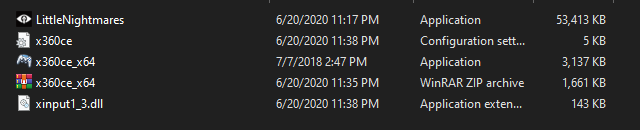
After you have extracted the .zip to the install directory then it should look like this:


Then right-click on "x360ce_64.exe" and Run as administrator

You will see window with warning – “xinput 1_3.dll was not found. This file is required for emulator to function properly.” Don’t worry, just click “Create” button to make them appear.

When x360ce will inform you that new device was detected, use automatic search for settings from internet – just hit “Next” button.

Click “Finish”, when installation completed.

Hit the “Auto” button to make all settings set to defaults. Confirm changes by clicking “Yes” in popup window. All the buttons will be filled automatically.

Now just hit “Save” button to make all your settings saved. You can also change buttons assignment before hitting “Save”, if you like.

I left it at default.
Step 4: You can now play
Enjoy!