Borderlands: The Pre-Sequel

Borderlands: The Pre-Sequel

Not enough ratings
Claptastic Voyage DLC Security Station Door Glitch Solution/Bugfix (File Search Mission)
By Seranth
In the Claptastic Voyage DLC (File Search mission), if you save & quit at the wrong time the Security Station doors will be closed and block off progress. Inside are instructions on how to use a third-party save game editor to fix the mission.
   
Award
Favorite
Favorited
Unfavorite
Introduction
In the Claptastic Voyage DLC (File Search mission), you'll normally go through the Security Station doors (with Claptrap's help) to get to the Motherlessboard area. However, if you save & quit at the wrong time you'll end up loading back at the Nexus while the security doors are closed (with no way to get through).

I ran into this problem and the only way I could find to continue playing was through the forum post here: https://steamcommunity.com/app/261640/discussions/0/490125737472743815/.

As a warning, it requires a third-party save editor which can be abused. Don't be a jerk. And of course, be careful with all software you use. Only obtain software from their original sources. At least scan it with your anti-malware/anti-virus of choice. I make no guarantees that it is (or will be in the future) safe to use but I don't believe it is currently unsafe.
Technical Information (Installation, etc.)
Setup Instructions:
  1. Close Borderlands:TPS, if running.
  2. Go to your save file location and make a backup copy of your save files (In Windows, save files are at C:\Users\<username>\Documents\my games\Borderlands The Pre-Sequel\WillowGame\SaveData\)
  3. Obtain the official release from: https://github.com/gibbed/Gibbed.BorderlandsOz/releases. There are currently two releases: borderlandsoz-1.0.2.zip and saveedit-1.0.2.zip. For our purposes, all we need is saveedit.zip. It requires .NET framework 4, which can be downloaded at http://www.microsoft.com/download/en/details.aspx?id=17851
  4. Extract saveedit.zip to a location you prefer.
  5. Run Gibbed.BorderlandsOz.SaveEdit.exe
  6. Click 'Open' on the top-left corner.
  7. It should automatically bring you to the save game folder location (C:\Users\<username>\Documents\my games\Borderlands The Pre-Sequel\WillowGame\SaveData\). Open the folder with random numbers and inside should be your save files. Open your save file (if you only have one character, it's probably named Save0001.sav).
Solution 1: Reset Mission (Recommended)
Steps:
  1. Load your save game with the save editor (instructions above).
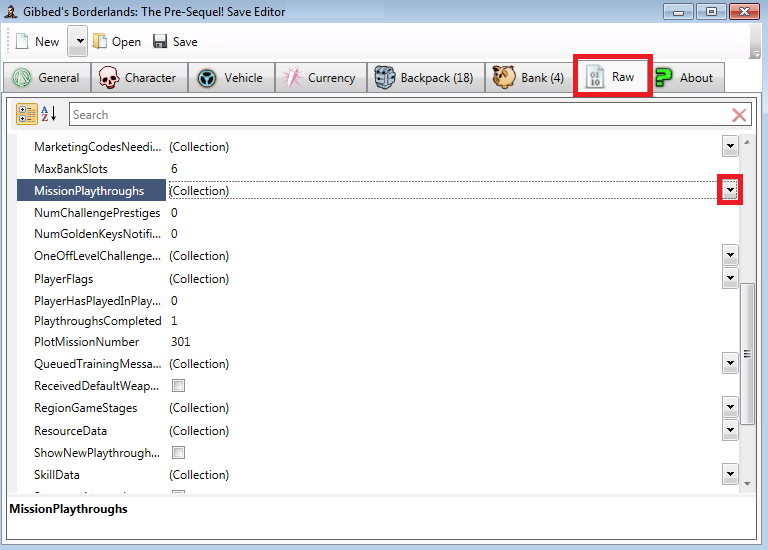
  2. Go to the 'Raw' tab and click on arrow next to the 'MissionPlaythrough' section to open the 'Collection Control' window.
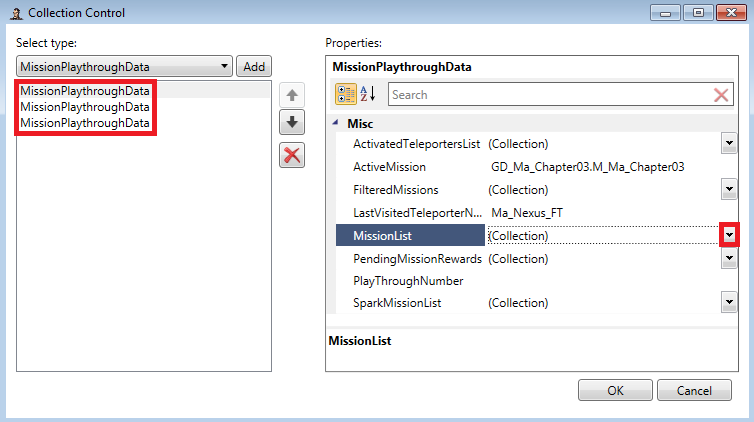
  3. In the 'Collection Control' window, make sure the correct 'MissionPlaythroughData' is selected. There should be three entries: The first should be the normal (first) playthrough, the middle one should be the True Vault Hunter Mode (second) playthrough, and the final one should be the Ultimate Vault Hunter Mode (third) playthrough. In my case, it was for the normal/original playthrough.
  4. Click on the arrow next to the 'MissionList' section to open another 'Collection Control' window.
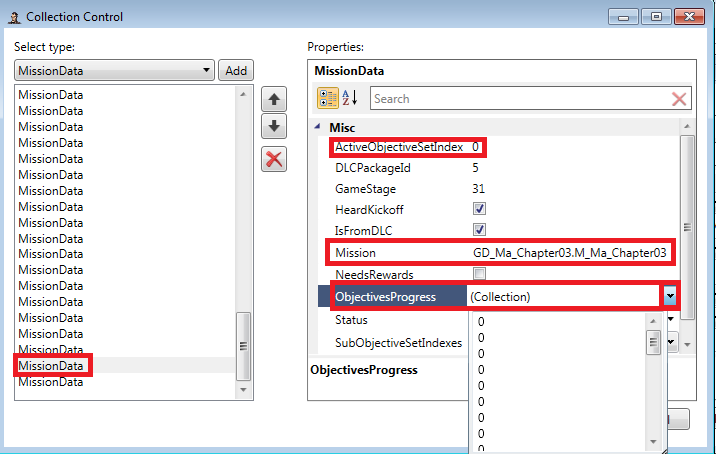
  5. There are going to be a lot of 'MissionData' entries. The one you want to select is probably going to be near the bottom (it seems they're more or less in the order you start them). Keep looking until you find/select the one with 'GD_Ma_Chapter03.M_Ma_Chapter03' in the 'Mission' field.
  6. Now it's time to try and reset the mission. Set 'ActiveObjectSetIndex' to 0. Click on the arrow next to 'ObjectivesProgress'. It should show a drop-down list of a lot of zeros and ones. Change all ones to zeros. In my case, I had four '1' entries I had to change.

  7. After making the changes, click 'Okay' on both 'Collection Control' windows and then click 'Save' on the top-left corner and (after making backup copies!) overwrite the save file.
  8. Run Borderlands:TPS and test your save to see if the mission is working properly.
Solution 2: Reset All DLC Missions (Messier, Not Recommended)
Only try if Solution #1 fails. Make sure to backup your saves!

Instead of adjusting MissionData variables, delete the whole MissionData entries concerning GD_Ma_Chapter02.M_Ma_Chapter02 and GD_Ma_Chapter03.M_Ma_Chapter03.
1 Comments
carsonox Oct 31 @ 7:56am 
Thank you so much! This worked perfectly for me! And for those that where on the steam deck or I guess a Linux system you may have to convert your save file to a proton save file location before running the save edit program