



Install Steam
sign in
|
language
简体中文 (Simplified Chinese)
繁體中文 (Traditional Chinese)
日本語 (Japanese)
한국어 (Korean)
ไทย (Thai)
Български (Bulgarian)
Čeština (Czech)
Dansk (Danish)
Deutsch (German)
Español - España (Spanish - Spain)
Español - Latinoamérica (Spanish - Latin America)
Ελληνικά (Greek)
Français (French)
Italiano (Italian)
Bahasa Indonesia (Indonesian)
Magyar (Hungarian)
Nederlands (Dutch)
Norsk (Norwegian)
Polski (Polish)
Português (Portuguese - Portugal)
Português - Brasil (Portuguese - Brazil)
Română (Romanian)
Русский (Russian)
Suomi (Finnish)
Svenska (Swedish)
Türkçe (Turkish)
Tiếng Việt (Vietnamese)
Українська (Ukrainian)
Report a translation problem


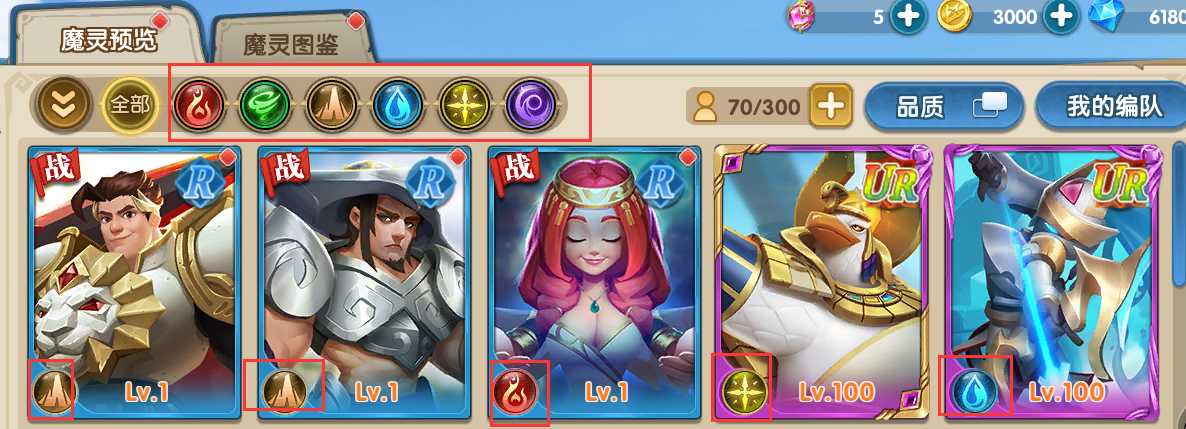 Each monster has its own attributes, which are
 fire
fire Wind
Wind land
land Water
Water Light
Light Dark
Dark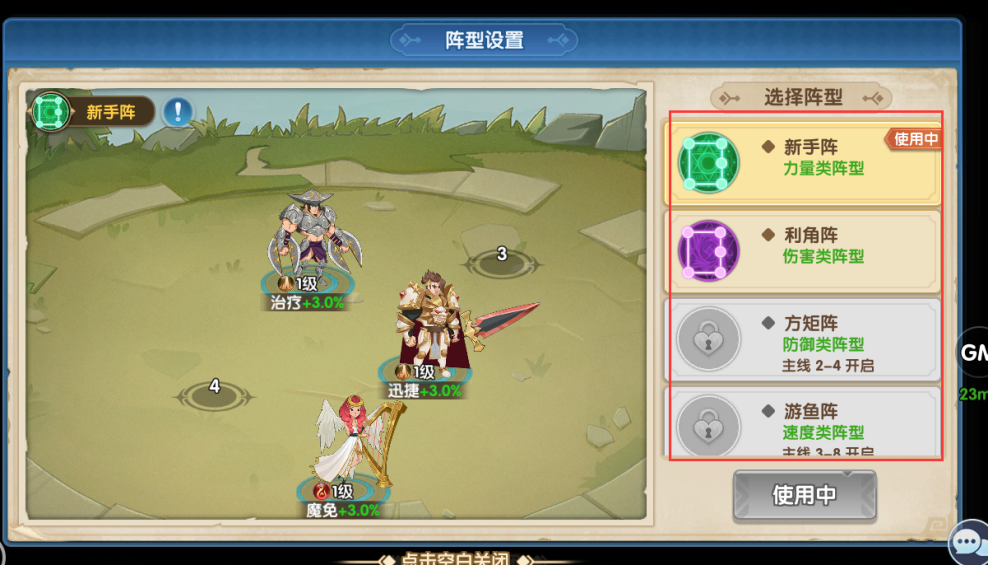 When playing any game, you can choose a formation. You can choose a defensive or damaging formation to improve the monsters and complete the level.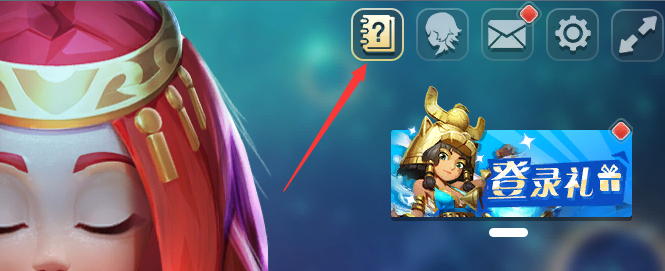
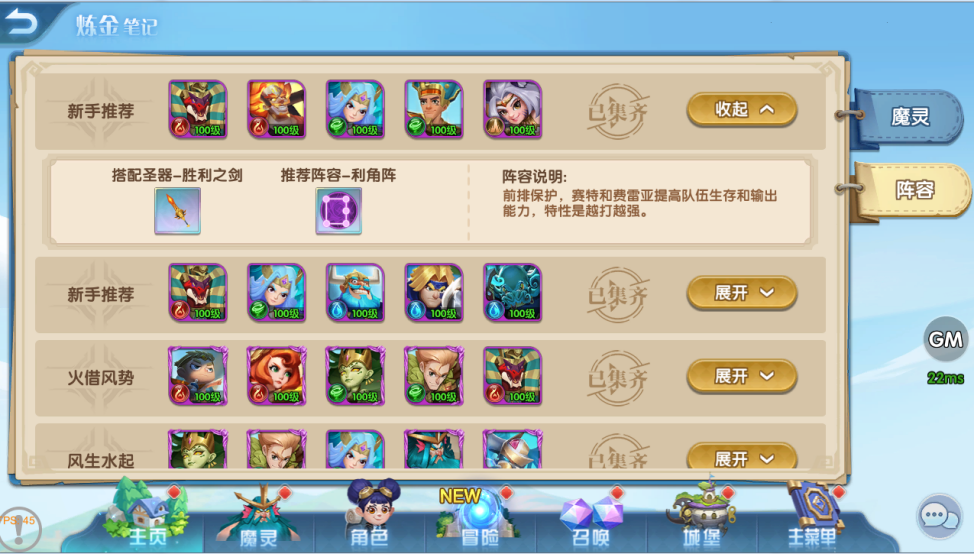 If there are recommended monsters, you can go to the battle, and then match the corresponding formation, which will have a miraculous effect in the early clearance of the main line, the Holy Spirit Tower, and even the arena.
 For example, in the Holy Spirit Tower, most of the enemy's monsters are fire-attributed, so you can choose more water-attributed monsters to restrain the enemy. If your water-attributed monsters are all mages and are relatively fragile, then you can choose a defensive formation, both offensive and defensive, to cause the greatest restraint on the enemy!
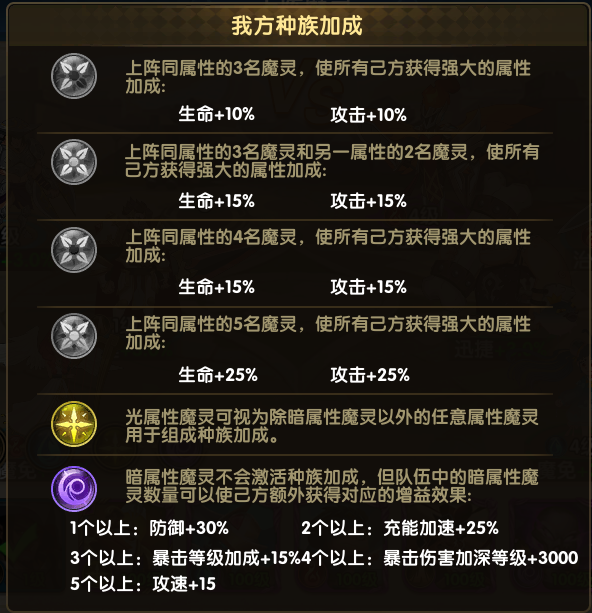 5. Enter the game to experience the actual faction matching. Maybe you can find a better match. After all, the monsters in the game can also achieve better combinations with each other!
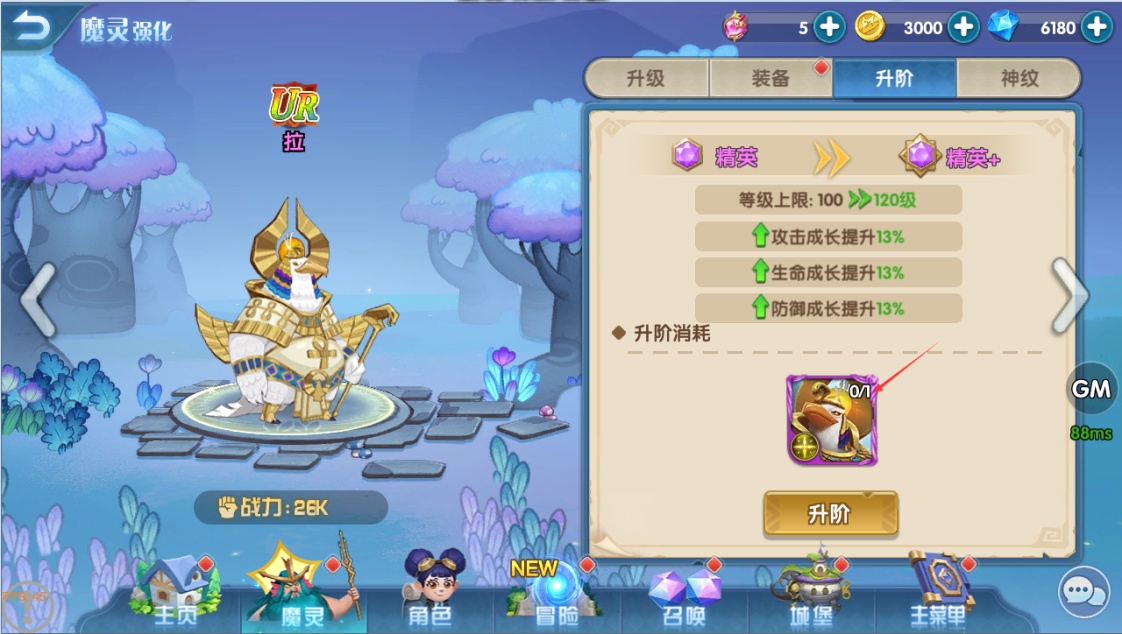 2. If the upgrade conditions are met, a [+] special effect will be displayed here, indicating that the upgrade can be performed.
 3. Then click the [Upgrade Button] or click the icon, and the selection interface will pop up, and the interface will automatically filter out the monsters that can be used as materials.
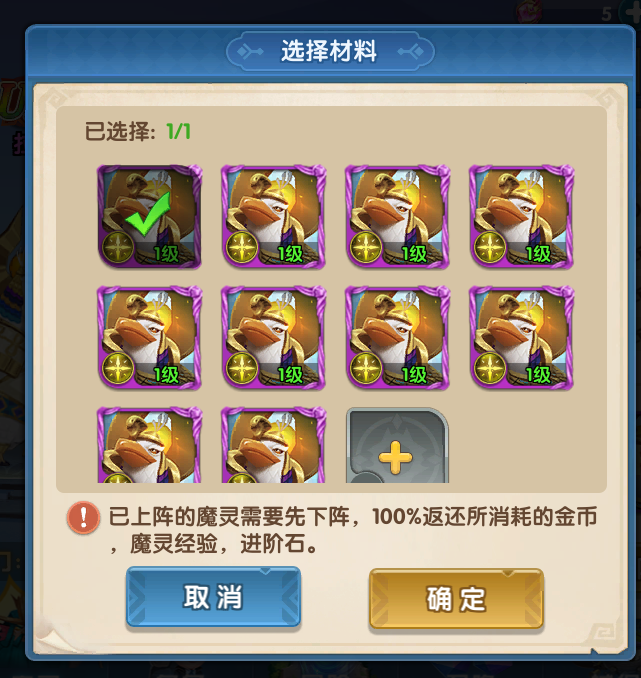 4. After selecting a monster, click the OK button, and the selection interface will be automatically closed. Then the selected monster will be put into the upgrade process and wait for the player's final confirmation.
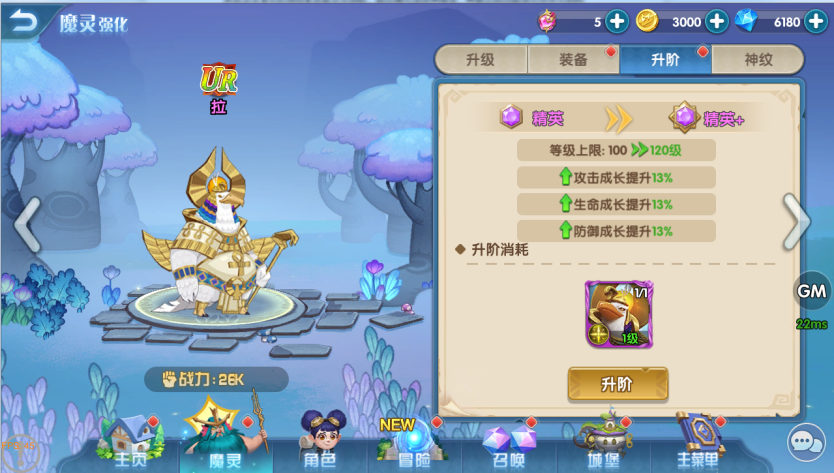 5. Finally, click [Upgrade] to upgrade. You can see the improvement of attributes, combat power, level limit, and the quality of the monster.
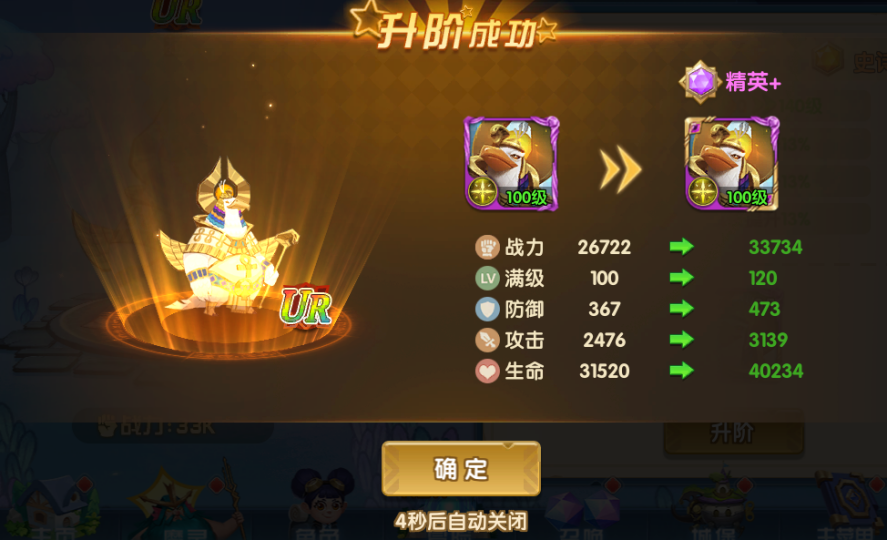 6. After the upgrade is completed, the interface will display the number of monsters required to upgrade to the next level, quality requirements, etc. Repeat the above steps.
 Well, today's guide ends here~ I wish you all a happy game!
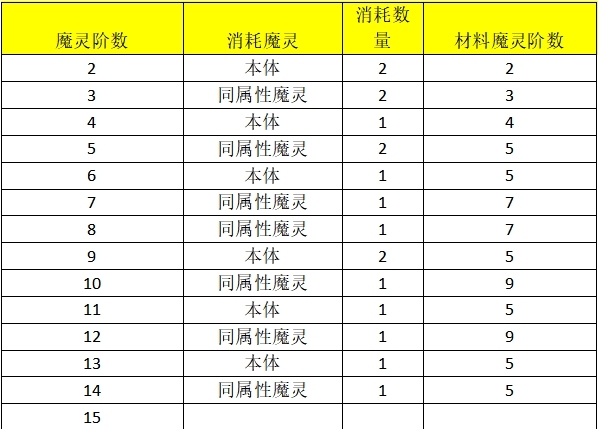 List of consumption for upgrading light and dark spirits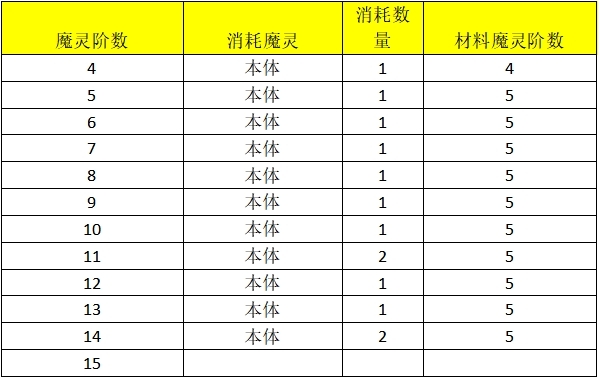
 Loading

