



Install Steam
sign in
|
language
简体中文 (Simplified Chinese)
繁體中文 (Traditional Chinese)
日本語 (Japanese)
한국어 (Korean)
ไทย (Thai)
Български (Bulgarian)
Čeština (Czech)
Dansk (Danish)
Deutsch (German)
Español - España (Spanish - Spain)
Español - Latinoamérica (Spanish - Latin America)
Ελληνικά (Greek)
Français (French)
Italiano (Italian)
Bahasa Indonesia (Indonesian)
Magyar (Hungarian)
Nederlands (Dutch)
Norsk (Norwegian)
Polski (Polish)
Português (Portuguese - Portugal)
Português - Brasil (Portuguese - Brazil)
Română (Romanian)
Русский (Russian)
Suomi (Finnish)
Svenska (Swedish)
Türkçe (Turkish)
Tiếng Việt (Vietnamese)
Українська (Ukrainian)
Report a translation problem

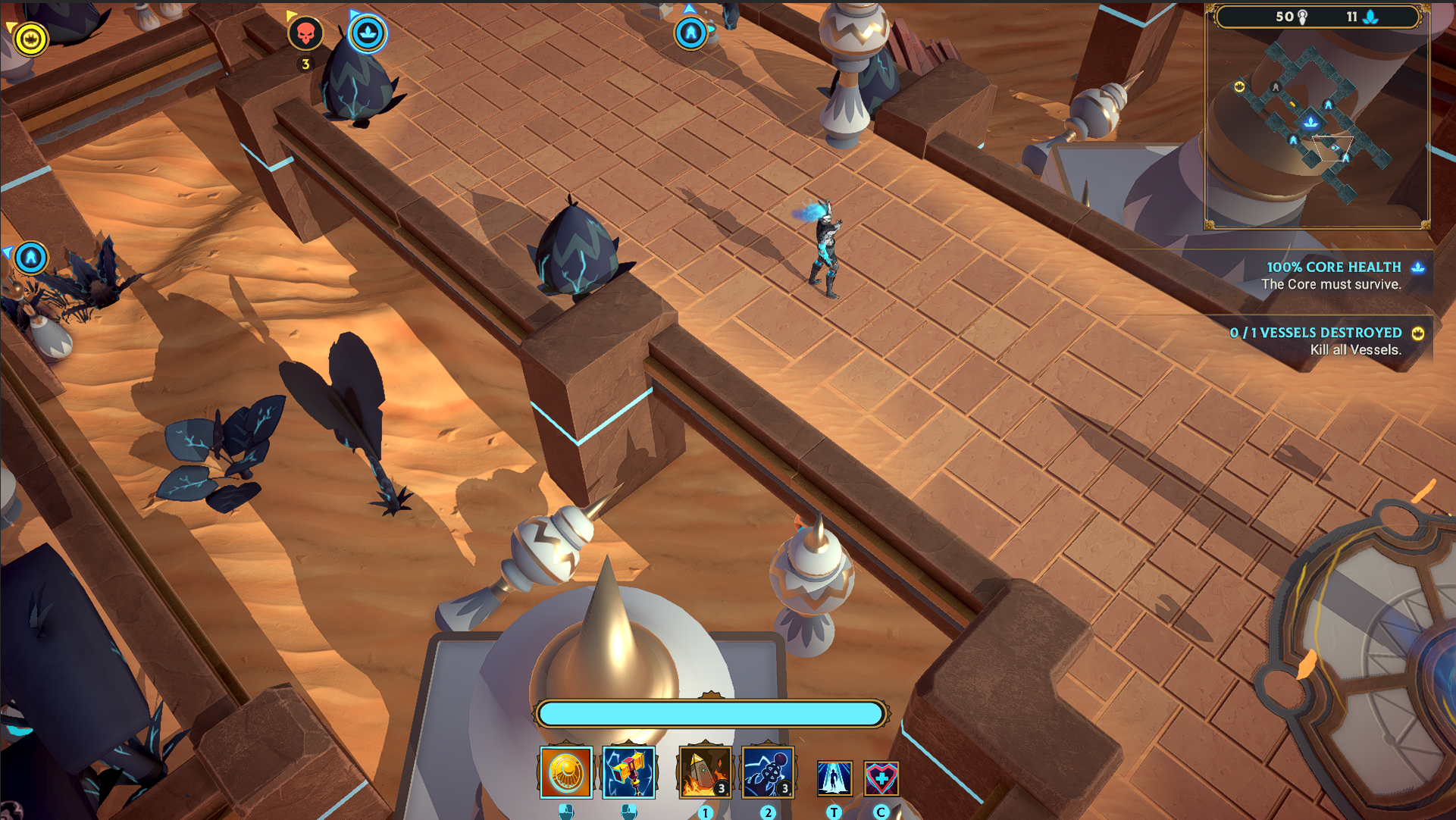 On the edge of the screen, we have placed new icons that provide vital information about what’s happening outside of your field of view. This will allow you to keep an eye on the different strategic points on the map.
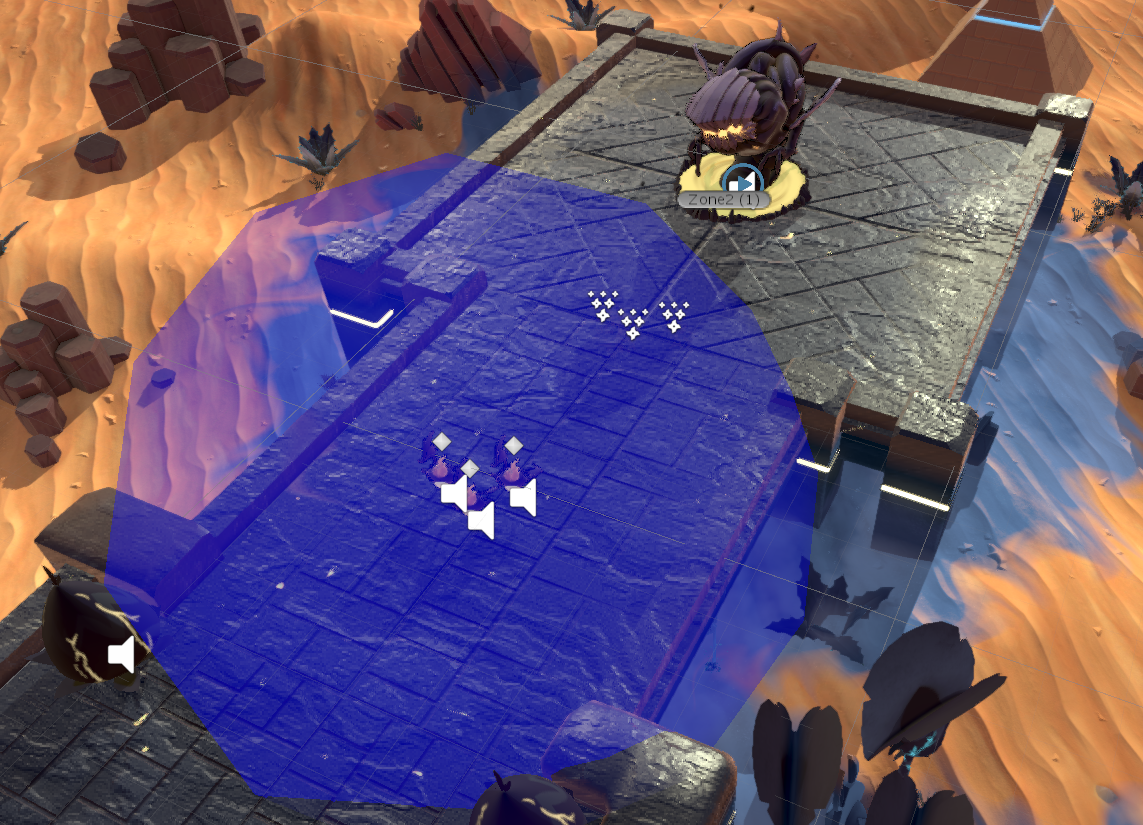 In the image above, if one of the units were to move outside of the blue bubble, it would create a new cluster. If a fourth unit entered that bubble, it would join that cluster.
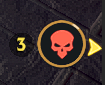 Let’s give an example:

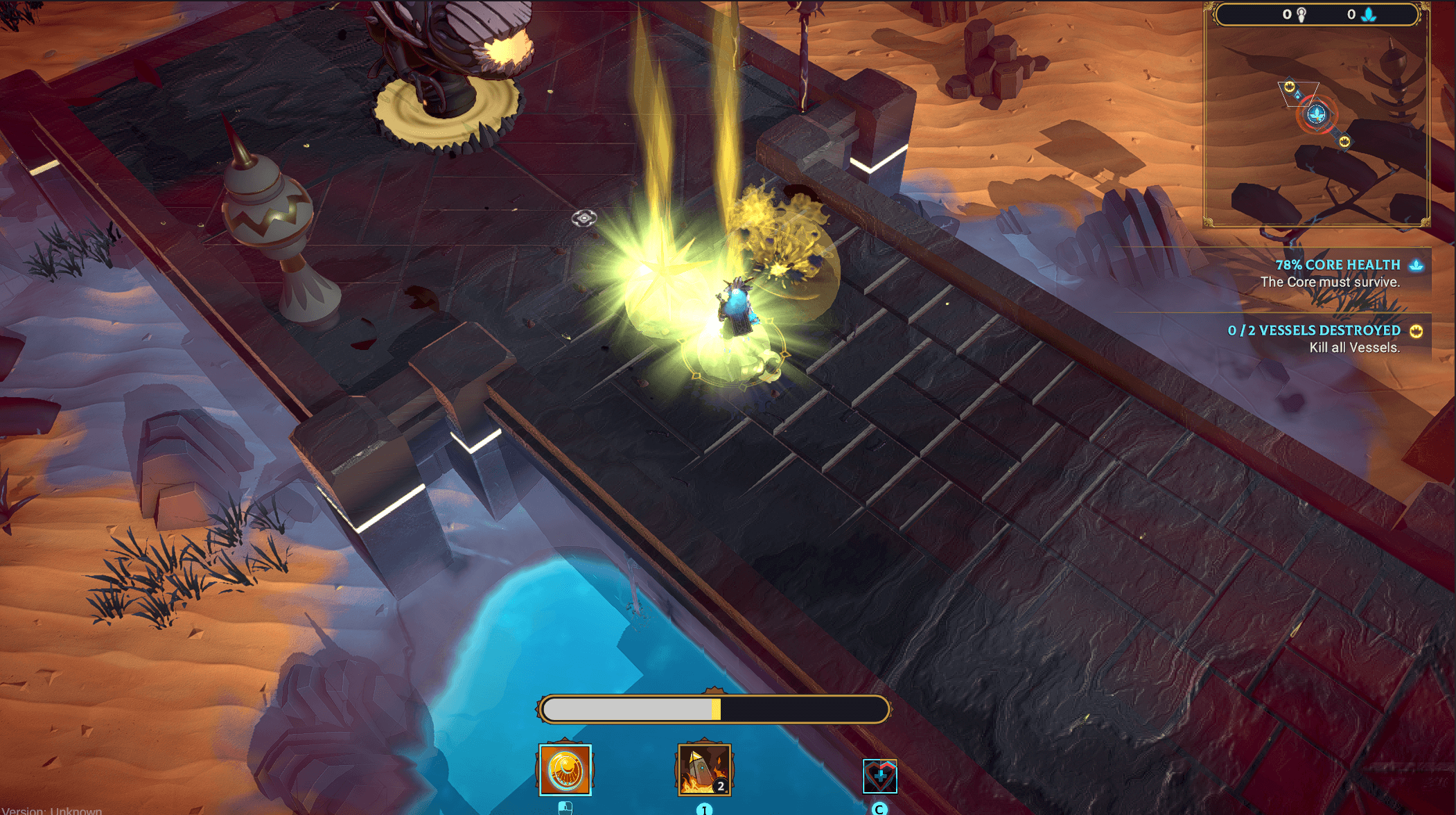
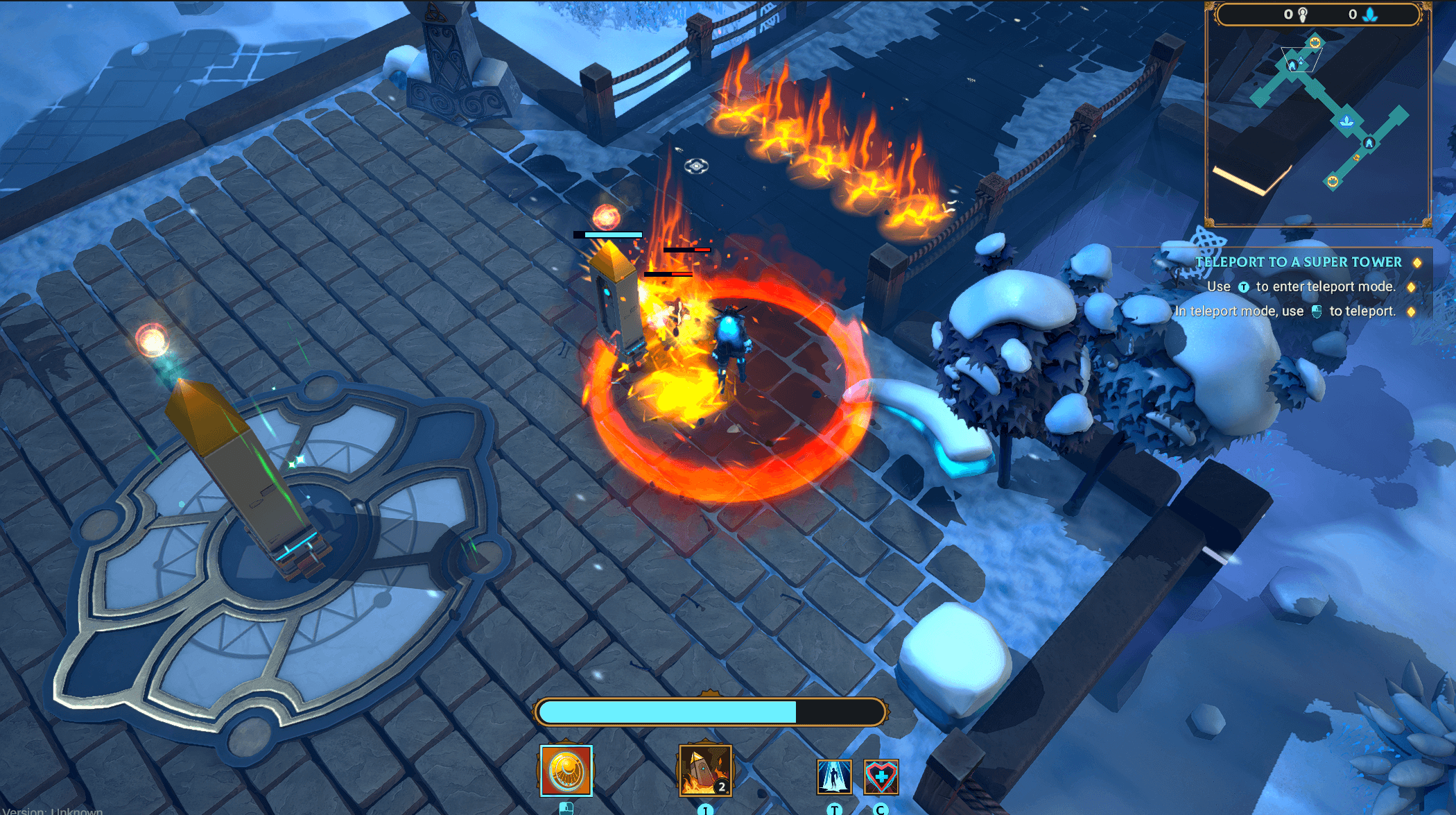
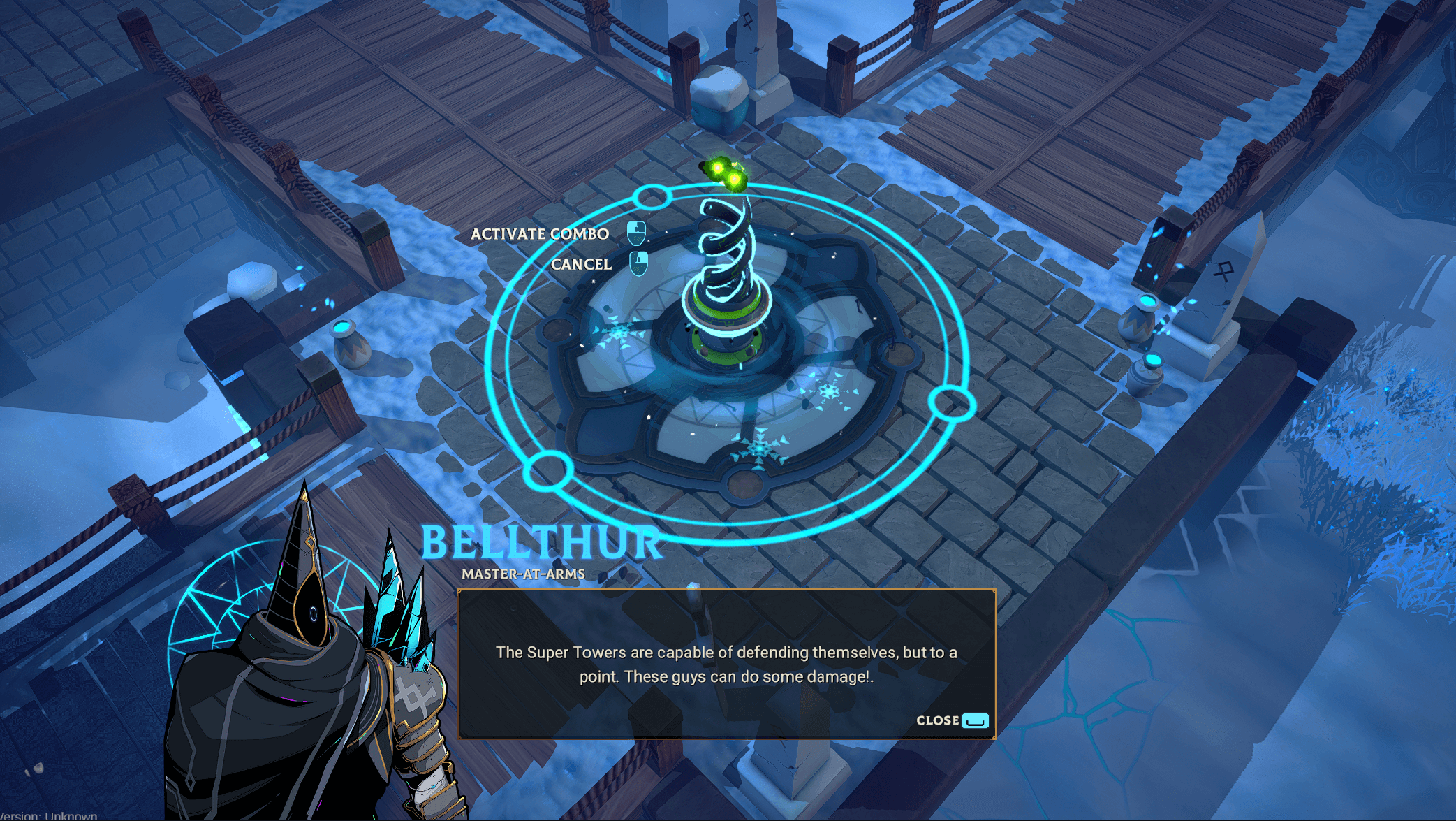
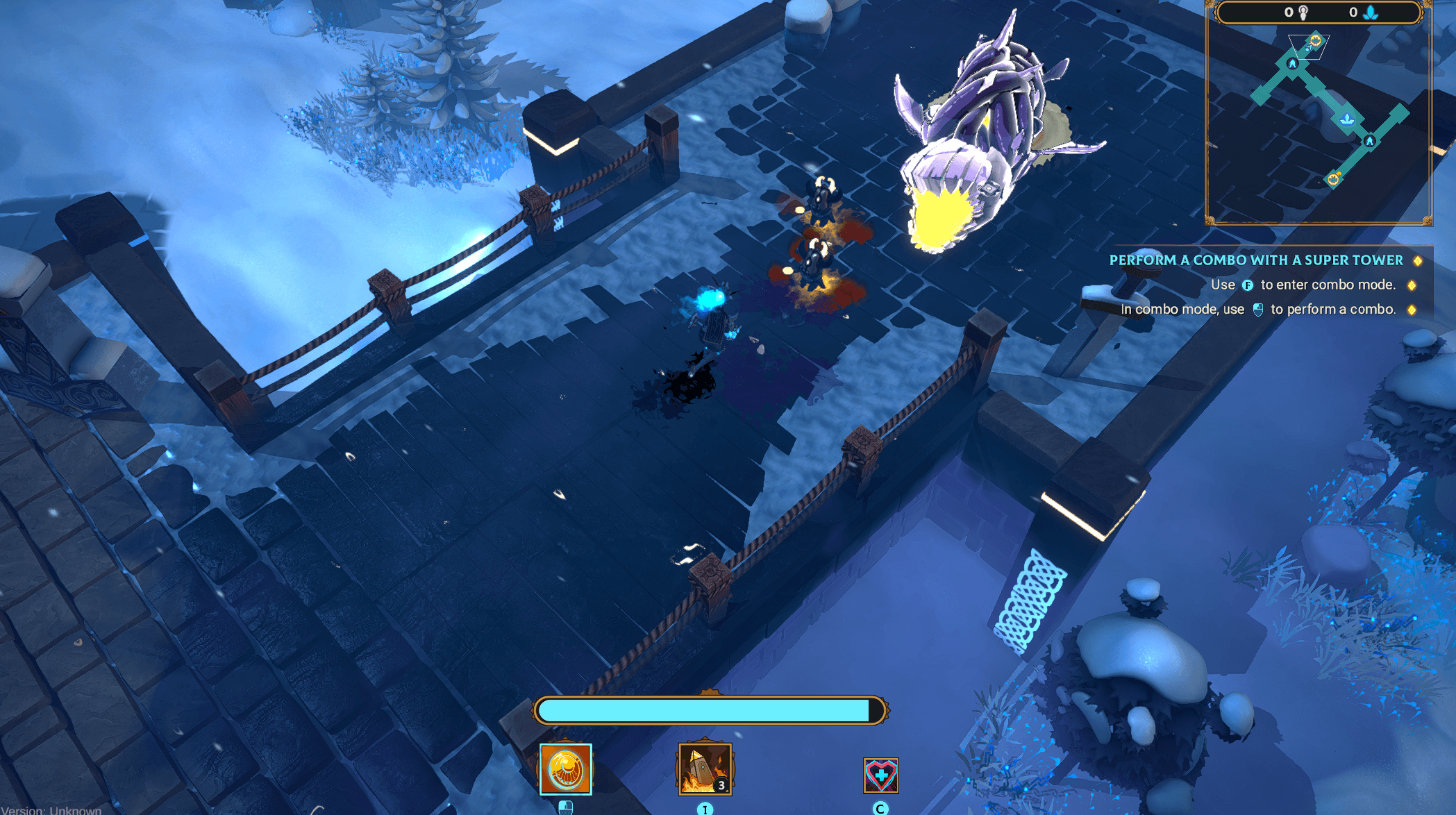
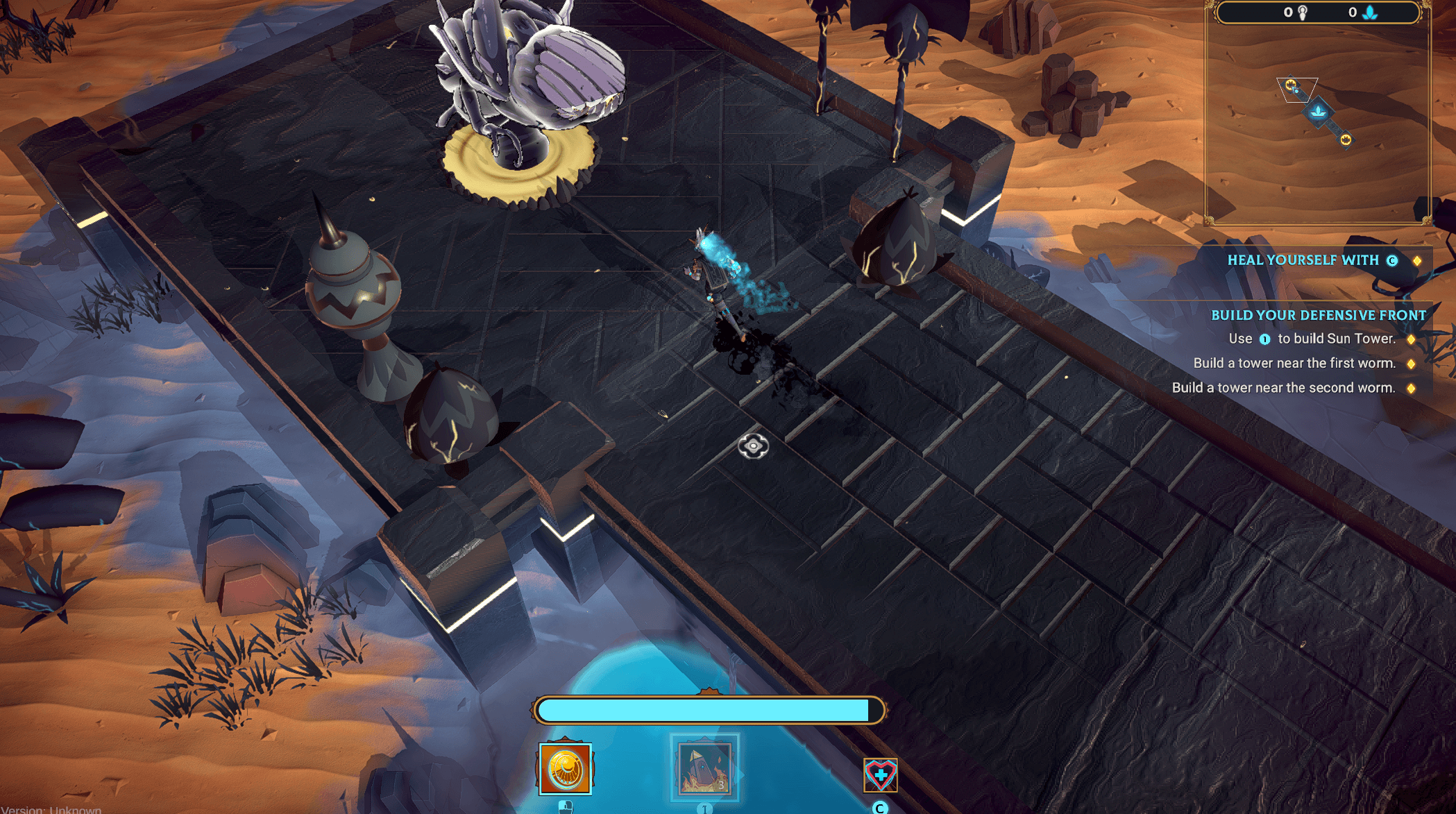
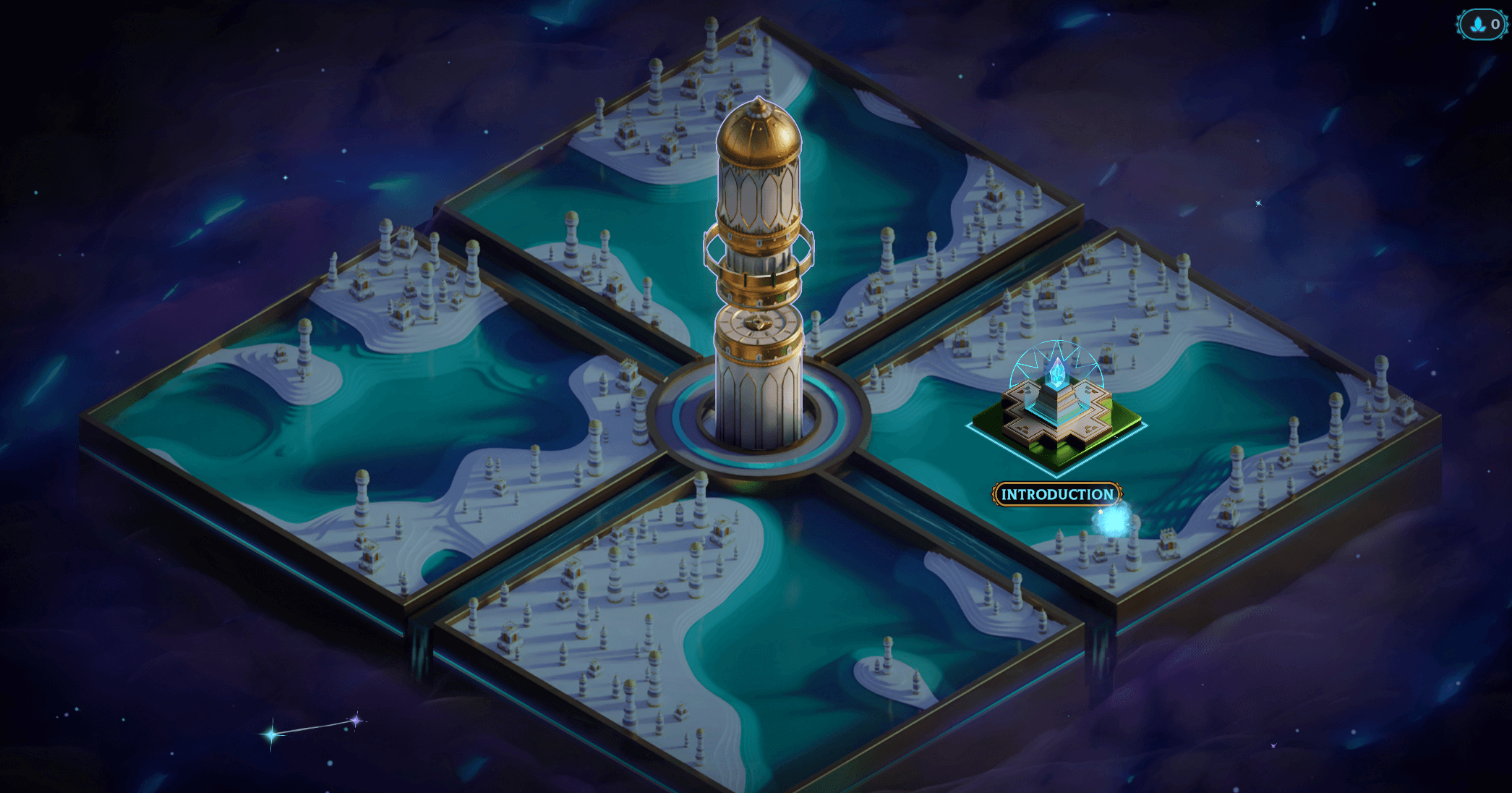 All right that's it for this update. See you in the next one!
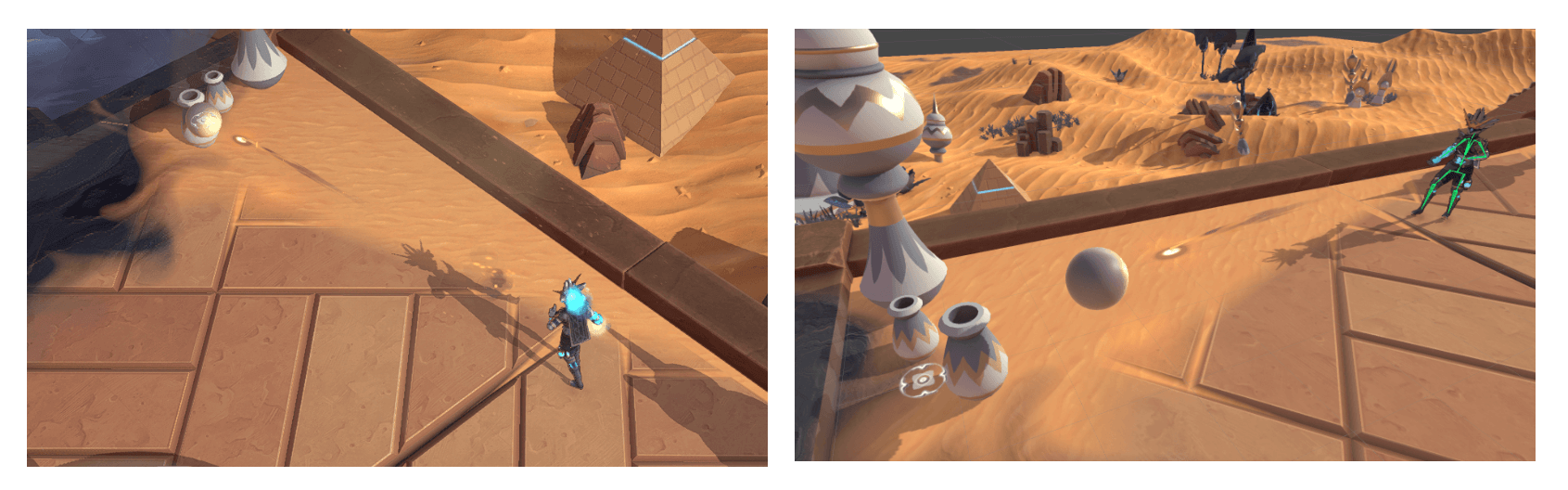 As you can see, the sphere and the cursor are on top of each other in the left image, which is the perspective seen by the player. But in the right image, you can see that the sphere is actually above the ground. This set of images showcases fairly well the solution we went with. The cursor is always on the ground, we then identify the position of the sphere in the world by using a projection of the cursor on the ground and the height of the projectile. Then the projectile travels in the direction of the sphere.
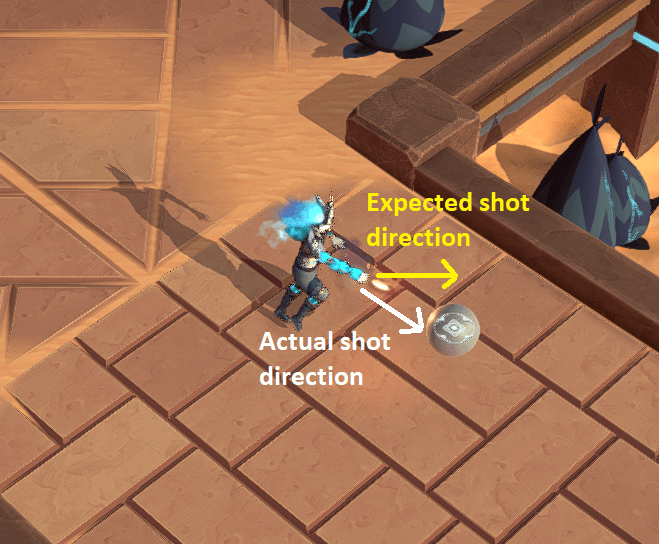 In the previous image, the yellow arrow indicates the direction the character is moving.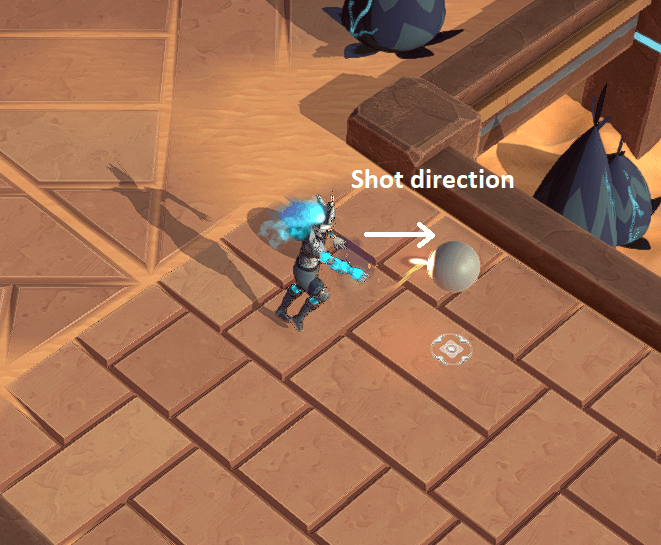
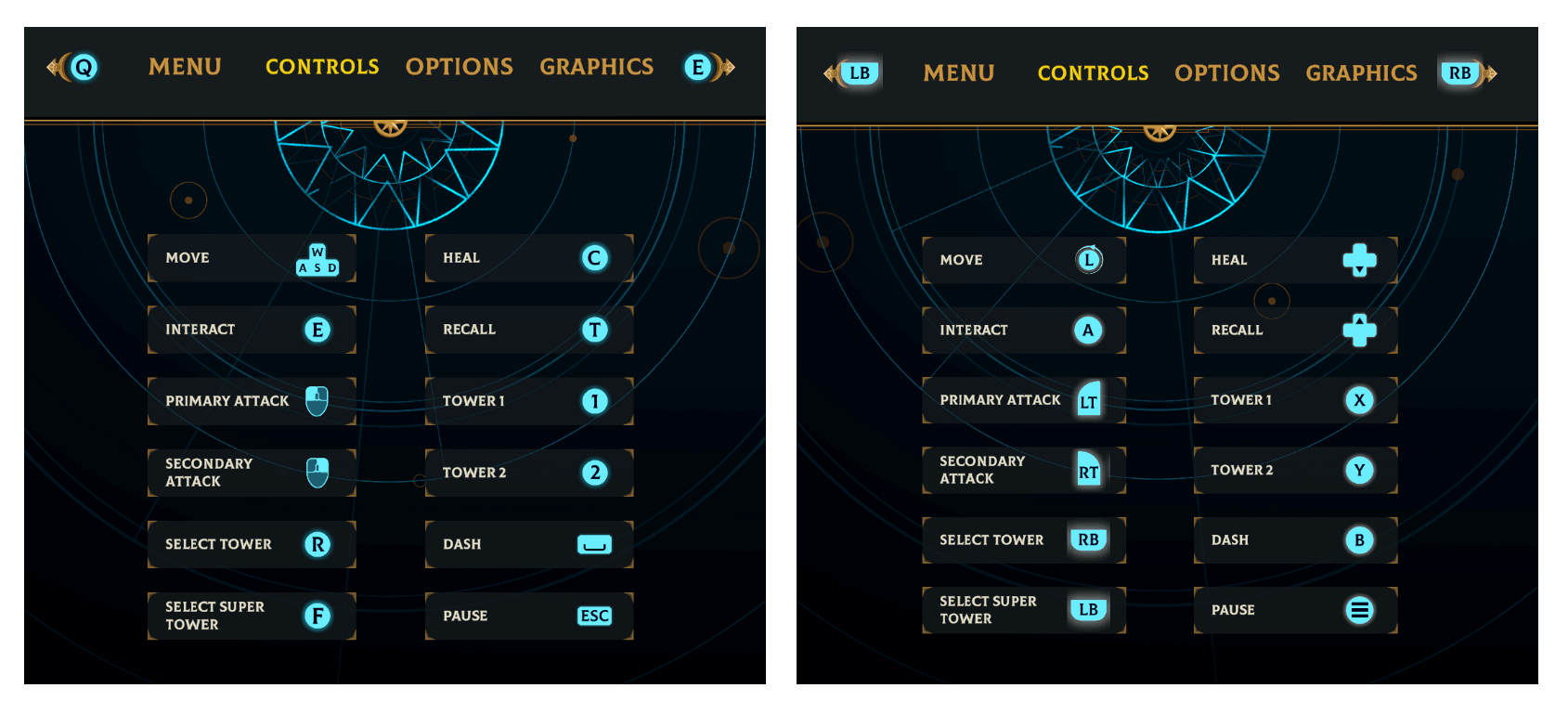 On top of that, we had already implemented dynamic input switching. Meaning that if you were using your keyboard/mouse combo and picked up your Xbox controller mid-game instead, all the icons would switch automatically. A really neat tool that made this process a lot easier! Until…
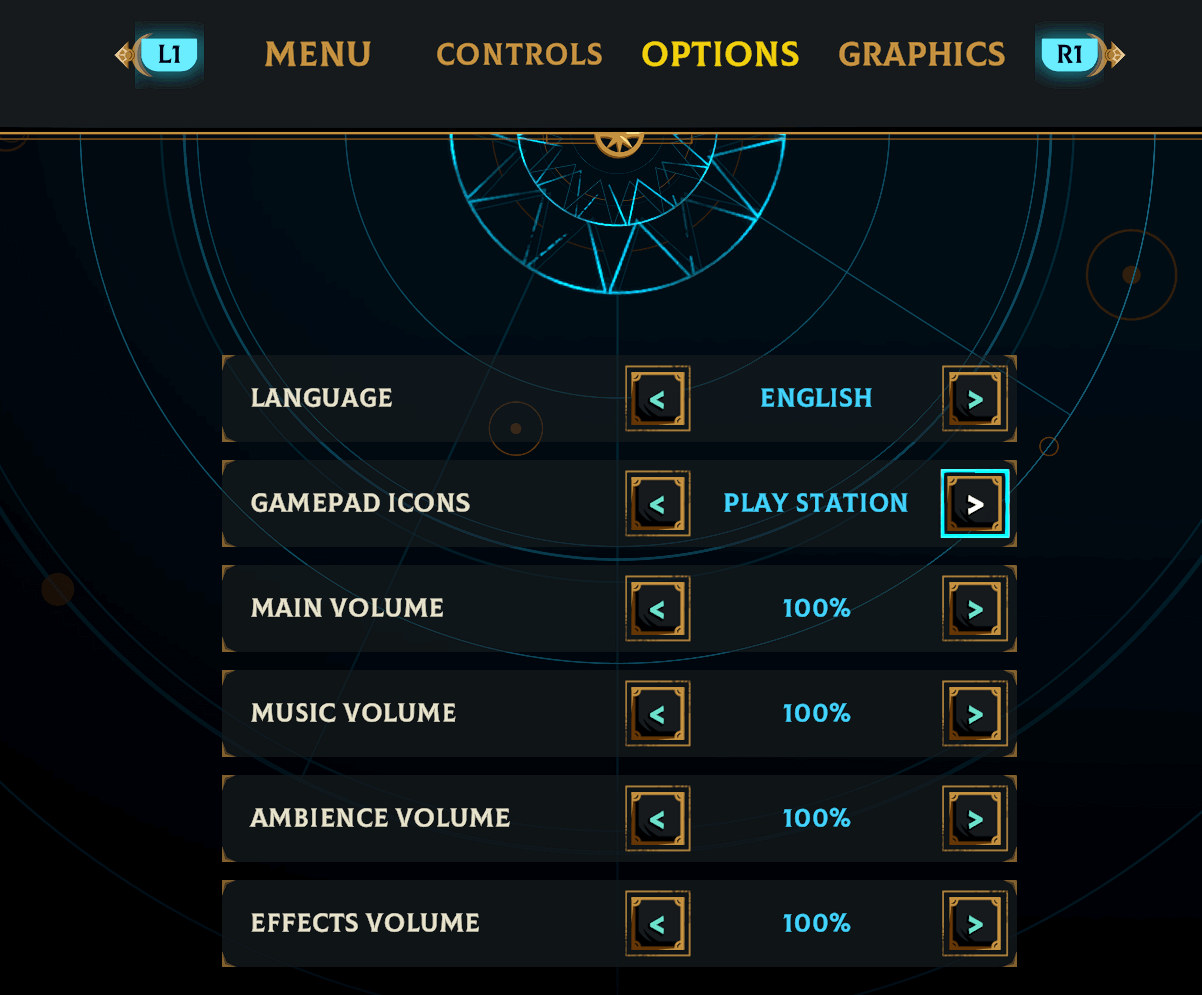 If you are using your keyboard and mouse combo, we’ll show you the correct icons. But if you use a gamepad, no matter what we detect, we’ll use the configuration you set there. Simple enough!

 Loading

