



Install Steam
sign in
|
language
简体中文 (Simplified Chinese)
繁體中文 (Traditional Chinese)
日本語 (Japanese)
한국어 (Korean)
ไทย (Thai)
Български (Bulgarian)
Čeština (Czech)
Dansk (Danish)
Deutsch (German)
Español - España (Spanish - Spain)
Español - Latinoamérica (Spanish - Latin America)
Ελληνικά (Greek)
Français (French)
Italiano (Italian)
Bahasa Indonesia (Indonesian)
Magyar (Hungarian)
Nederlands (Dutch)
Norsk (Norwegian)
Polski (Polish)
Português (Portuguese - Portugal)
Português - Brasil (Portuguese - Brazil)
Română (Romanian)
Русский (Russian)
Suomi (Finnish)
Svenska (Swedish)
Türkçe (Turkish)
Tiếng Việt (Vietnamese)
Українська (Ukrainian)
Report a translation problem


 After:
 After: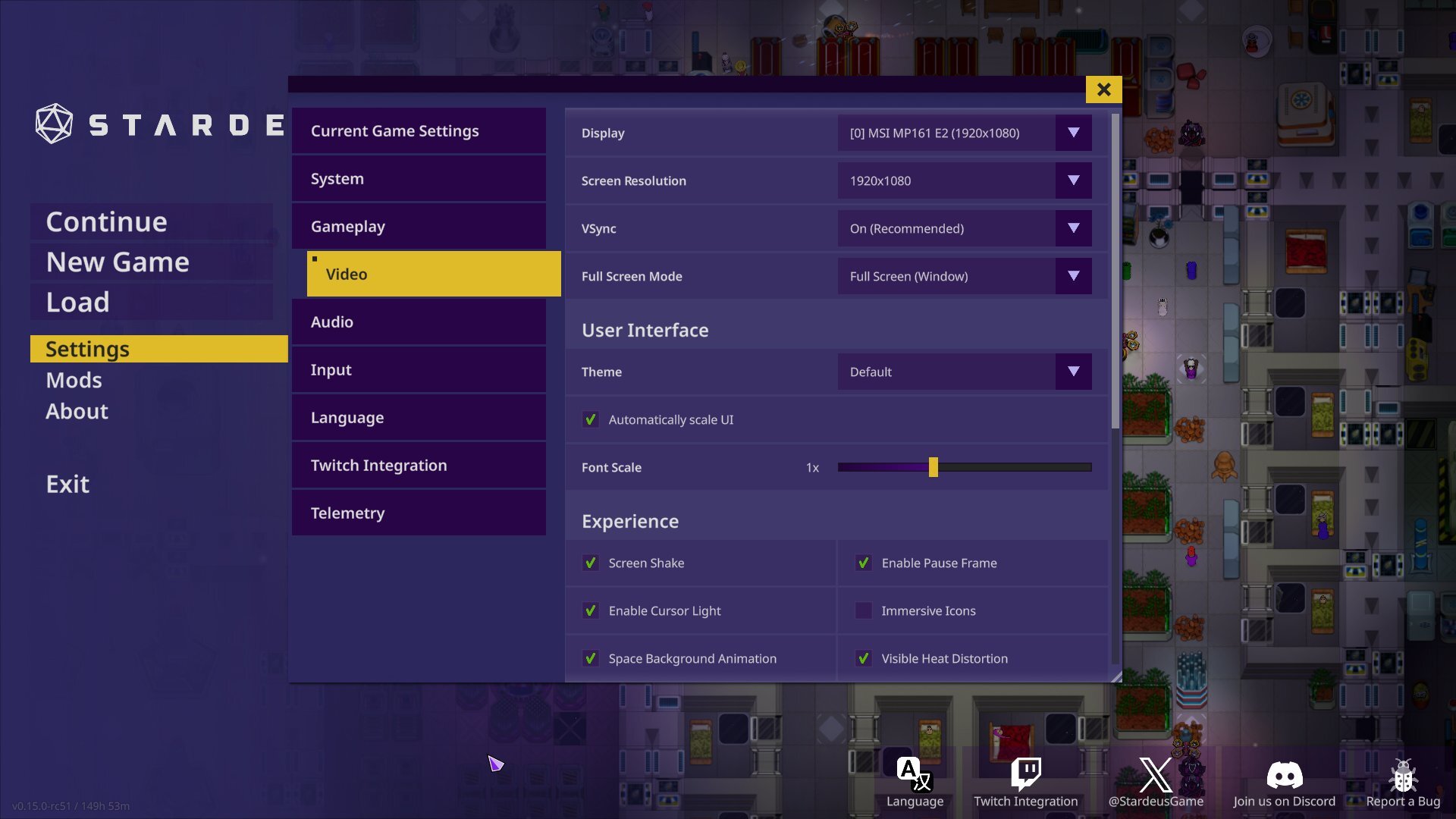
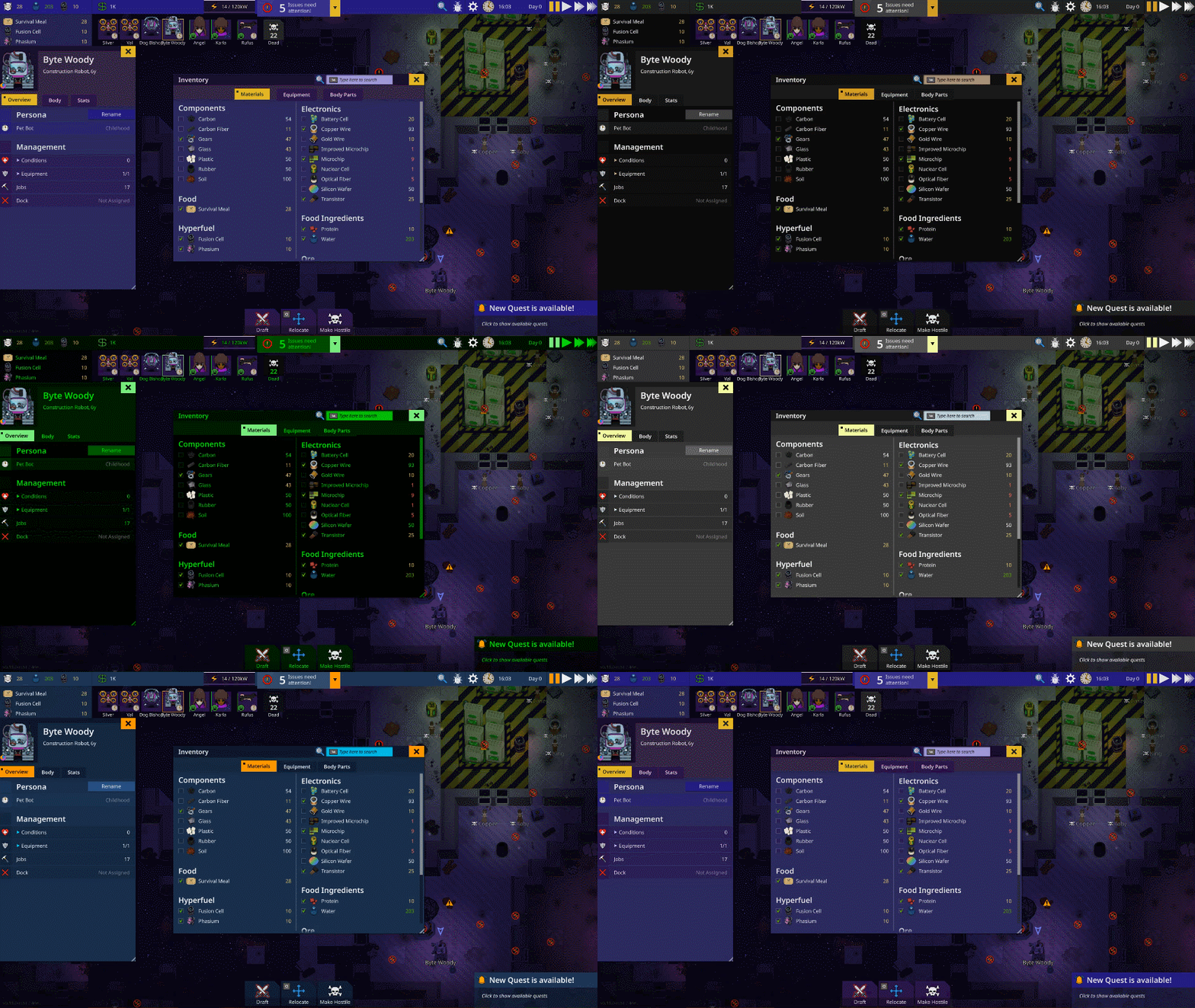
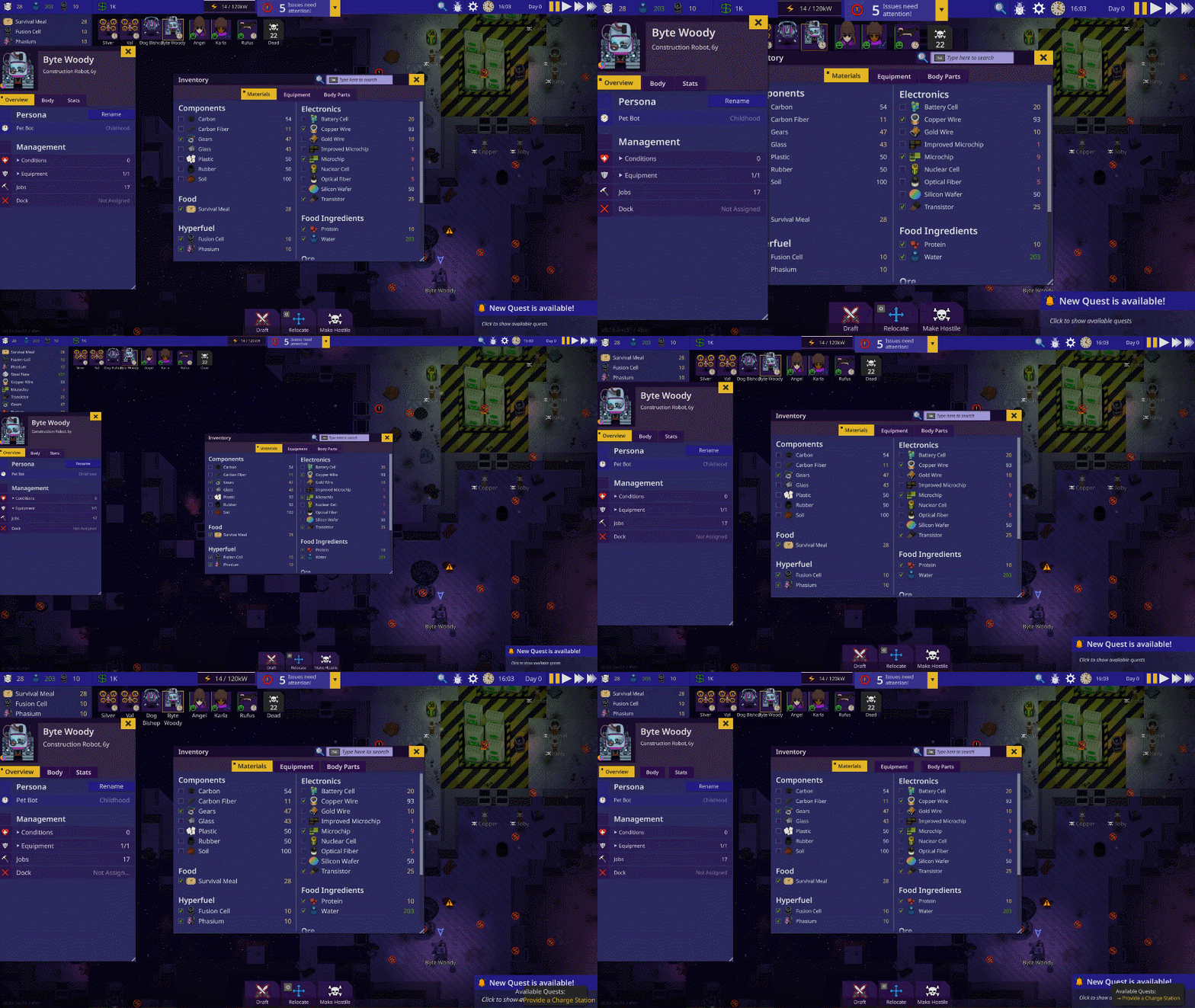
 After:
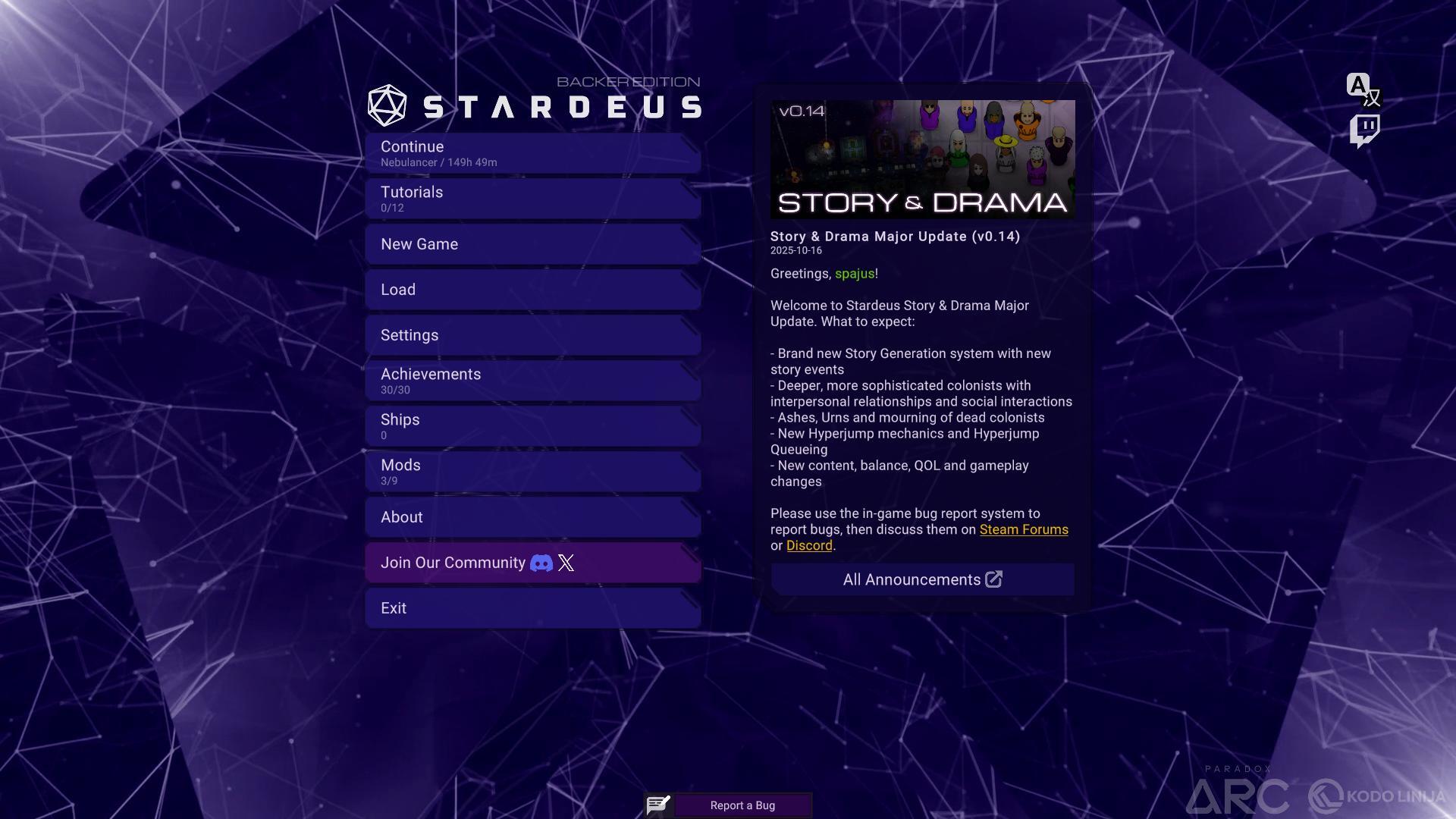
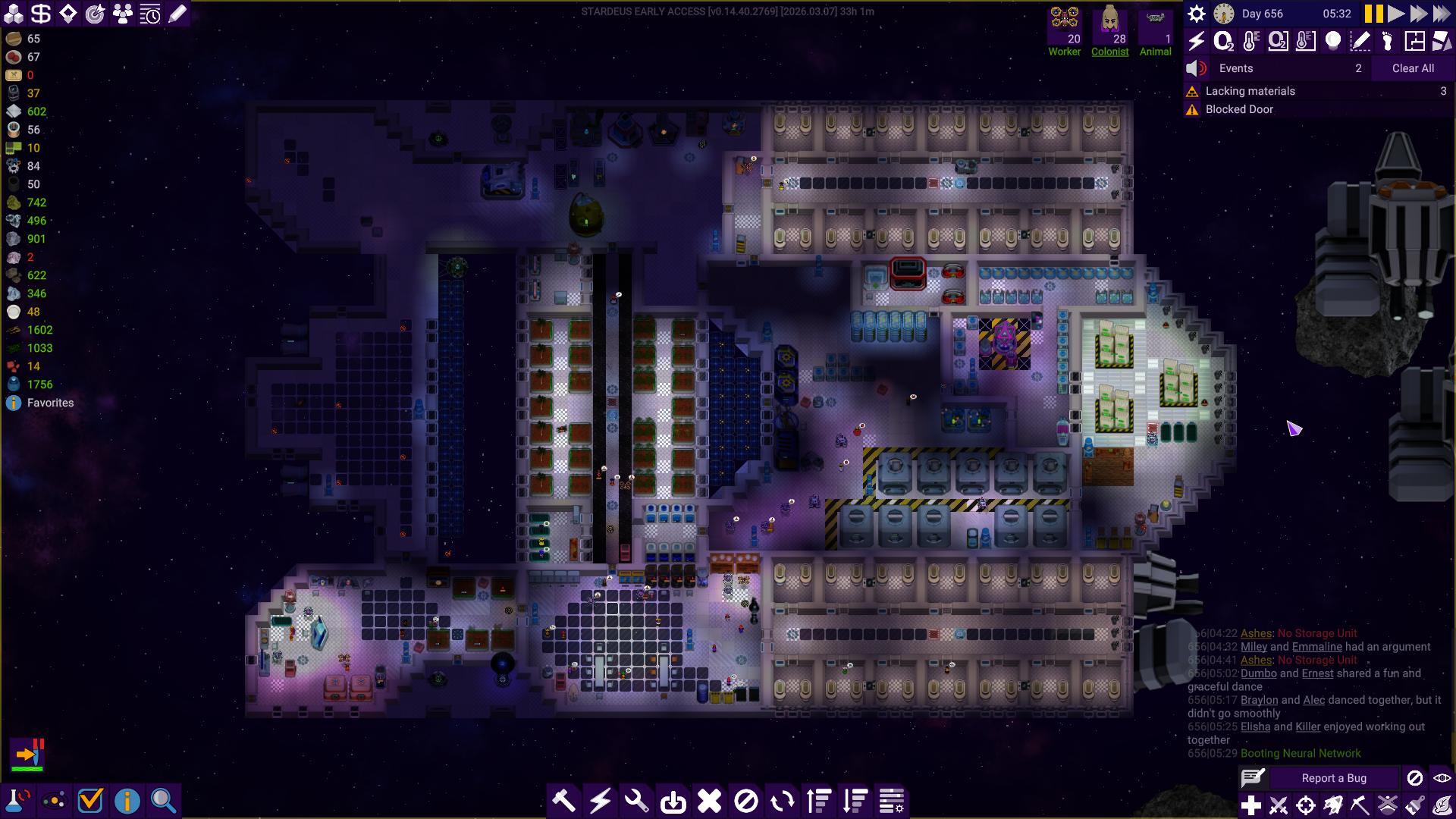
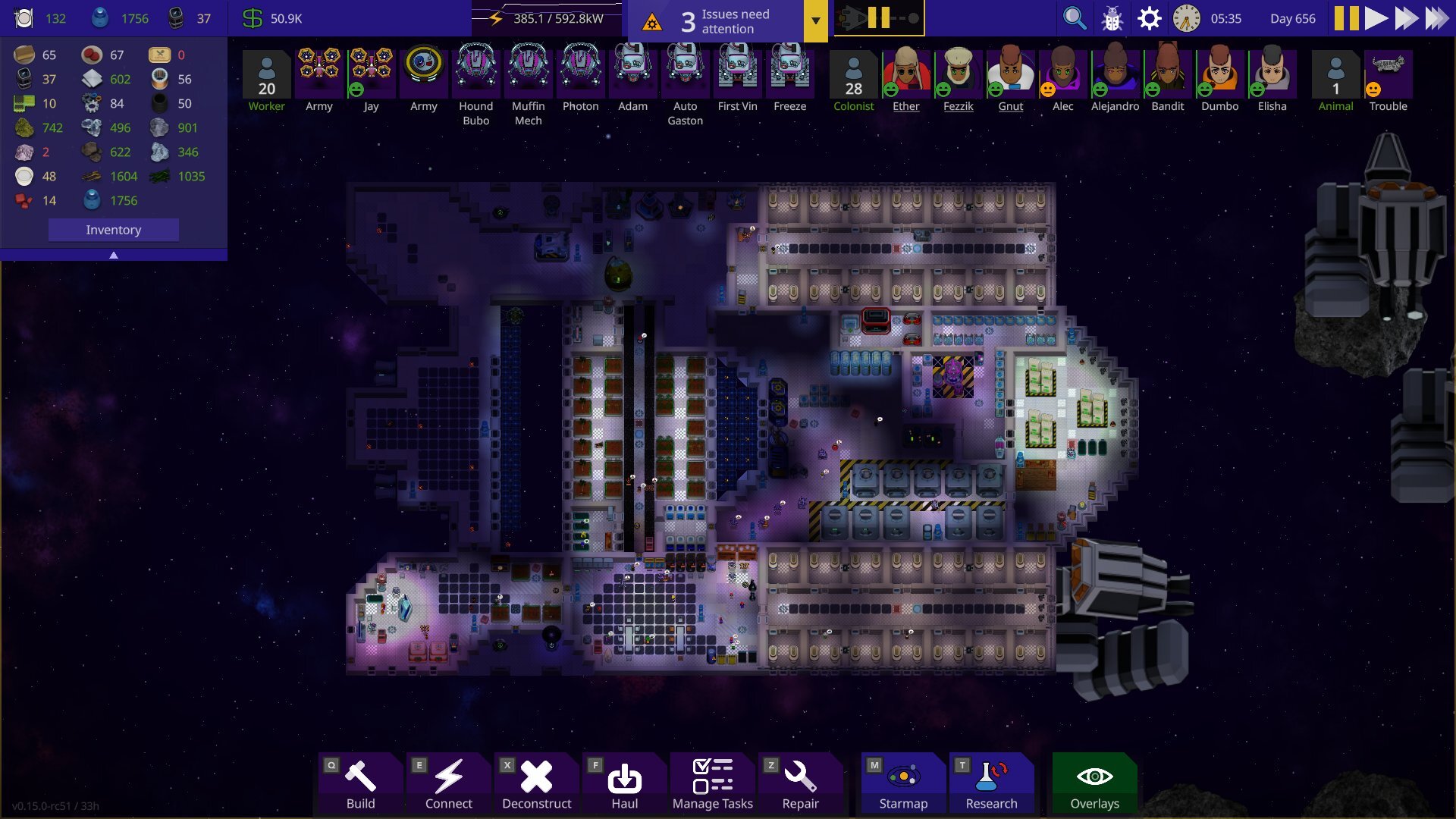 The old game view had nearly 50 visible buttons in the main screen at all times and could at times be very cluttered and frustrating for new players. Veterans who’s gotten used to it for years liked it for the information it granted so that is something we wanted to be careful about not changing all too much.
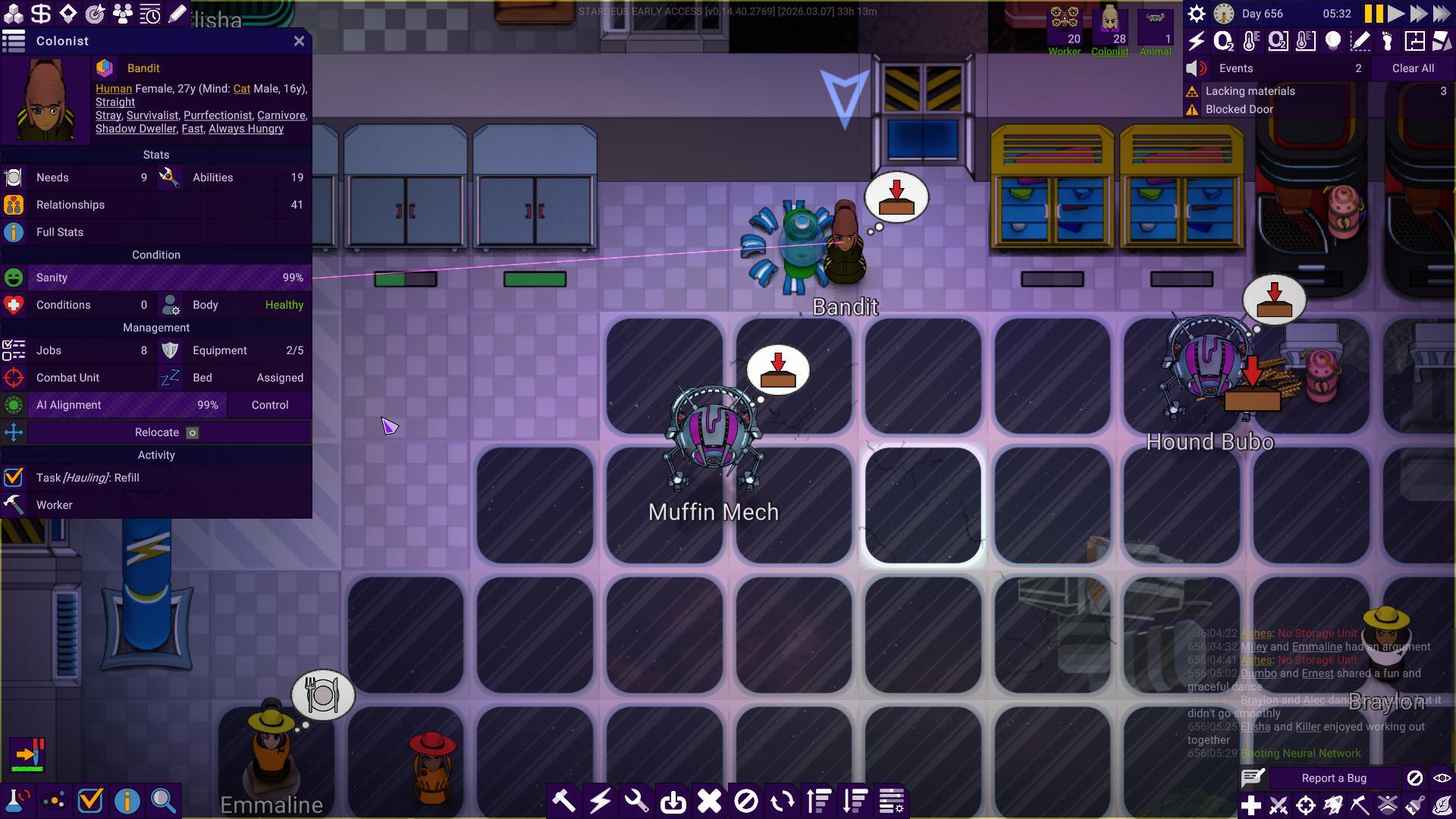 After:
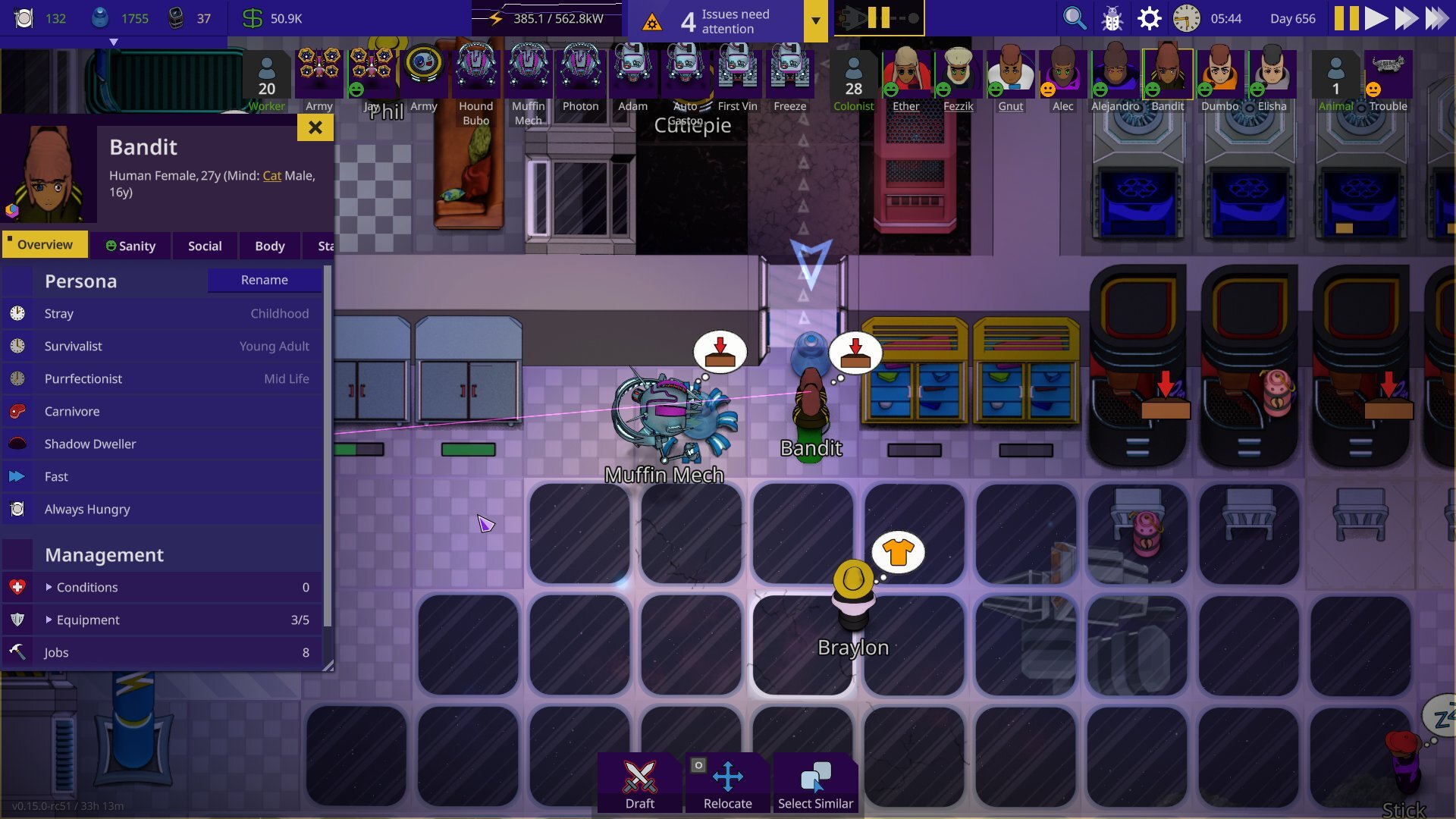 In the old UI when you selected a being it was condensed into a single panel. Although this was information dense, it could also be very hard to understand what was clickable and not. In the new UI all types of information has been reorganised into tabs & all actions you can perform has been moved into the bottom of the screen.
 After:
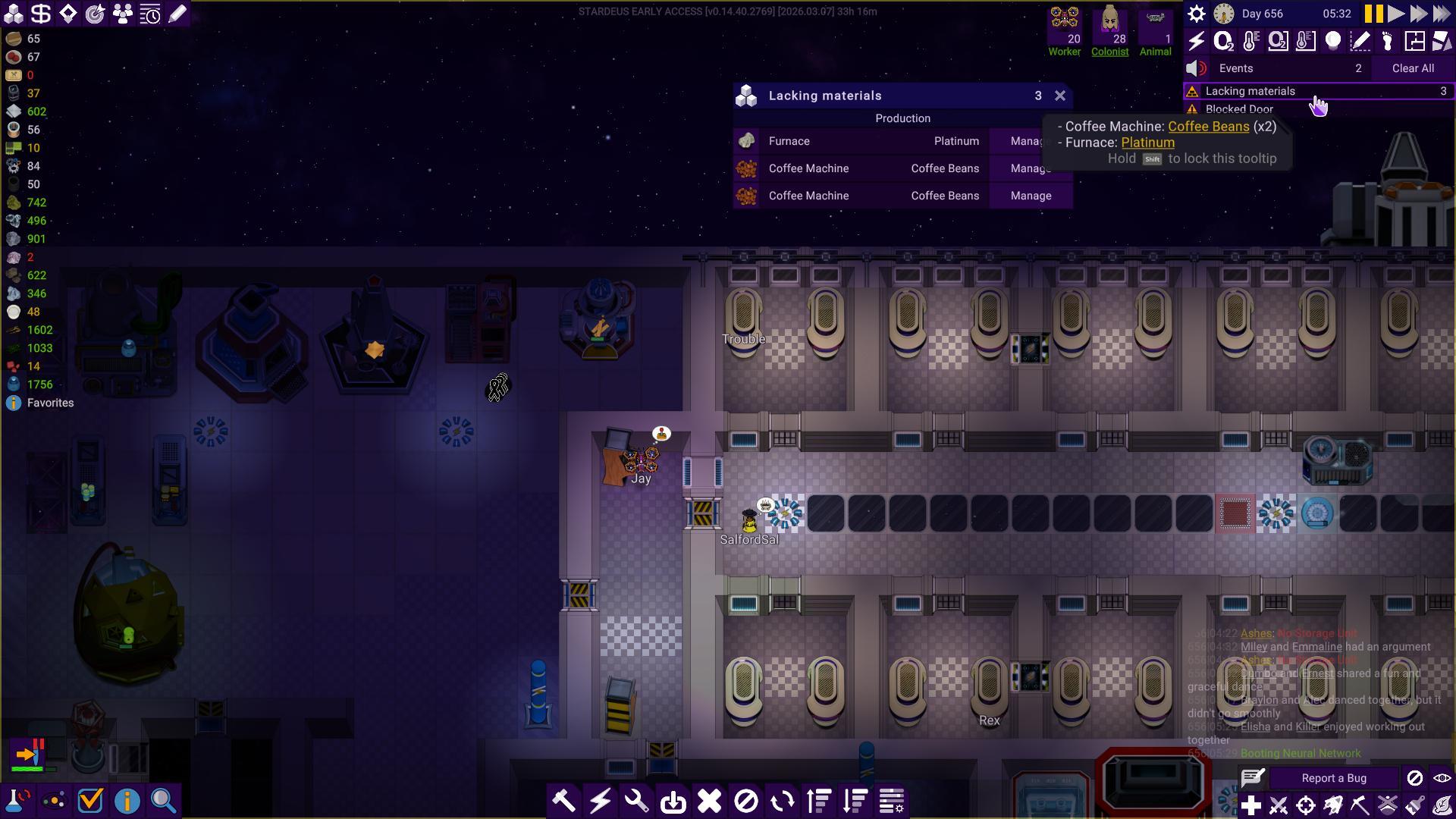
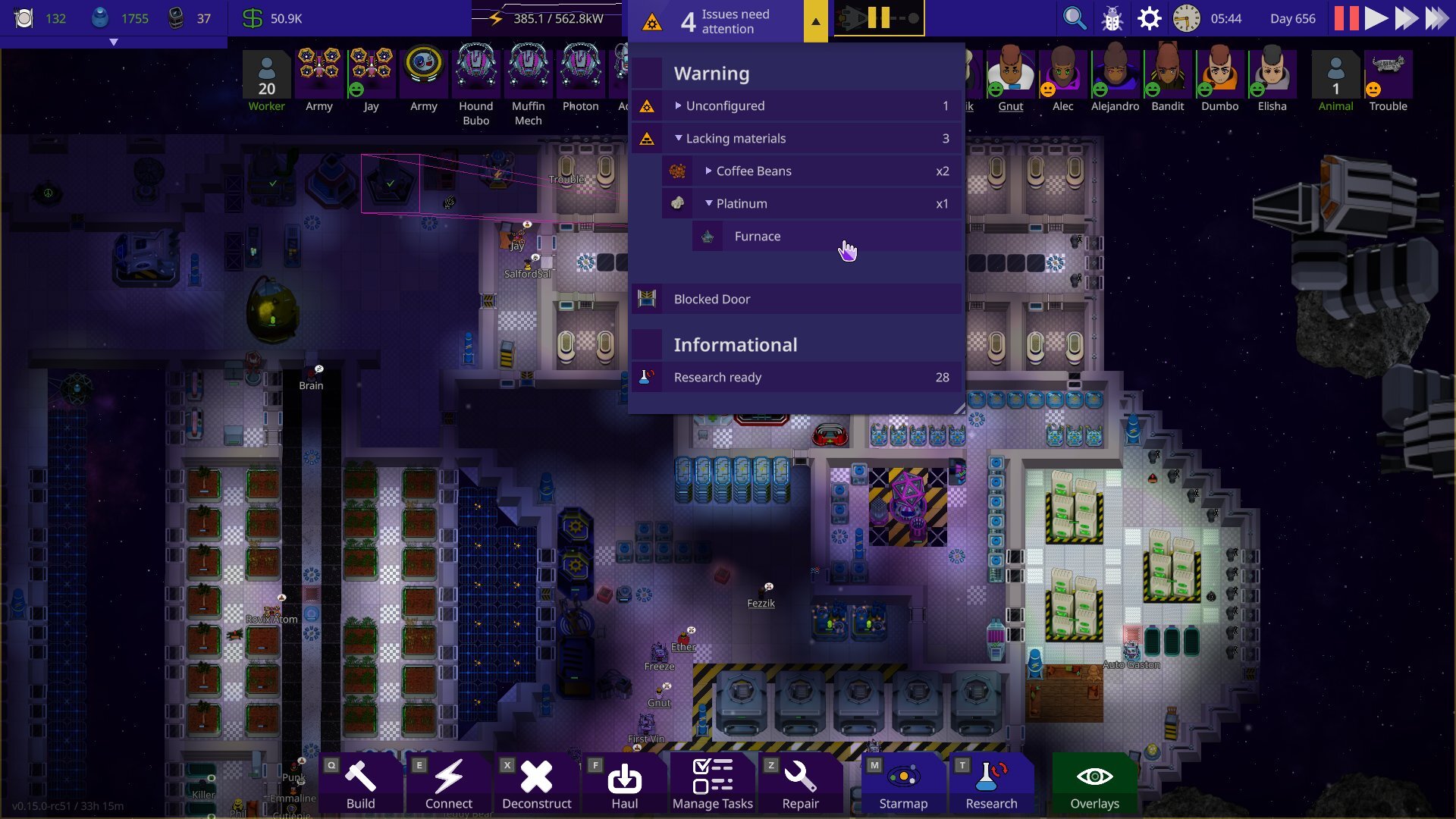 We noticed how the notification hub became something players usually just ignored after a while of playing, adding to the UI fatigue. We’ve addressed this in the new notification hub with the number of notifications and an icon of the most important notification showing at a glance. Expanding hub gives you a list sorted by importance. The expandable list makes it easier to drill into the details of each notification. For instance, previously we needed a separate UI for listing devices that lacked materials, but now it’s built straight into the notification hub.
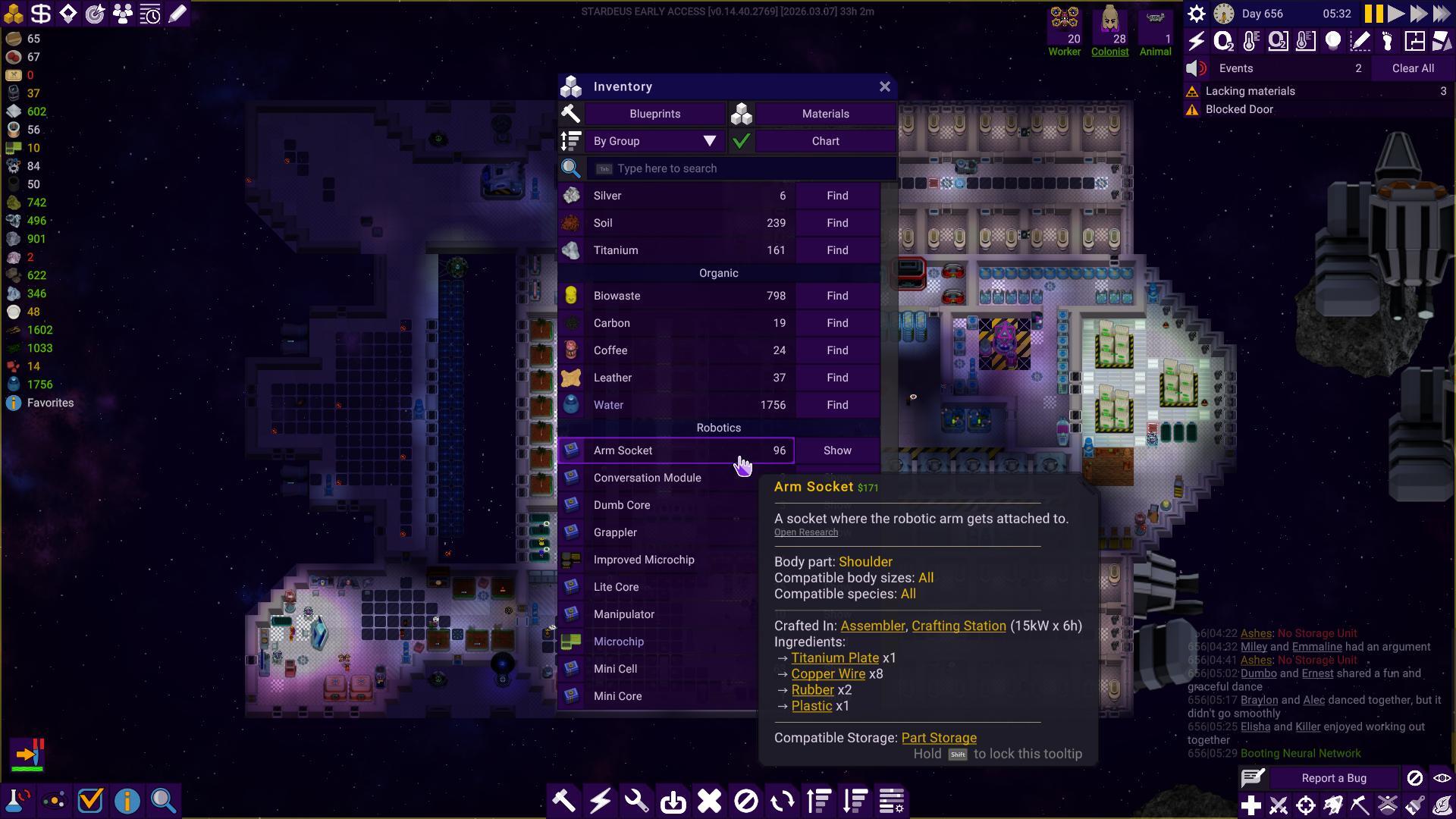 After:
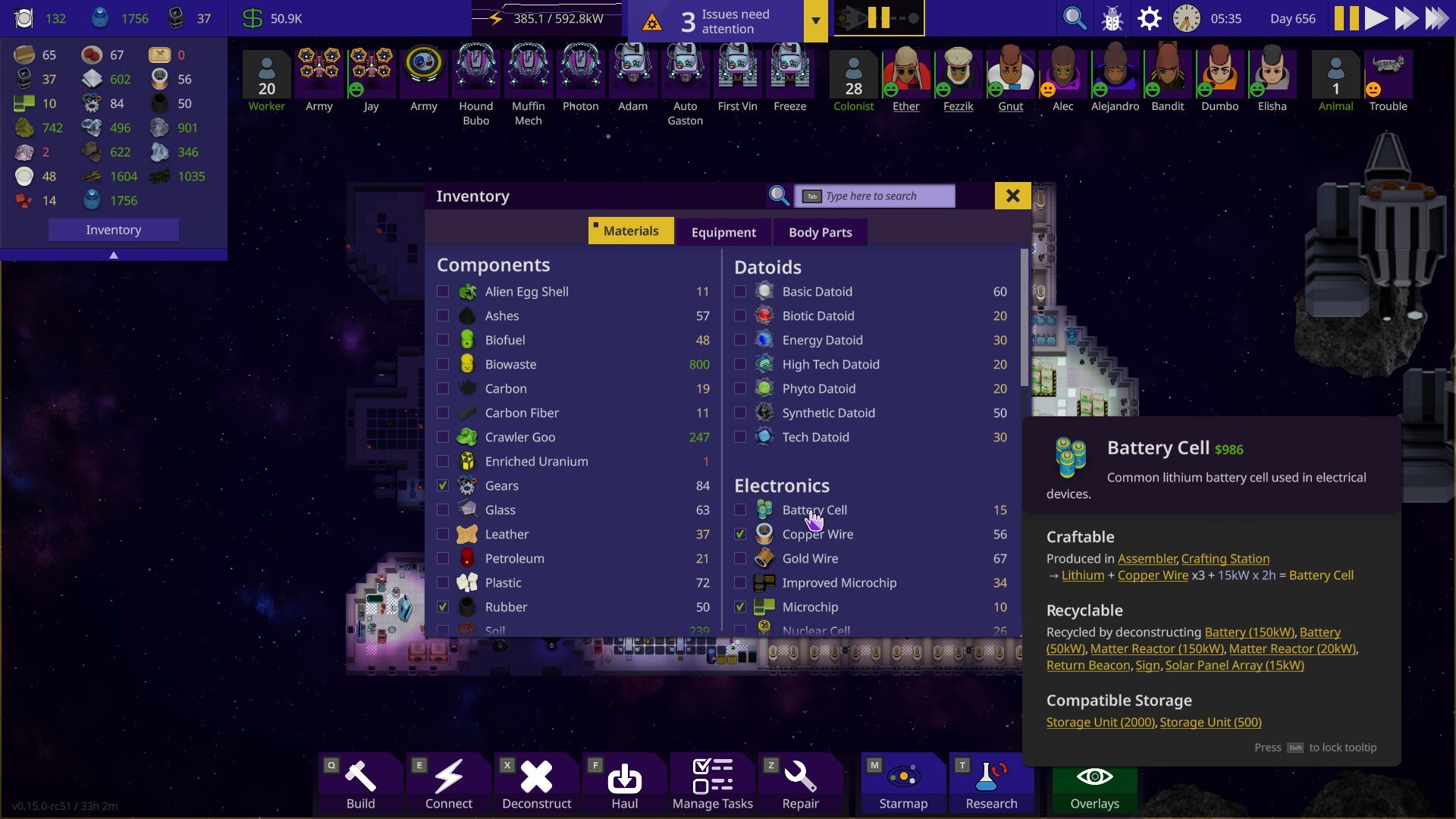 The new inventory is a lot easier to navigate! The categories are easier to read & configuring the favourites list (renamed to ”Quick Drawer”) is much more intuitive than before. Just tick whatever you want to add to it. Another improvement the drawer has is the ability to configure to not let materials show up in the drawer unless you own X amount. Anyone who’s concerned about functionality fear not- hovering over any items’ numbers will display the chart. Clicking the item name will also show a quick choice menu with more options.
 After:
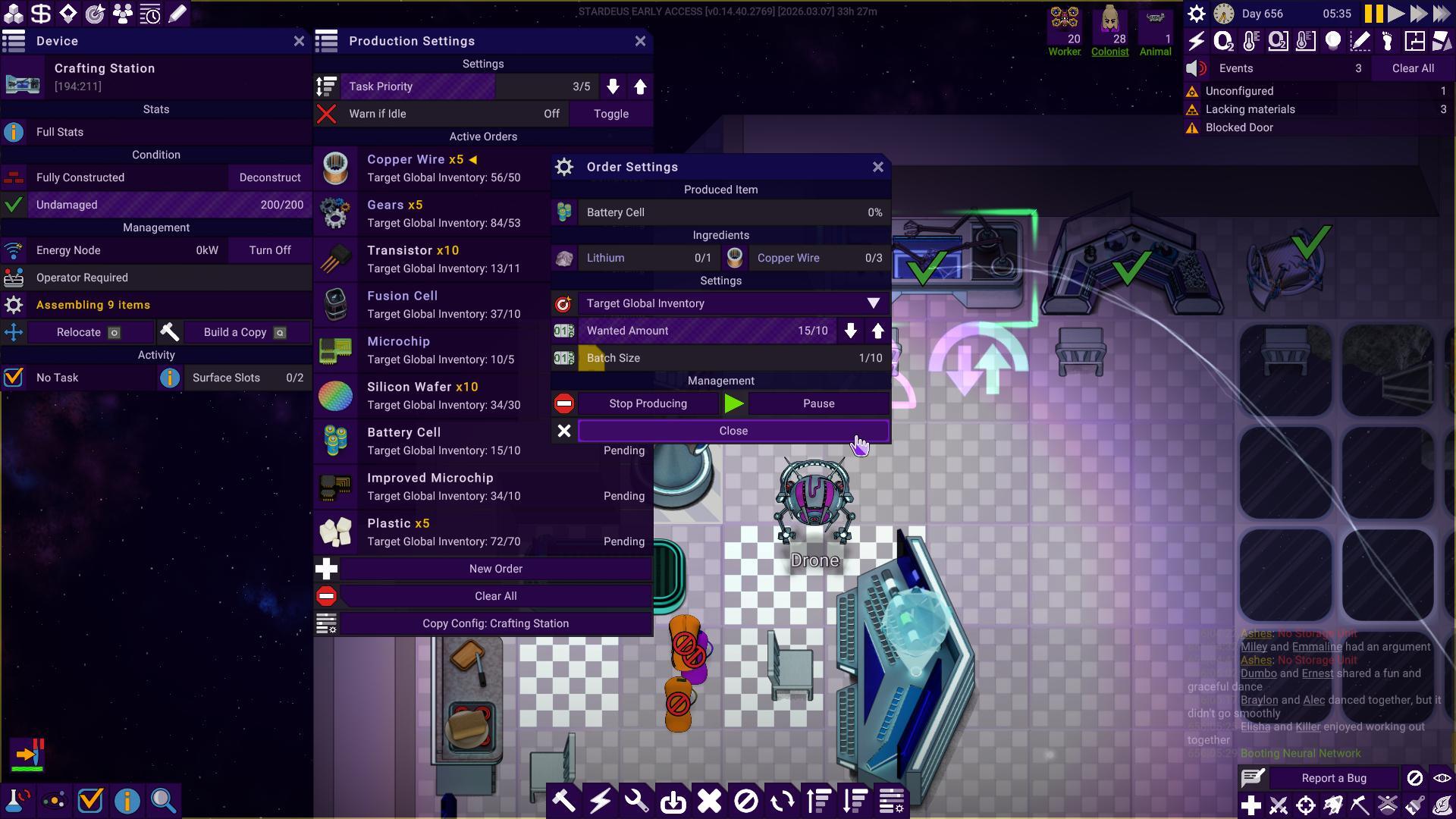
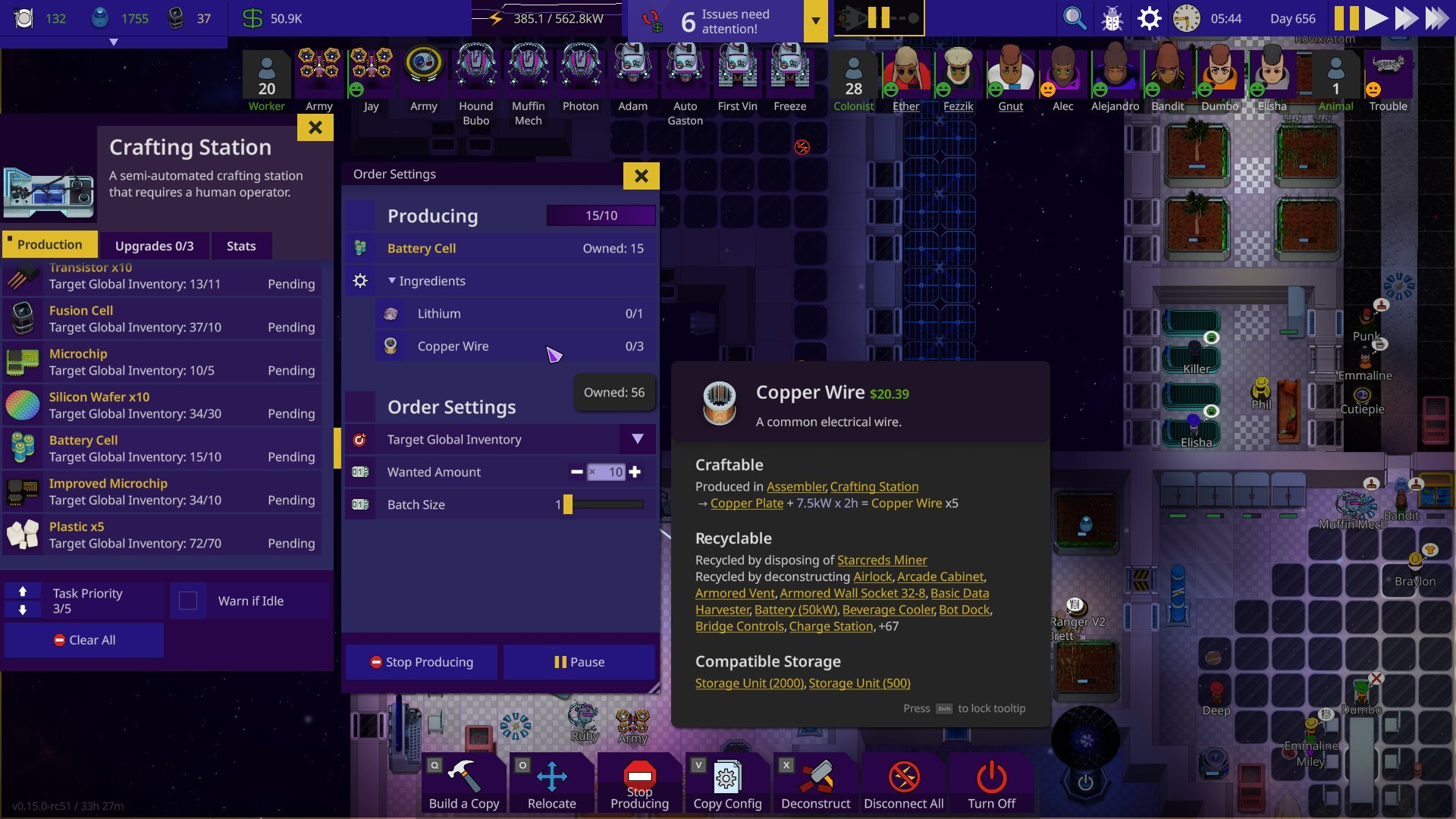 We’ve reduced the amount of windows to configure crafting devices from three to two. It’s also much easier to read as well as we’ve moved the upgrades and stats to their own tabs.
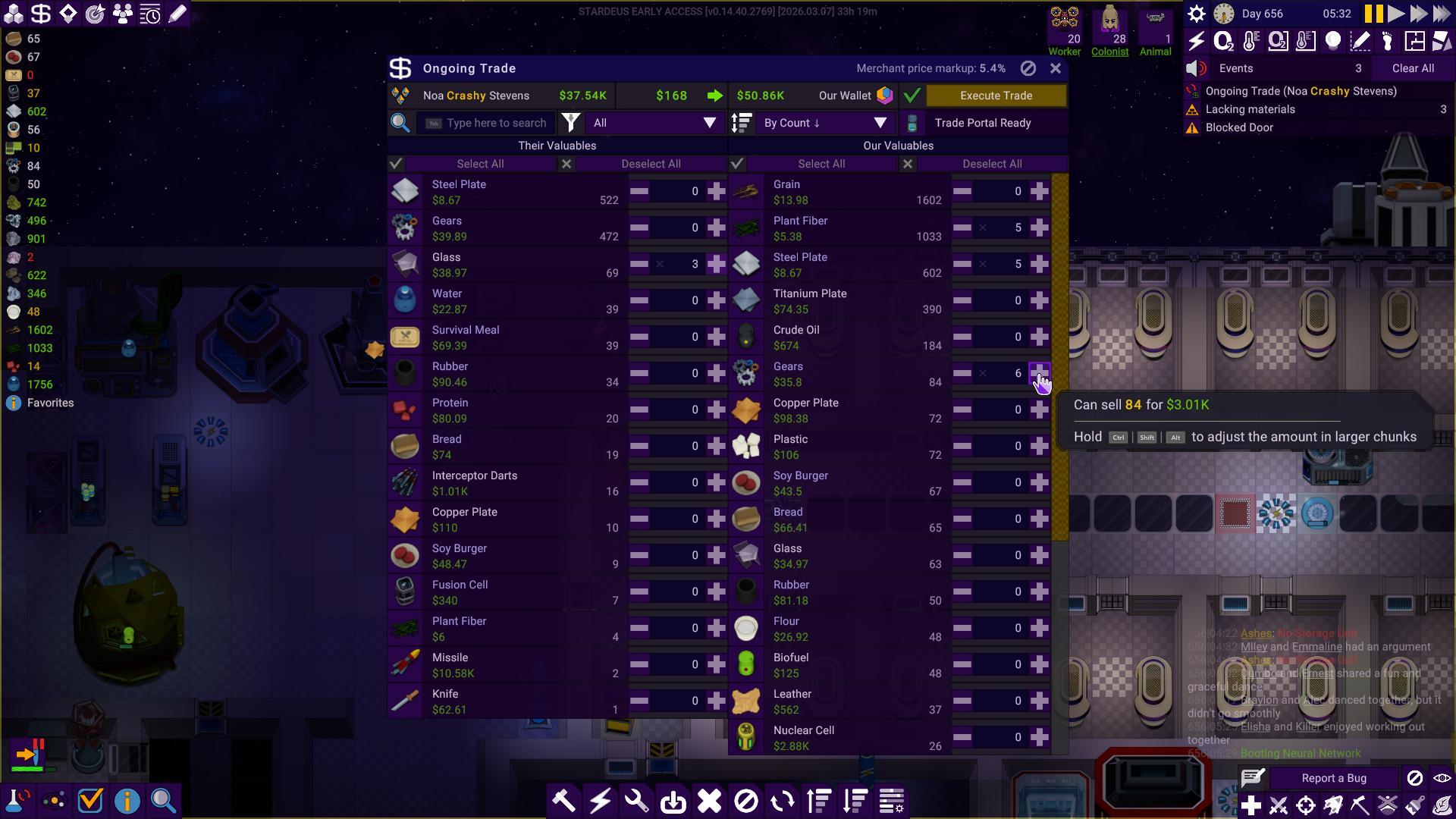 After:
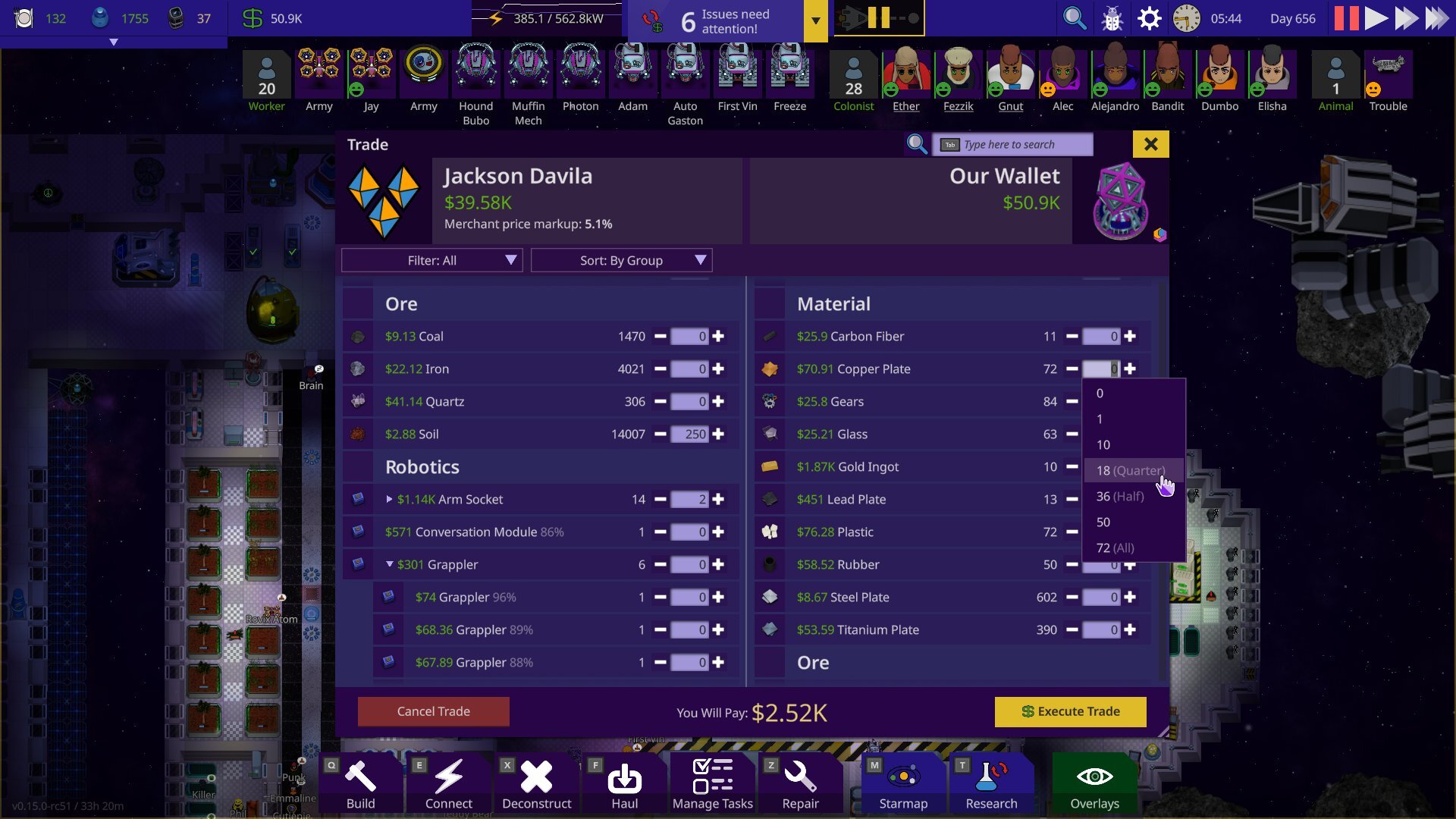 The new trading UI solves a lot of issues the old one had. There’s a simple drop down list if you click the amount, and it will also prioritise the lowest quality items when selling, and highest quality items when buying in bulk.
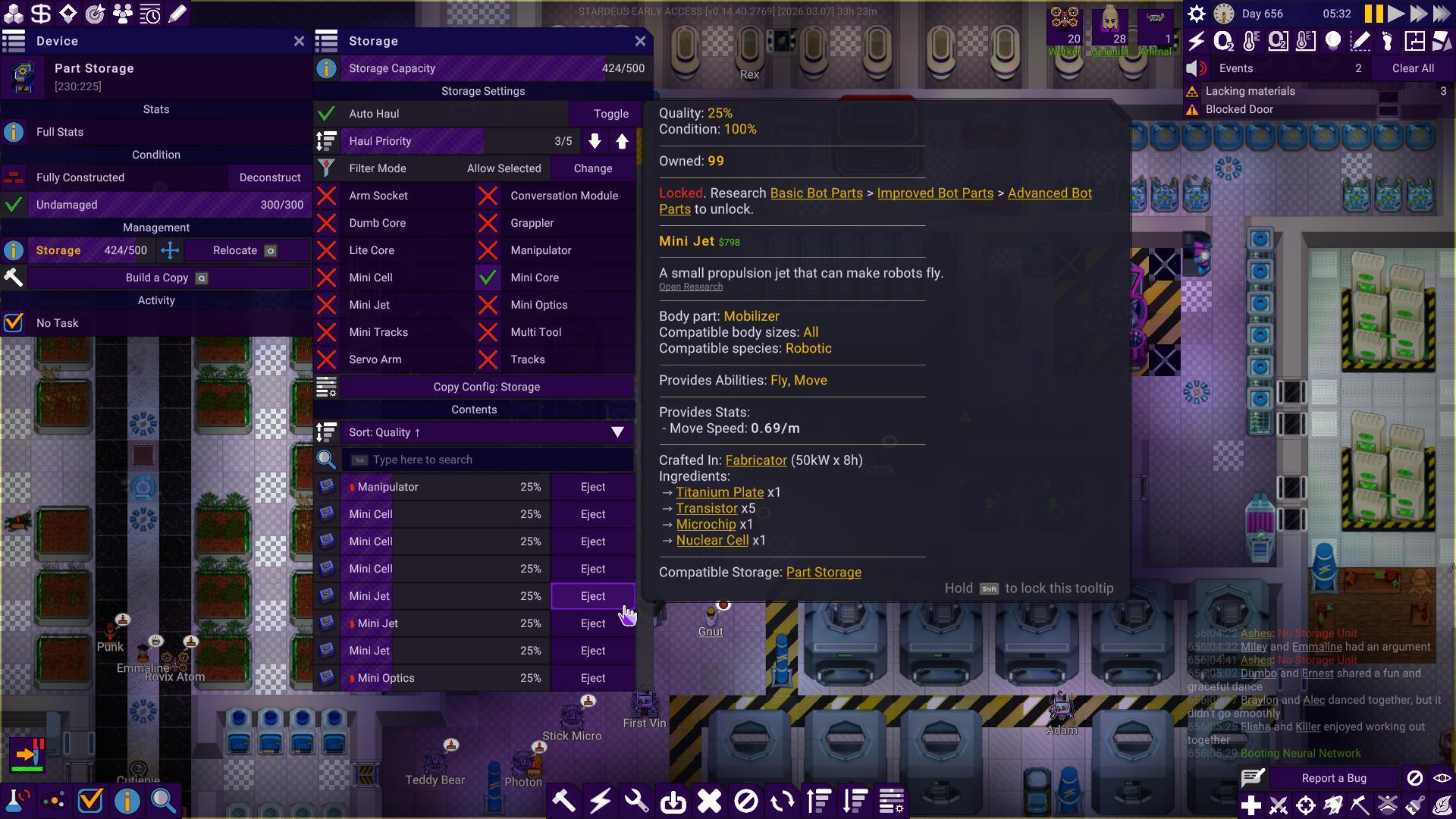 After: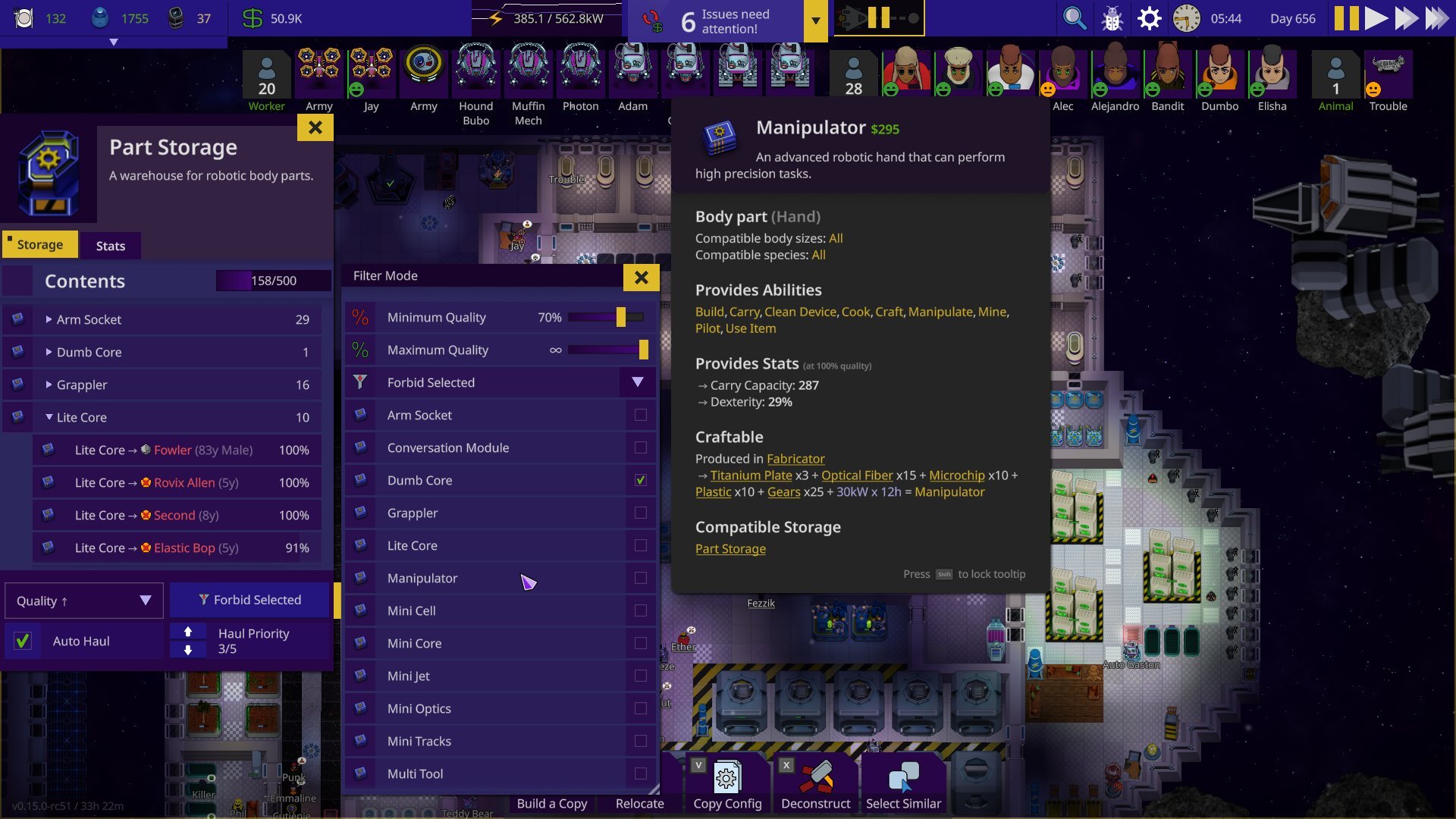
 After:
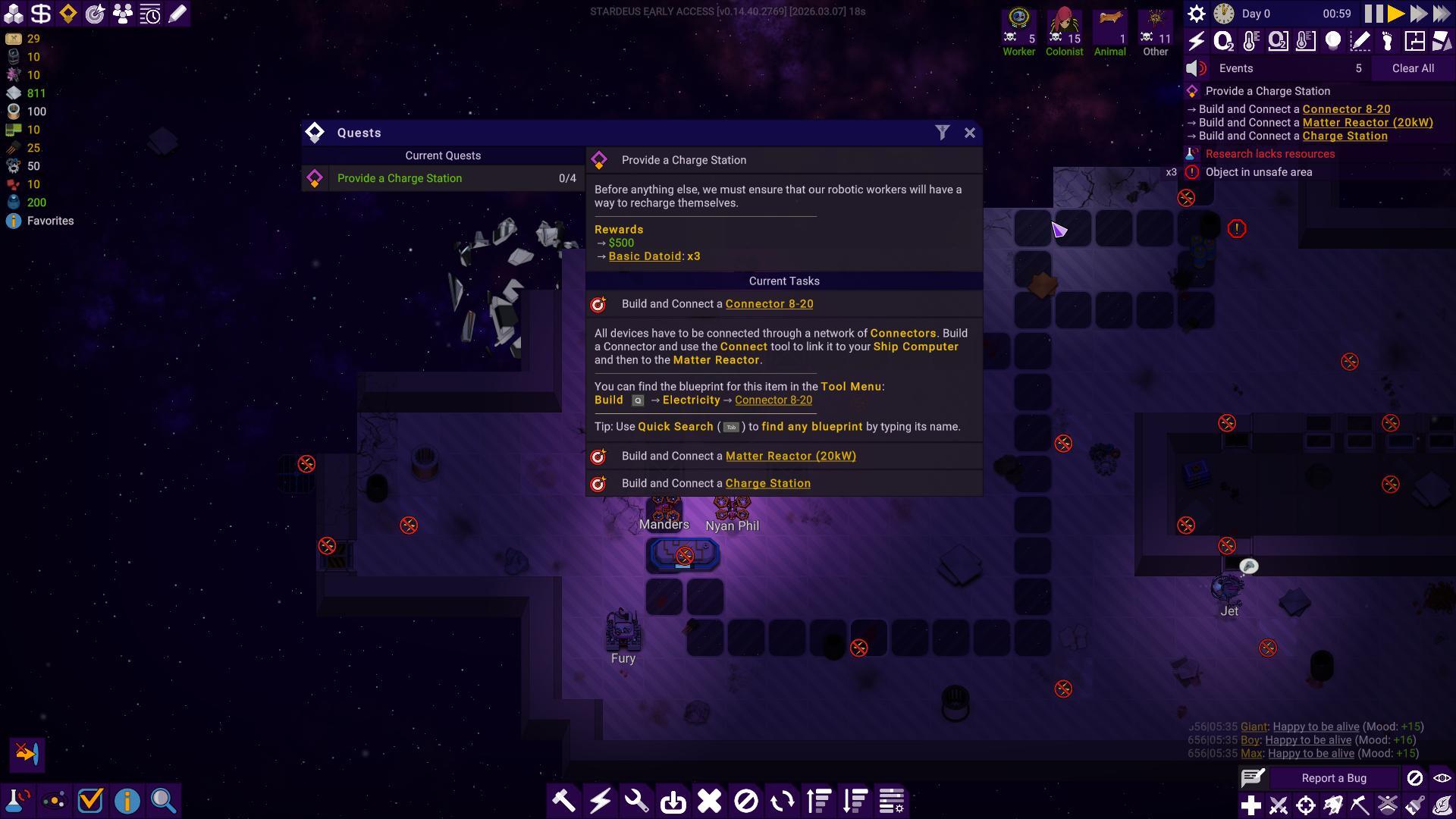
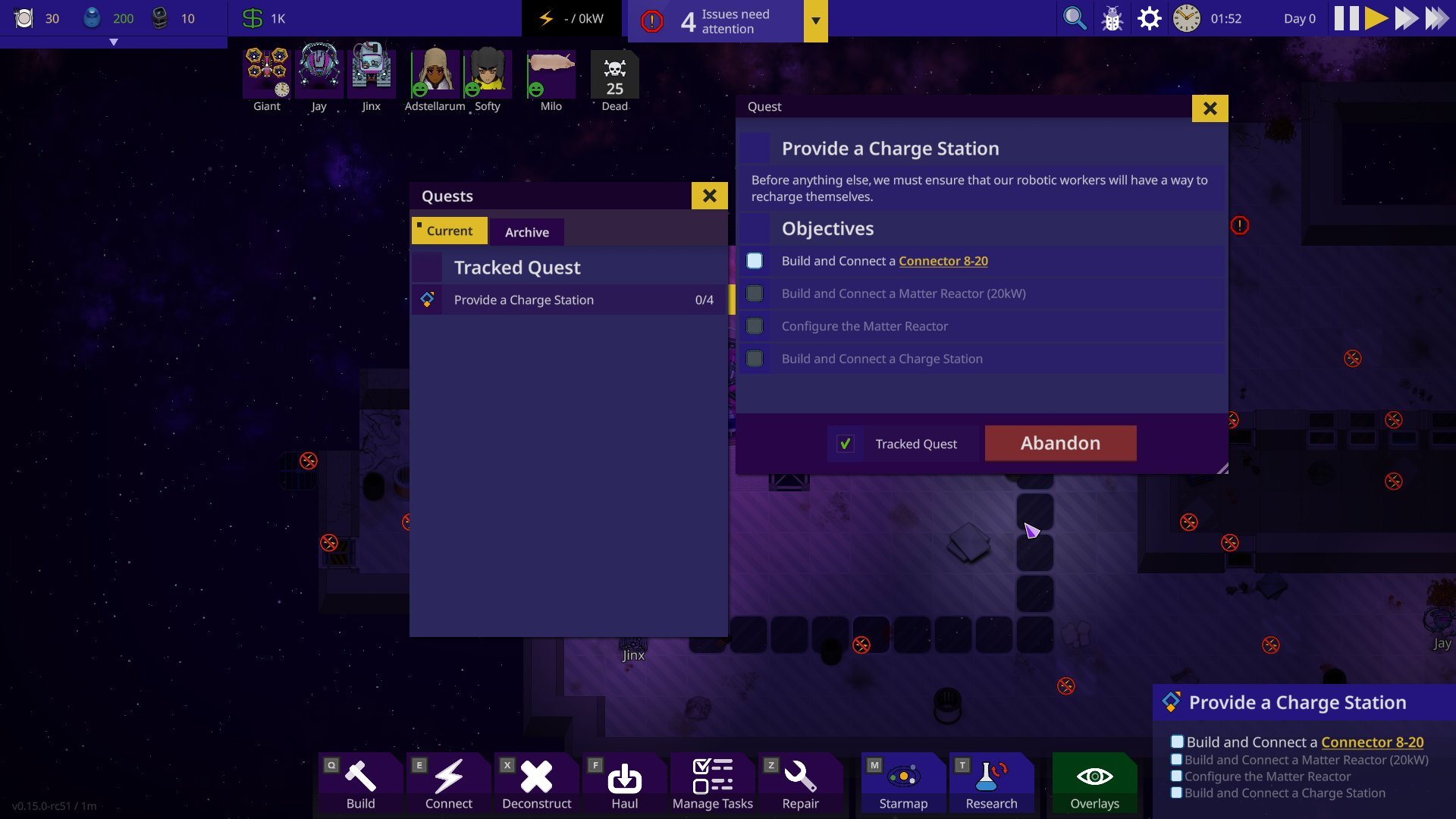 Previously tracked quests were together in the notifications, but since the notifications have been reworked to the notification hub, quests will have it’s own dedicated widgets.
 After:
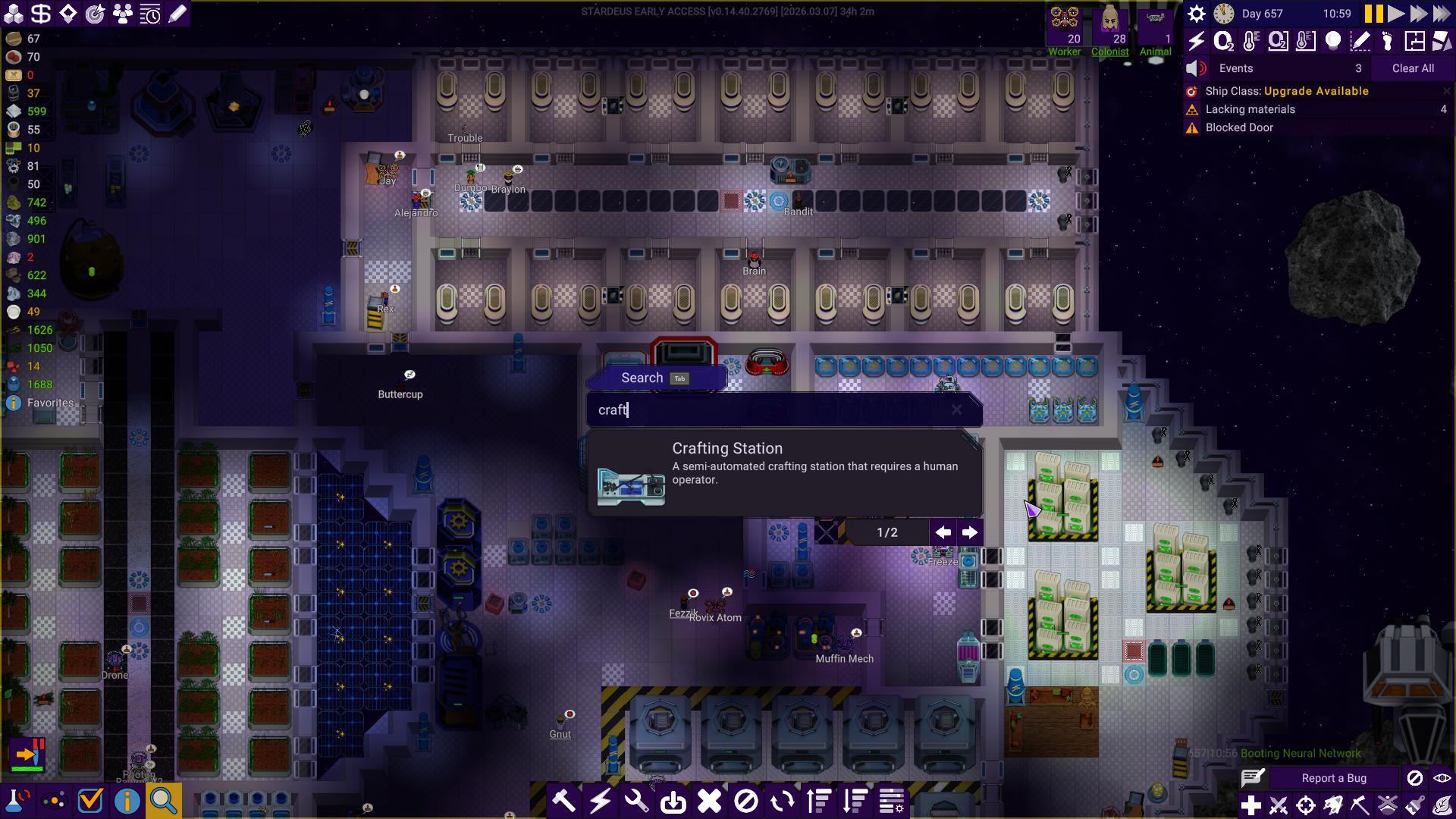
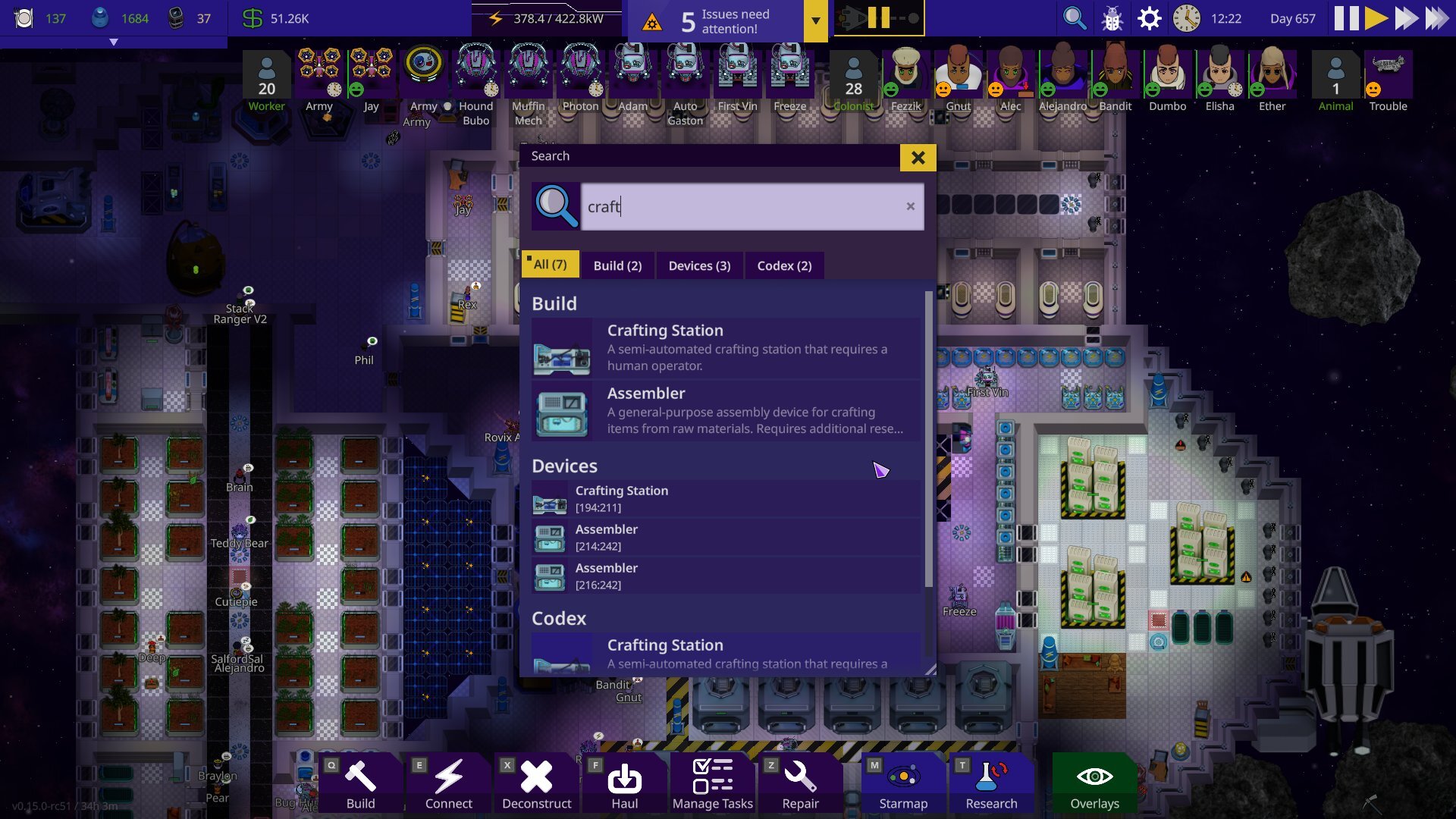 Quick search has become even more powerful. It used to only show the top result and having players to scroll through options until you found what you were looking for. It’s also been sorted into tabs & the old hotbar pinning feature has been moved here as well. Not only that, but it’s also been given a technical overhaul, making it being able to be extended modularly & easier to mod.
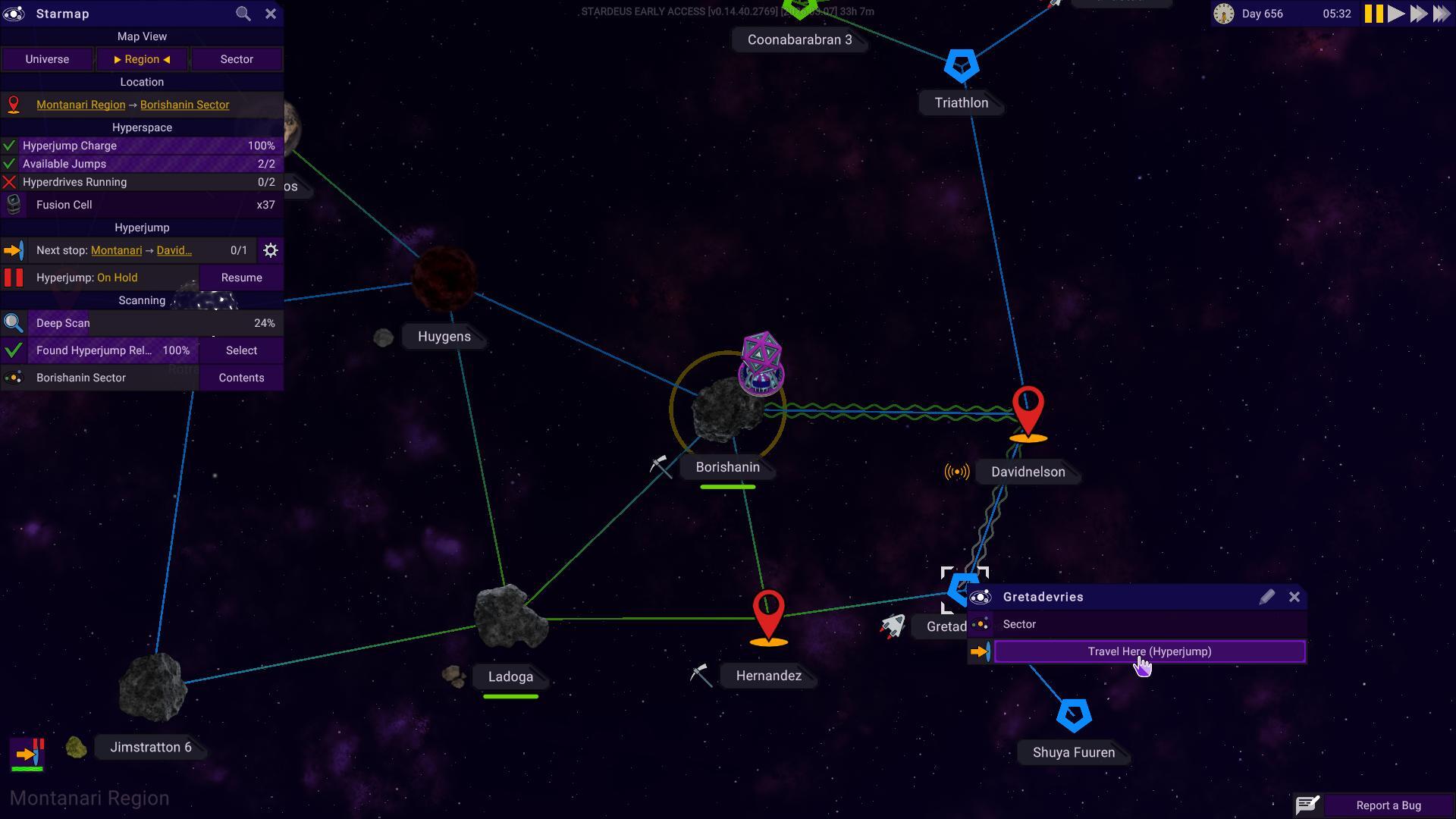 After:
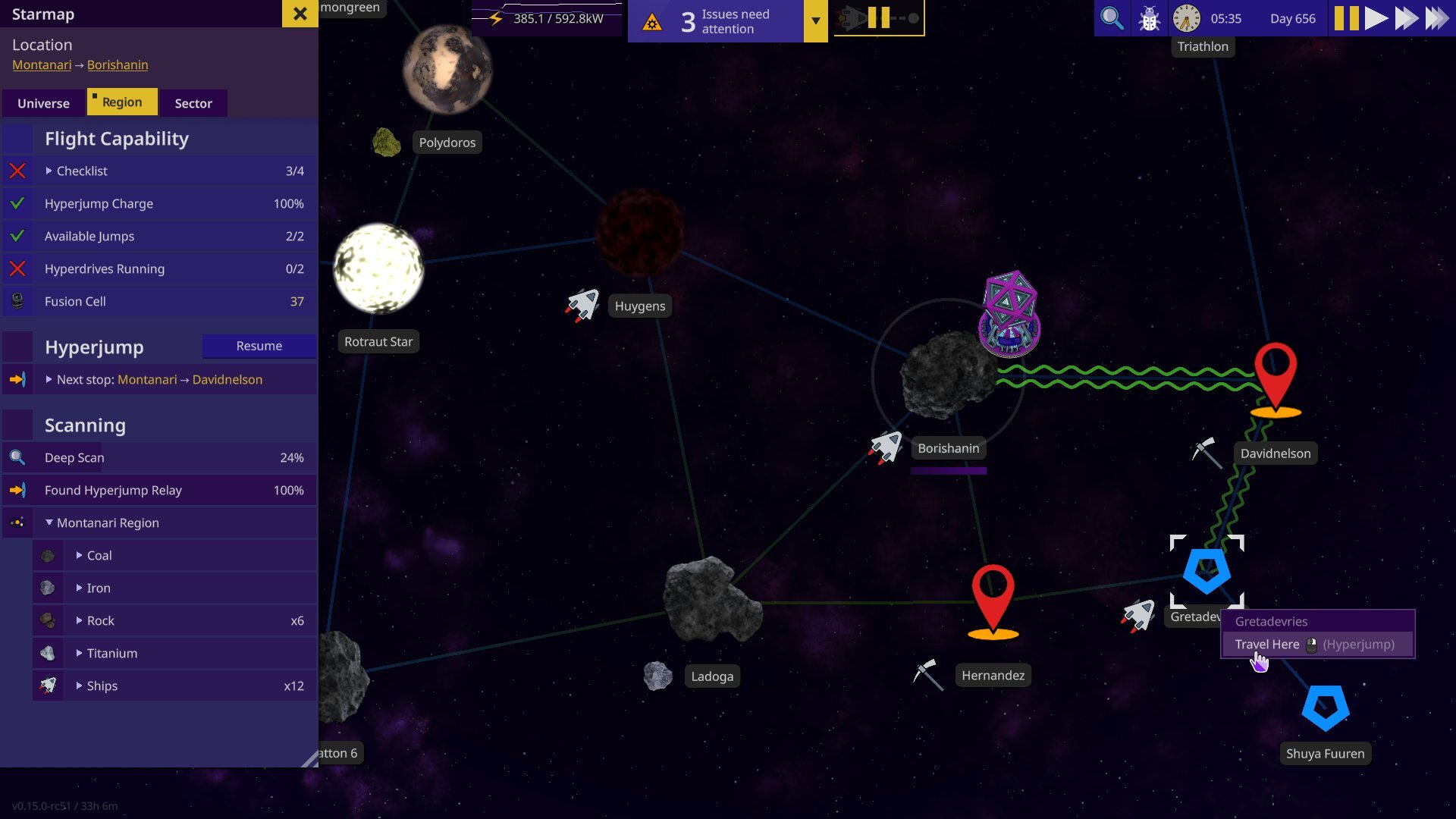 While the Starmap itself hasn’t changed much, the side menu got the full treatment. Tabs & a embedded list of resources known to exist to the player.
 After:
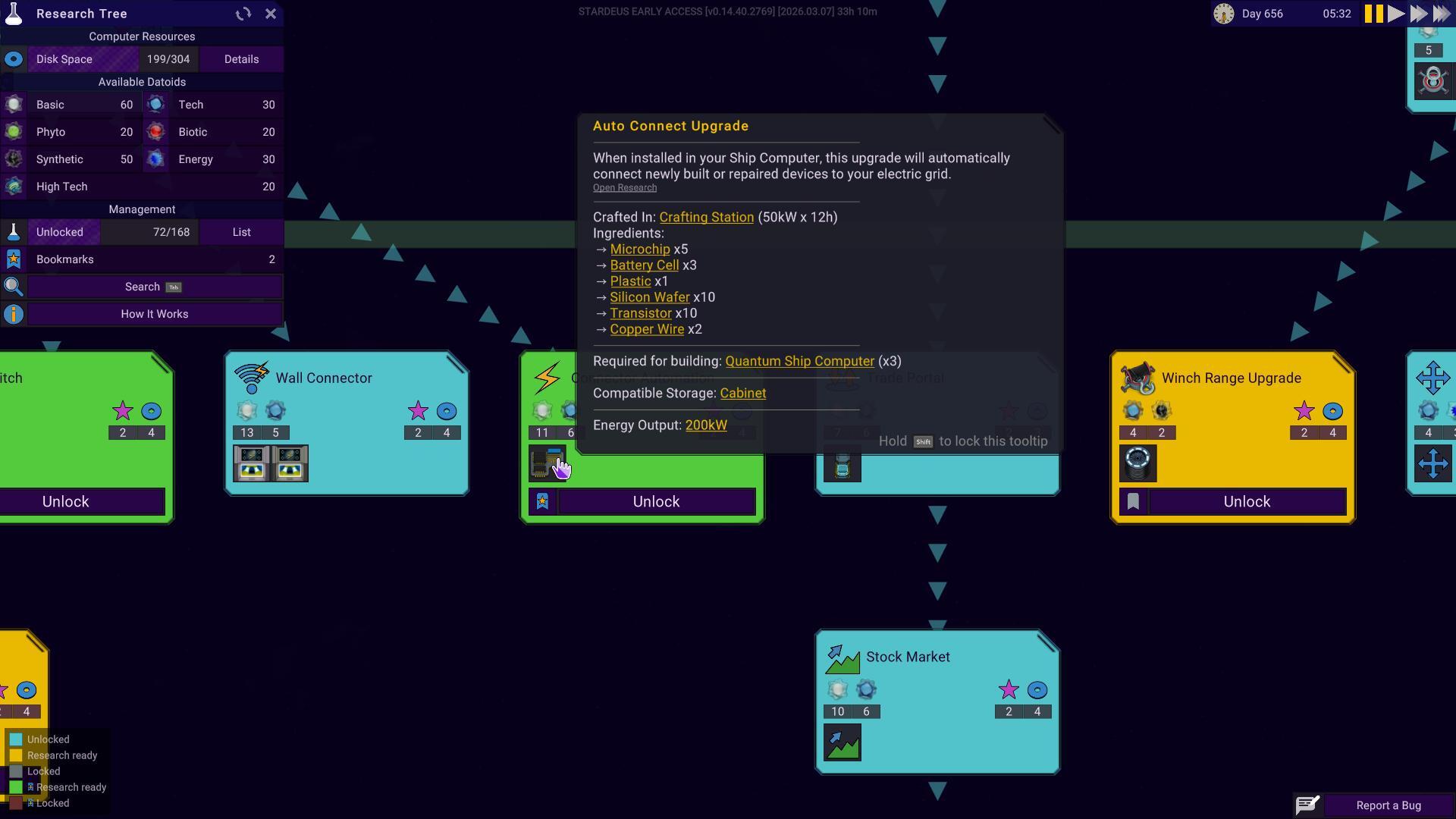
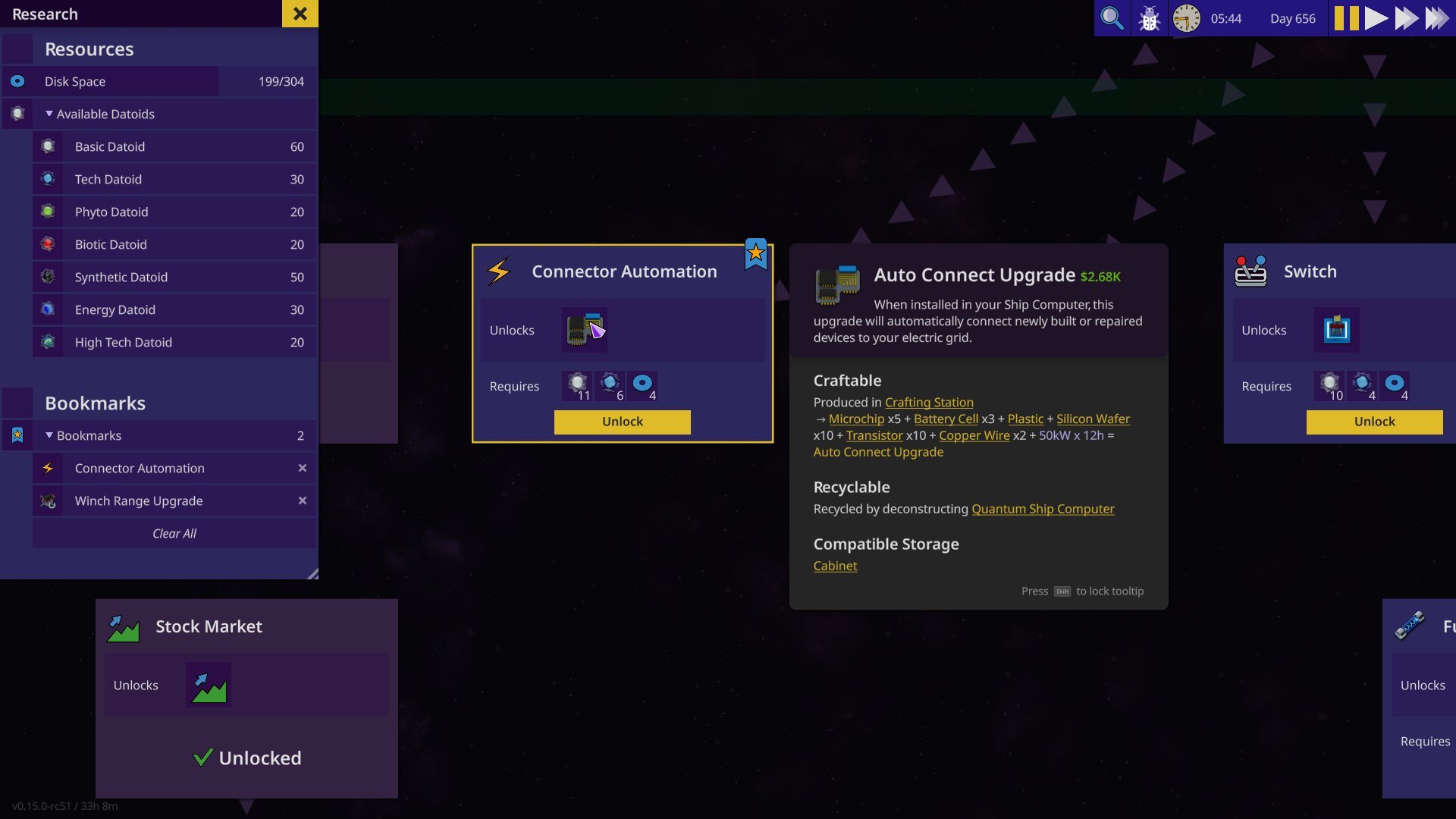 The cards for each research tree have gotten a cleaner and easier to understand look. Codex tooltips have been moved to the side so the card itself isn’t covered.
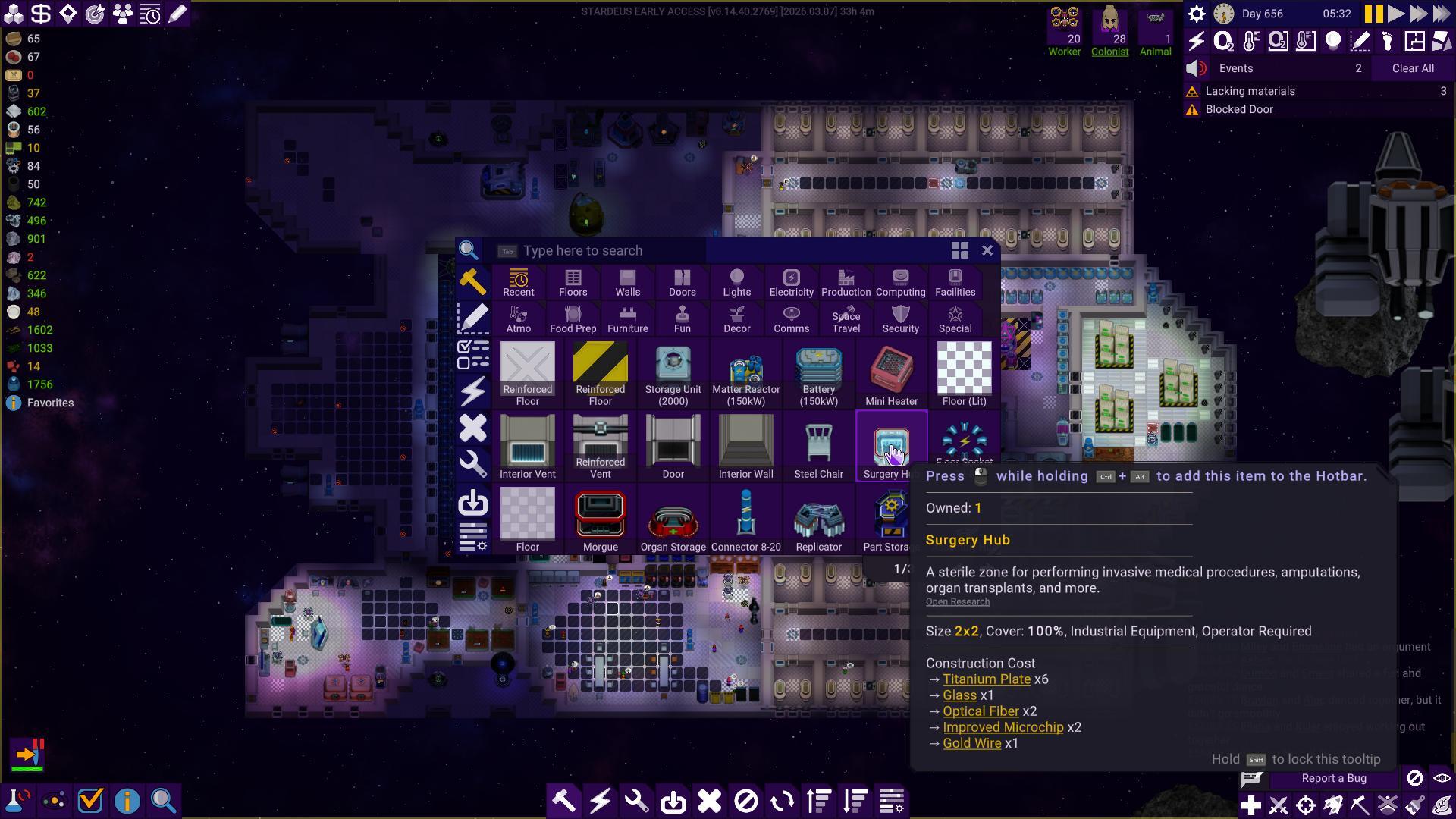 After:
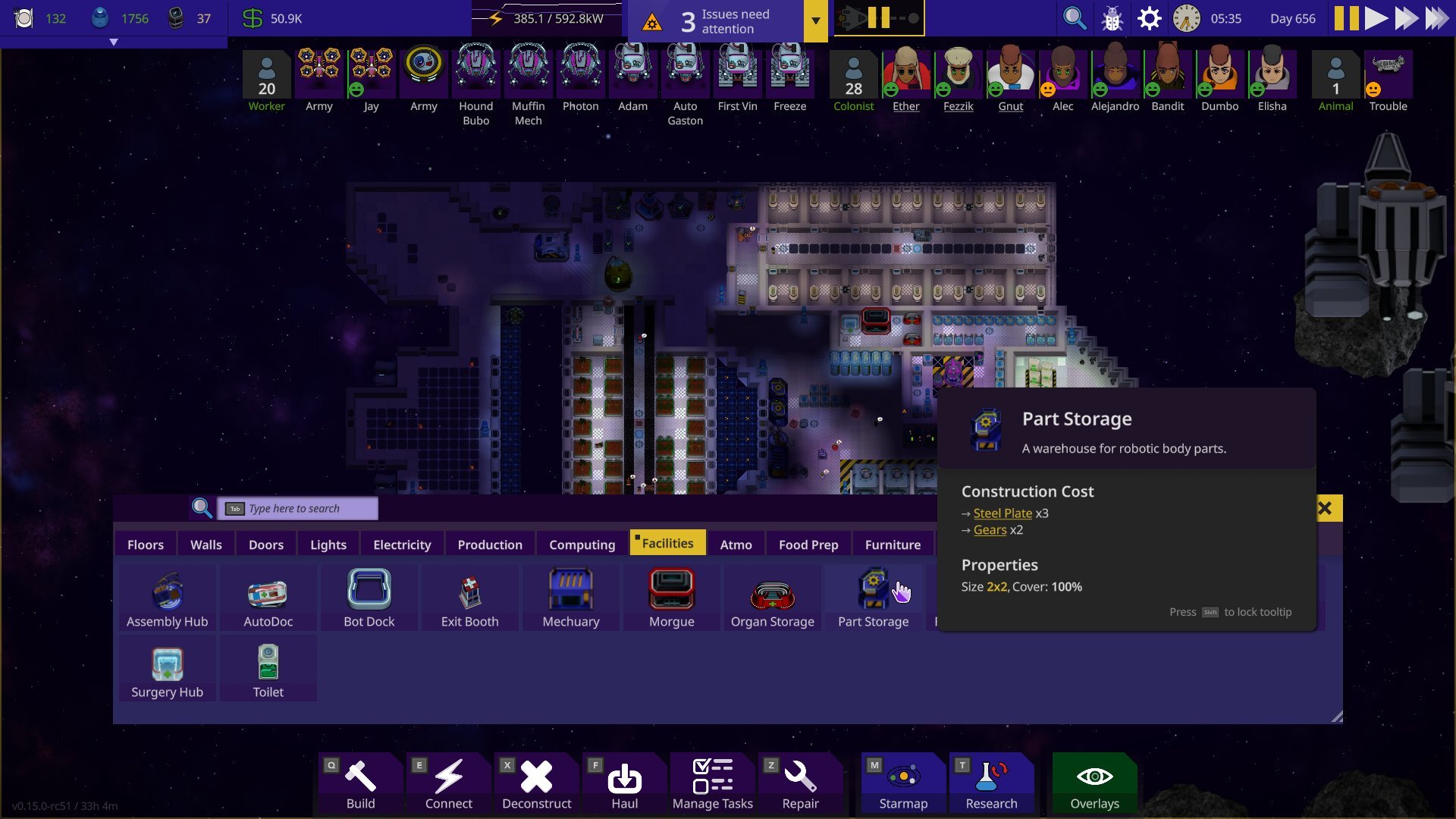 The build menu is no longer a “do it all” menu, and its’ focus has once again returned to building. Sleeker tabs and moved out of the way so you can see where you want to build. It’s also been given a modular design so you can resize and move it (like most in the new UI) into the middle of the screen again, if you so choose.
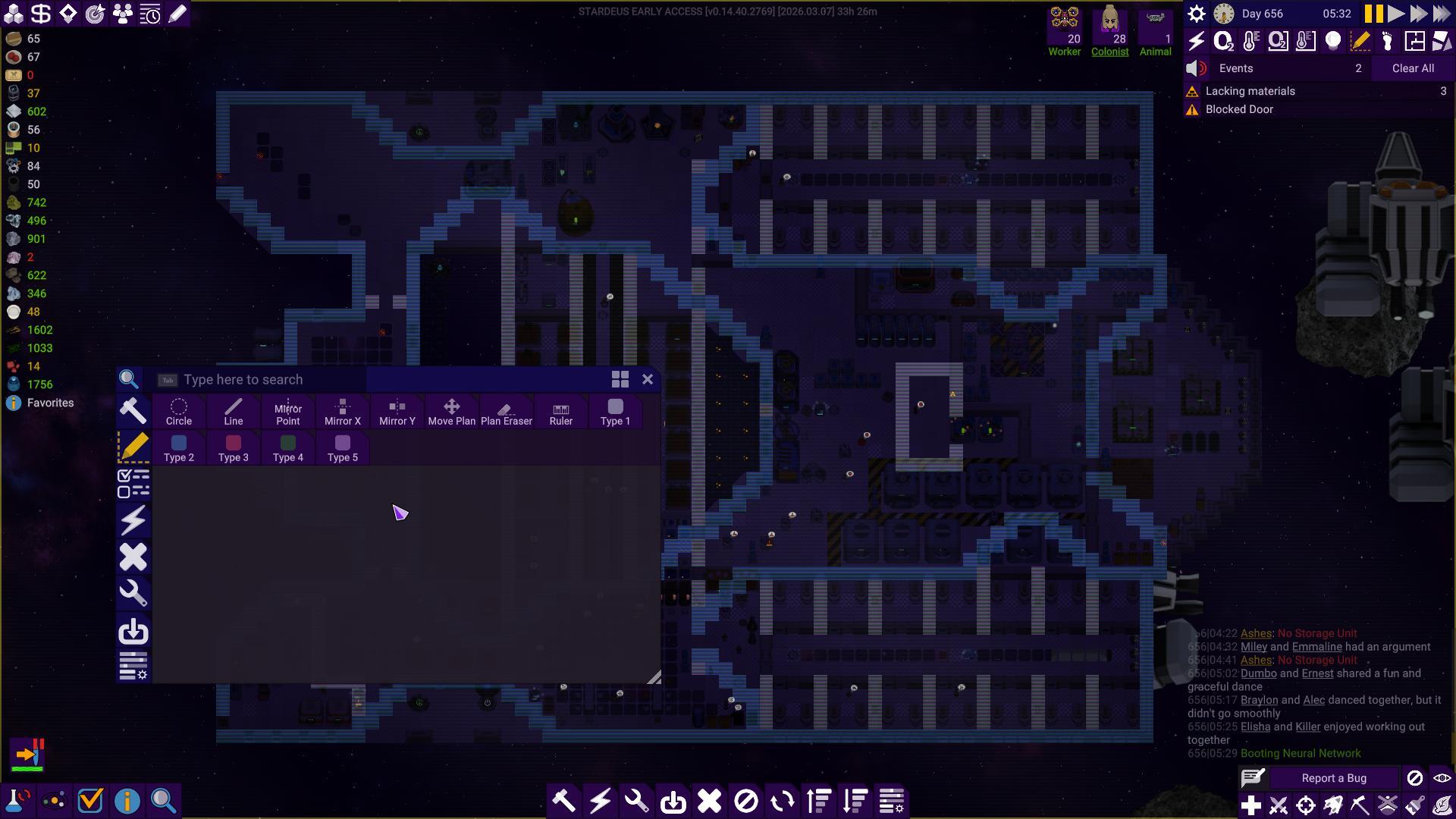 After:
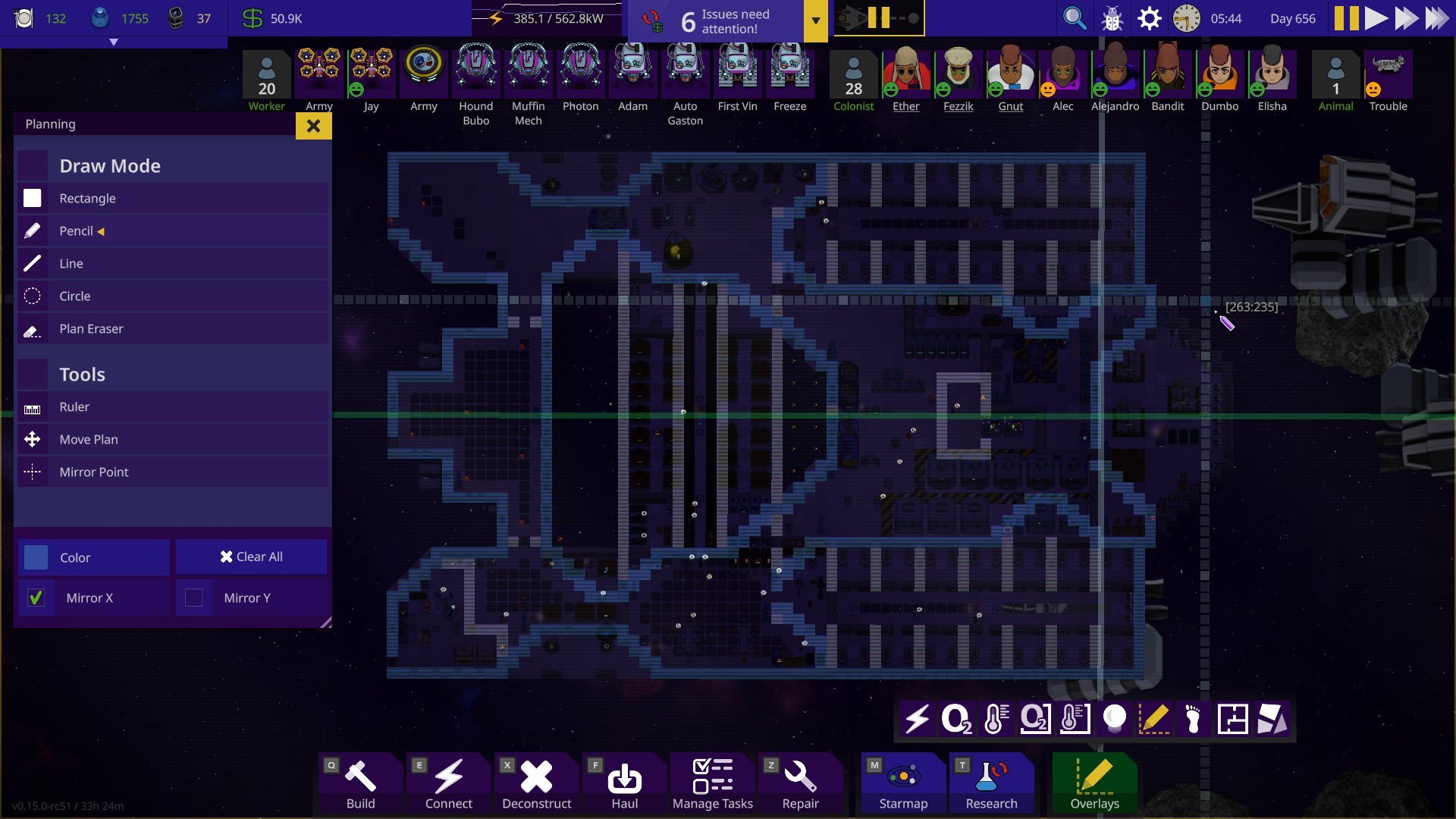 The planning mode now has its own dedicated menu & is much easier to understand.
 After:
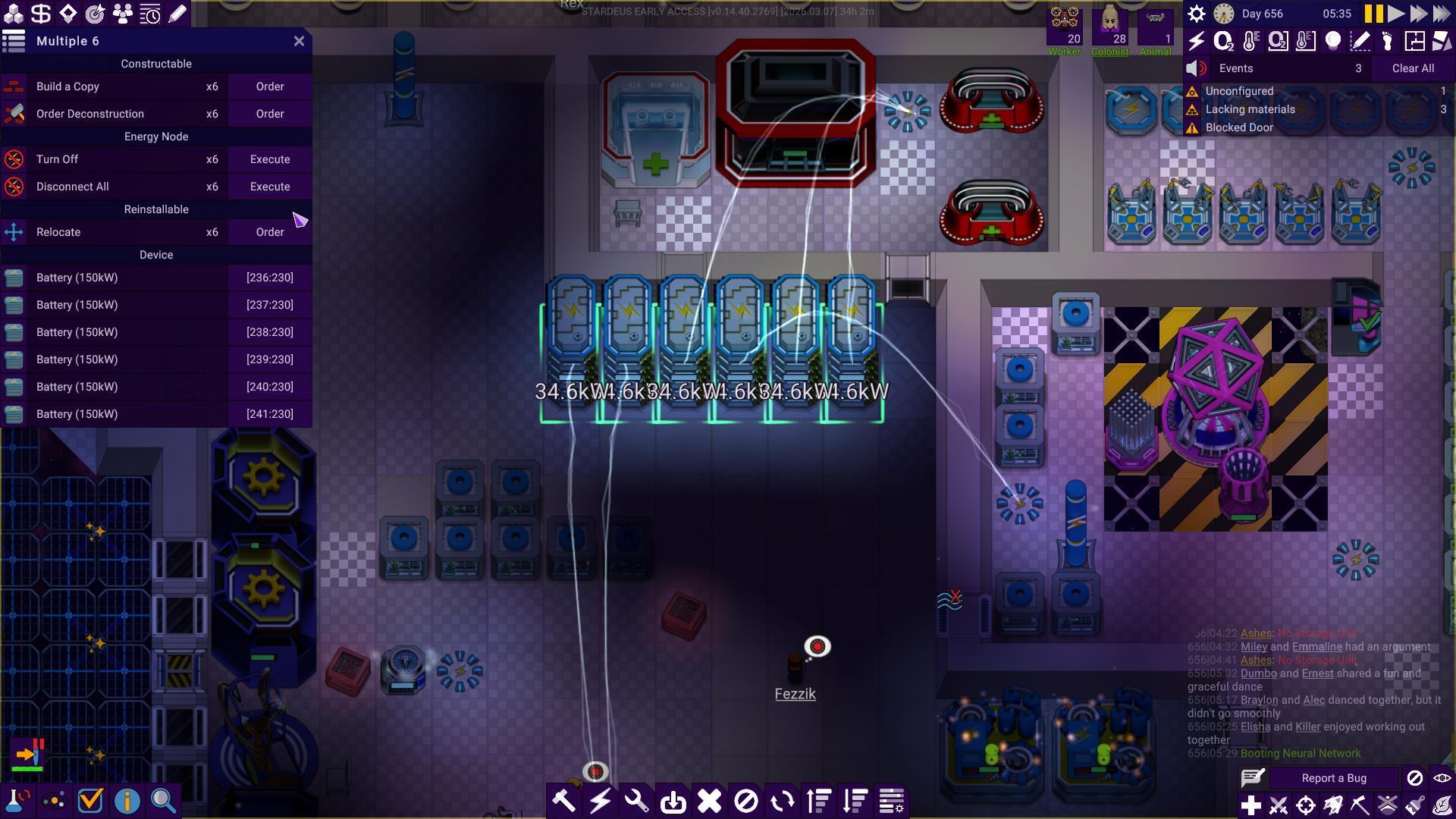
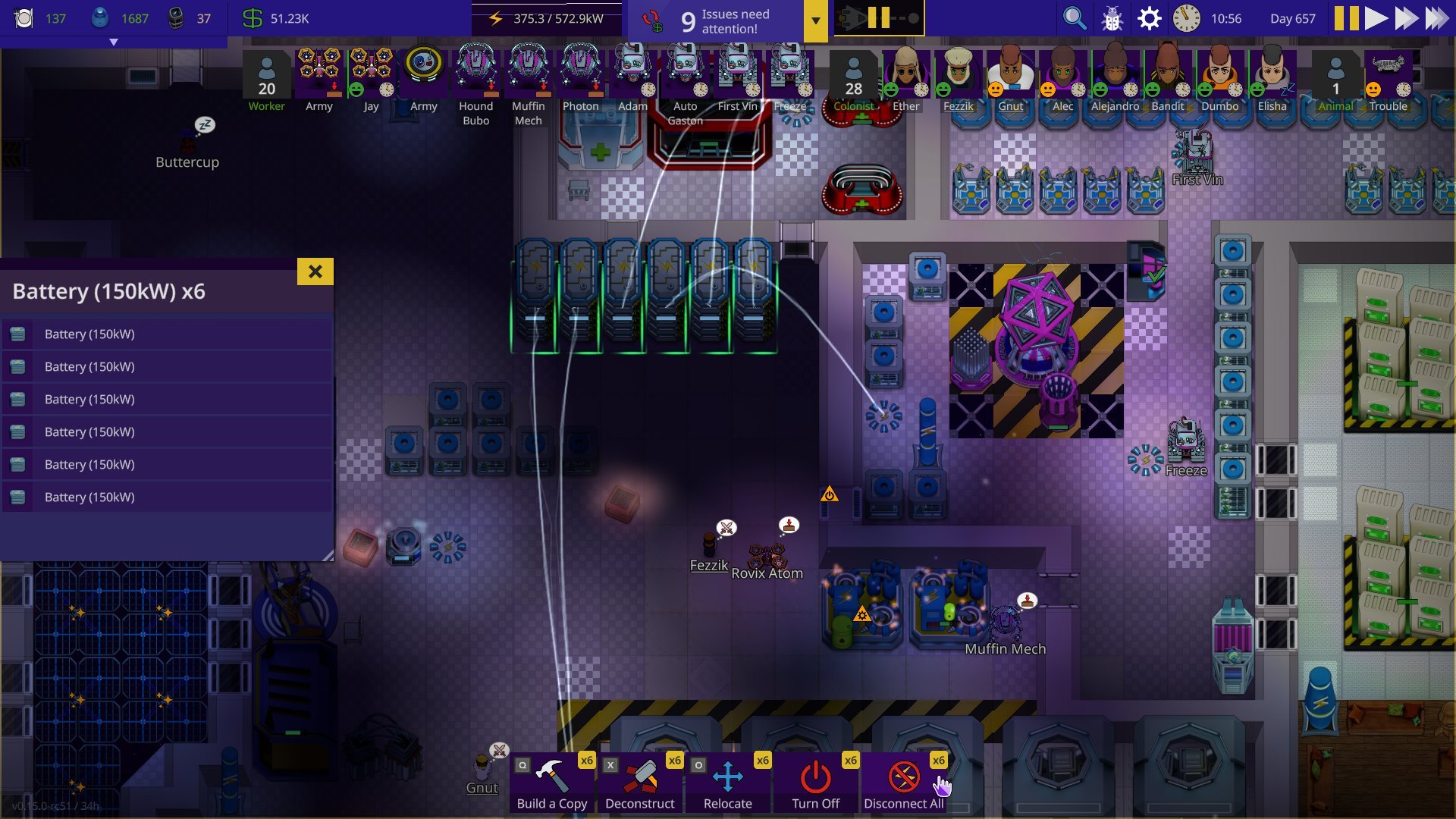 Just like when you select a single object, multiple objects will show the shared actions you can perform in the bottom row.
 After:
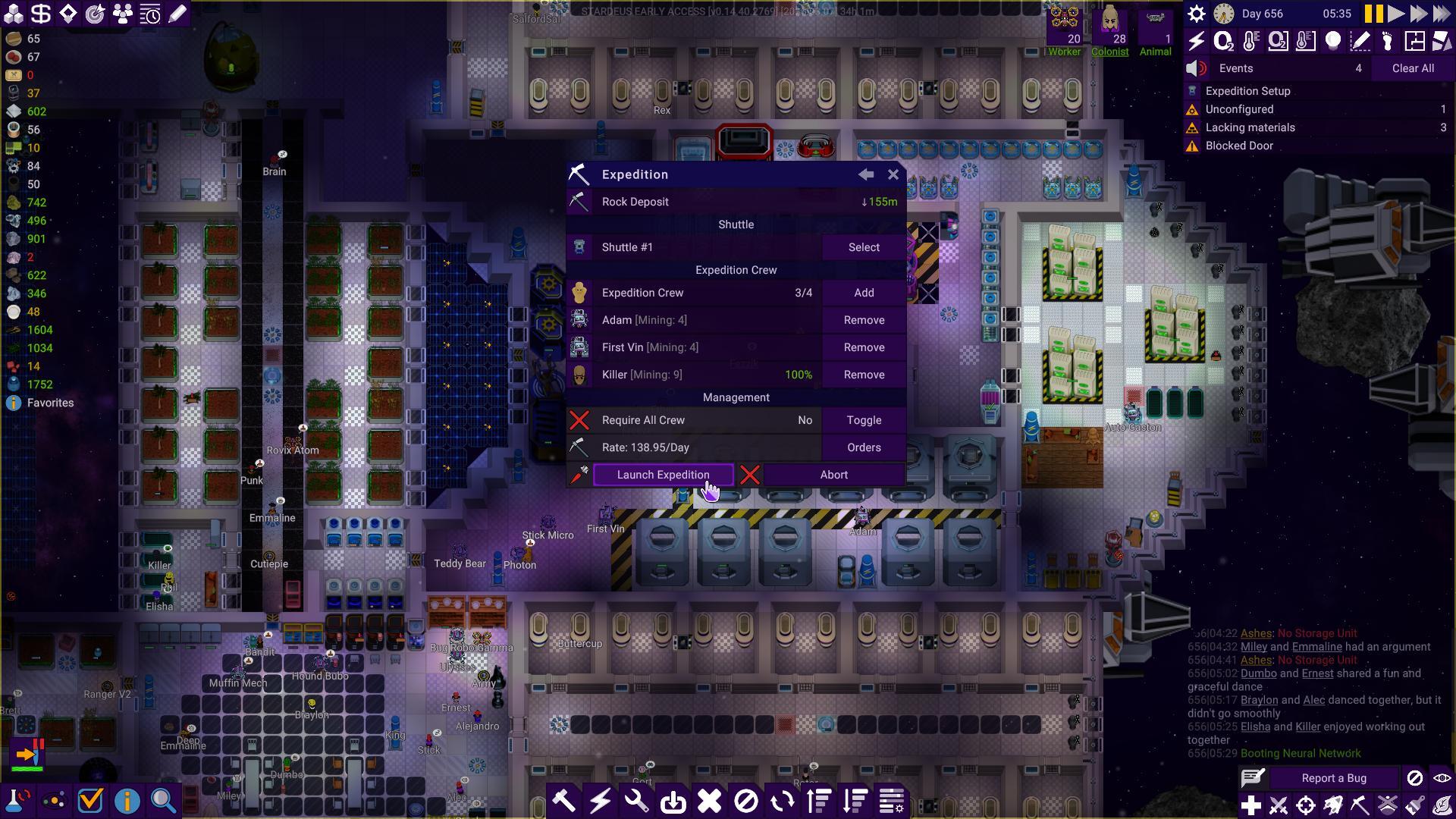
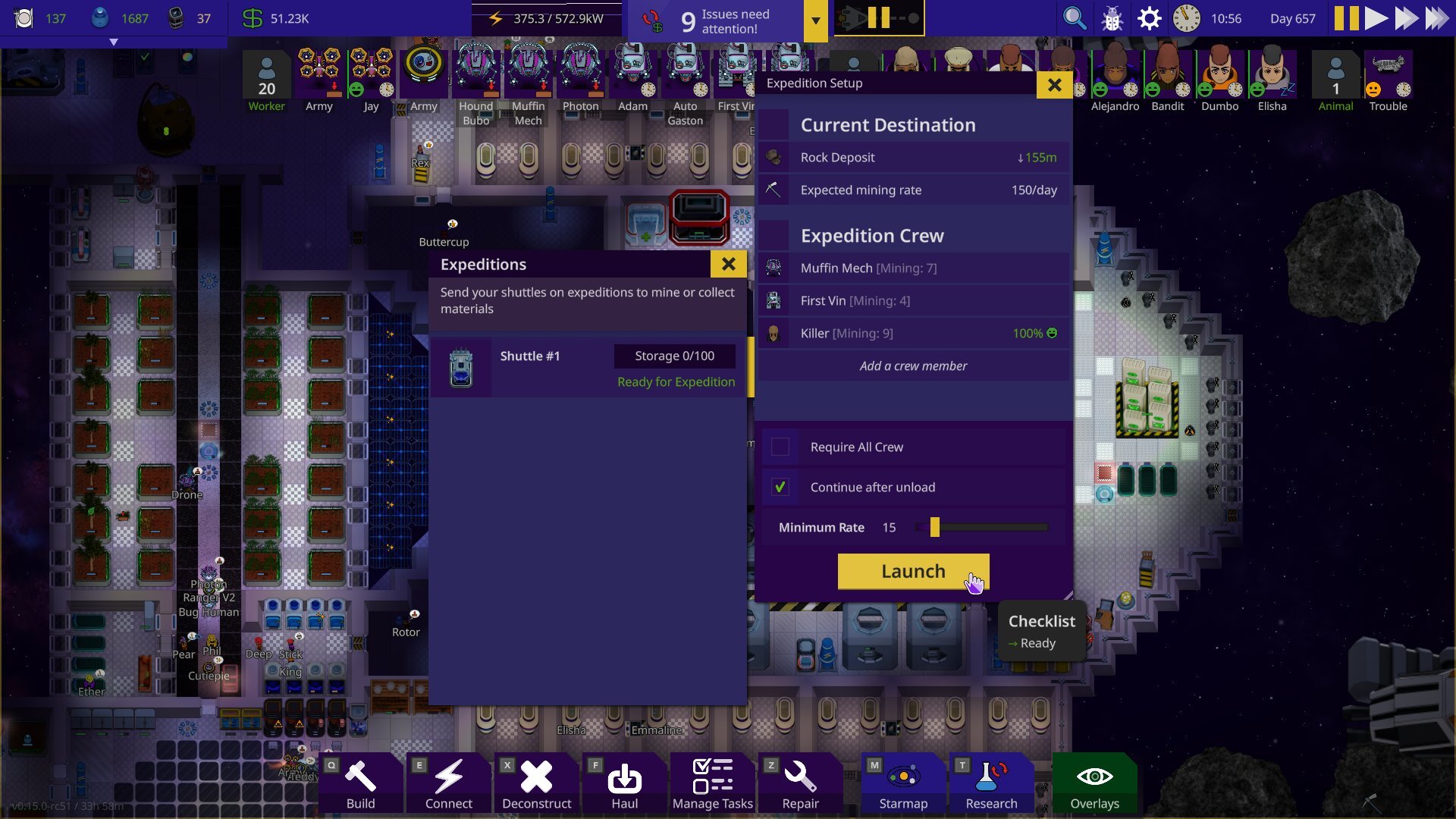 The Expeditions UI is more intuitive and doesn’t require as many clicks as before to send a crew off. Because of how the old UI was designed, players used to miss the extra controls which were hidden behind the “orders” button. Now they’re always visible in the footer of the expedition setup window.
 After:
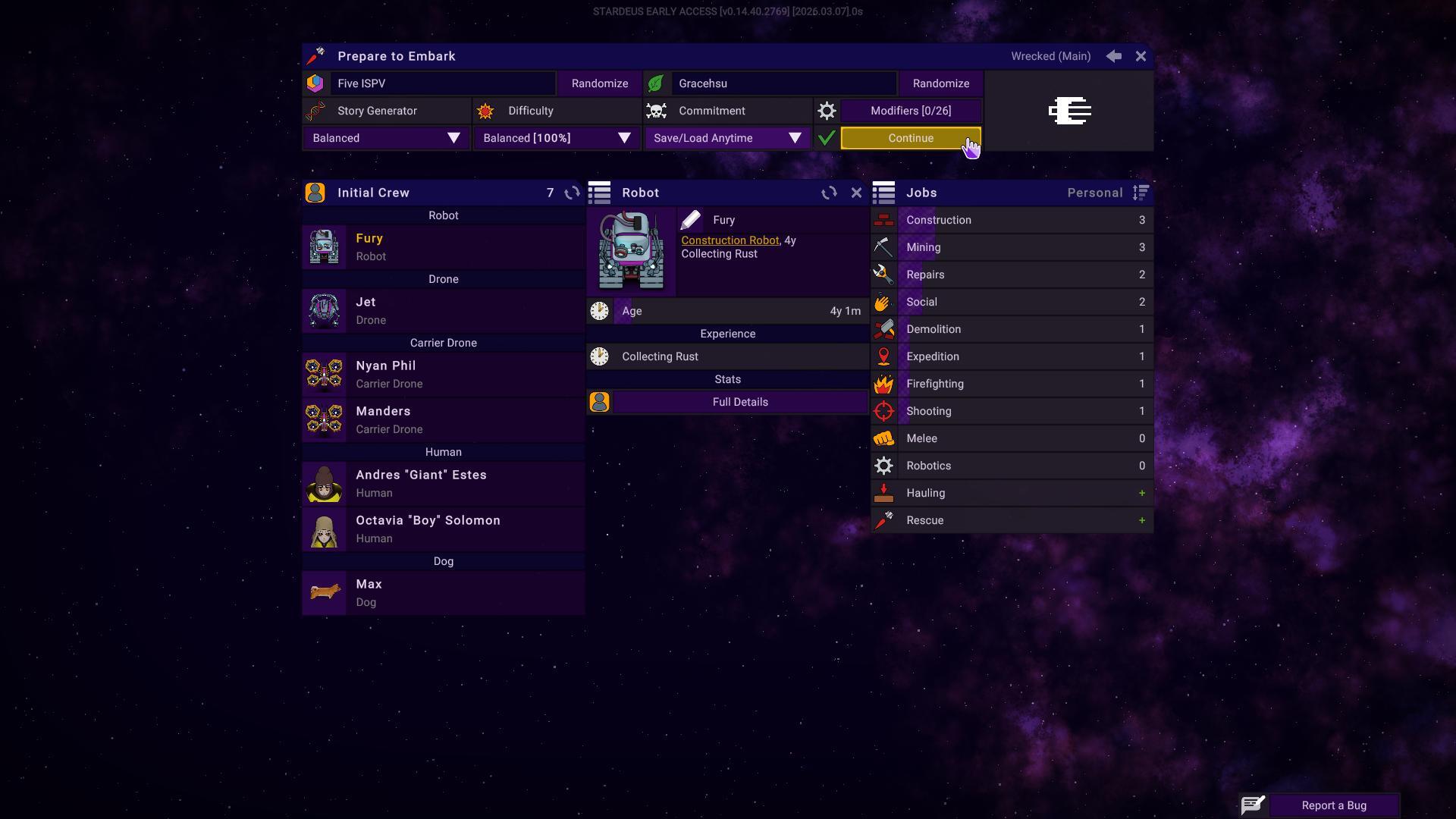
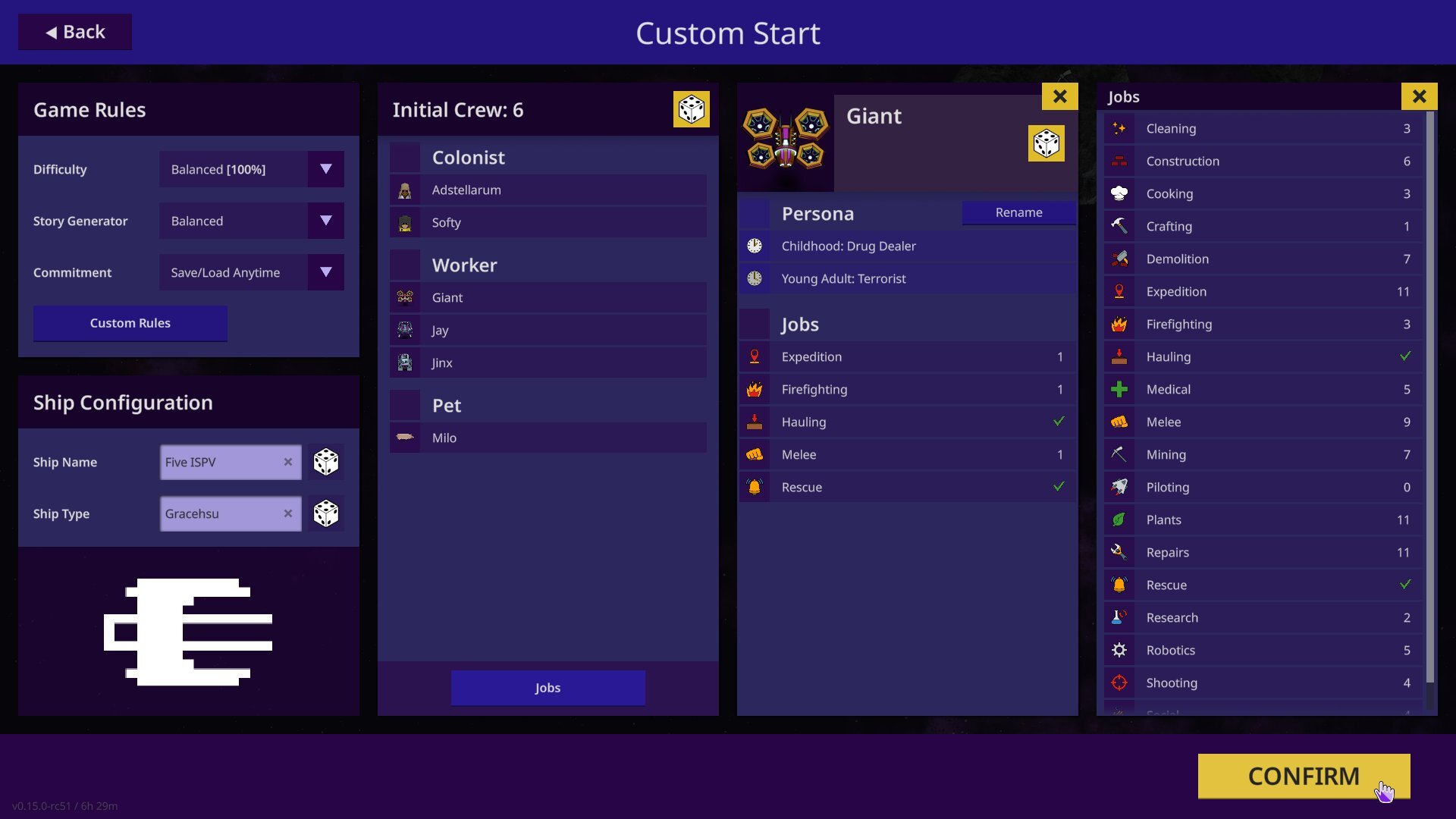 No more wasted space (pun not intended) in the config screen.
 After:
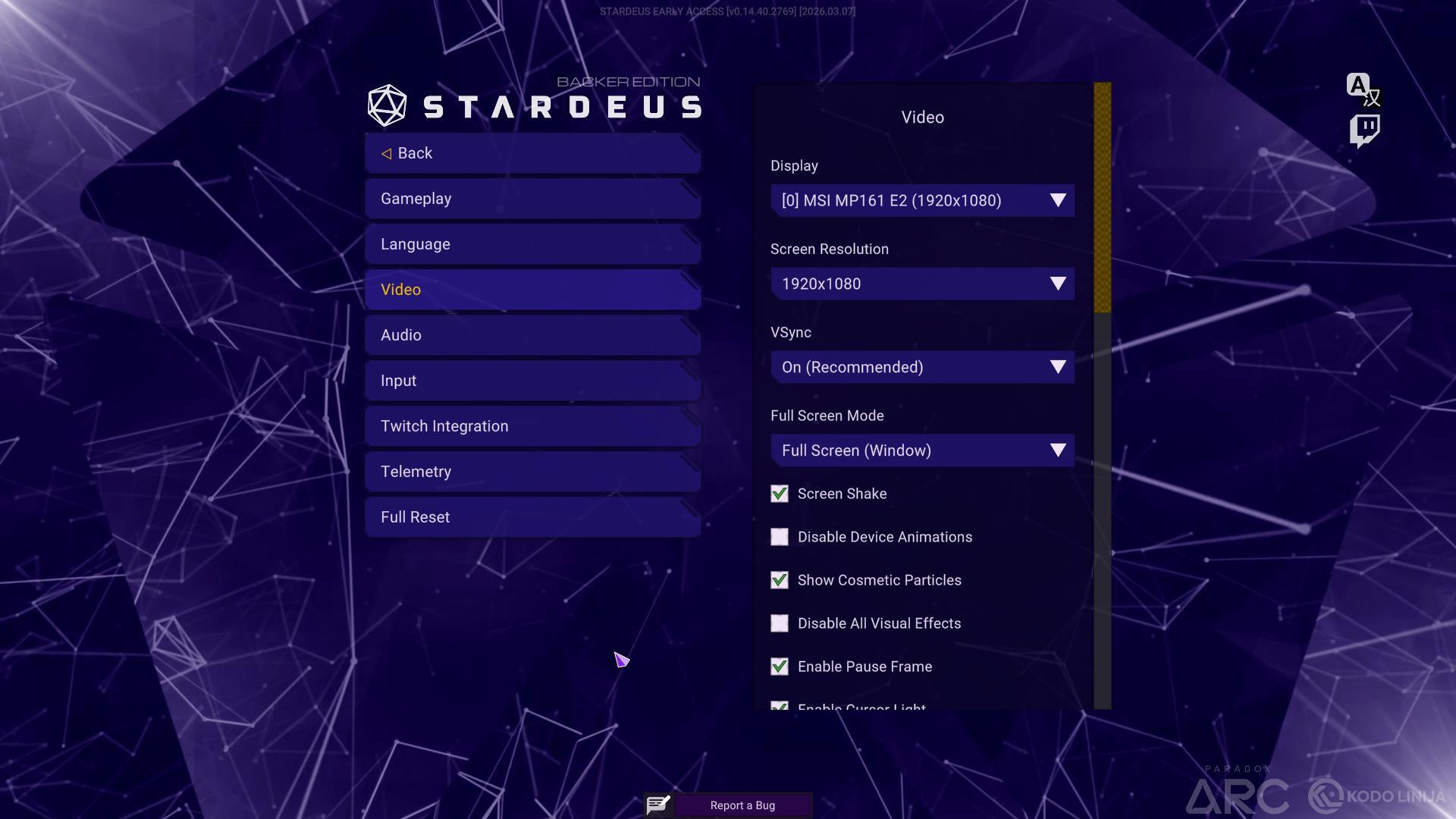
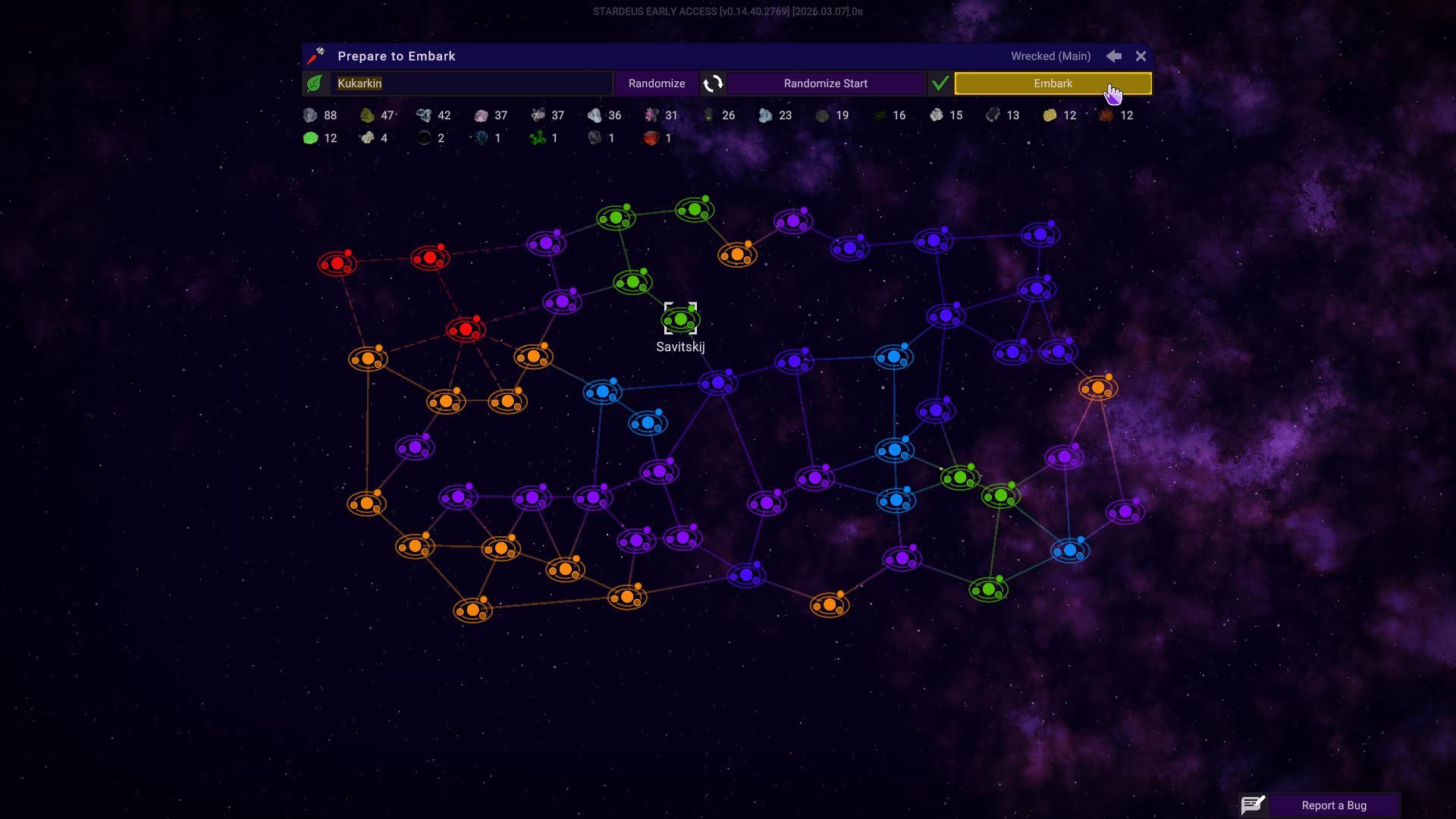
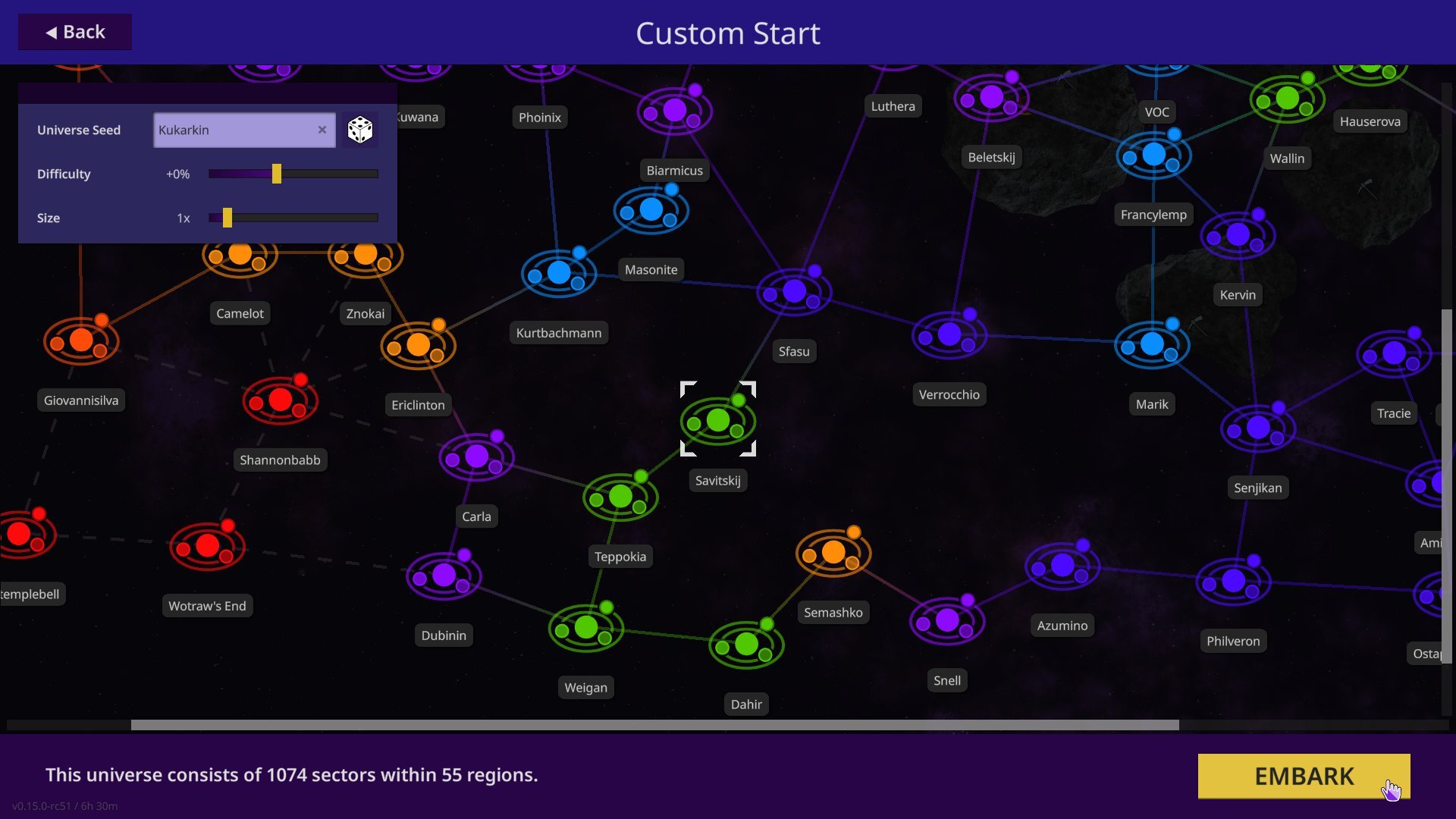 The old universe selection was confusing. The resources at the top showed resources for the entire universe, while some people thought it was the selected region. Deep scanning later in the playthrough would also reveal tons of additional resources which were not listed there, so it’s been removed. Additionally, you can now customise your run even further by tweaking the overall difficulty and size of the universe here.


 Award
Award 13
13


 Crawler control with Andre


 Stardeus実績ガイド/Achievement Guide
 Architecture of the prison in Stardeus


 Русский перевод на Completeness: 99.99%


 1 Billion Star Credits


 Loading

