
NoSlack Pets: Lo-Fi Paws

NoSlack Pets: Lo-Fi Paws

Not enough ratings
NoSlack Pets: Lo-Fi Paws Steam Workshop Guide
By lynkpingame
Welcome to the Steam Workshop guide for NoSlack Pets: Lo-Fi Paws.

This guide explains how to browse Workshop items, upload your own creations, prepare the correct resource folder, and use subscribed items in-game.

At the moment, the Workshop only supports room decor items.
   
Award
Favorite
Favorited
Unfavorite
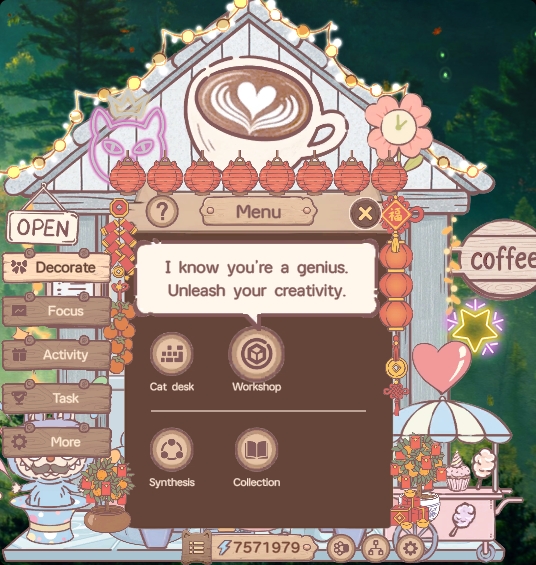
Open the Upload Page
If you want to upload your own Workshop item, you first need to open the upload page in the game.

Follow these steps:

  • Open the Menu
  • Go to the Decorate screen
  • Find and open the Workshop entry


On this page, you can view:

  • Your own uploaded creations
  • All Workshop items

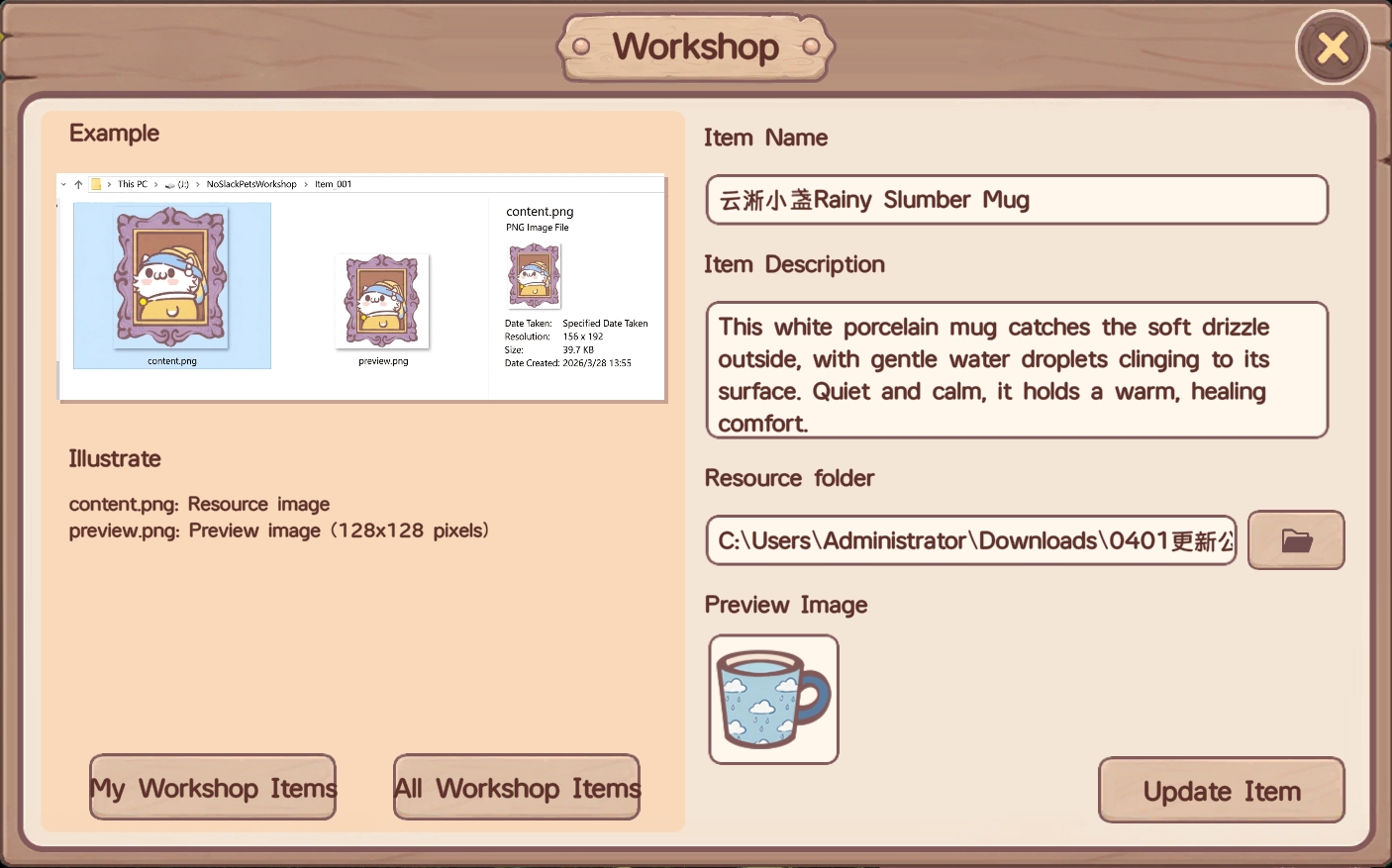
Once you are here, you are ready to start uploading your own Workshop item.
Fill In the Item Information and Upload
After entering the Workshop upload page, you need to fill in the following information before uploading your item:

  • Item Name
  • Item Description
  • Resource Folder
Once everything is ready, click Upload Item to upload your creation.

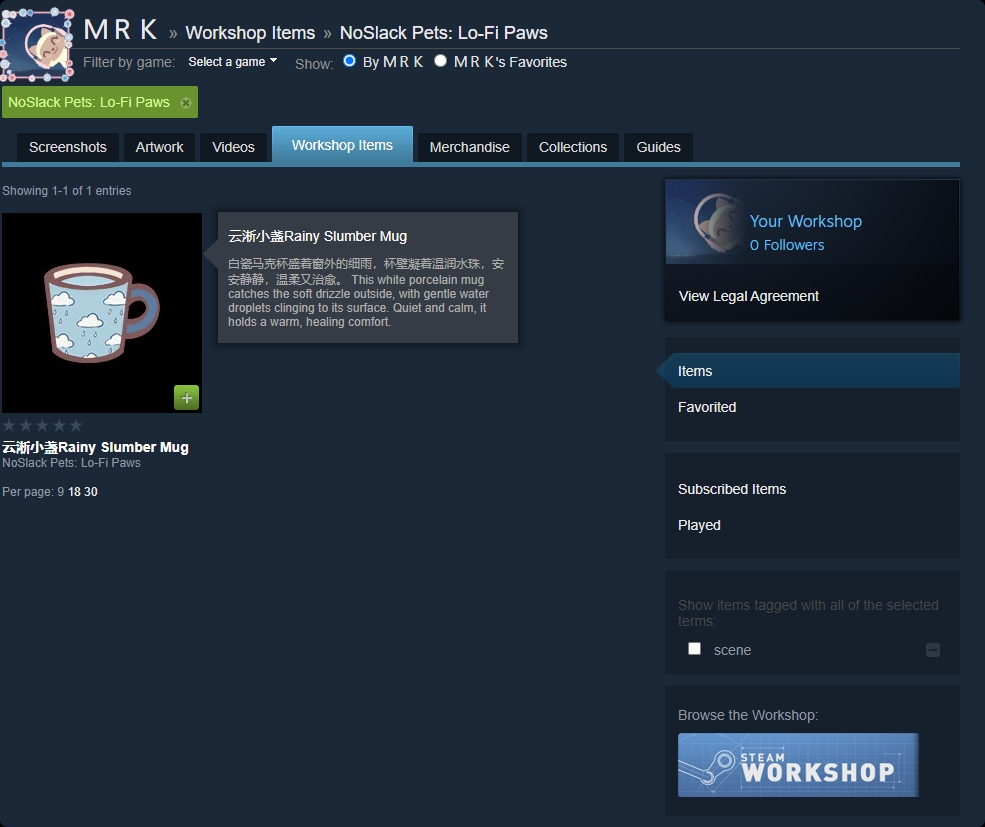
After the upload is complete, your item will appear on the Steam Workshop page.
Prepare the Resource Folder
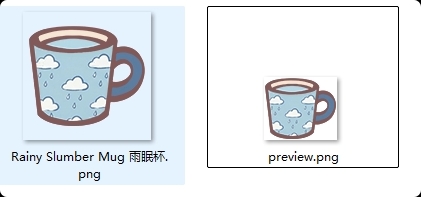
When uploading a Workshop item, your resource folder must contain two files:

  • One item image
  • One preview image


More specifically:

  • The item image can be in any size
  • The preview image will be used for display on the Steam Workshop page

Please note the following requirements:

  • The preview image must be named preview.png or preview.jpg
  • At the moment, the Workshop only supports room decor items
  • Only JPG and PNG image formats are supported

If the file name or format does not meet these requirements, the upload may fail or display incorrectly.
Subscribe and Use the Item In-Game
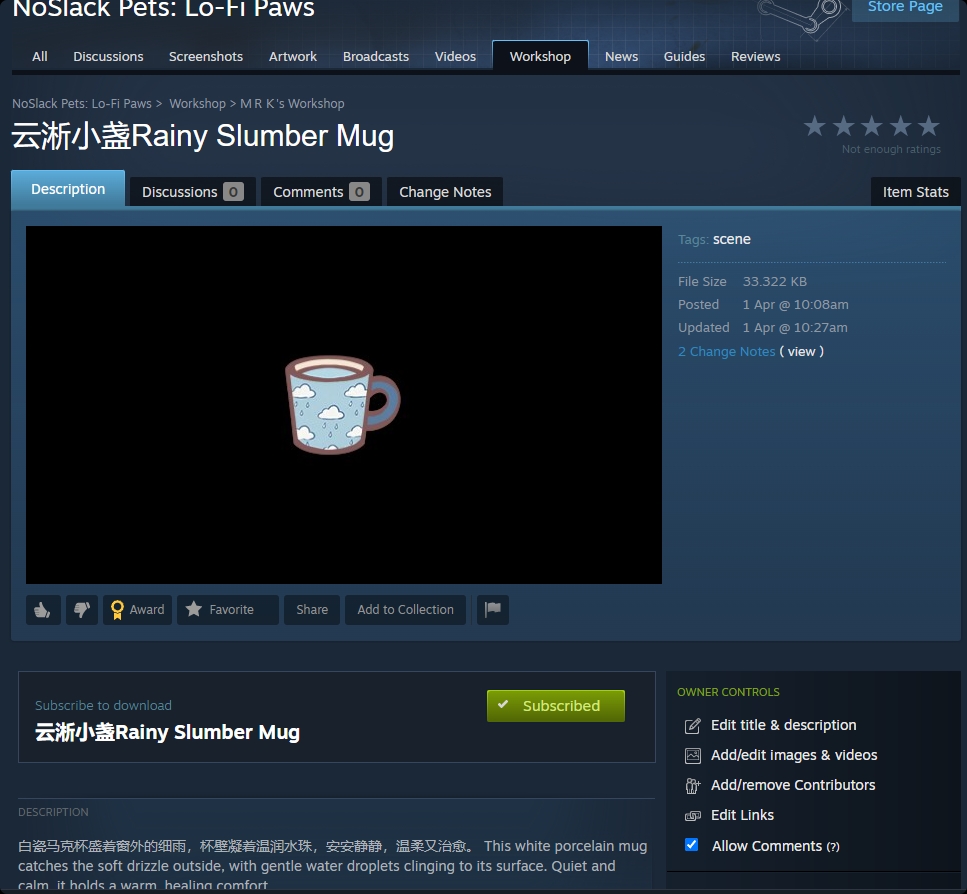
Once the upload is complete, you will be able to see your item on the Steam Workshop page.

After clicking Subscribe on that page, the item can be used in the game.

Please note:
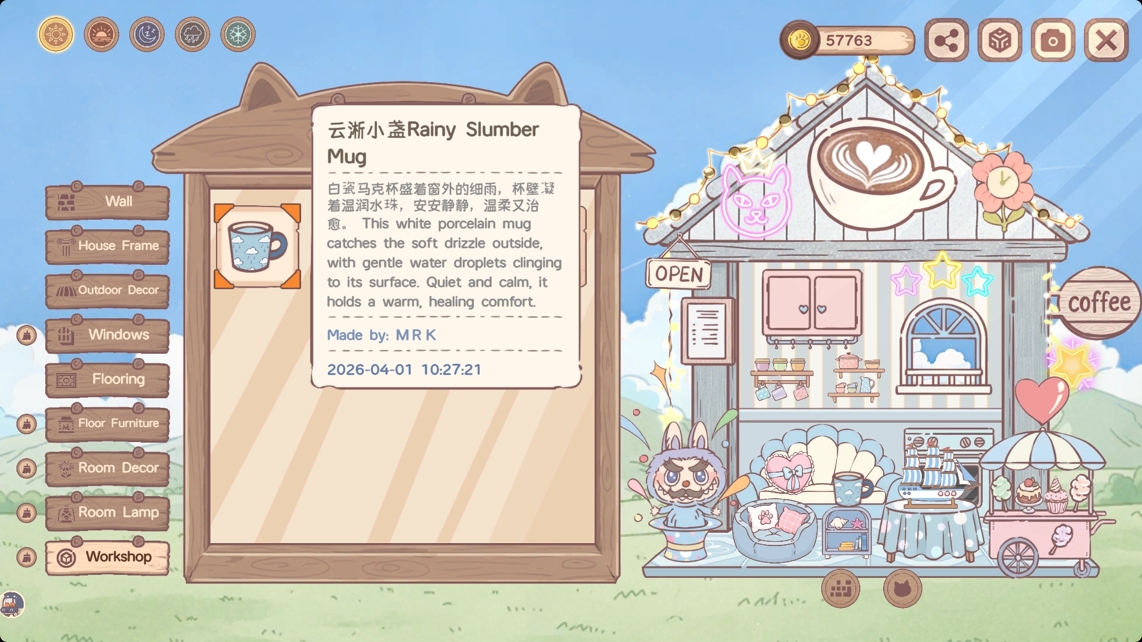
After subscribing, the in-game Workshop item list may not refresh immediately, and it may take a short while to update.

When you return to the game, you should be able to see the Workshop items you subscribed to.

Other players will also be able to see the Workshop items you upload. 🐱
Steam Workshop FAQ
How do I edit a Workshop item I already uploaded?

After your first successful upload, a file named published_file_id.txt will be created in the resource folder.
If you want to update the item later, simply replace the corresponding image files in the same folder and upload again.

Why doesn’t the item appear in-game immediately after I subscribe?

After subscribing, there may be a short delay before the in-game Workshop content refreshes.
Please wait a moment and check again.

Why can’t other players in the lobby see the Workshop item I’m using?

Other players must also subscribe to the same Workshop item in order to see it correctly.
1 Comments
Apr 1 @ 11:40pm 
thanks so very much for making this guide! it really helped me a lot <3 i had figured out how to find the workshop and subscribe to items but hadn't been able to find them in-game--your screenshot here helped me easily locate the items i was searching for. thanks again!