
Steam
47 ratings
How To Move Steam Games
By Satoru
Guide on how to move your steam games between drives or between computers
4
3
2
7
   
Award
Favorite
Favorited
Unfavorite
Stop Manually Moving Games
This guide is to help people CORRECTLY move games on Steam. This is due to the massive amounts of bad and outdated information that exists. These are the only officially supported ways of moving games. If you do anything else, you risk corruption or steam not seeing the game as installed.
Moving Games To A Different Drive On The Same Computer
This is when you want to move a game you have installed to a different drive on the SAME computer. You might want to move a game off of your SSD onto a slower spinning hard drive to save space. Or move a game onto an SSD to make load times better.

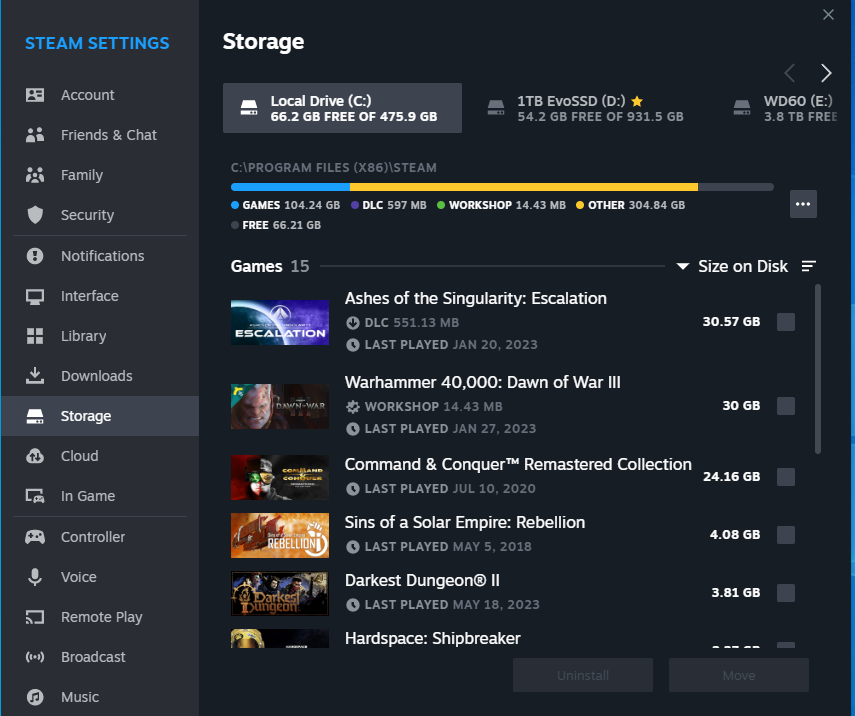
  • Steam -> Settings
  • Click Storage along the left
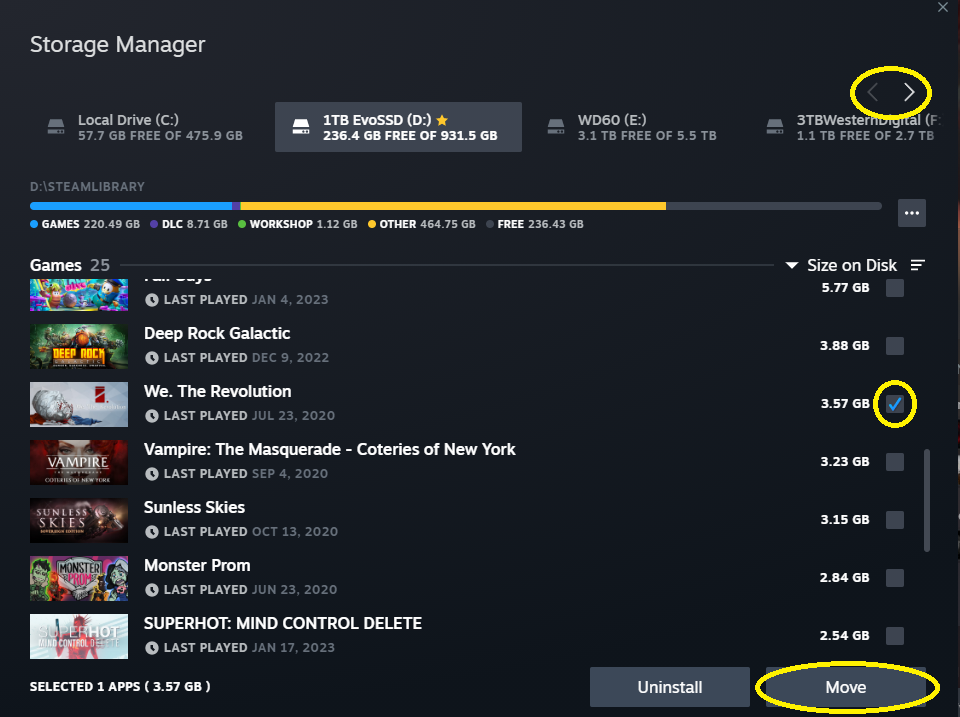
  • Find the drive where your game or games you want to move are installed
  • Click the check box beside each game you want to move. You can check off multiple games to move. Note that ctrl-click/shift-click doesn't work here so you will have to click each one manually.
  • Click "Move" in the lower right

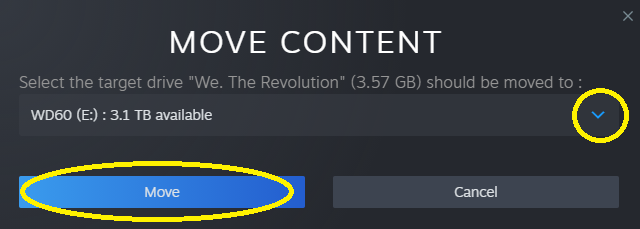
  • In the pulldown select the destination drive you want to move the games to
  • Click "Move"


Steam will begin moving your games now. This can take time depending on the target and destination drive speeds
Moving Games Between Computers On The Same Network
Updated as of February 22, 2023

https://help.steampowered.com/en/faqs/view/46BD-6BA8-B012-CE43

As long as both computers are on the same network you can install games from the other computer and not use your internet bandwidth

Please refer to the FAQ above with regards to other limitations

  • Ensure one computer has the game you want already installed on it with Steam running
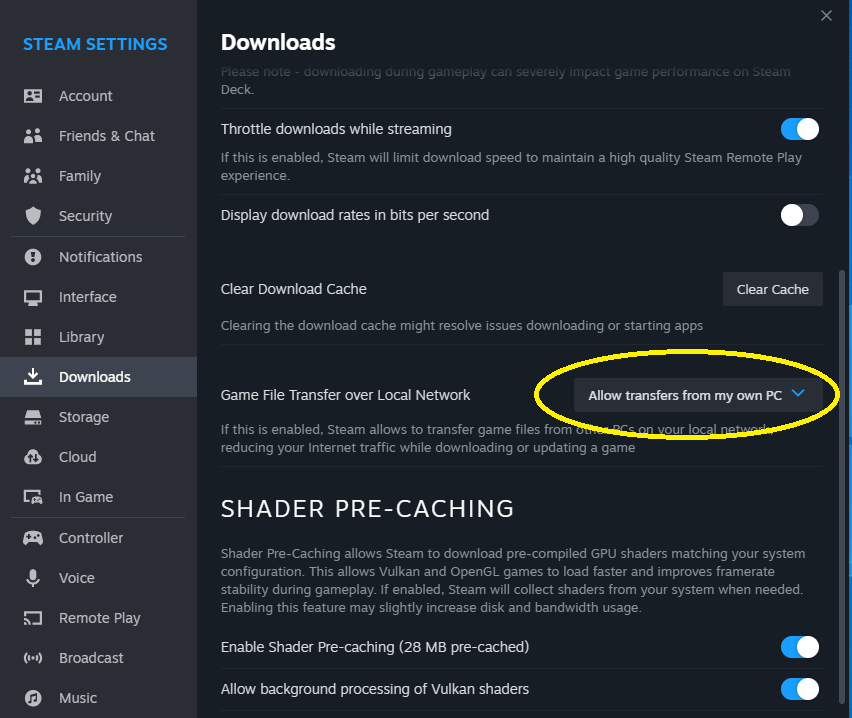
  • Check your steam settings in Steam->Settings->Downloads->Game File Transfers over Local Network
  • Ensure this set appropriately on both computers


  • On the target computer find the game you want to install
  • If you have "Remote Play" enabled on the host computer you need to click the down arrow button beside "stream"
  • Click "Install"
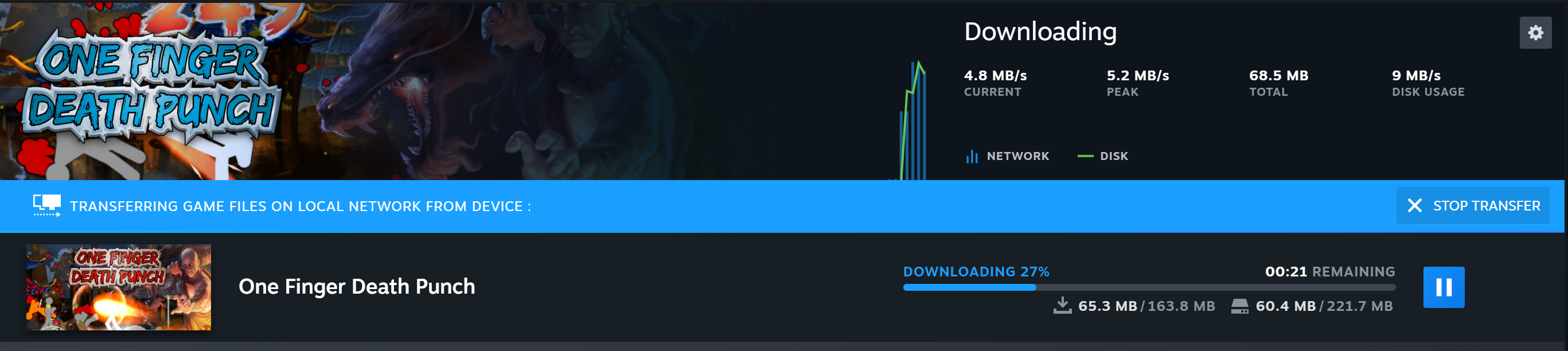
  • If the transfer is happening across your local network a blue banner will show up in the "Downloads" queue letting you know what computer the install is happening from

Move Entire Steam Library Folder Location Between Computers
This section only applies to Steam library folder locations not where Steam is installed on c:\program files

This is only for the wholesale move of all games in a Steam library folder location. This is more a scenario for when you rebuild a computer and want to move your D: E: etc drives

  • Move the entire physical drive
  • Alternatively you can move the library folder. By default steam installs games in <drive letter>:\SteamLibrary. Move the ENTIRE SteamLibrary folder to the new location
  • On the new computer go to Steam -> Settings -> Storage
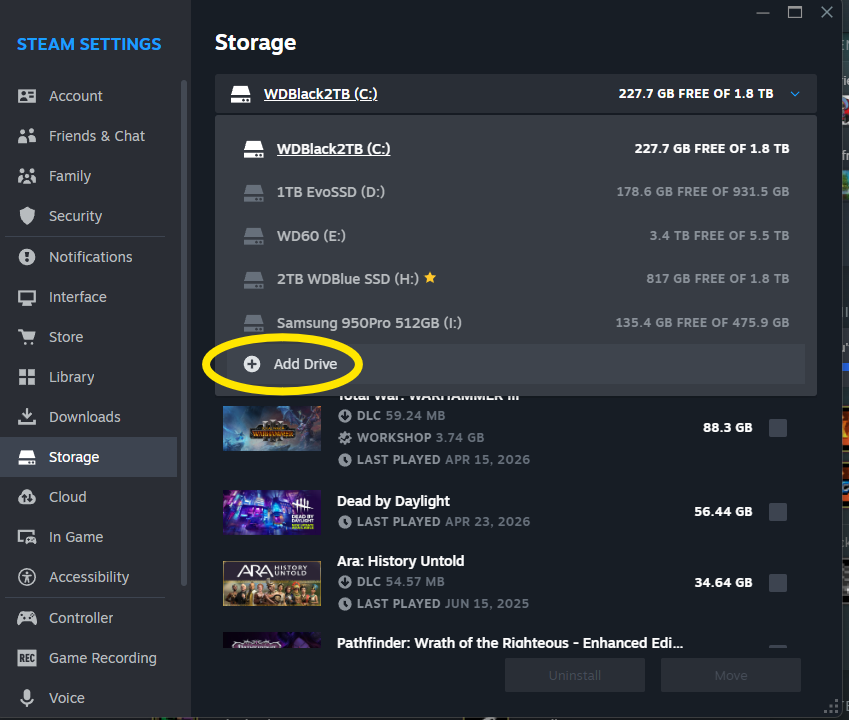
  • In the Storage Manager along the top click disk pulldown, select "Add Drive"
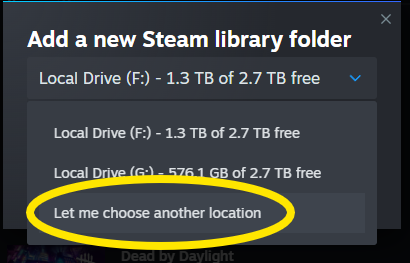
  • Select the pulldown for "let me choose another location"

  • Click Add
  • Select the folder where your "SteamLibrary" above was copied to
  • Click Select

You've now successfully moved an entire steam library folder to your new computer. All your games will be automatically seen as installed. Games may be queued to be updated depending on when you moved the library.
Moving Individual Games Between Computers
THIS IS WHERE MOST PEOPLE SCREW UP

If you want to move individual games from one computer to another this is the ONLY supported way of doing so. DO NOT manually move files around. DO NOT copy the 'steamapps' folder or whatever nonsense that web page from 10 years ago says.

On the Source Computer
  • Right click ->Properties on the game you want to backup
  • Click "Installed Files" on the left
  • Click "Backup game files"
  • Select the directory you want to save the backup to
  • Click Create Backup
  • In that location will be a folder with the name of the game

On the Target Computer
  • Steam -> Restore Game Backup
  • Browse to the folder with the name of the game of the backup you created previously
  • click Restore Backup
  • Select which library location you want to install the game to
  • Click Install
39 Comments
Satoru  [author]
Jul 7 @ 6:29pm 
The common redists is a special one controlled by steam for things like directx and such. You don't have to worry abou tthat one as Steam manages that one on its own.
Jul 7 @ 5:47pm 
ok tested all the games for load in , every one work .. Impressive ..

Thankyou steam for providing up great support ..
Jul 7 @ 5:44pm 
i was able to move all my games to Q drive, all but Steam Common redirect files . not sure if i need them or not nothing about in this readme .. hmmm .
Satoru  [author]
Mar 6 @ 6:55am 
Do you have other libraries defined? The "Move" button would only be greyed out if you didn't have other valid target libraries in Steam defined
Mar 6 @ 6:23am 
I'm sorry....
Mar 5 @ 7:33am 
What do you do when the 'move' button is greyed out and the only option is 'uninstall'?
Jan 3 @ 1:15am 
There is a new option connected to the "local-network" downloads privacy chooser. https://steamcommunity.com/sharedfiles/filedetails/?id=3638081143

I would not have found this setting without your guide, the steam documentation and ways they display settings is just too random for my addled brain sometimes :-)
Satoru  [author]
Jan 1 @ 11:10am 
Can you be more specific. The downloads section look pretty much the same for "Game File Transfer over Local Network" part
Jan 1 @ 8:54am 
The downloads setting screen has now changed from that shown. And nope not working for some reason.
Satoru  [author]
Nov 11, 2025 @ 6:10pm 
That's likely due to your anti-virus causing issues