Crusader Kings III

Crusader Kings III

Not enough ratings
Translate any Mod
By N*rd
In this guide I will show you how any user can automatically translate ck3 (Crusader Kings 3) localisation files to other languages.
   
Award
Favorite
Favorited
Unfavorite
Disclaimer
This guide provides a straightforward introduction to using the CK3_LocalizationChanger tool. With this tool, users can easily translate the localization files into any of the currently supported languages. Additionally, it allows users to transfer the localization files to a new language without the need for translation.

For a comprehensive understanding, I highly recommend reading the ReadMe file aswell. Feel free to ask any questions.
The program
We use Python for the translation process.
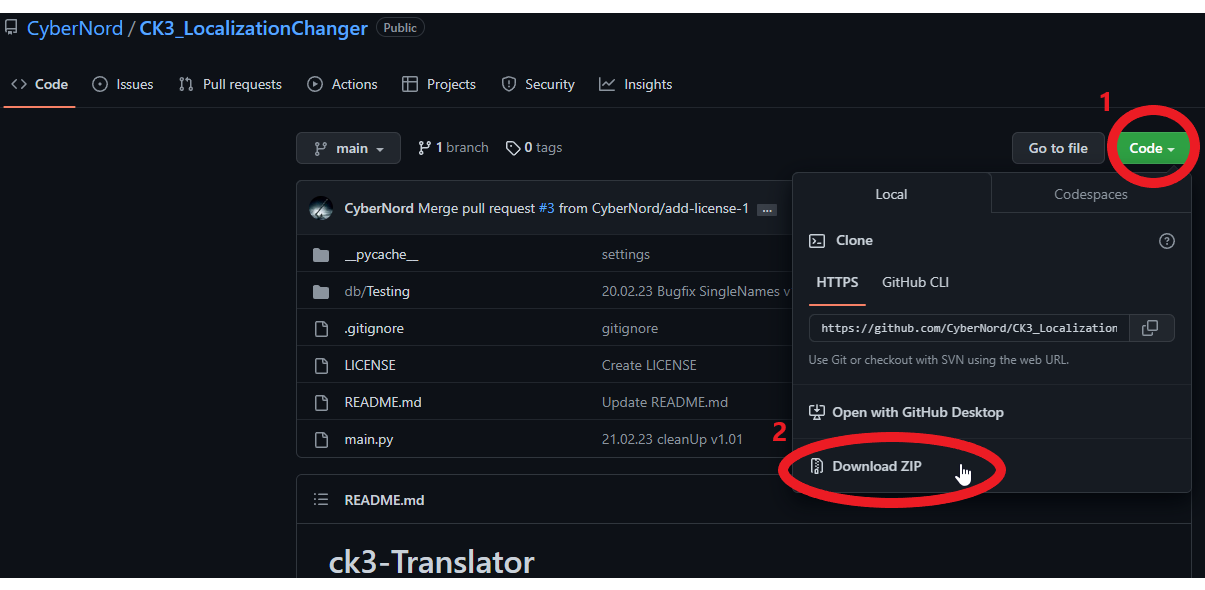
The program can be downloaded from this github page. >> Link << [github.com]

Once there, the project must be downloaded as a zip file.
Then unzip the folder anywhere.


Python & Packages
Required:
Python 3.x [www.python.org]
googletrans 4.0.0rc1[libraries.io]

Instructions for Windows!

Python
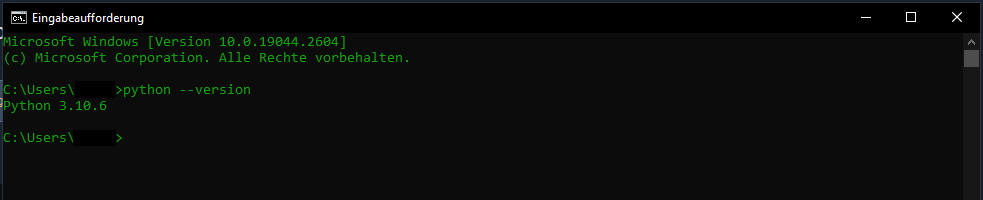
Check if you have already installed Python. To check that press "Windows" + "R" and type in the little box "cmd" and hit enter. This will open the Command line.

Now, write the following: python --version
If you have Python preinstalled it will look something like that.and you can continue installing googletrans.


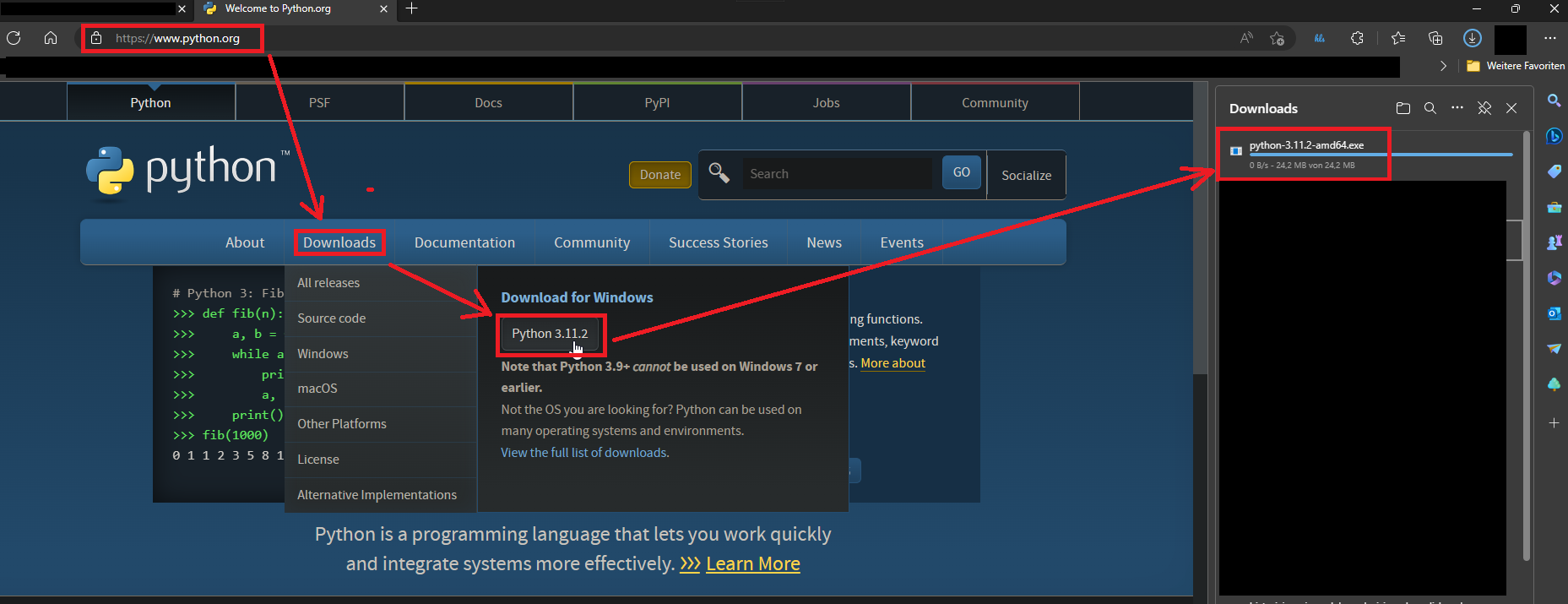
Otherwise go to Python org [www.python.org] and download the Latest version of Python.
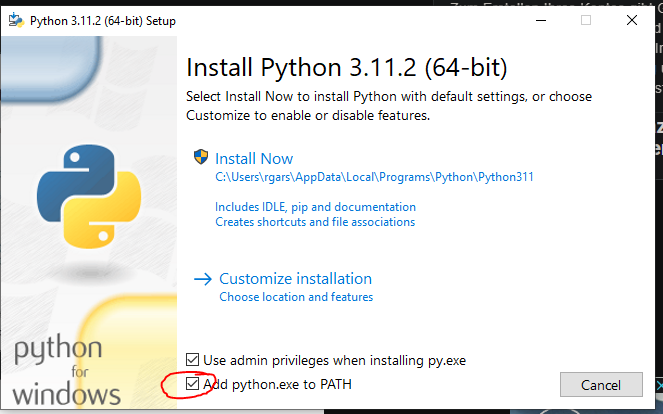
Open the file and go through the Installation process. Make sure to enable "Add python.exe to path" as shown below.


Congratulations you have installed Python!

googletrans-api
The next step requires you once again to open up CMD.
If you experience errors downloading pip try to deactivate you antivirus program or make an exception. Some antivir will block the following steps.

1) open CMD

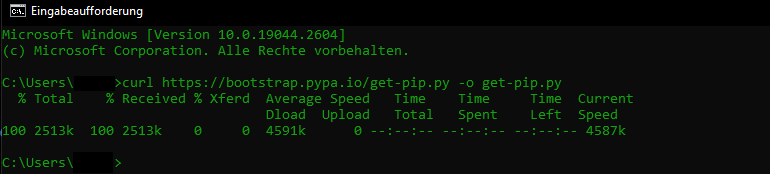
2) next install python curl (used to install pip)
curl https://bootstrap.pypa.io/get-pip.py -o get-pip.py

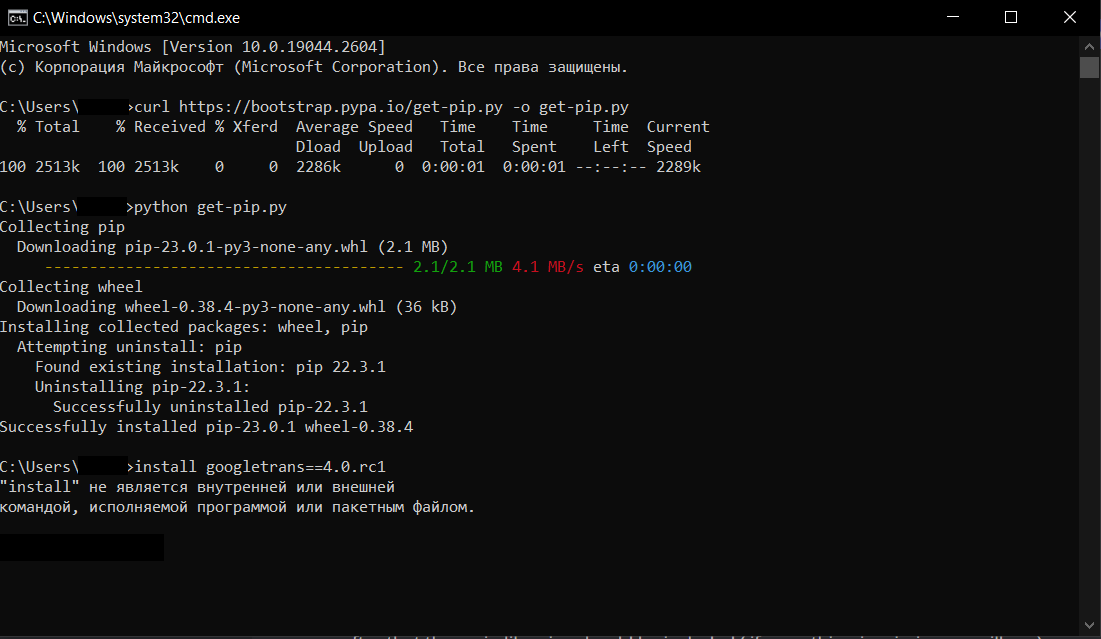
3) now install pip
python get-pip.py

4) once done install googletrans
pip install googletrans==4.0.rc1

It should something like this:


Now you are ready to go.
Translation Process
CK3 Mod Directory

First we have to locate the CK3 workshop directory.

You can usually find this under the following path
C:\...\...\Steam\steamapps\workshop\content\1158310\ ....
The folder with the number 1158310 containsall of your downloaded ck3 workshop files.

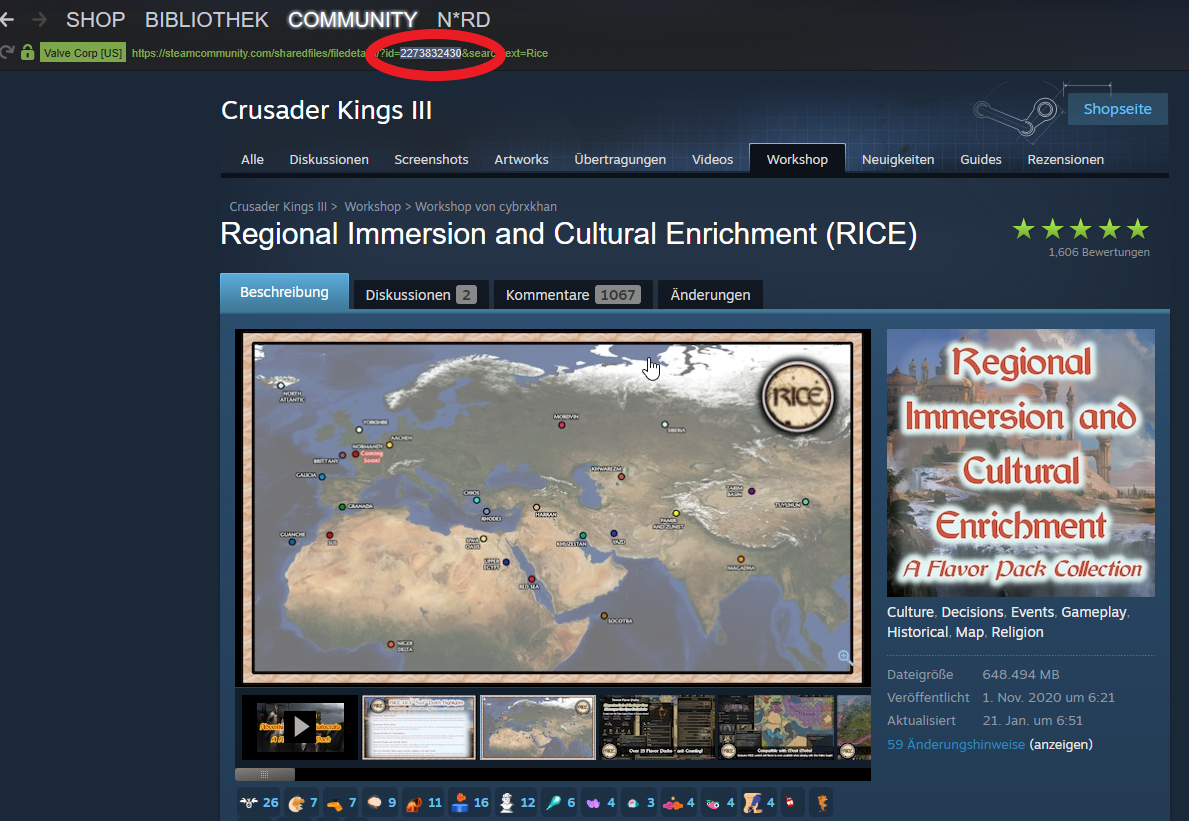
In there you can find a lot of folders with numbers. Those numbers are identification numbers for the mod. The Identification Numbers can be found via Steam Workshop


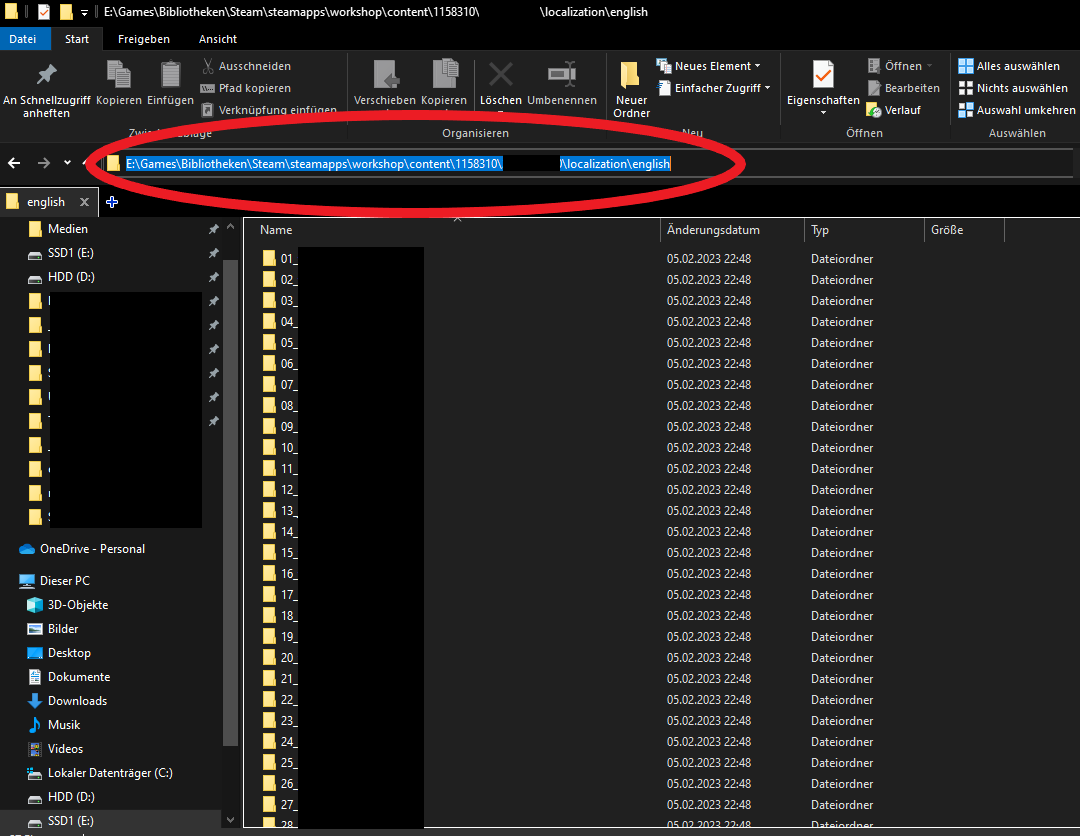
Once you have found the folder of the mod you want to translate head over to the folder which is called localization\english
This will look most likely something like that:
C:\...\...\Steam\steamapps\workshop\content\1158310\MOD_ID\localization\LANGUAGE

Then copy the path of this folder.

Translator directory
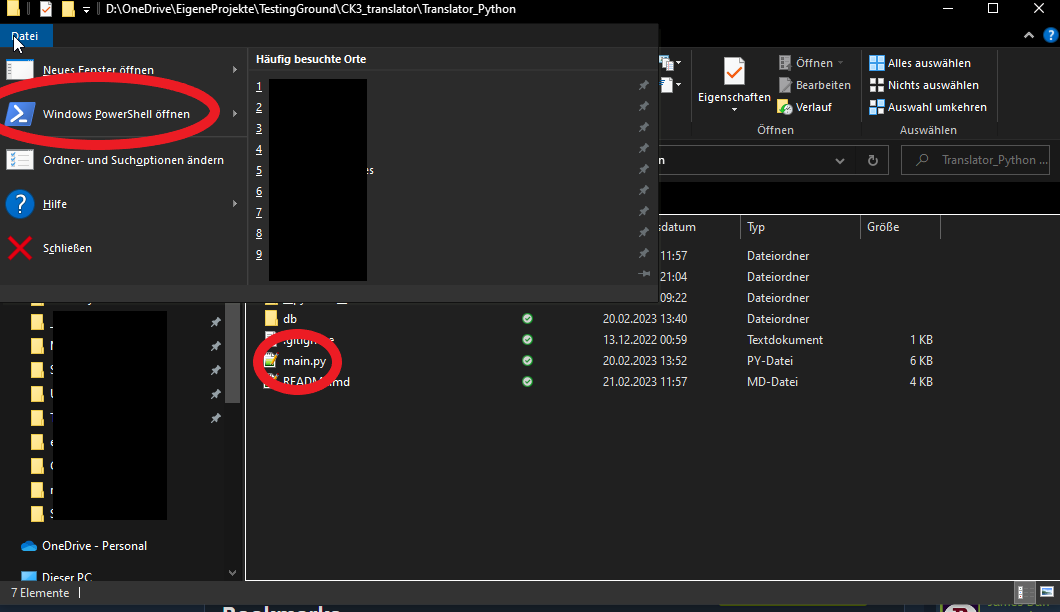
Now we go to the path where the program was previously unpacked. There we open the Powershell directly.


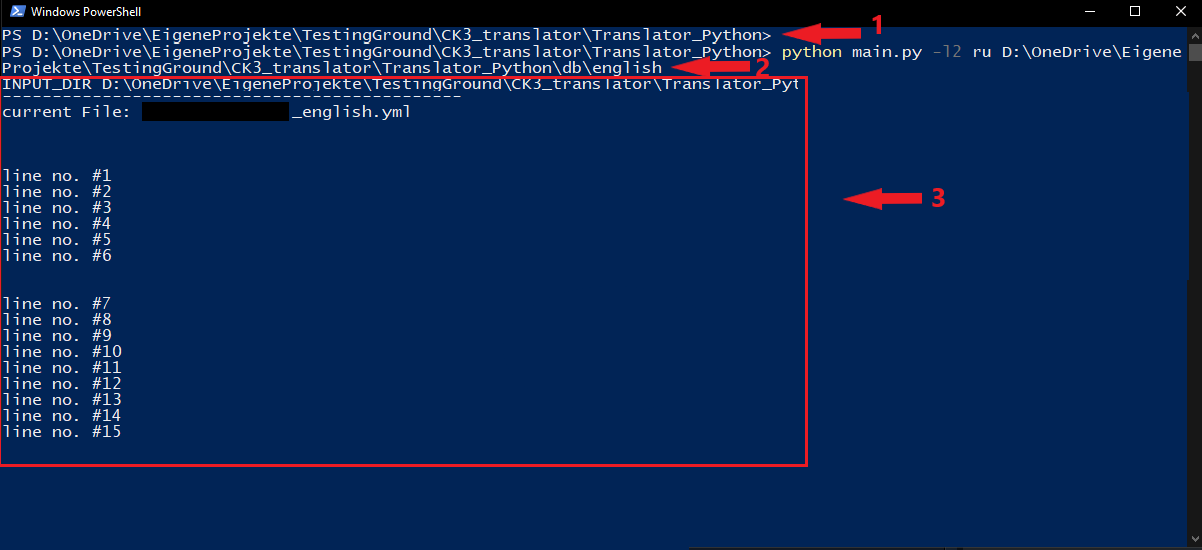
We see the line marked with [1] when opening the Powershell. There is the path under which this was called.
Now we enter the command to start the translation [2] .
To find the correct command for you please refer to the "Commands" section.

In my case I want to translate from english (default) to russian.
The command for this is python main.py -l2 ru Path

The translation will now take a while, depending on the size of the individual files [3]


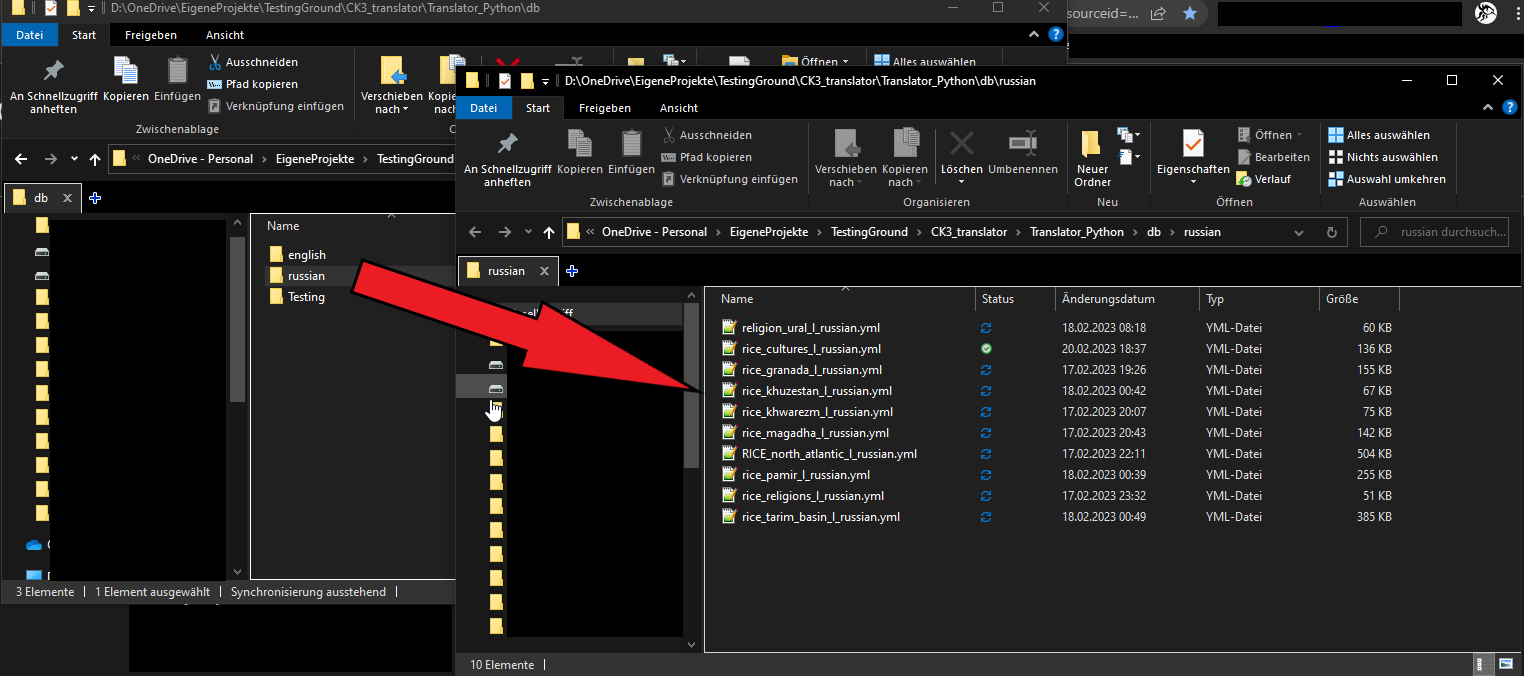
When its done you can find the translated files in the folder /db/OUTPUT_LANGUAGE
In my case I translated a part of the mod RICE for the russian language project here on steam.

All thats left to do is to copy the folder back into the main mod in your workshop files.
Now your mod has an automatic generated translation.


Commands
The general structure is
python main.py -l1 FROM_LANGUAGE -l2 TO_LANGUAGE -trans TRANSLATE? path

FROM_LANGUAGE
Default value is english, change if the original language is not english

TO_LANGUAGE
Default value is german, change if the desired output language is not german

TRANSLATE?
Default value is True, change to False if you want to keep FROM_LANGUAGE
( eg. english texts in german localisation)

officially supported languages
- 'en' english
- 'de' german
- 'fr' french
- 'es' spanish
- 'zh-cn' simplified chinese
- 'ko' korean

examples
this will translate from english (default) to french
python main.py -l2 fr D:\the\path\to\english\loc\folder

this will translate from french to german (default)
python main.py -l1 fr D:\the\path\to\english\loc\folder

this will just alter the first line and filename so that the localisation is detected by the game
python main.py -trans 0 D:\the\path\to\english\loc\folder
6 Comments
rayul_mayit Apr 11, 2024 @ 8:23am 
Too bad the translation leaves a few grammatical errors on some things too, I don't know if that only applies to the French translation, but there you go. Otherwise, it's perfect.
N*rd  [author] Jan 11, 2024 @ 10:17am 
If it closes immediatly with no errors the program most likely did not found the files.
Please doublecheck if you have done the pathing and the "from to language" syntax correctly.
One Proud Brazilian Jan 11, 2024 @ 6:51am 
The main.py file open with an empty cmd box and immediatelly close. I hve followed the steps accordingly until the "powershell" part. I dont know what to do. Please help.
N*rd  [author] Sep 17, 2023 @ 12:00am 
@AzurianFire
Thats strange. To be able to investigate this I would need the mod youre trying to translate.
AzurianFire Sep 7, 2023 @ 3:49am 
Hi, I keep getting "unkown exception" for every line of my files each time I start the translation to french (same thing with other languages), any idea?
Hass Mar 11, 2023 @ 1:43pm 
It only worked for me with "py main.py" on Windows