Transport Fever 2

Transport Fever 2

Not enough ratings
How to encode video from the camera tool
By Milhouse
This guide will show you what to do with the .tga files that the in-game video recorder outputs. It assumes you already know how to use the in-game camera tool but I provided a link to the video that taught me how.
   
Award
Favorite
Favorited
Unfavorite
First Steps
Quick note:
If you're going to do video editing, check if your editing software can load the tga frames directly, you might not have to go through this at all. What I will show you is to quickly convert the frames to video. All the open-source / free video editing software I have used do not support hardware acceleration so my method can still be quicker if you do not wish to do any editing.

Prerequisites
This guide assumes you know how to use the in-game camera tool and that you have already recorded a video with it but don't know what to do with the .tga files. If you don't, go check out this video (not mine).

Finding the files
The camera tool records to [STEAMROOT]/userdata/[YOURID]/1066780/local/recordings.

The default location for [STEAMROOT] on Windows is C:\Program Files(x86)\Steam and if you're the only steam user on your PC then just navigate to /userdata and there'll be only one folder. Otherwise, you can try them all or find your steamID3 at https://steamid.io/lookup/.

I assume the location is similar for Linux.


Installing ffmpeg
For Windows:
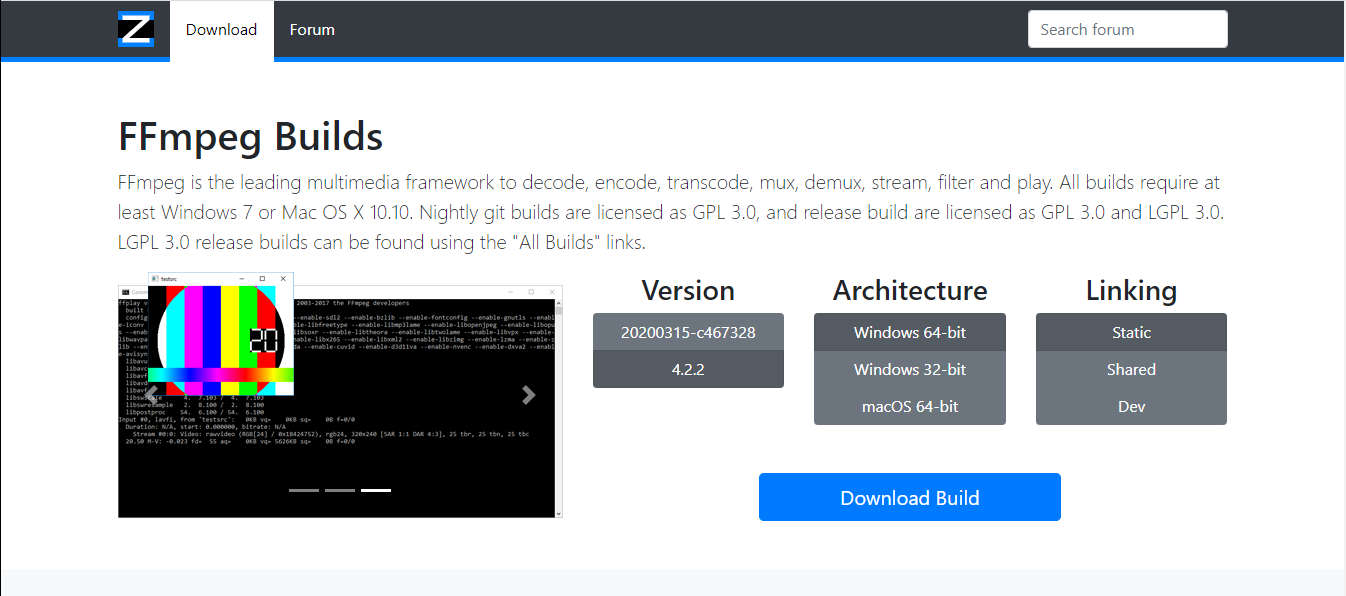
  1. Go to https://www.ffmpeg.org/download.html and download the pre-built libraries.

  2. You probably don't need to change anything here, click the blue download button

  3. Extract the zip file. I like to extract programs like this that don't have an installer in C:\Users\my_username\bin.

  4. Opional but recommended: add this folder to your environment variables. It will allow you to call it with ffmpeg instead of the whole path, e.g. C:\Users\milhouse\bin\ffmpeg\bin\ffmpeg.exe
    1. Go to Control Panel\System and Security\System (you can paste this in the file explorer).
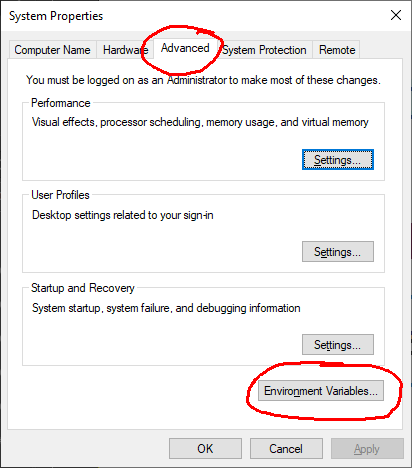
    2. Click on Advanced system settings in the navbar on the left.
    3. Navigate to the advanced tab and click on Envionment Variables

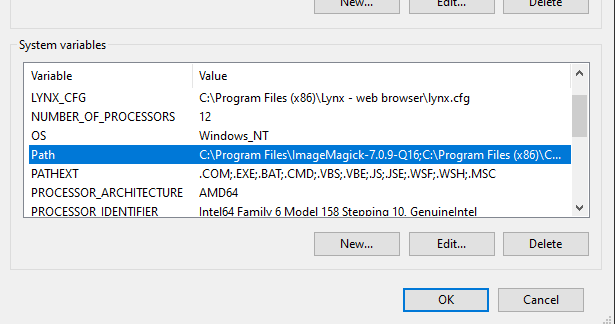
    4. Find the PATH variable and click Edit..., then New... and paste the path to the bin folder of what you just extracted. It should look like C:\Users\YOUR_USERNAME\bin\ffmpeg\bin
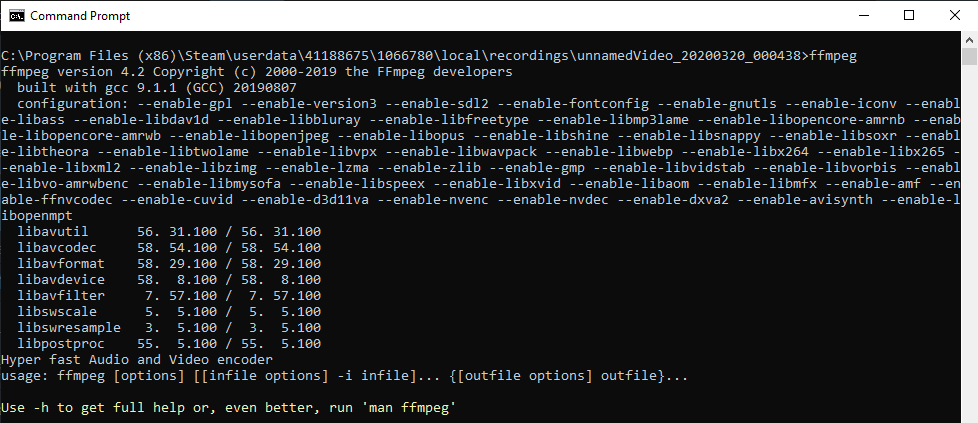
  5. Make sure it is installed correctly. Open the command prompt, if you followed step 4, type
    ffmpeg -version
    If not, type the whole path before ffmpeg
    If you see this, continue to the next section:
For Linux:
This should be obvious.
Using ffmpeg to convert to a video
All we have is a bunch of frames, we need to tell ffmpeg what frame rate it was recorded at. If you don't remember, the default is 30fps.
  1. Navigate to the directory where the .tga files are, copy the path of the folder. Go back to your command prompt, and type
    cd (path here)
    On Windows, right click on the command prompt window to paste.
  2. Type
    ffmpeg -framerate 30 -i unnamedVideo_img-%d.tga output.mp4
    Change 30 to whatever frame rate you used. output.mp4 can be anything, ffmpeg will adjust to file extensions if it supports them.
That's it.

The name always seems to be same so you can just always paste this. Alternatively, you could paste it in notepad and save it as something.bat and just copy the .bat in the folders and double-click it.
Notes
Note on hardware acceleration:
All you have to do is add -hwaccel auto or replace auto with one of the supported methods (ffmpeg -hwaccels) before the -i argument. At first it was 2.6x faster than without the -hwaccel switch but now I'm getting similar results without. I'm not sure why, might have had something heavy running in the background ¯\_(ツ)_/¯. Try it if you feel like it.

There's a -threads switch (on a x-core system, you'd use -threads x), it doesn't seem to do anything for me. It probably auto-detects the number of cores. Won't hurt to try.

Also, using nvenc is really fast but the video quality is horrible.

Note on additional possibilities with ffmpeg
The cool thing with using a command line program is that it can be automated using the Task Scheduler on Windows or cron on Linux. For example, you could write a script to export the video to another folder and delete the folder so it's only done once and have the TS or cron run it once a day.

You can also convert to lower resolution or frame rate on the fly, output to .gif, extract a thumbnail or all of those things (almost) at once.
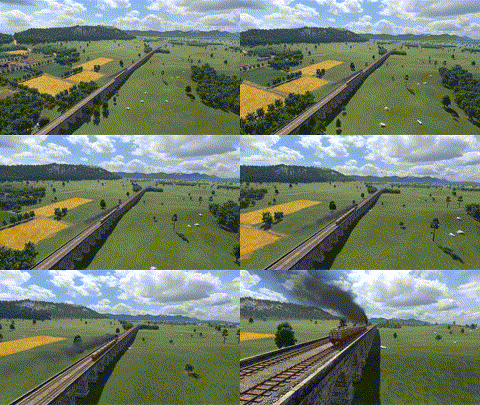
Like this one:
I exported it to 240px wide, auto height, and reduced the fps to 1/10th to make it fit under the 2MB size limit on steam. It was much quicker than uploading it to ezgif.com or the like.
This is the command I used:
ffmpeg -framerate 30 -i unnamedVideo_img-%d.tga -vf "fps=fps=10,scale=240:-1" output.gif

Take a look at the documentation[ffmpeg.org] to learn how to do more cool stuff like this.
2 Comments
Pseudolukian Oct 8, 2024 @ 11:20am 
really? what gamecreator doing such a idiot move?
FarmingtonS9 May 7, 2020 @ 7:01am 
hey, this is pretty cool! Nice work