Geometry Dash

Geometry Dash

85 ratings
Custom Mini Cube / Ball [OUTDATED]
By WEGFan
DISCLAIMER: THIS WILL BE A STANDARD FEATURE IN GEOMETRY DASH 2.1

This guide will show you step by step how you can make the Mini Cube or Mini Ball look like any Normal Cube or Ball!

This way of changing the textures was originally discovered by OmniKahedron and was used in his GD Mini Mod (no longer avaiable)

Feel free to leave questions and feedback in the comments!
   
Award
Favorite
Favorited
Unfavorite
Video Guide
Preparation
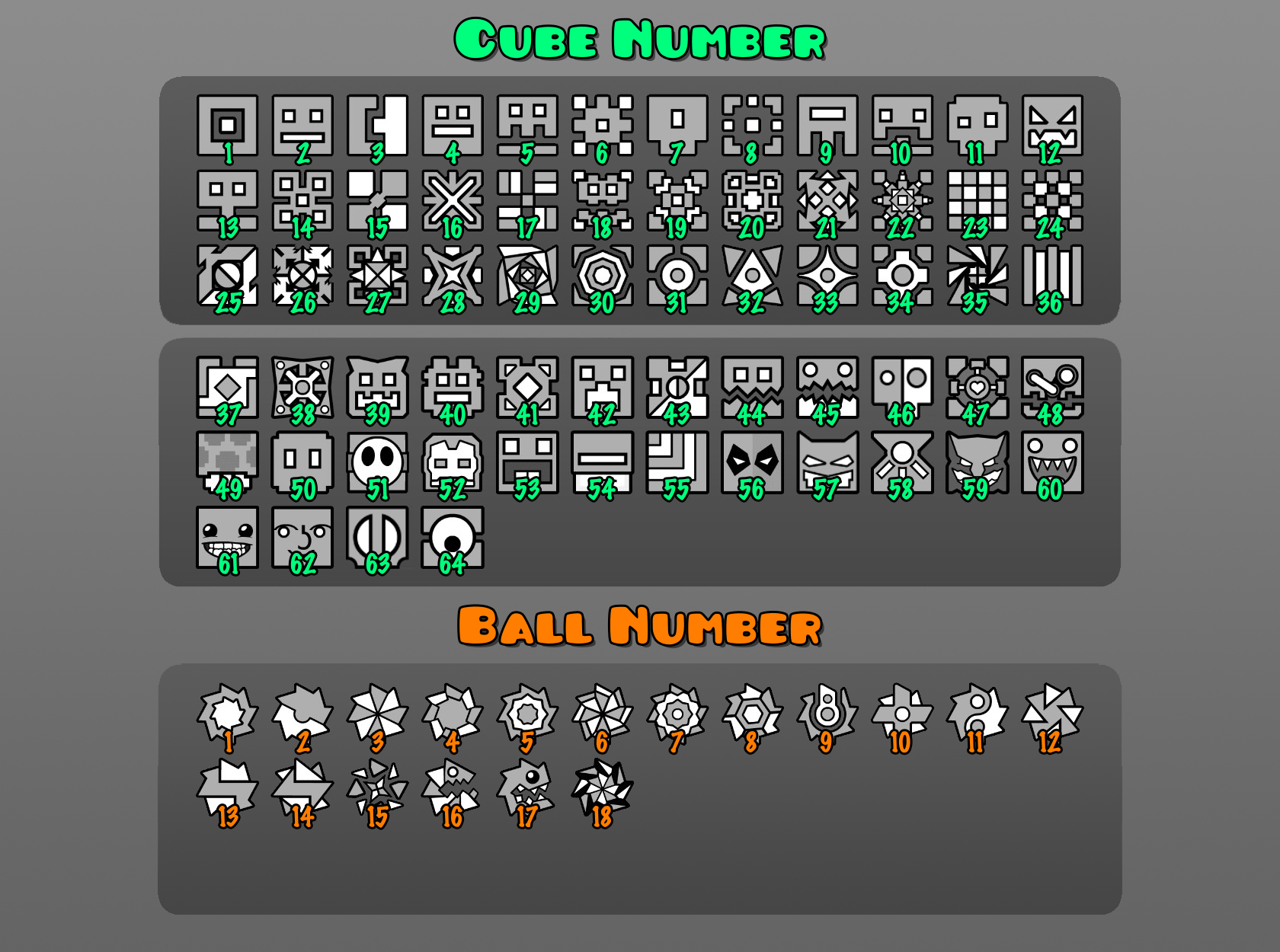
First you need to find the position of your cube or ball in the Character Select page. Note down the number of your cube or ball according to the picture below.

Modifying the file
Next, you need to go into the game's installation folder and modify the file.
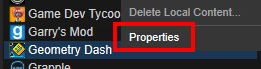
  1. Right click Geometry Dash in your library, and choose "Properties".


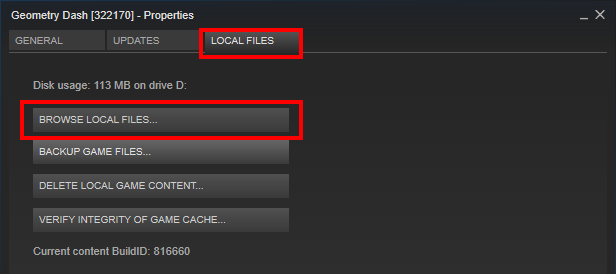
  2. Click on "LOCAL FILES" then click "BROWSE LOCAL FILES...".


  3. Go into the folder called Resources.
Then you need to find the file you need to edit based on what Texture Quality you are using. (You can change this in Settings -> Graphics in game.)
  • If you are using High quality, you need to edit GJ_GameSheet02-uhd.plist.
  • If you are using Medium quality, you need to edit GJ_GameSheet02-hd.plist.
  • If you are using Low quality, you need to edit GJ_GameSheet02.plist.
Open the file with a text editor. (Windows built-in Notepad is not recommended, it won't display the file in formatted style)

Note: Make sure you backup the original before you edit!
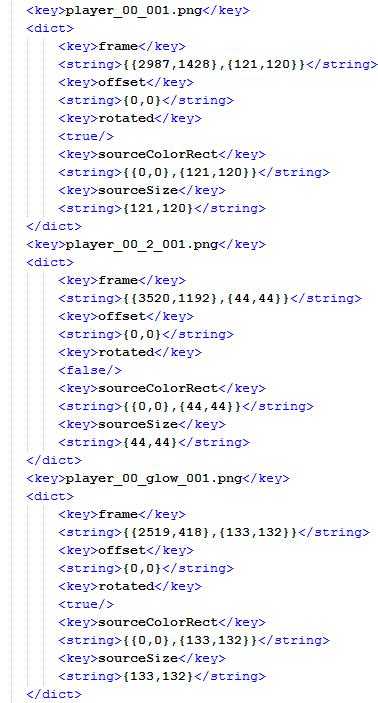
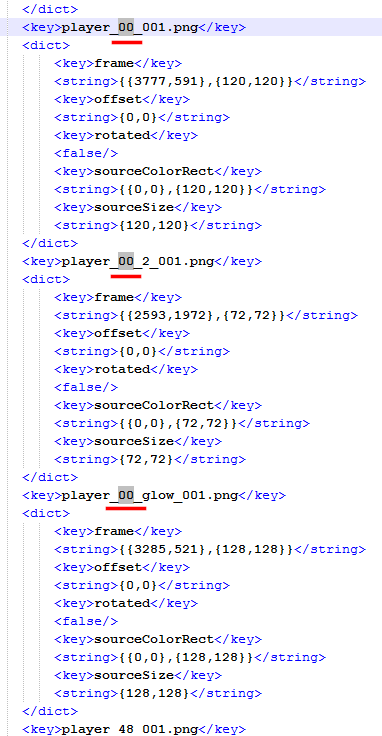
  1. Search for player_00_001.png, and delete everything from <key>player_00_001.png</key> to the THIRD </dict> starting from that line. (As seen in the picture below) If you want to change the Mini Ball, look for player_ball_00_001 and player_ball_{ball number}_001.png instead.


    (The content in <string> ... </string> can be different from the picture due to the file you selected.)

  2. Then search for player_{cube number}_001.png (cube number is what you wrote down before) and copy everything from player_{cube number}_001.png to the THIRD </dict> from that line. Now paste that directly below the code you just copied (As seen in the picture, the code for the Mini Cube is now between the code for Cube 47 and Cube 48)

  3. Finally, change the {cube number} in player_{cube number}_001.png, player_{cube number}_2_001.png and player_{cube number}_glow_001.png to 00 (In the code you pasted, as seen in the picture below)


  4. Save the file and close the window.
    Note: If you are using Notepad++, closing the window will not save the file automatically.
Have fun!
Now open the game and enjoy the new style of the Mini Cube and Mini Ball!


if you encountered any errors, or had problems in modifying the files, please comment below and I will reply to you as soon as possible. Or you can just add me and I will help you modify them.
101 Comments
Twiaktzlud Nov 29, 2024 @ 8:58am 
no it's not, check the ^^^^^^^
Anomalocaris canadensis! :] Jun 14, 2023 @ 3:01pm 
It's 2023
Cardinalium235 Apr 30, 2023 @ 2:31pm 
j
蒸汽砂糖Spun Aug 14, 2019 @ 10:33pm 
lol
bunny worm Sep 23, 2017 @ 2:58am 
and now all you need to do is press a button huh
Gaboza Jul 30, 2017 @ 5:13pm 
If you like Geometry Dash, or just group chats in general, check out my Discord server! https://discord.gg/9jK4ncY
jupahe Feb 5, 2017 @ 2:46am 
Already discovered this trick myself used it to make the mini cube my normal cube. looked pretty funny :)
ikeuccino Oct 6, 2016 @ 2:38pm 
Splacten That means you forgot to change the copied text to 00
Splacten Xlanse Sep 22, 2016 @ 6:27am 
i did everything right and the game crashes after i turned into a mini cube.
Jacob Sep 8, 2016 @ 3:01pm 
thank you :steamhappy: