Assetto Corsa

Assetto Corsa

65 ratings
Steam Controller Motion Control
By Balderick
This is a guide to help folks see, understand and make use of a community shared configuration for using the Steam Controller with Assetto Corsa.
   
Award
Favorite
Favorited
Unfavorite
How To
First off a Quick Start Guide describing how to set up your steam controller and steam client for use with steam controller may give some useful information that helps with getting started.

After a recent firmware update I am amazed at how well the gyros work for steering in Assetto Corsa and thought i would try to explain how to get more from community shared configurations. I reckon you need to adjust in game settings to help with using community shared bindings so it is important for sharers of community shared configurations to try and confirm exactly how in game settings are used with their steam controller configurations. People not describing this in a way helps to encourage folks to get tweaking their new controller but it can be very frustrating not being able to plug and play. This guide is intended for those of us who just want as close as possible a plug and play experience.

So you have your controller powered on with steam running in big picture mode all you need to do is Select Assetto Corsa and choose Manage Game and then Configure Controller. Pressing X will allow you to view different configurations.

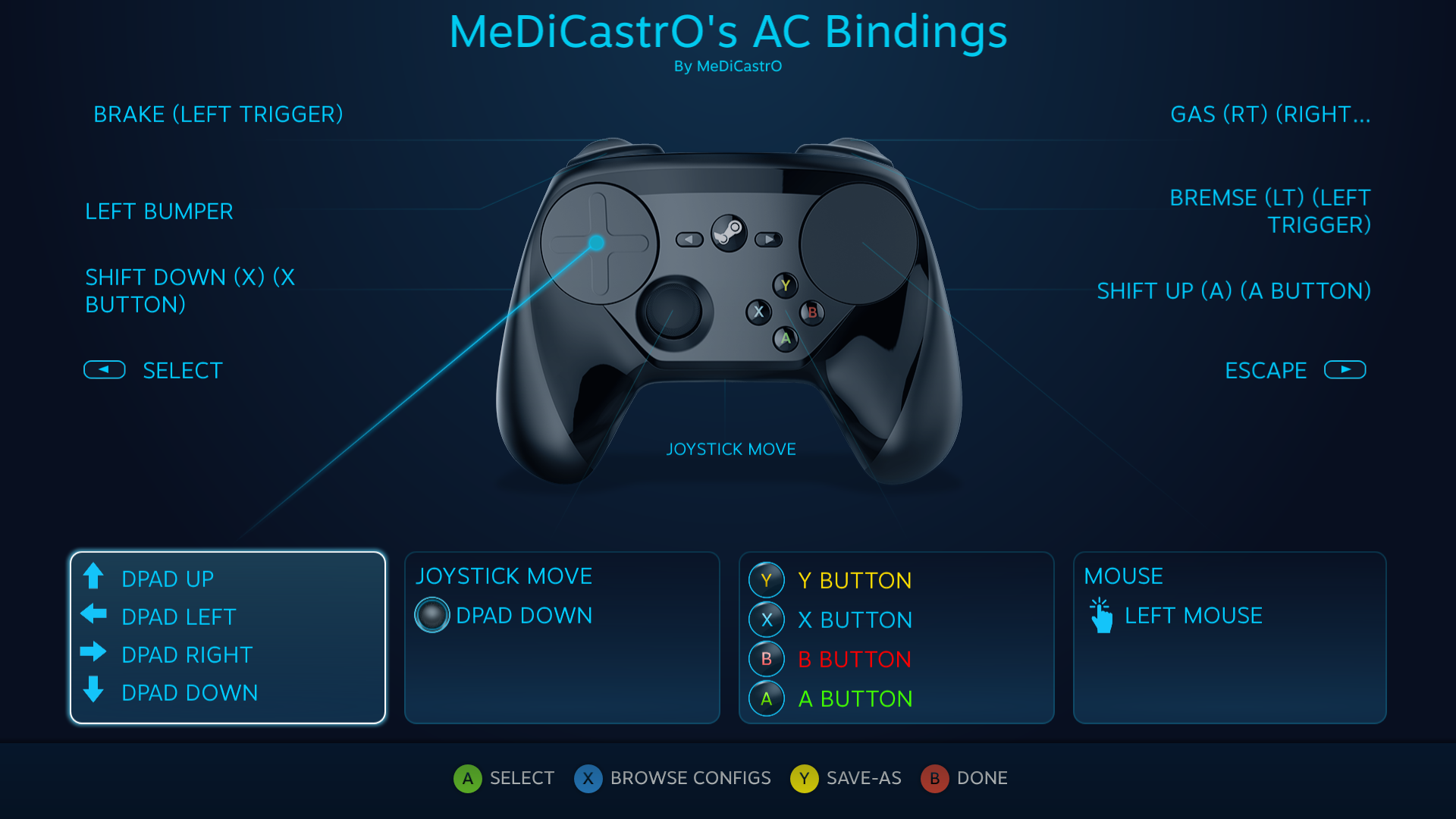
Select Community shared configurations. I chose the most commonly used config that gives working gyros. Which is
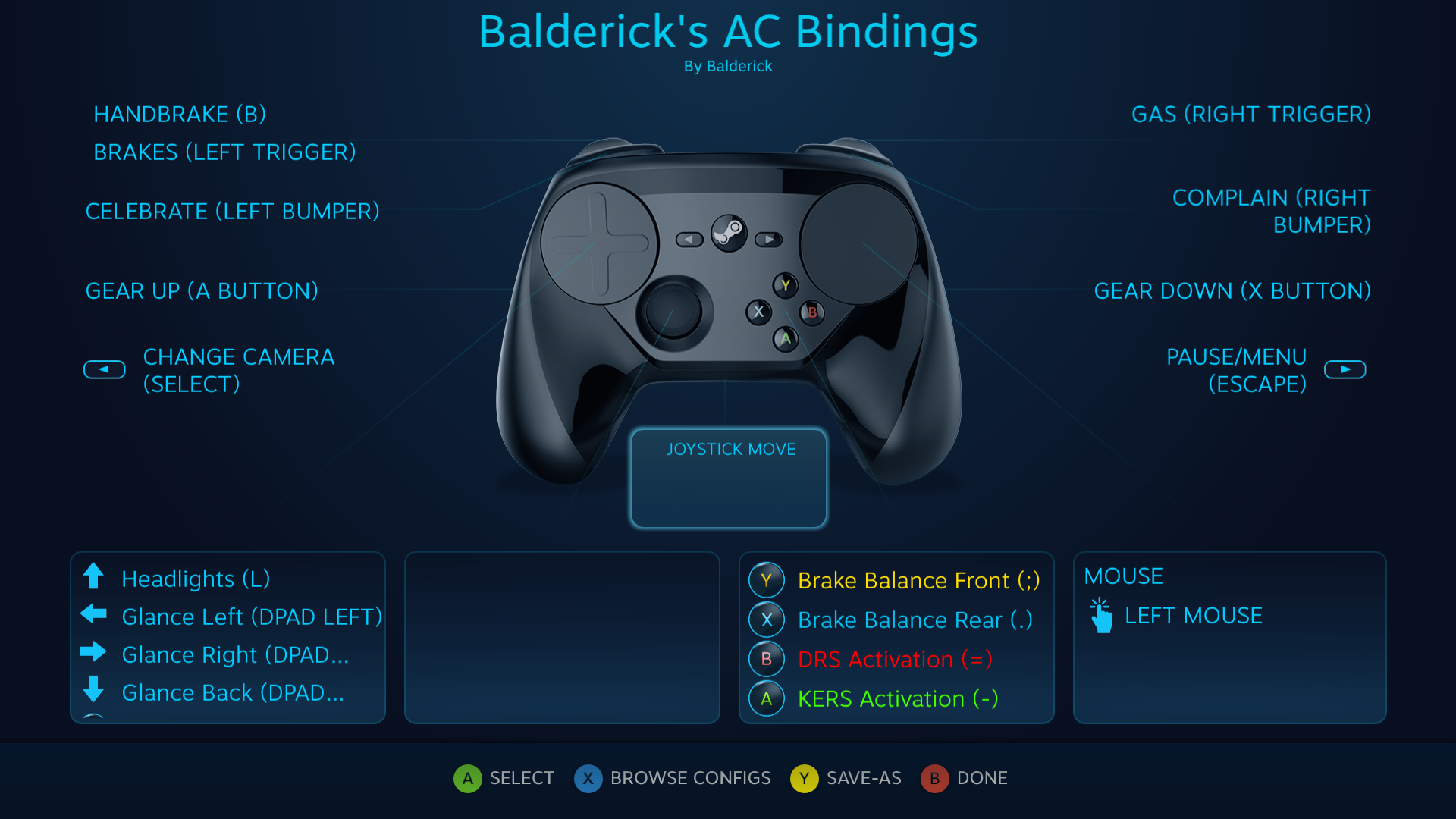
but i disliked having gear shift down and brakes set to same hand and found too many functions being mapped twice which i thought was a waste of resources.

After some tweaking both in game and controller config i ended up with a configuration that looks like it is important to start configuring game to get the most from this.

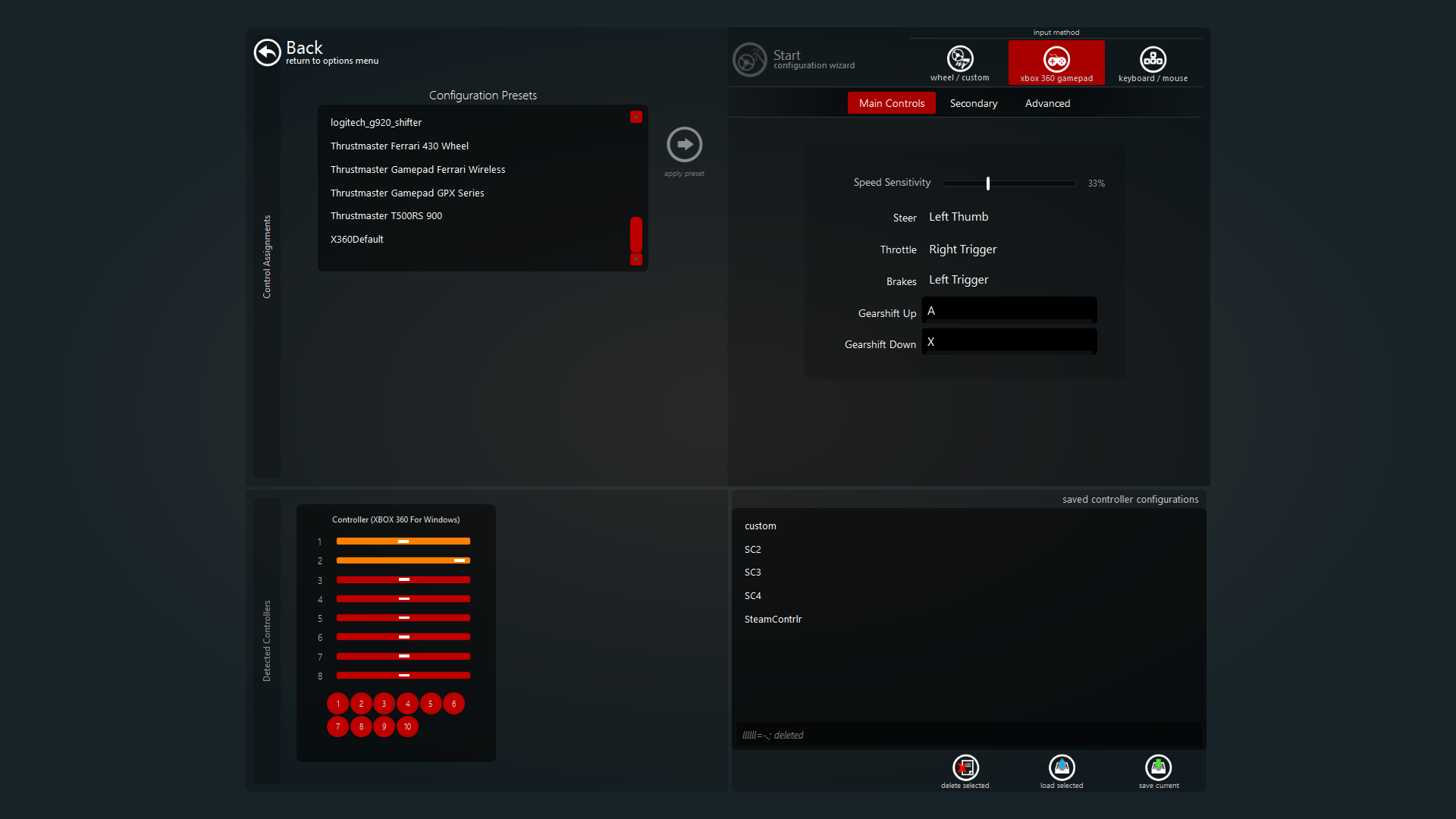
All that is needed is select xbox360 default preset from the Configuration Presets.

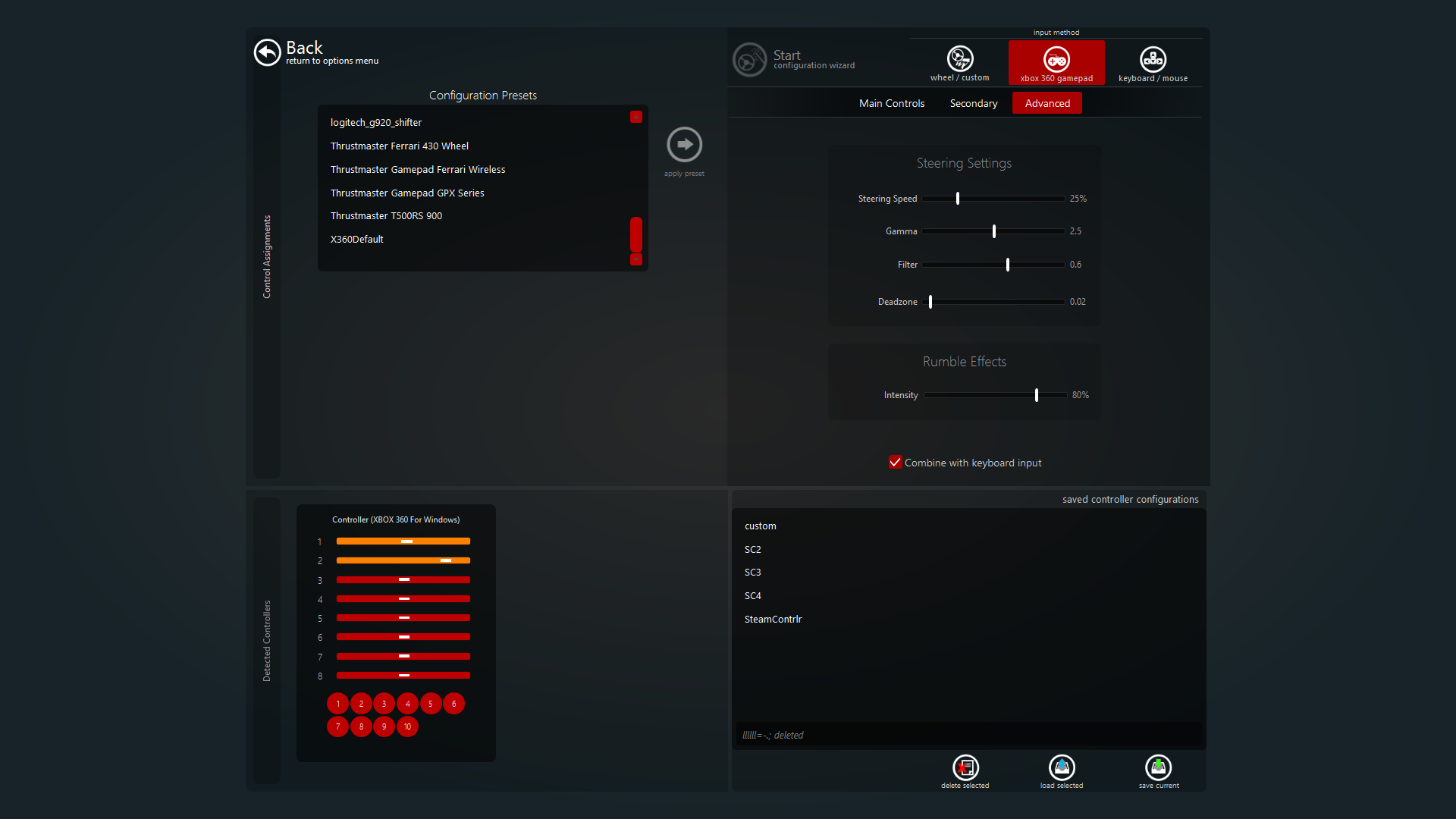
Select the Advanced tab and make sure you have Combine With Keyboard Input selection box checked.
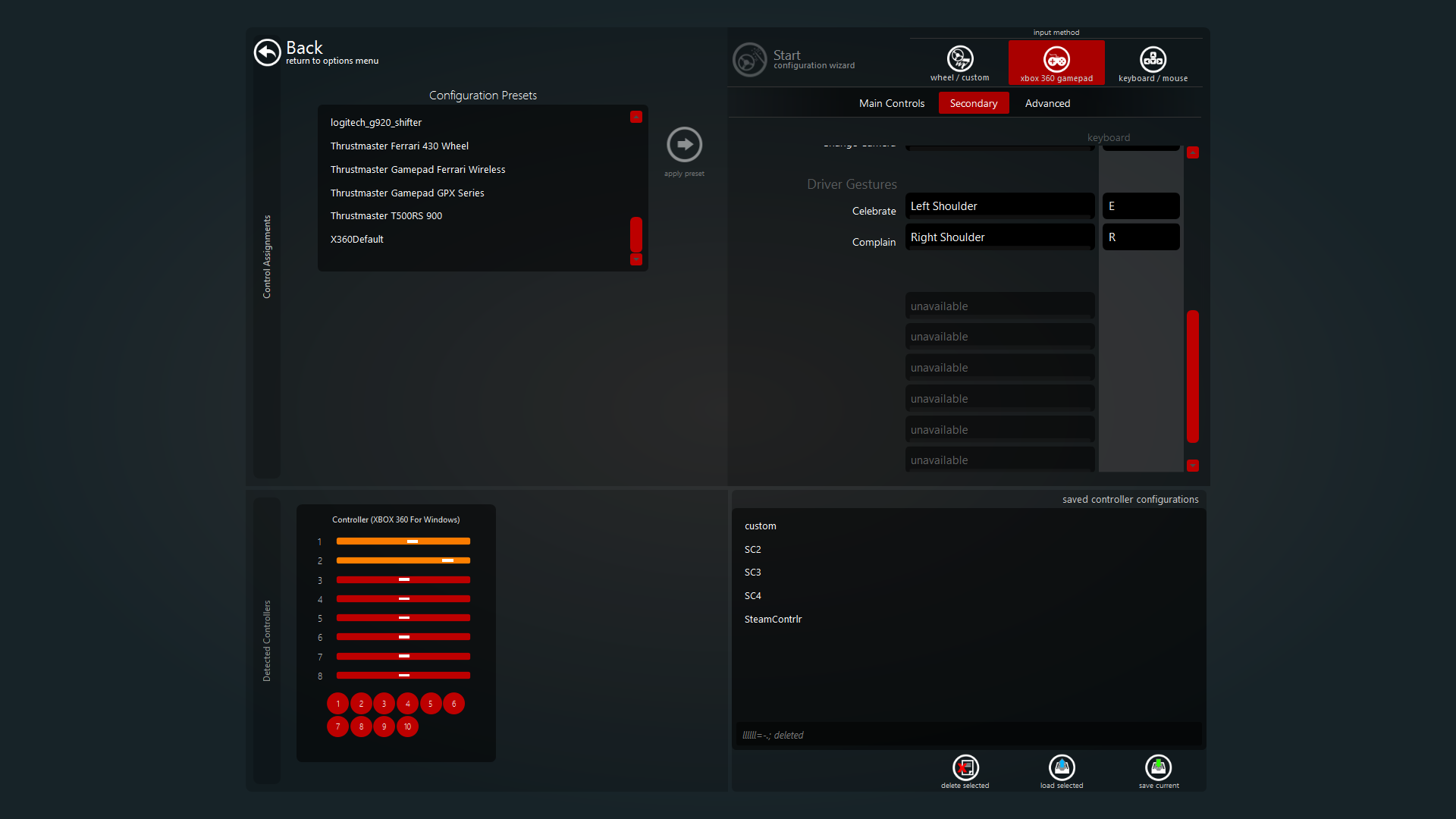
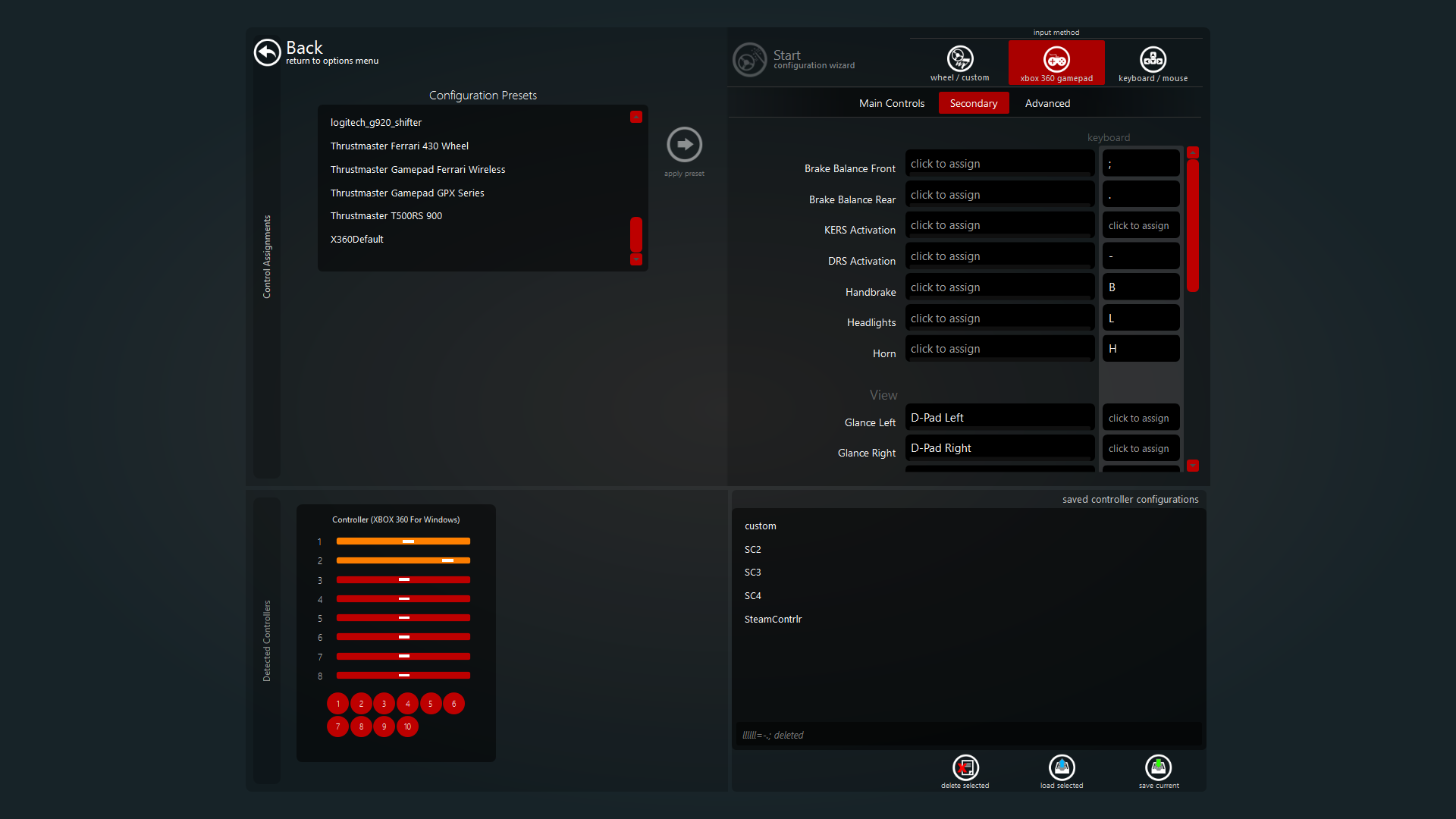
All the in game keyboard and controller mappings should look like this
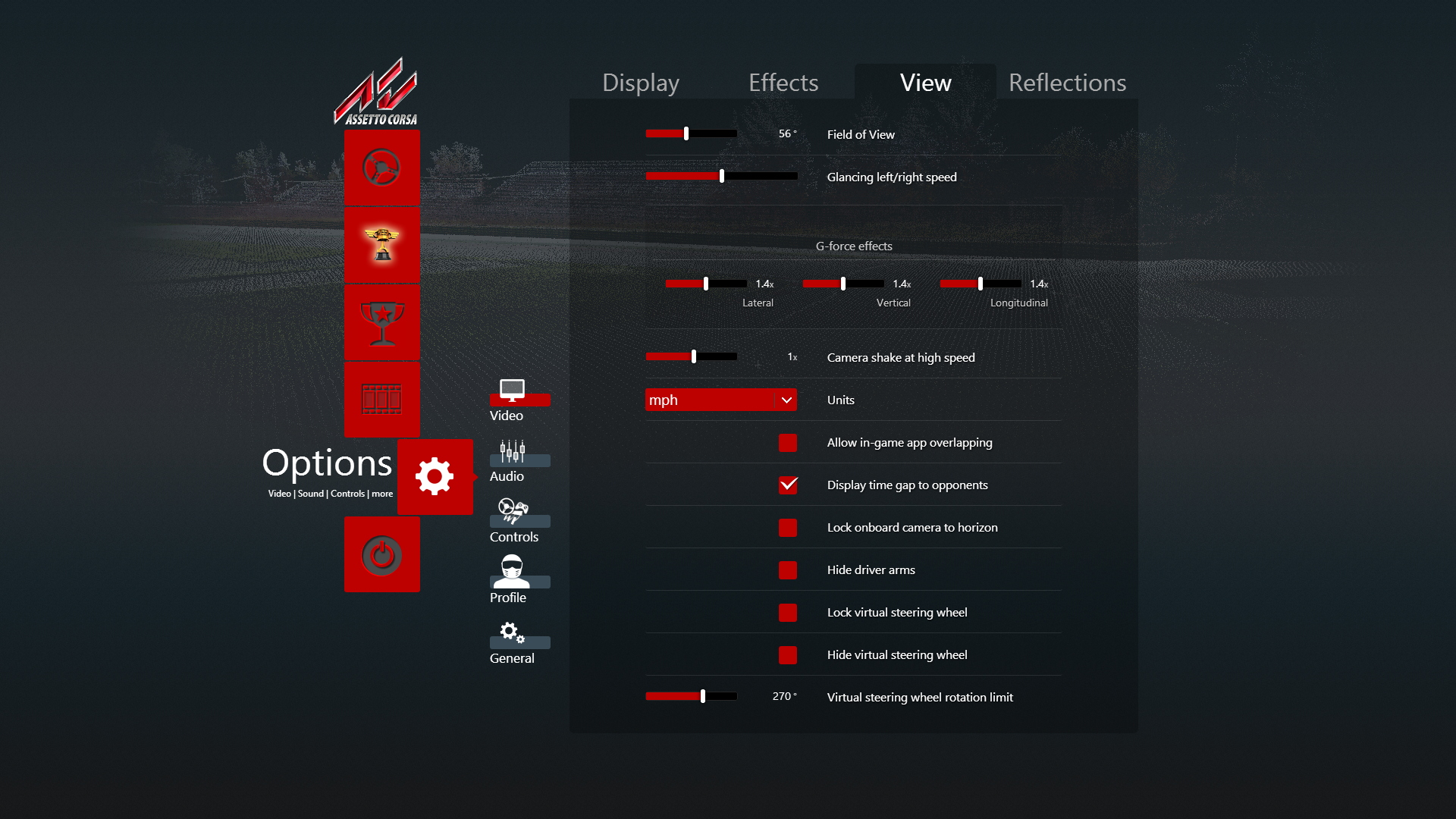
The only other in game settings that are useful or available are
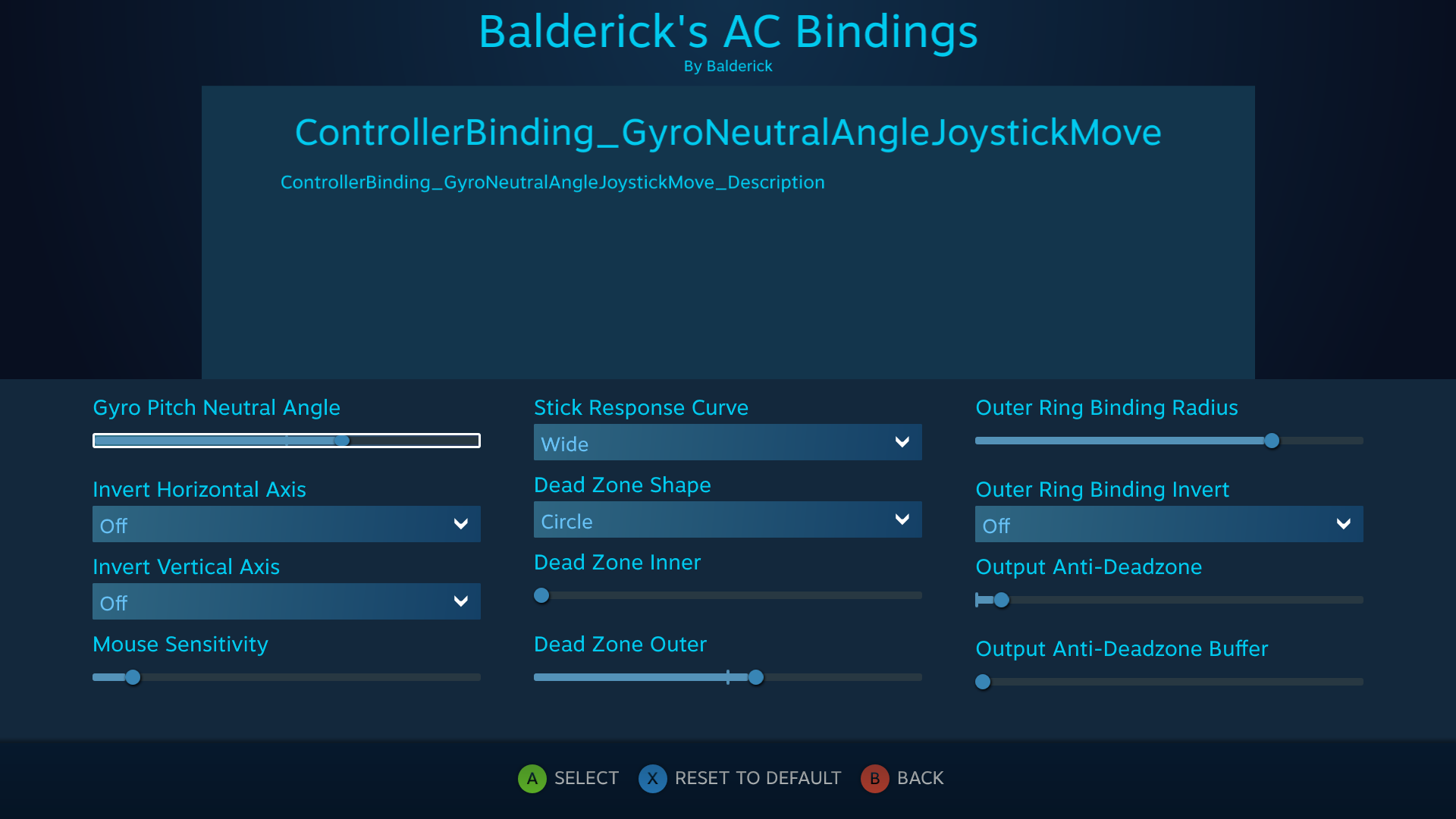
and the main settings for steam controller are

The first twenty seconds of this video illustrates how to hold controller when using gyros for driving games


Summary
Tweaking can only be encouraged though if you want more of a plug and play experience hopefully this helps with getting more from community shared profiles.

To recap the important in game settings are make sure keyboard input is combined with default xbox360 controller bindings and the bindings match with what steam controller configuration gui say. Onboard camera is the way to go so adjusting steering wheel rotation angle in video > view settings and speed sensitivity and steering speed in Options > Controls to match what you can see on screen with your actual controller movements helps with immersion a lot.

The controller gyro settings that help are the Gyro Pitch Neutral Angle, Stick Response Curve and Dead Zone Shape. It is impoprtant to hold the controller as described above.
17 Comments
Music4Dogs Jul 21, 2020 @ 9:21am 
@Ryan Isabelle This is what is wrong with people playing sim racing. Might as well just watch videos of people going around a track irl right?
Derp May 1, 2020 @ 6:28am 
this is everything that's wrong with the sim people using a controller on sim racing...... smh
do us all a favor and just pretend you are driving a self driving car and let the computer take you around the track
Balderick  [author] Jan 17, 2018 @ 4:56am 
Please post in Steam Controller discussions if you have any issues with this guide. You will have better chance of getting help there.

For now I will leave this guide viewable as it describes some of the hoops to be jumped through to get AC working with any input device configured through Steam Input


Balderick  [author] Jan 17, 2018 @ 4:49am 
Have ta admit I have not even had my SC connected to PC for many many months now due to how awesome Steam Input is at supporting other input devices nowadays.

I use thrustmaster wheel and pedals along with a shield controller for ui navigation to play this game through Shield Android TV and Gamestream at 4k RES's nowadays


Balderick  [author] Jan 17, 2018 @ 4:46am 
@Eyüp Gürlek Setup your ds4 controller through steam input. Go to big picture mode settings > controller settings and register your controller

You can then go to library select AC and go to configure controller and make sure "use steam controller bindings for this game" is selected.

Then look for configs through steam overlay with AC running


Hope that info helps you out.

Do not be scared to experiment with enabling gyro yourself and make your own config

Many configs seem like they do not work but that is because you did not gradually build that config so you are having to try and remember what does what and when and things appear to be not working as expected

suicidal.banana Jan 17, 2018 @ 4:04am 
Heya, the controller configurations you suggest (MeDiCastrO's & Balderick's) are nowhere to be found, do they still exist? cant you like link to them directly?

Theres also some GuillerMiller ♥♥♥♥♥♥♥ that has spammed dozens of default controller layouts to the pool, wich may be the reason i cant find your suggested ones. Im gonna try get those removed, but yea, please advice how to get the configs you suggest.
ExGavator Jan 8, 2018 @ 7:37am 
Hi! I am using Ps4 controller with ds4 windows software. It supports gyro. How can i use it in game?
Balderick  [author] Dec 13, 2017 @ 7:01am 
For steam controller to work in main menus we "Select the Advanced tab and make sure you have Combine With Keyboard Input selection box checked." and set right trackpad to mouse.

A lot has changed since i made this guide. Steam Input totally rocks!

@SMLII Try check what big picture > settings > controller settings shows for your steam controllers button layout. Sometimes the buttons get mixed up in the layout. Just go through "Define Layout" following on screen prompts. Remember to save.

SMLII Dec 13, 2017 @ 4:13am 
Nevermind! I got my issue fixed.
If anyone else is struggling, this is what I did.

1. So I found the "Balderick's AC Bindings" from steam. I applied the settings to the controller
--> Controller buttons and axis's show as working in Assetto Corsa controls menu but not in game.
2. Applied the steam big picture controller bindings, to ACS.exe also.
--> Nothing noticeable happened
3. Went into Assetto corsa general settings, and turned off GPU accelerated GUI menu or something similar.
--> Nothing noticeable happened
4. Noticed that "steam overlay" was disabled for "Assetto corsa". Went into steam and enabled it.
--> Controller buttons and axis's don't show up as working in Assetto Corsa controls menu, BUT THEY WORK IN THE ACTUAL GAME!!!!!!

Everything works now, just need to tinker with all the values, to get a better feel for the controller!
Really odd that now when the actual controls work, they dont show up working in the controls menu, and vice versa.
SMLII Dec 13, 2017 @ 1:23am 
I'm using these settings with the Dualshock 4. Everything seems to work fine when setting the controller up. The axis and buttons work in the controls setup menu in Assetto Corsa and as long untill I open the actual gameplay mode as in hotlap or race or whatever.

Then the triggers revert to mouse clicks and the right thumbstick into mouse cursor movements.

Why does this happen? What should I do to get the controls working also in the gameplay, and not just in the menu?

Could you please answer, if you have any idea to why this happens? I see other people commenting similarly?

Thanks in advance