
Valheim

Valheim

Not enough ratings
Continue Your World Without the Original Host
By Referenced_Memory and 1 collaborators
Can't continue your world in Valheim because the host is busy? Stop waiting and start playing. This guide solves that problem.
   
Award
Favorite
Favorited
Unfavorite
Manual file transfer
  • Paste %USERPROFILE%\AppData\LocalLow\IronGate\Valheim\worlds_local or %USERPROFILE%\AppData\LocalLow\IronGate\Valheim\worlds into your file browser
  • Find the world folder, zip it and send it to the new host
  • Do this back and forth so that everyone can play or host
  • Or use SaveSync, it automates the whole process and has many other features
Using SaveSync
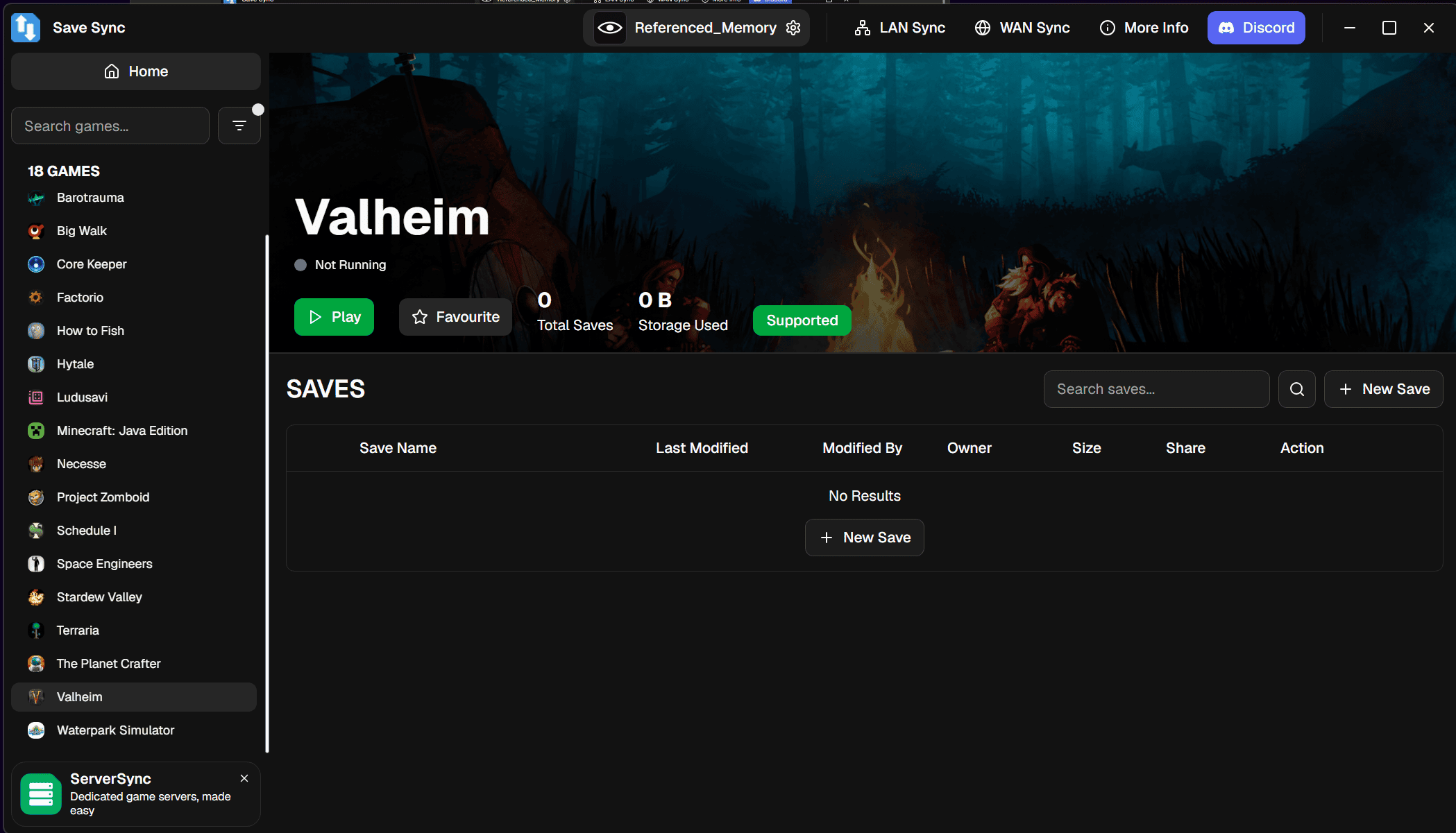
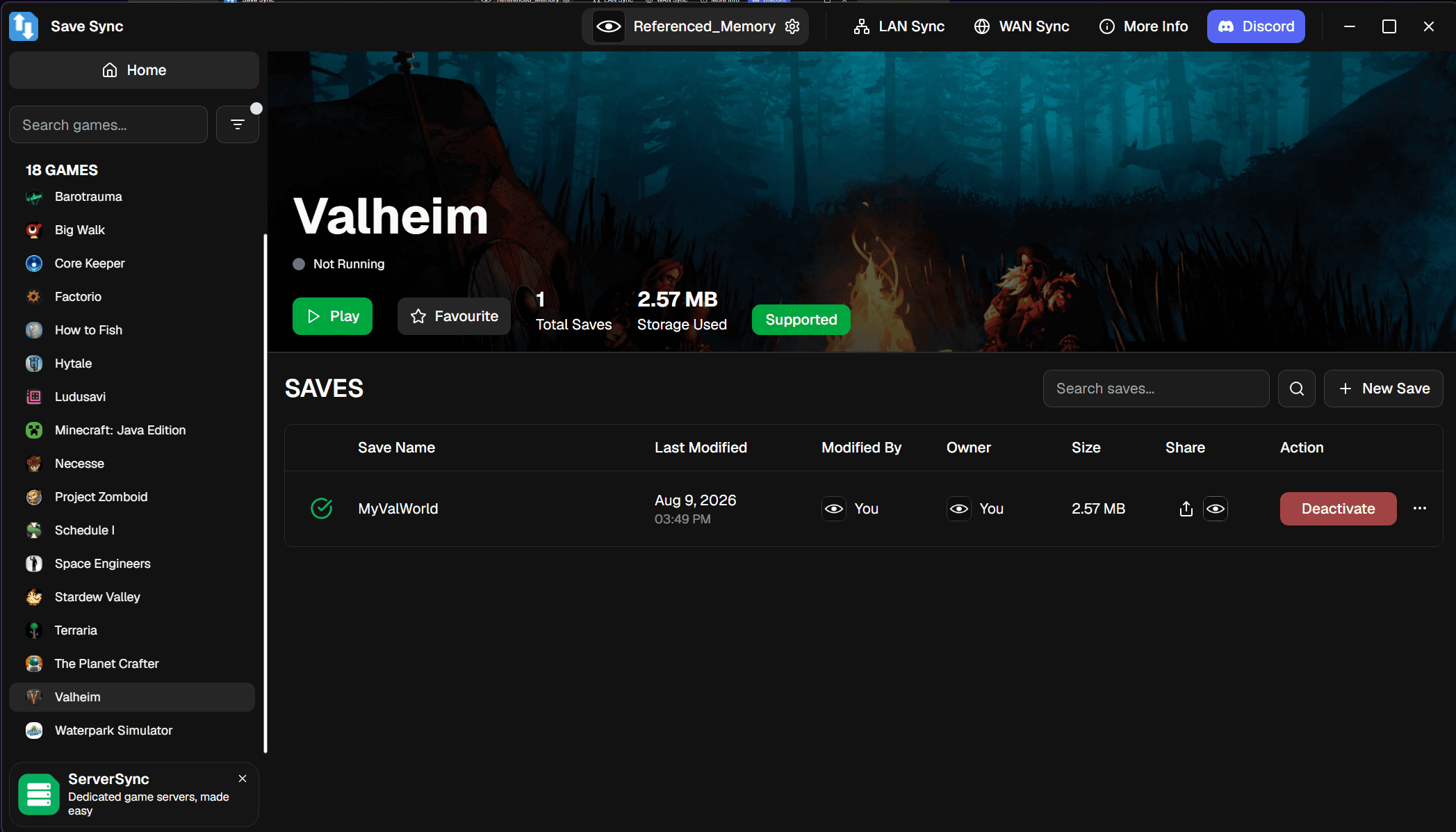
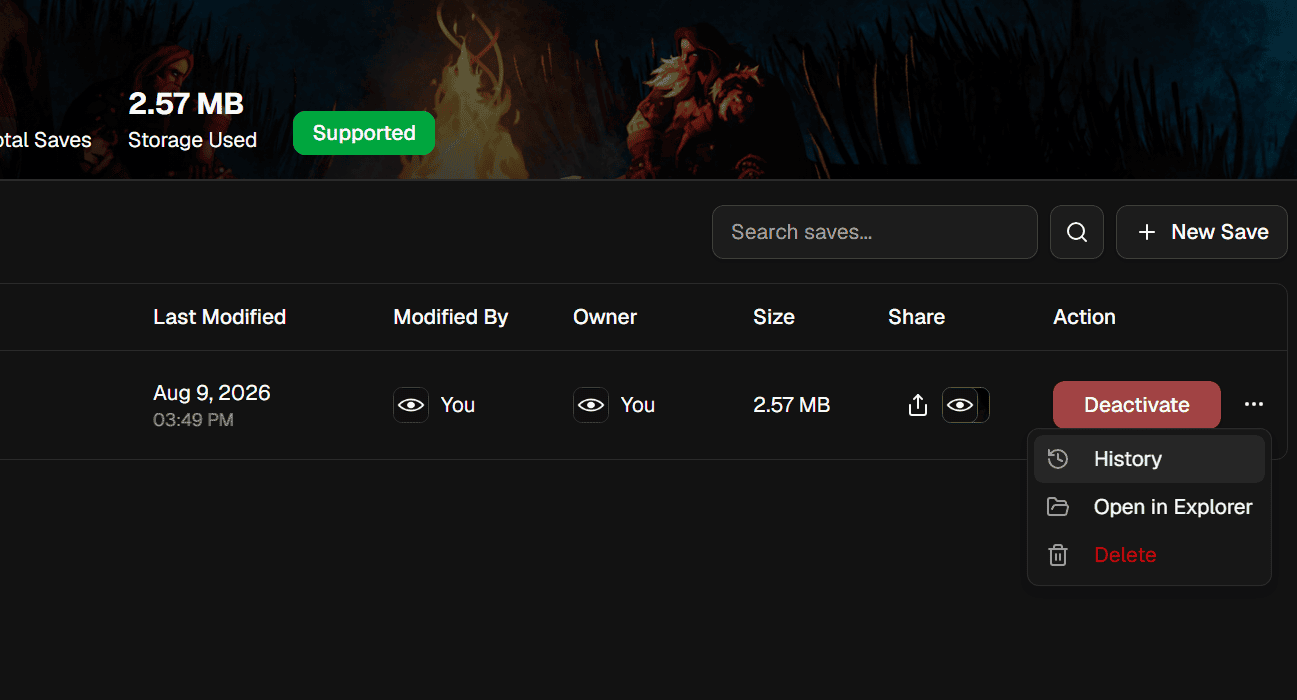
  • Click on Valheim from the list on the left. You'll see Valheim's save management page


  • Click "+ New Save" button (top right)

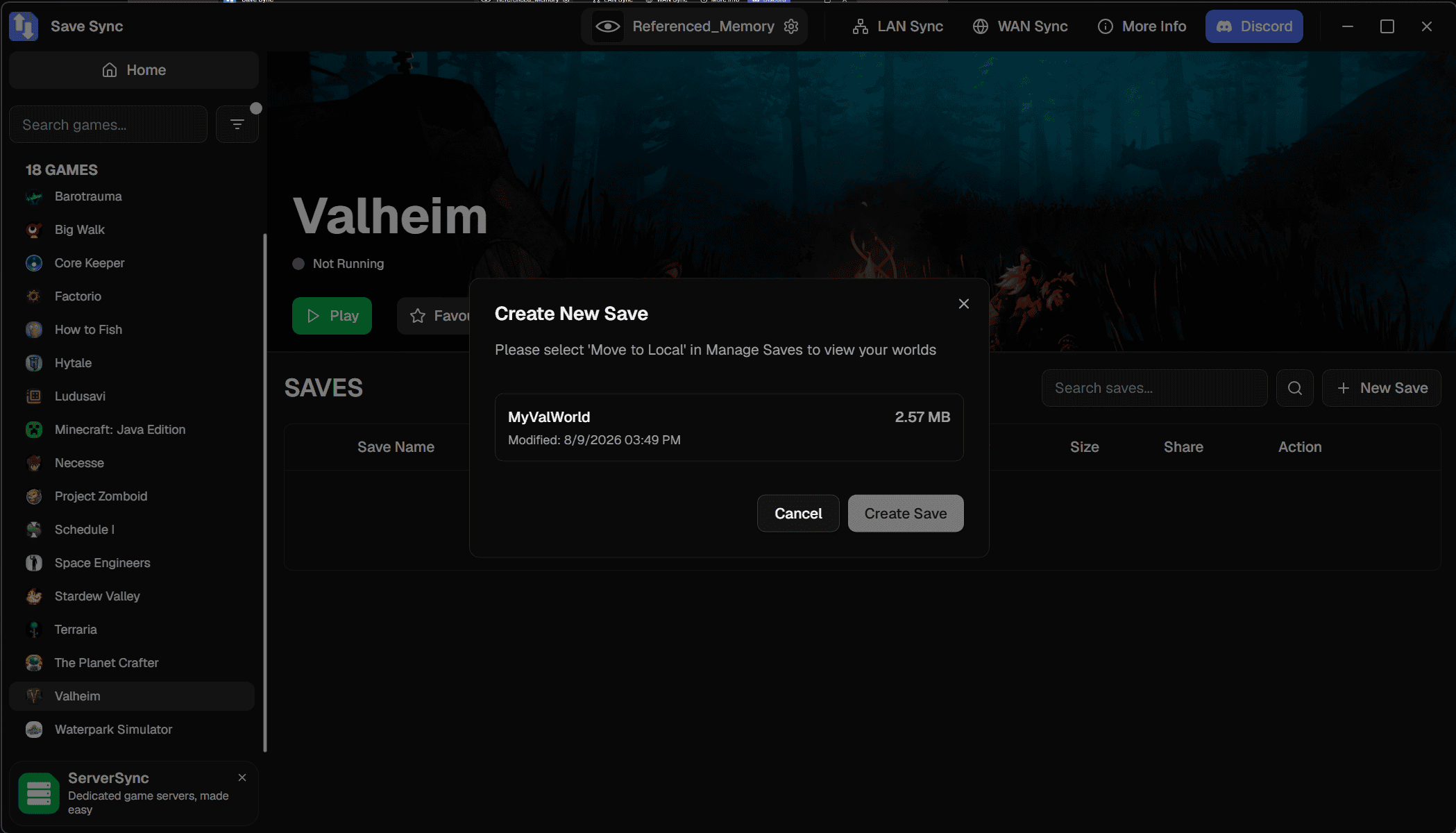
  • A dialog will appear with available worlds


  • Select your world from the list (do ensure to move the save to local in the game menu)

  • Click "Create Save"

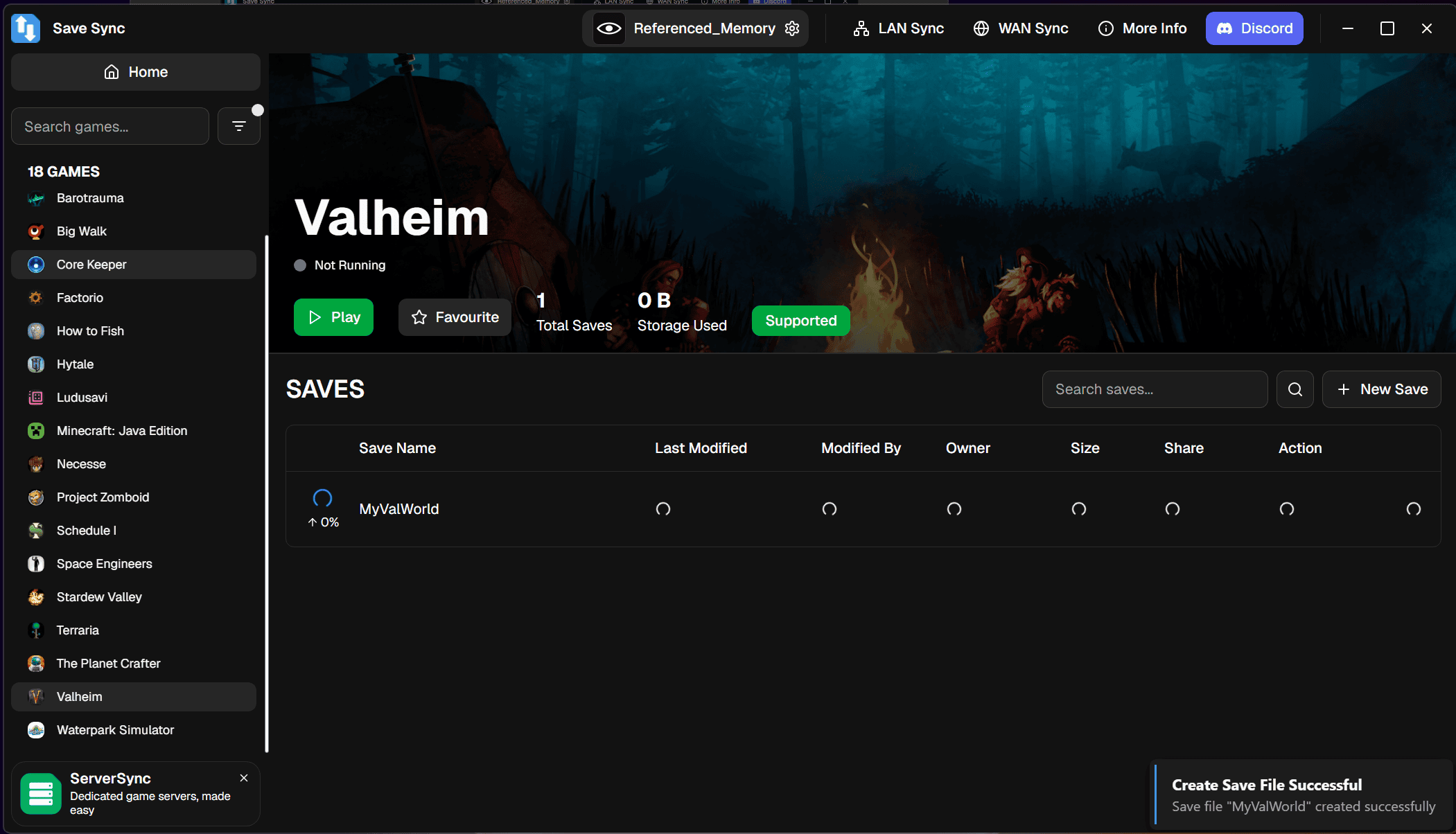
  • The save will start syncing


  • Wait for it to complete (green checkmark)


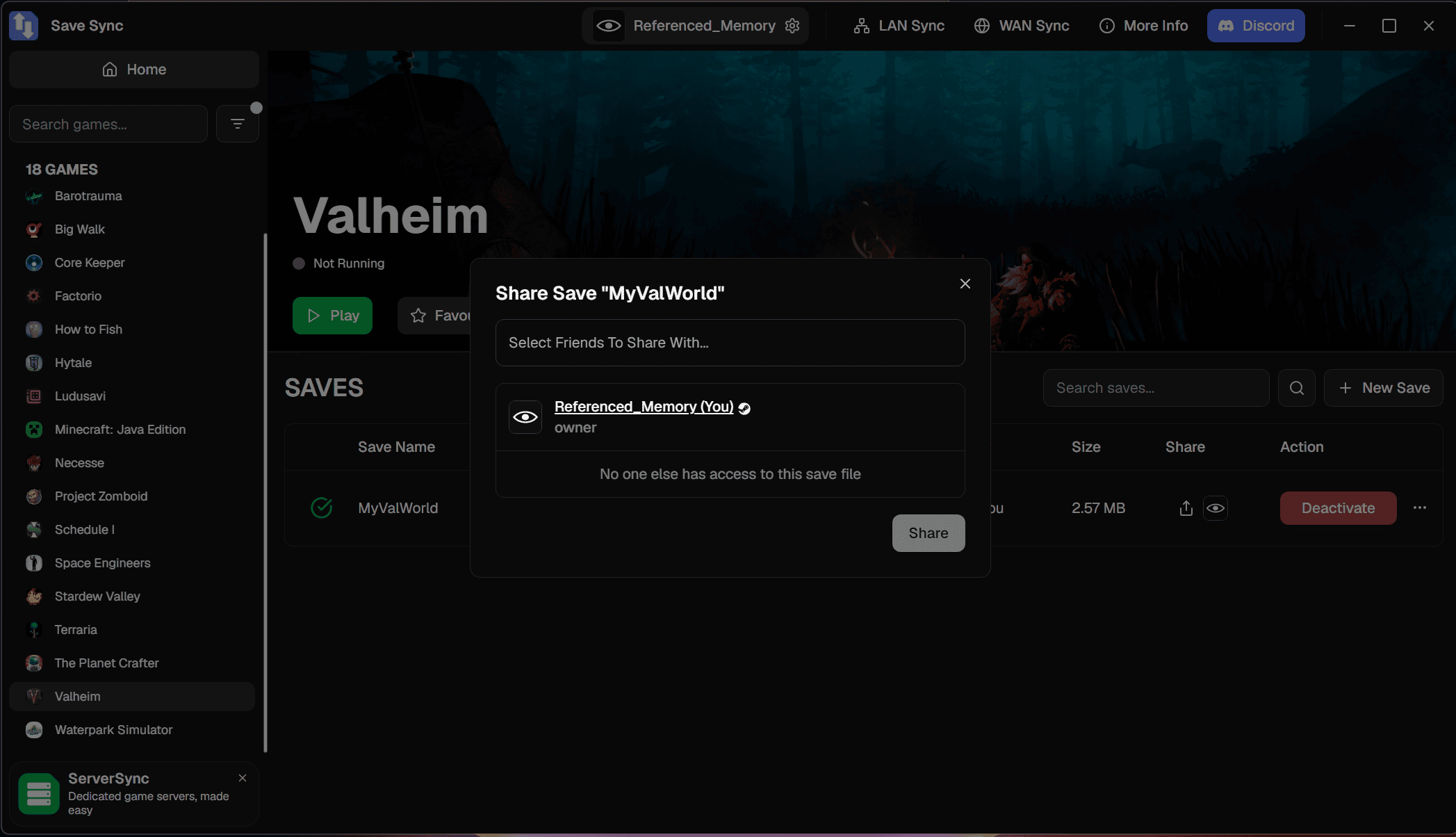
  • Click the share icon on your save


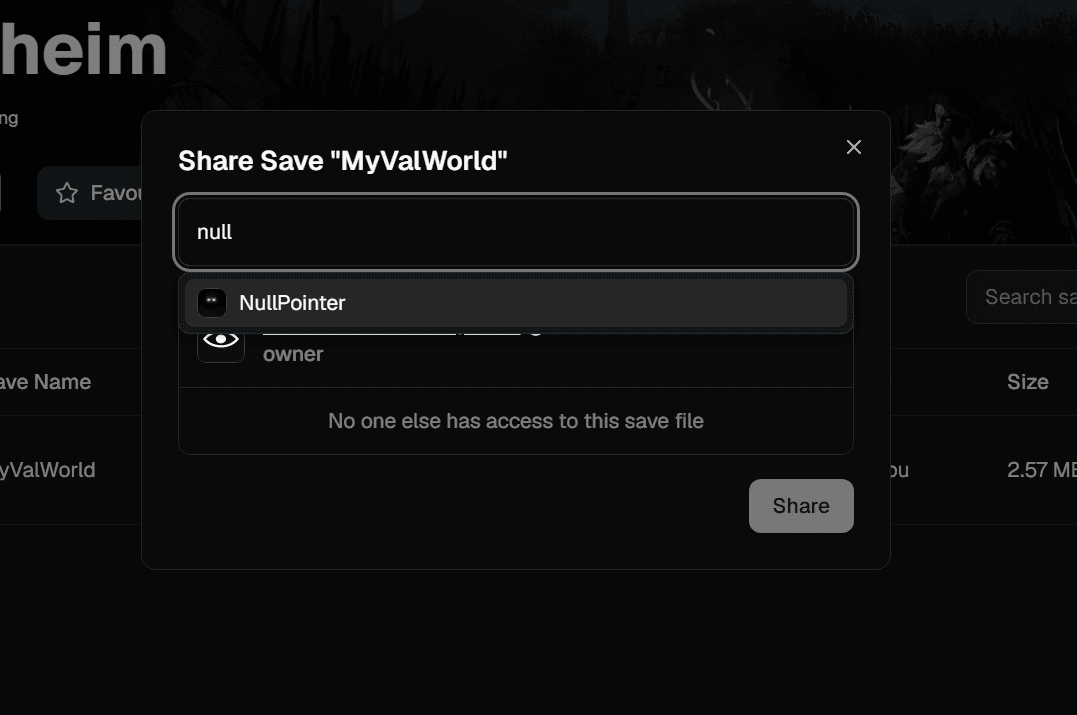
  • Search for your friend's Steam username


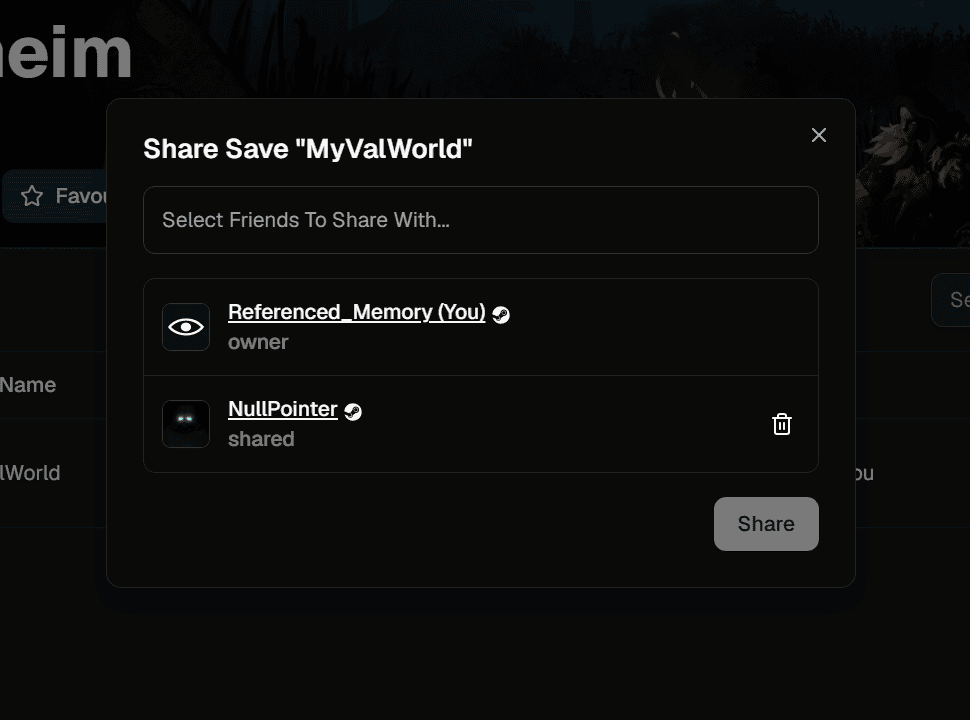
  • Click "Share" button

  • They'll see the shared save in their game list, It shows as shared by you


  • Ask them to Click "Activate" and now the world is ready to use, and your friend can host it and the save will sync automatically

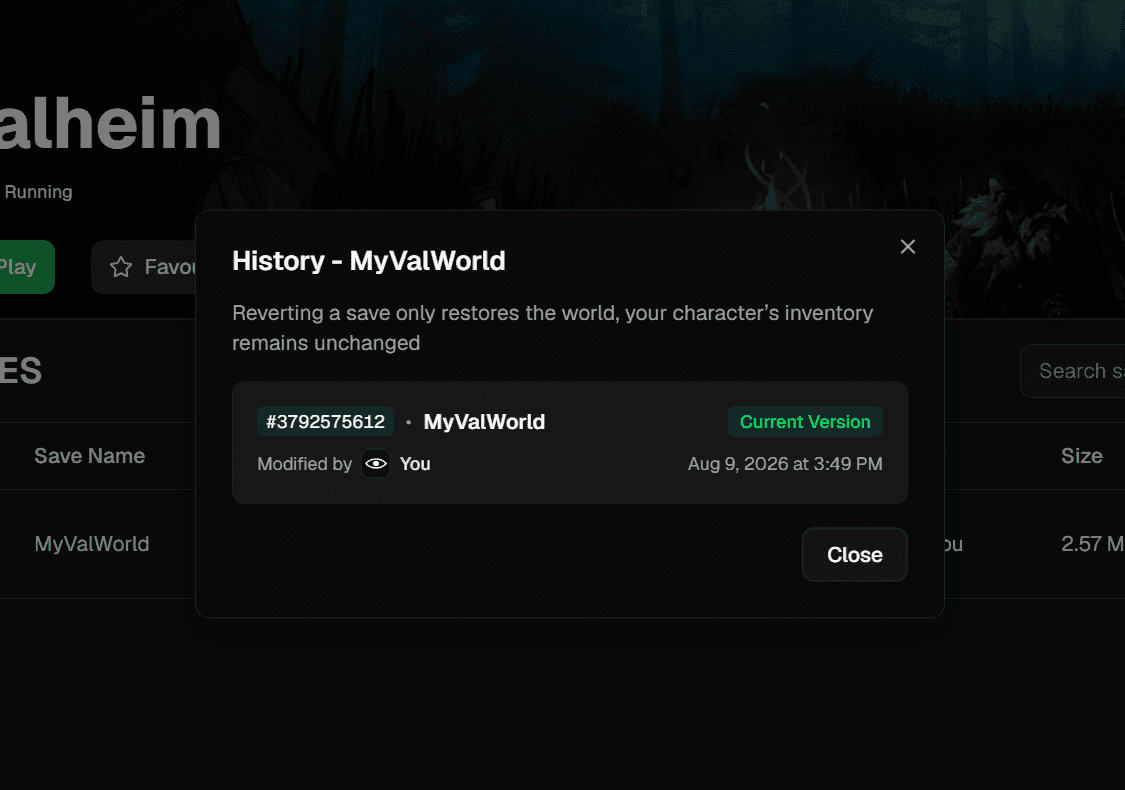
SaveSync also maintains a full save history, allowing you to track who uploaded save and when, or revert to any previous save


Support