
ELDEN RING

ELDEN RING

Not enough ratings
Erdtree Keeper - back up your saves without risking your progress
By krut43
A free, open-source tool for backing up saves of Elden Ring, Dark Souls and any Steam game. It names snapshots after where you actually are in the game, shows whether the game has written the save yet, checks the file for corruption, puts a copy back safely and updates itself from a button. The interface is in English and Russian. One section is devoted to checking for yourself that it is not malware.
   
Award
Favorite
Favorited
Unfavorite
What it does


Download and read the source:
https://github.com/valiDol42/erdtree-keeper

Interactive map and progress tracker:
https://eldenring.krut.top
https://darksouls.krut.top

Why you would want this

Elden Ring keeps all your progress in a single file, and so do the Dark Souls games. One wrong dialogue choice, one merchant killed by accident, one item handed to the wrong NPC - and there is nothing to roll back to.

You can copy ER0000.sl2 in Explorer. But a week later the folder holds a dozen files called "copy (3)", and which one was before Radahn is anyone's guess. There is also a subtler trap: the game does not write the save to disk immediately, so copying at the wrong moment gets you a state from half an hour ago without telling you.

Erdtree Keeper does the same copying, but does not let you get it wrong.

Free, open source, no ads, no data collection.


What it does

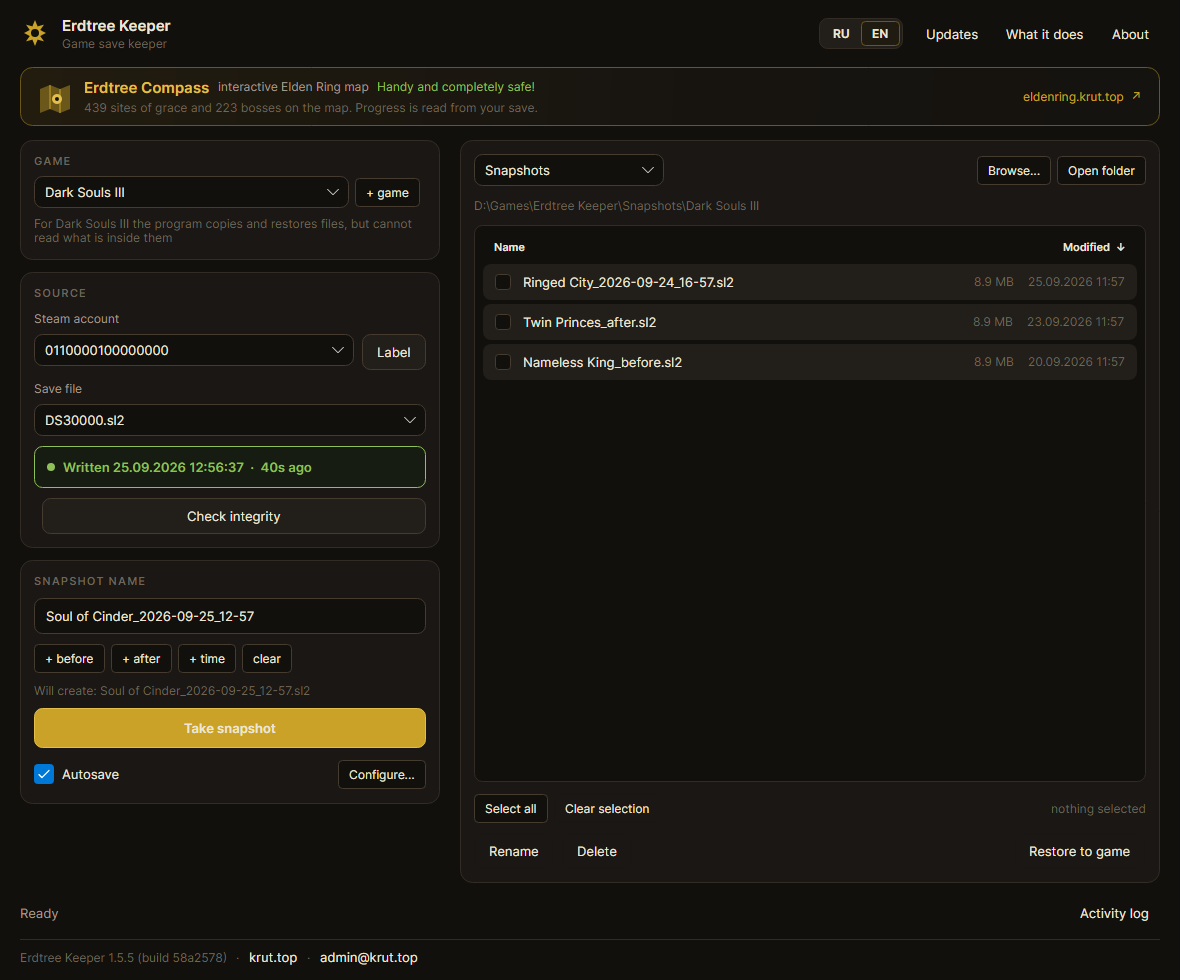
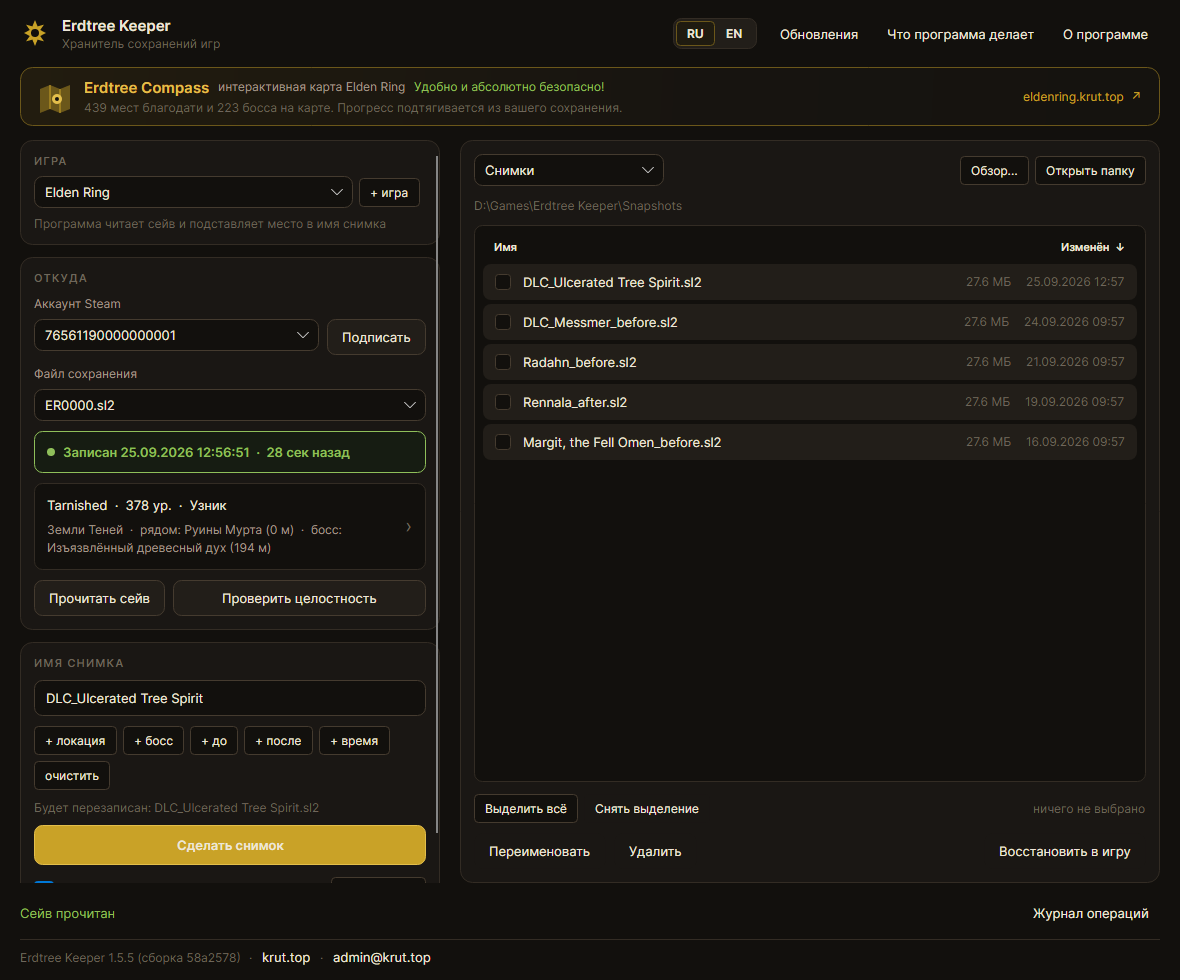
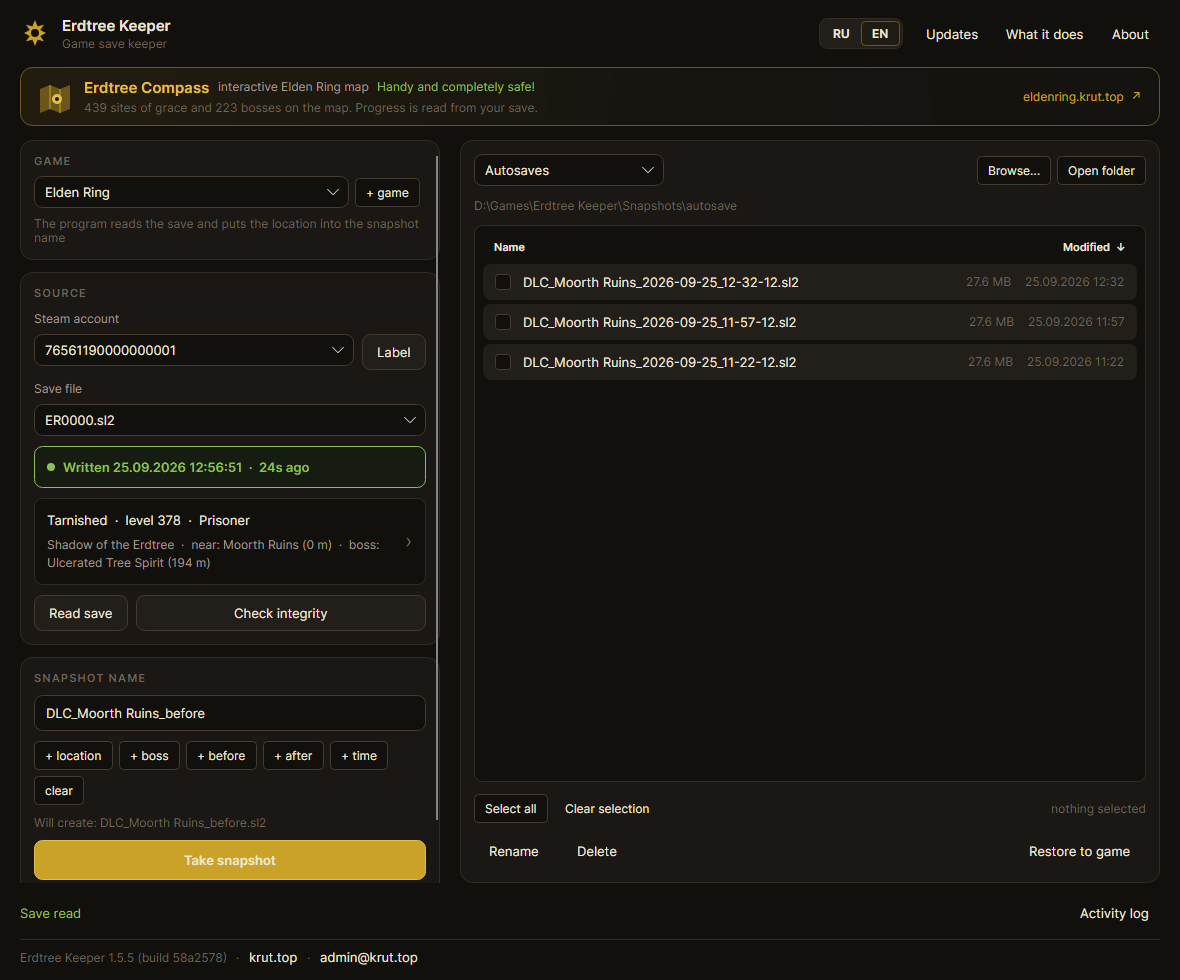
Several games. The list at the top of the window holds Elden Ring, Nightreign, Dark Souls (Prepare to Die, Remastered, II, III), Sekiro and Armored Core VI. The program knows where each of them keeps its saves - including when your Documents folder has been moved to another drive, or the game was played under a different Windows account. Each game has its own snapshot folder, so copies of different games never mix and a bulk delete cannot reach across.


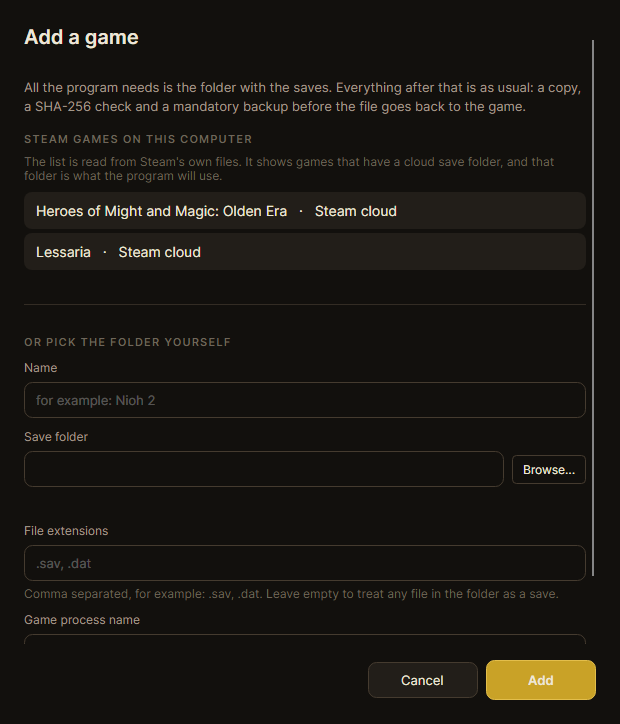
Any Steam game. The "+ game" button lists installed games that keep their saves in the Steam cloud - pick one and its folder is filled in for you. If the saves live elsewhere, the folder can be picked by hand. Everything after that works the same: a copy, a check and a mandatory backup before anything goes back.


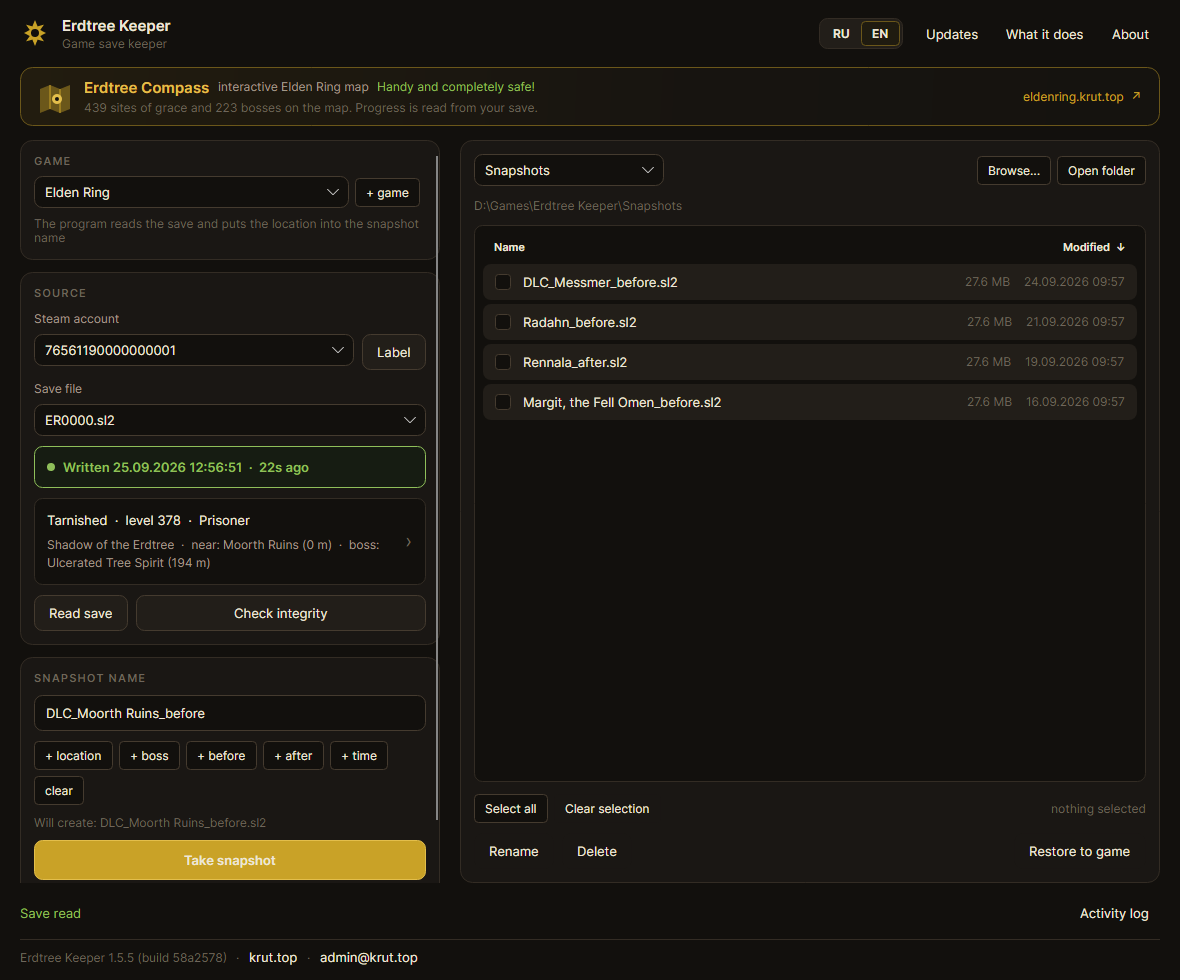
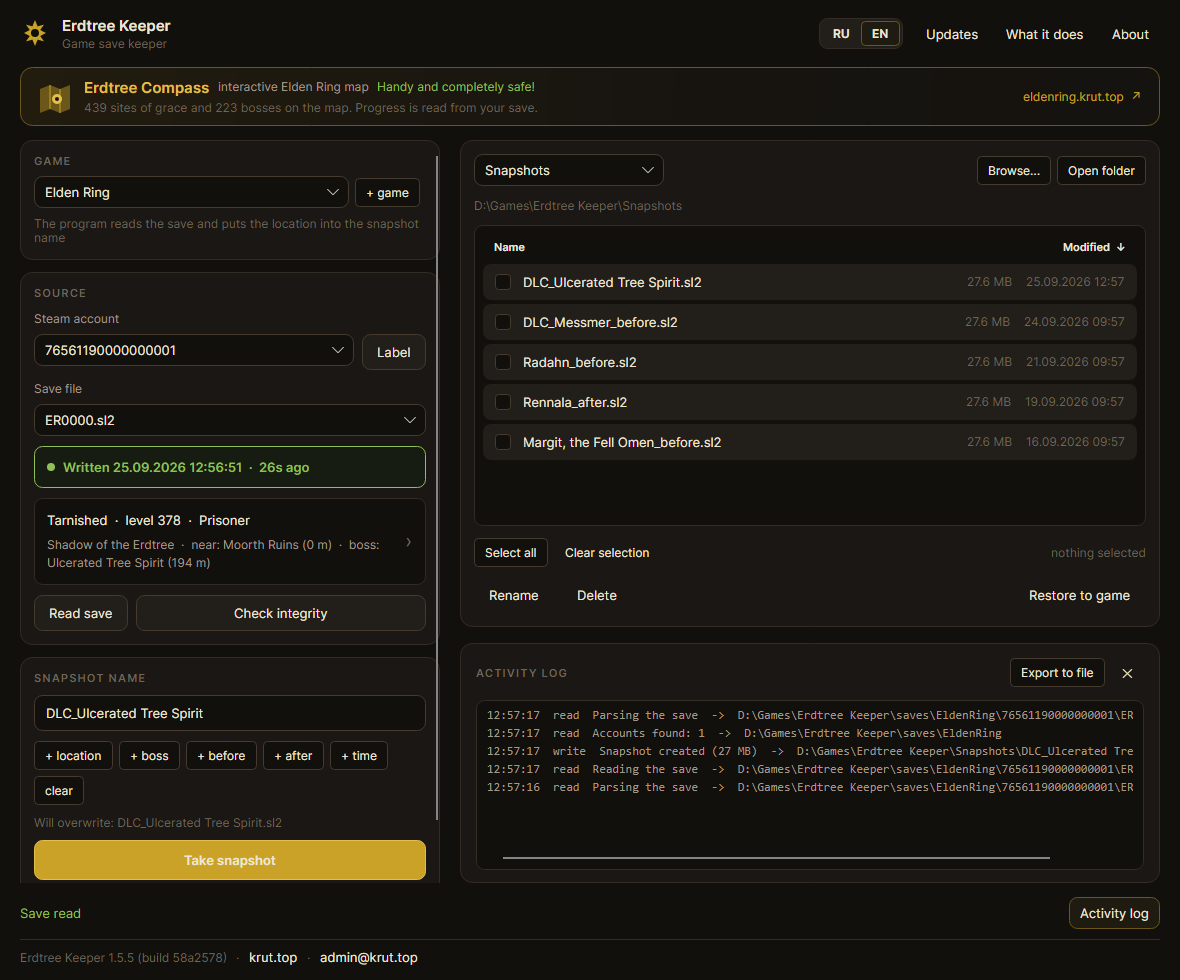
Snapshot names come out of the save itself. This is for Elden Ring: press "+ location" and the nearest site of grace is inserted, "+ boss" gives the nearest arena. The DLC tag is added automatically. "+ before" and "+ after" keep a pair together when sorting, and "+ time" appends the date and time - for the other games that is the main way to tell snapshots apart.

The place is always current: the program watches the file and re-reads it as soon as the game has finished writing the save.

You can see whether the game has written the save. The indicator shows the time of the last write and changes colour: green means a copy will reflect what is happening in game, red means the game has not saved in a while - rest at a grace or a bonfire first.

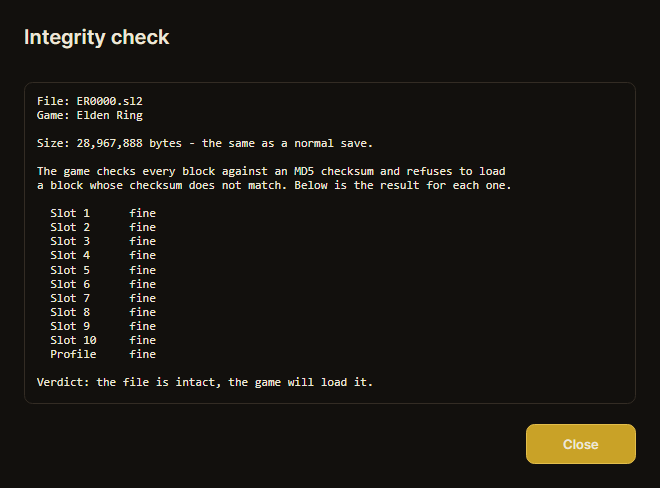
Integrity check. For Elden Ring the program recomputes all eleven checksums inside the file - the very ones the game verifies when it says "Save data is corrupt" - and reports on each block. For most of the other FromSoftware games the file structure is checked: a truncated or foreign file shows up at once, but the data inside is encrypted and cannot be recomputed. The window says plainly how deeply the file was checked.


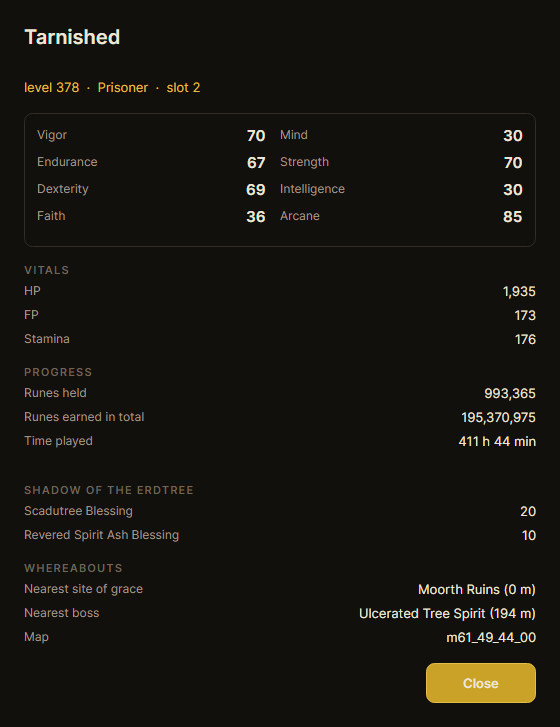
Character sheet. For Elden Ring: stats, HP, FP and stamina, runes held and earned in total, time played, Shadow of the Erdtree blessings, nearest grace and boss. All read from the file itself.


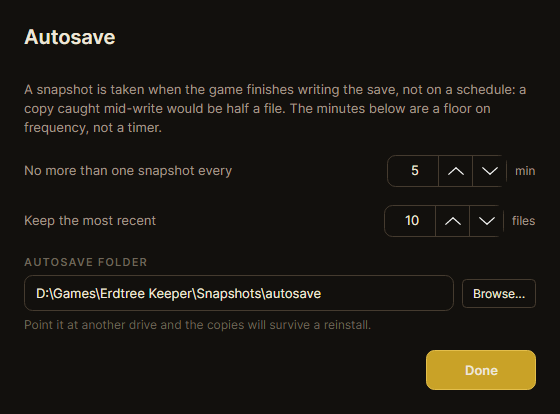
Autosave. A snapshot is taken when the game finishes writing, not on a timer - a copy caught mid-write would be half a file. Frequency, how many copies to keep and the folder are all configurable.


Restoring to the game. The current save always goes to a backup first, and this cannot be turned off. A snapshot that fails its checks is refused rather than written over your save.

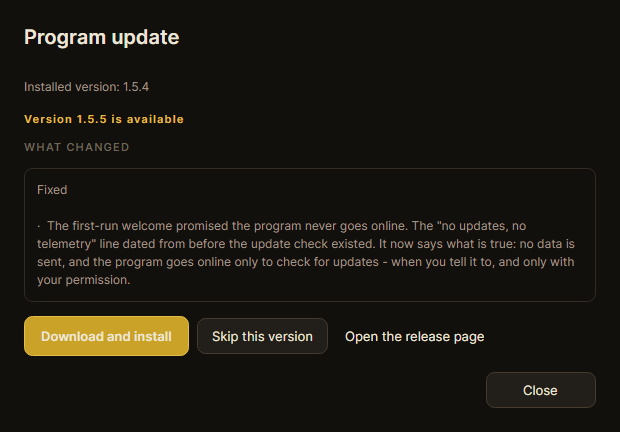
Updates from a button. "Updates" in the title bar: the program asks GitHub about a new version, shows what changed in it, downloads the archive, verifies it against the published checksum and replaces its own files. Settings and snapshots are left alone. You can turn on a check at startup or skip a version.


Two languages. English and Russian, switched by the RU | EN control in the title bar. The language changes immediately, with no restart, and the choice is remembered. On a first launch it follows the system.


Small things that matter in practice: several Steam accounts with readable labels instead of long numbers, Seamless Co-op support (.co2 files), sorting by name and date, bulk delete that lists the names in the confirmation.
Why this is not malware
Tools that reach into other people's save files deserve suspicion. So this one is built to be checked, not trusted.

Antivirus scan

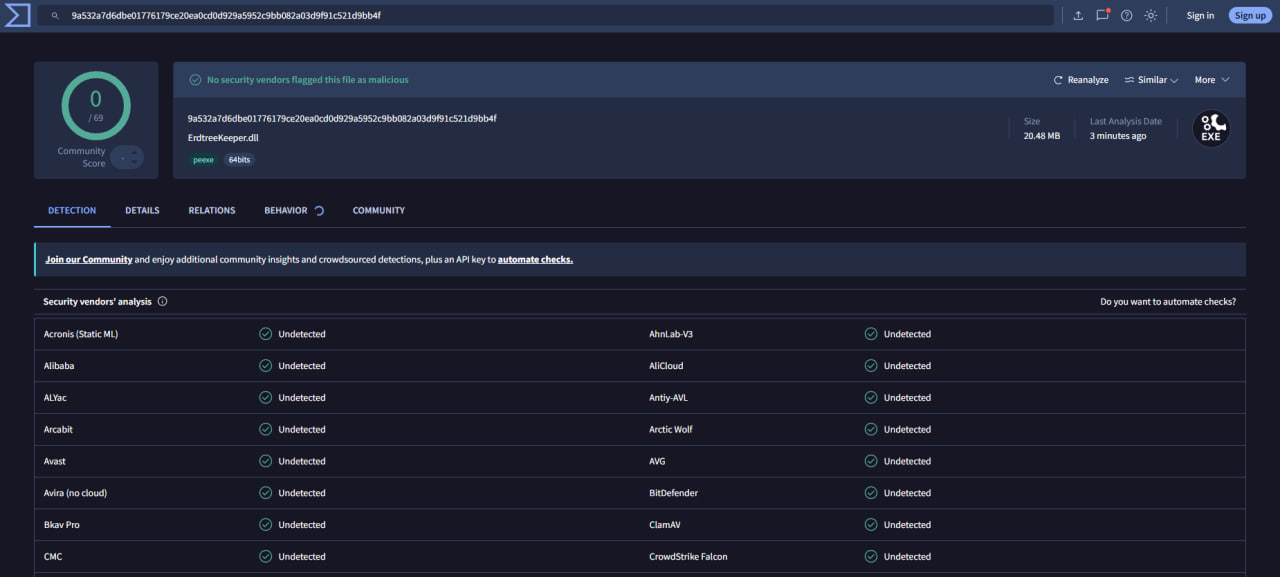
Version 1.3.1 was run through VirusTotal: 69 antivirus engines in one go, from BitDefender and Kaspersky to ClamAV, and none of them considered the file malicious.


VirusTotal report for version 1.3.1[www.virustotal.com]

The report is tied to the checksum of one specific file, so every version has its own. The current one is easy to check yourself: upload ErdtreeKeeper.exe to https://www.virustotal.com and it will go through the same seventy engines.

One detail that may look odd: VirusTotal shows the name ErdtreeKeeper.dll. That is the internal .NET assembly name stored inside the exe - it is the same file, and the matching checksum confirms it.

The network - for updates only

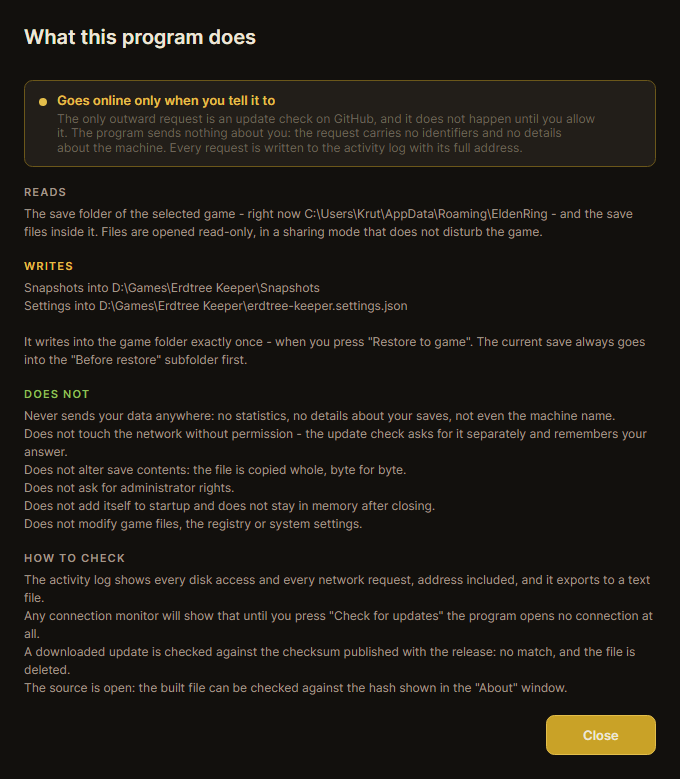
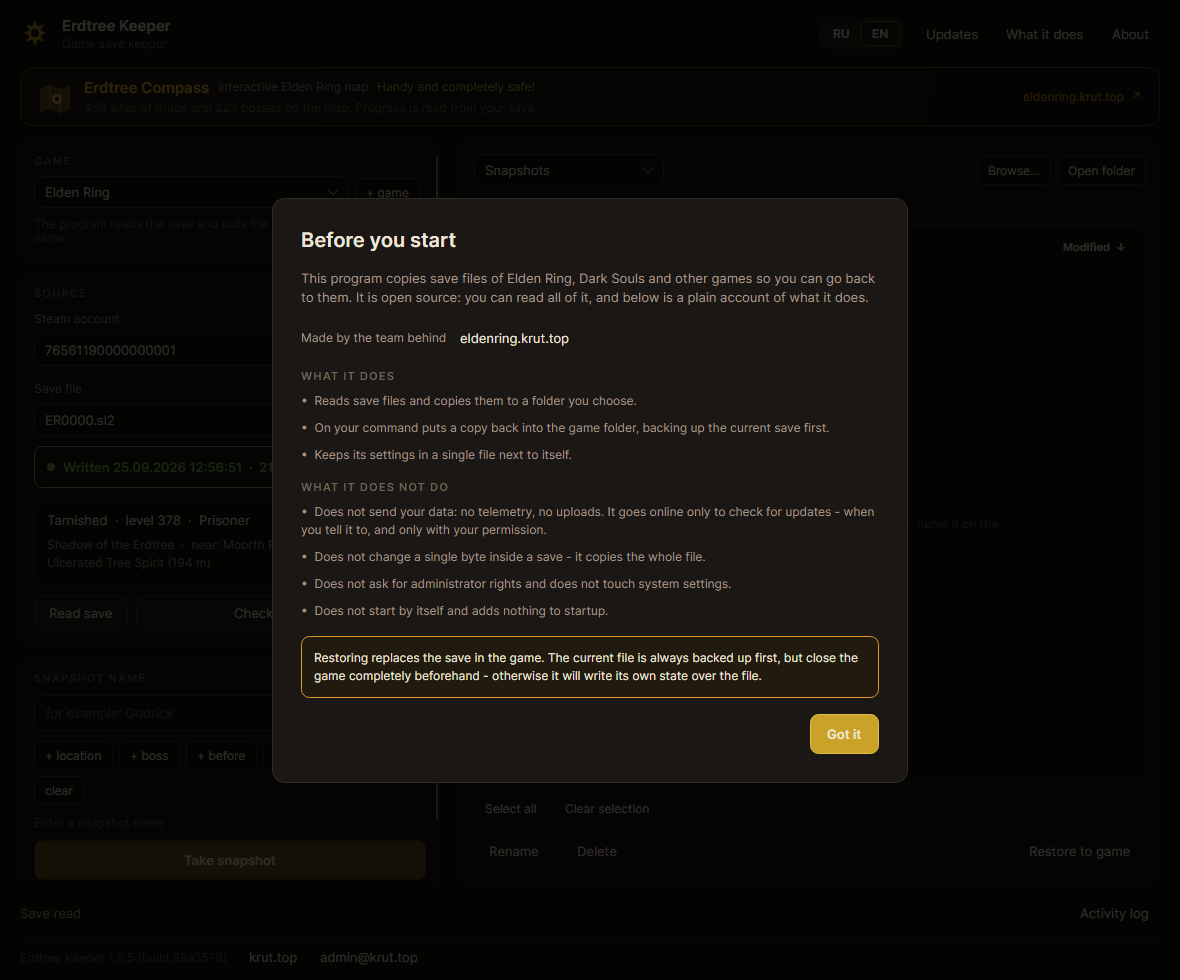
The program goes online only to check for updates, and only when you tell it to: permission is asked once, the first time you press "Updates". There is one address and it is written into the code - the program's releases on GitHub. Nothing about you is sent: no identifiers, nothing about your machine or your saves.

Every request goes into the activity log under its own "NET" tag, with the full address. The downloaded archive is checked against the published checksum - no match, and the file is deleted and nothing is installed. Until you press the button the program opens no connection at all, and any connection monitor shows it: TCPView, or the Resource Monitor built into Windows.

It does not change save contents

The file is copied whole and verified by SHA-256. If the game was still writing the save during the copy, the snapshot is cancelled rather than kept in a broken state.

It does not ask for administrator rights

Everything it touches lives in your own user folders.

You can see what it does to your disk

There is an activity log inside: every file access with path and timestamp, exportable to a text file you can show anyone.


The same window, "What this program does", lists it in full: what it reads, what it writes, what it does not do.


You can verify the download was built from the published source

GitHub does the build, and every file carries a provenance signature:

gh attestation verify ErdtreeKeeper.exe --repo valiDol42/erdtree-keeper

The signature is rejected if the file was altered by even one byte, or built from anywhere else - I tested both cases on purpose, by corrupting a single byte of the download.

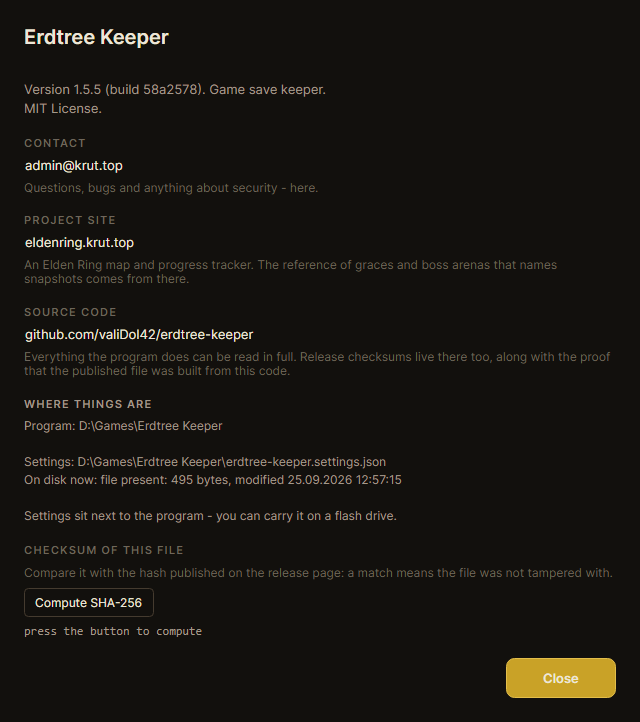
There is also an ordinary checksum, published on the release page and computed by the program itself in the "About" window, so you can compare without extra tools.


The source is fully open

MIT licence. Read it, or build it yourself and compare with what you downloaded. The repository carries 167 automated checks that run on every release, including specific ones for the promises above: that a backup is made before the game save is overwritten, that a snapshot failing its checks never reaches the game, that autosave rotation never touches manual copies, and that an answer from the update server cannot slip in a file from a foreign address.

About the blue Windows dialog

On first launch you will see "Windows protected your PC". This is not about a virus: the program has no paid code-signing certificate, which is issued to legal entities. Windows greets any new unsigned file this way. Click "More info" → "Run anyway".

I will never ask you to disable your antivirus or add the program to exclusions. That request is a classic sign of malware, no matter who makes it.
Installing. How to use it.
Installing

There is no installer and there will not be one - the program is portable.

  1. Download the archive from the GitHub releases page.
  2. Extract it completely into any folder, for example D:\Games\Erdtree Keeper.
  3. Run ErdtreeKeeper.exe.

Extract the whole archive, not just the exe. Three rendering libraries sit next to it and the program will not start without them - though it will tell you so in a message box rather than failing silently.

Settings live in one file next to the program. Uninstalling means deleting the folder; nothing is left behind in the system.

Requires Windows 10 or newer, 64-bit. Nothing else to install - .NET is inside.

Updating: the easy way is the "Updates" button in the title bar - the program installs the new version itself. By hand: close the program and replace ErdtreeKeeper.exe and the .dll files. Do not delete the folder before extracting - your settings and, by default, your Snapshots folder live there.


How to use it

Taking a snapshot

  1. Pick the game in the list at the top of the window.
  2. Rest at a site of grace or a bonfire so the game writes the save to disk. The indicator on the left turns green.
  3. Build the name with the buttons: "+ location", "+ boss", "+ before", "+ after" or "+ time".
  4. Press "Take snapshot".

The copy is verified by SHA-256 immediately after writing, so "it copied but came out broken" cannot happen here.

Restoring a snapshot

Close the game completely - not minimised, actually quit. The game holds the save in memory and will write its own state over the file when it exits.

Select a snapshot and press "Restore to game". The current save goes into the "Before restore" subfolder - always, with no way to switch that off.

Autosave

Tick "Autosave", then press "Configure..." for frequency, how many copies to keep, and the folder. Autosaves go into an autosave subfolder, kept apart from manual ones; switch the list on the right to "Autosaves" to see them.


Adding your own game

Press "+ game". At the top of the window are the Steam games with cloud saves: pick one and its name and folder are filled in. If the game is not there, type a name and pick the save folder by hand. File extensions and the game's process name are optional. An added game can be removed with "Remove", and its snapshots stay on disk.

Changing the language

The RU | EN control sits in the top right corner. The window switches immediately, nothing needs restarting, and the choice is kept for next time.

Default folder names follow the language of the first launch: Snapshots and Before restore in English, "Снимки" and "Перед восстановлением" in Russian. Folders that already exist are not renamed when you switch - the path lives in the settings, and your existing copies stay where they are.


Steam Cloud and online play

Steam Cloud

Steam syncs the save folder with the cloud. If you swap the file while the game or Steam is running, the cloud version can come back and overwrite what you just restored.

The order is: close the game completely → restore the snapshot → start the game. The program warns you if it sees the game running or cloud sync enabled.

Online play

The program copies your own files and does not change their contents - the same thing you would do in Explorer. Nobody can guarantee how anti-cheat behaves, and I will not pretend otherwise: online is FromSoftware's domain, not this program's.

Common sense: do not restore old saves while playing with other people.
Links
Download and read the source:
https://github.com/valiDol42/erdtree-keeper

Interactive map and progress tracker:
https://eldenring.krut.top
https://darksouls.krut.top/

439 sites of grace and 223 bosses, with progress read from your save. The reference of names the program uses for snapshots comes from there.

Русская версия этого руководства

Questions, bugs and anything security-related: the repository issues, or admin@krut.top.

If the guide helped, rate it so others can find it. Corrections are welcome in the comments.