
AIdventure

AIdventure

Not enough ratings
Pat's comprehensive user guide to AIdventure 1.5.1
By patman124
A comprehensive guide meant to help new users understand how to use AIdventure.
3
3
6
   
Award
Favorite
Favorited
Unfavorite
Intro
This is a comprehensive user guide to assist new users and veterans alike navigate and operate AIdventure.
In this guide, you'll find explanations on most every part of the software and how to use it.


Before jumping into this guide, I highly recommend joining the Lyaaaaa Games Discord[discord.com]

Other important links:
AIdventure Official Website[www.lyaaaaagames.com]
AIdventure Steam discussion


Disclaimer:

This guide does not include technical support, hardware troubleshooting or any other support.
If you need assistance or want to report a bug, see the links above.

I am not a developer, just a normal user like you.

AIdventure is still in early access and is still in development.

Information in this guide may not be accurate after software version 1.5.1

If you see any errors in this guide or still have questions after reading it. please reach out to me on the discord channel above. Your feedback may contribute to helping someone else reading this guide.


This guide was written specifically for Steam users on Windows, however most of the information should apply to other versions as well.

Basic Gameplay Loop
Following this guide should tell you everything you need to know about how to operate AIdventure but, what exactly are you getting yourself into?

In my own words, AIdventure is a software that allows you to utilize text generation AI Models locally on your own computer that doesn't require you to know any programming languages, mess with repositories or anything complicated.

It is designed with the intention of being used to create stories, adventures and scenarios alongside whatever AI model you want to use.

AIdventure runs on your local computer without any external connection, meaning your interactions with the AI are completely private. No one can read your stories without your knowledge.

You can play even without an internet connection.

(optional remote servers can be used to host AIdventure on a local area network only)
AIdventure server information can be found at https://github.com/LyaaaaaGames/AIdventure_Server
===========================================================================


"So, What exactly do I do?"

The basic gameplay loop, once you are in game, can be broken down into 5 main Ideas:


  1. Input text using the story, do, say or try functions and send it to the AI to generate a response.
  2. Read whatever the AI outputs.
  3. Decide whether or not you like the AI's output.
  4. Edit the AI's output or generate a new one if you don't like it.
  5. Validate the AI's output when you want to add it to your story.
And repeat.

There's a lot more to AIdventure, though. Read through the rest of the guide to find out.

===========================================================================
Your writing style influences the AI
Use complete sentences, correct punctuation and grammar for the best results.

If you write like:
chocolate is a candy chocolate is made from cocoa beans chocolate contains sugar chocolate is sweet chocolate tastes good

Then the AI will write in a similar fashion.

Instead, You should write like:
Chocolate is a sweet candy, made from cocoa beans and sugar. It is beloved by many people for it's delicious flavor.

Also, If you say something dirty, the AI will respond in that way. Expect it to do so periodically until it isn't reading dirty text anymore.

Both of which apply to your lorebook entries sent to the AI, the memory, input text and the last X amount of characters in your story (Configurable in options).


Scenarios
What exactly is a scenario in AIdventure?
A scenario is a collection of information, saved as a .json file.
Think of scenarios as a template for your adventure.

The information within a scenario includes:


Story – The introduction to your adventure which is presented to the player in plain text.
The AI will use this information to figure out what to talk about next.
This is used for world-building and introducing the player to the story.
Think of the first paragraph or two of a novel.
This can include things like character introductions, world building, plot elements, dialog in the form of conversations, text messages, and even an action or dialog prompt at the end to get the player started.
Pretty much anything you want to be included in the story is fair game here. However, I recommend against including information about events that you want to happen later, or else the AI will act on it right away.


Example:
You are Michael, a castle guard serving in Maraneth Keep, A grandiose castle within the Nimor Mountains.
Your commander, Captain Alomar has ordered you to stand watch during the ceremony of owls, a parade and competition held in the kingdom of Mornly every year.
You stand resolute with your spear and kite shield as the nobles scurry about in a panic.

“What do you think you're doing?” Another guard calls out to you.

You look to your left to see guardsman rick approaching you.
“I'm standing watch.” You inform him.

“Some watchman you are, there's a dragon attacking the castle!”

You rush from your post and

(In this instance, the player would be expected to finish the last sentence in order to begin the story. This can also be done with dialog.)
________________________________________________________________
Memory – Things you want the AI to take into consideration right now.
(See the section on Memory for more information)
________________________________________________________________
Category – Used for Steam Workshop filtering.

Example:
TAG_ADVENTURE,
TAG_FANTASY,
TAG_LOREBOOK_INCLUDED,
LOREBOOK_INCLUDED
________________________________________________________________
Author – Self explanatory.

Example: patman124
________________________________________________________________
Language – Self explanatory. Used for steam workshop as well as the auto-translation feature.

Example: English
________________________________________________________________
Lorebook – A collection of keywords and descriptions that the AI uses to stay consistent.
(See the section on lorebooks for more information.)


===========================================================================
How do you get pre-made scenarios?
Beside the pre-installed scenarios, they can be found on the Steam Workshop or you can obtain them from community.

Because scenarios are saved as .json files, they can easily be shared via file sharing or even by copy/pasting the text into a text editor and saving as a .json file.

Many of these can be found on the official Discord channel.

===========================================================================
Where are scenario's stored?
The pre-installed scenarios and scenarios that you create yourself will be in:

Steam\steamapps\common\AIdventure\scenarios\

You should also place any scenarios' .json files that you get from the community here as well.

Scenarios which are downloaded from the steam workshop will be saved in:

Steam\steamapps\workshop\content\2114790\

===========================================================================
How do you start an adventure with a scenario?
On the Main menu, you will find the "New story" button.

Clicking on this will give you a list of the pre-installed scenarios.

Any scenarios you create yourself, copy from the community or download from the Steam Workshop will also show up in this list.


Selecting one of these scenarios will give you the scenario's introduction text and enable the "Play" button.
Clicking the "Play" button will load the scenario for you to begin playing and will bring you to the character creation screen.
(See the section on character creation system for more information.)

===========================================================================
How do you create your own scenario?

On the main menu you will find a button labeled “Scenario Editor”

Clicking on this button will bring you to the Scenario Editor Window.

From here, you can either open an existing scenario and edit it or you can start typing your new scenario.

The “Open a scenario” button will let you select a json file to load an existing scenario to edit.

Otherwise, you can start typing your new scenario's intro in the text box at the top.

Depending on the length of the introduction text, some context may be lost.

I recommend keeping this below the default 1000 characters so the AI can start the story off, knowing everything you wrote.

If you feel the need to go over 1000 characters, please put that in the description when uploading it to the steam workshop.

Once you have something in the scenario text box, the “Save as...” button will be enabled and you will be able to save your scenario to a new .json file.

Beneath the scenario text box, you will find the memory text box.
Here, you can enter any information that you want the AI to consider at the beginning of the story.
(See the section on Memory for more information)

Below the memory text box, you will find the category selection.

If you plan on uploading your scenario to the Steam Workshop, use these to help players find your scenario easier.

For example, If you're writing a dating scenario, you might want to label it as “Romance”.

If you're writing a Lord of the Rings scenario where the player will play as Aragorn, you might select “Adventure”, “Fantasy” and “Male protagonist”.

If you're including a lorebook with your scenario, don't forget to also select the “Lorebook included” category as well.

Below that, you will find a place to put the author's name,

Use your pen-name, steam ID, discord name or anything else here so players can identify the person that wrote the story they are about to play.

Next select the language that the story is written in.

And finally, If you are going to include a lorebook with your scenario, there is a button at the bottom that looks like a stack of three books where you can select a lorebook to include.

Keep in mind that you can use the default blank lorebook here to create one from scratch and export the lorebook to use in later stories.

(See the section on lorebooks for more information.)

Whenever you are happy with your scenario, Click the “Save as...” button and a prompt will pop up asking you to name the scenario.

This will set the .json file name which will determine the name of your scenario in the “New story” scenario list.


Custom Start
Now that you understand how scenarios are made and how to start a new story using one,
What If you just want to mess around with the AI, or even if you want to start an adventure from scratch?

That's where Custom Start comes in.

===========================================================================
What is a custom start?
A Custom start is a blank canvas for you to start using the AI without any pre-made story.

In a custom start, the story, lorebook and memory are all blank.

Use this for messing around with the AI or creating a one-off story.

Keep in mind that this will not create a new scenario.

Any stories made using a custom start are standalone, though you can save them and return later by loading your story to continue playing.

The lorebook and memory are still available for you to use , though you need to write them yourself if you want to use them.

(See the sections of Lorebook and memory for more information)

===========================================================================
How do I play with a custom start?
From the main menu, click on the “New Story” button.

Click on the “Custom Start” button.

This will open the character creation menu.

(See the section on character creation system for more details)

After you validate, you will be asked to name your story.

This will set the name of the .json file so can identify it when you want to load it again.

After that, you will be presented with a blank chat box where you can start writing entries in your lorebook, memory and begin writing to the AI.


Character Creation System
What is the character creation system?
The character creation system is unique to AIdventure.

Before starting any scenario or at the beginning of a custom start, you are able to generate stats for your character.

===========================================================================
What does this do and how does it affect my game?
There are 2 answers to this question:

  1. It doesn't
  2. It makes your adventure way more interesting.

The stats that you select are saved in your story's .json file

(See the section on story saves for more information)

They allow you to use the “Try” function while in game.

===========================================================================
What is “Try”?
Try is an additional action type that you can use while interacting with the AI.

It uses a dice roll system and compares the roll against your stats to see if you succeed or fail.

===========================================================================
What are the stats?
The stats include:

  • Strength
  • Constitution
  • Dexterity
  • Charisma
  • Intelligence
  • Wisdom
  • Luck

===========================================================================
How do you select your stats?

There are 3 ways to select your stats:

  • Manual input – You can type in any number between 15-90 or use the arrows next to each number to increase and decrease the value.

  • Randomly assigning individual stats – Next to each stat, there is a “Reroll” button.

    Clicking on these will randomly assign a number between 15 and 90 (In increments of 5) to the associated stat.

  • Randomly generating all of your stats – At the bottom of the screen, there is “Roll the dice!” button that will randomly assign a number between 15 and 90 (In increments of 5) to all of your stats at once.

===========================================================================
Can't I just cheat and set all of my stats to 90?
Yes...Yes you can.....

This is your story. Do whatever you want.

A stat set to 90 will have a 90% chance of succeeding.

===========================================================================
How Does “Try” work and how does it use the stats?
When you use the try action, The AI generates a number between 1 and 100.

You have different level of success (or failure) depending on how the AI's "dice roll" compares to your selected stat.

The lower the result of your roll, the better.

  • CRITICAL FAIL............................roll >= 96
  • NORMAL FAIL.............................roll >= your stat
  • NORMAL SUCCESS...................roll <= your stat
  • MAJOR SUCCESS......................roll < your stat / 2
  • EXTREME SUCCESS.................roll < your stat / 5
  • CRITICAL SUCCESS..................roll = 1

Example:

You try to throw a basketball through the hoop using your dexterity stat.
Behind the scenes:
~~~
Your dexterity is 60.
The AI rolls 9.
9 < 60 / 5 so you get an Extreme Success.
~~~
The different levels of success or failure will present you with different descriptors.

For instance, rolling a critical fail will produce a "You pathetically fail to".

Luckily you don't need to worry about the numbers. Everything is presented to you in plain text.

===========================================================================
How do I use Try?
When talking to the AI, click on the Story/Do/Say selection until it changes to Try.

In the drop down menu, select whatever stat you want to use, then type your intention before clicking “Generate”

This must be an action. Assume that “You try to” is inserted before your text entry.
If you want to use this for dialog, write something like:


convince the guard to let you go by saying, “I can pay you!”

===========================================================================
So, why did I say it doesn't affect your gameplay AND makes it way more interesting?
Because it's completely optional.

This is not a necessary system to use if you don't want to.

Using this system can give your adventure a lot of randomness, but, you never have to use it at all if you don't want to.

===========================================================================
How do I integrate this system into my gameplay?
Use your stats to attempt to accomplish things.

  • Dexterity - You try to “hit the Minotaur by firing an arrow at it's chest.”
  • Charisma - You try to “convince your crush to kiss you on the cheek”
  • Intelligence - You try to “identify the murderer's weapon by inspecting the stab wound in the victim's torso”

Use your imagination!

===========================================================================
Can stats be changed after I start playing?
Yes! While in-game, you can open the menu, select the “Edit the story” button and click the “Open character editor” button

You can also change the stats by manually editing the story's .json file.


Choosing an AI
Only 1 more thing to understand before jumping into the game. The AI Models.

What AI Models are available and what are the differences?


===========================================================================
Why choose one over the others?
Things you should consider when choosing which AI model:


Hardware requirements

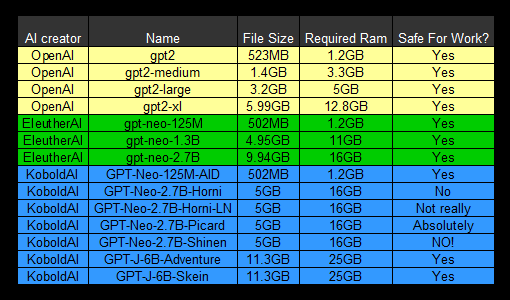
Keep in mind that the AI needs all of that memory.

If you have 16 GB of RAM in your computer, your computer will struggle to run an AI model that needs all 16 GB!

The rest of your computer still needs RAM to function!

A safer bet would be gpt2-xl which needs 12.8 GB or the gpt-neo-1.3B which needs 11GB.

Running AI models on your GPU
AIdventure has the ability to run on either your CPU and utilize your system memory or run on a CUDA GPU and utilize VRAM instead, making the AI processing speed faster.

This needs to be enabled in the options menu.

If your GPU doesn't have enough VRAM, AIdventure will default to the CPU and system RAM.

The RAM requirement may not be exactly the same as VRAM requirements due to Windows taking up quite a bit of system RAM for other tasks, but not much VRAM under normal circumstances.

If you don't have enough RAM available to run a model, it will struggle to work.

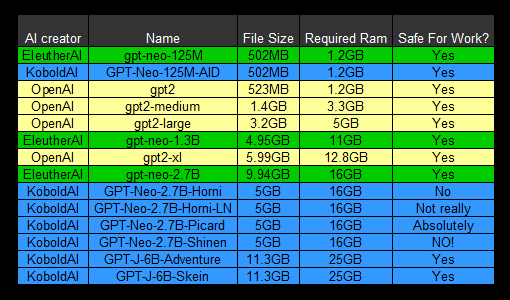
Here is a chart with the Models in order of RAM usage.


Now you know which models you CAN use, lets look at which ones you might WANT to use.

The Model's training data

Each of these individual models are built from a model class (GPT2, GPT-Neo, GPT-J and GPT-Neo-2) and then trained using a group of data called a subset (books, web pages, forums, catalogs, Youtube comments and other text) to form the decision making process for the final model with a certain amount of data points called parameters.

It's important to understand the data that the AI was trained on when choosing a model.
(See the Section on AI Models)

===========================================================================
KoboldAI Adventure Mode

(This section is completely optional. You can skip it if you want.)

AI Models made by KoboldAI may have a feature known as adventure mode.
That being said, if the AI model is older, or was built specifically for story mode, it may not be available.

With adventure mode enabled, the AI has a strong bias toward using "You" and assumes there is a "You" character in the story.

This solves the problem of the AI assuming that you are referring to another character (outside of "quoted text") and the AI can identify who is doing what action much easier.
The AI will not write actions for your character, "You" so you have all the control over what your character says and does.

Example:
Story Mode:
You type----------- -> You pick up the ball.
The AI responds --> "OK", she replies as she picks up the ball.

Adventure Mode:
You Type------------> You pick up the ball.
The AI responds --> You pick up the ball as Martha readies her bat.


With this, the story flow will be much more consistent when playing an adventure in 2nd person mode.

Whether adventure mode is enabled by default will depend on the model.

If you are using a KoboldAI model in first person (i.e. you use "I" when referring to your character), you will have to use the 'story' input method.

Playing with an AI model where adventure mode is disabled will put into the normal story mode.

When using story mode, the AI doesn't assume that there is a "You" character, and focuses on novel-like writing.

To my knowledge, only KoboldAI models have this feature and other models should be considered in "story mode" all the time.

This doesn't mean that you should avoid using 2nd person in story mode, only that adventure mode does it better.

Read more about it here: https://github.com/KoboldAI/KoboldAI-Client

===========================================================================
"How do I get an AI Model?"
Luckily, AIdventure comes pre-installed with gpt2-Large which is the default AI model.

The other models listed in this guide are all available to download from within the software.

When starting a new scenario or loading an existing story, you will be prompted for which AI model you want to use.

If you select one that isn't installed yet, the game will automatically download it for you from http://huggingface.co


(For information on adding custom AI, visit the FAQ on either steam or the official website.)


AI knowledge
“All the NSFW models need too much ram!”
Woah, hold your horses there, cowboy.
Most of the models listed here will still do NSFW stuff even if it is labeled as safe for work.
In these models, the AI will not actively start a NSFW line of dialog without your NSFW input first.
Start talking dirty to your robot friend and all bets are off.

KoboldAI/GPT-Neo-2.7B-Shinen is a true hornball and is made specially for NSFW scenarios.
It will turn your Noir Detective drama into a porno, even if you don't want it to.

===========================================================================
“Oh, no! I selected the wrong AI model for this scenario.”
Not to worry, you are prompted every time you start a new scenario or load a story.


===========================================================================
“I have enough RAM to run this AI but it still takes forever to respond!”
Take note, that larger models still need more processing power for the AI's decision making.
If your AI is taking a long time to respond, there are a few things that might be limiting it's capability.
Take a look at windows task manager's performance monitor and make sure your RAM usage isn't maxed out. If it is, try closing other programs on your computer.
If you're running on a budget CPU, It's processing speed could also be a bottleneck.
Beside getting a CPU with more processing power, there are a few things that you can do to increase the AI's performance.
You could switch to a "weaker" AI model, but before that, you may want to try messing with the AI options first.

===========================================================================
Can you use this program to train the AI on new material?
No! That is way beyond the scope of AIdventure.

This software is for using AI models for text generation, not creating new models.

===========================================================================
AI Options
Within the options menu, you will find a tab called AI Options.
Tweaking these will change how the AI responds, how it's used and how it behaves.

Generation's Max Length: Determines how many words the AI is allowed to use when outputting text.
Increasing this will lead to longer responses from the AI but will also make the AI take longer to respond.

Randomness: Also known as temperature, this option determines the AI's imagination
The higher the randomness, the more creative it will be but will also has a higher chance of responding with wacky, off the rails responses.
The lower the randomness, the more factual it will be, sticking to the narrative better, but has more of a chance of repeating output.
If you find that the AI is being boring, not moving the story forward how you want, increase the randomness.
If you find that the AI is going crazy and introducing things into the story that you don't want, decrease it.

Repetition Penalty: Increasing this over 1.0 decreases the likelihood that the AI will repeat sentences.
Decreasing it below 1.0 will make it more likely that the AI will repeat sentences.

Max Time: The Maximum amount of time the AI is allowed to come up with an output in seconds.
If the AI doesn't have enough time to respond, you will tend to get more incomplete sentences.
Note that the AI will only take as much time as it needs to finish it's output so you can safely increase this number.

Context max length: How many characters the AI will remember from your story.
Example – If this number is set to 1000, the AI will only be able to respond based on the last 1000 characters of the story, like it started reading a novel on page 42.
Increasing this will make the AI take longer to respond.
To avoid needing to increase this, utilize the memory for important events.

Memory Max Length: How many characters the memory can hold.

Remove unfinished sentences: Checking this option will remove the last sentence of the AI's output if it wasn't able to finish it.

Use the GPU: (See “Running AI Models on your GPU” section above)

Display Advanced Options: This will allow you to tweak advanced options for the AI. This guide will not cover the advanced options and if you need this guide, you probably shouldn't be messing with them anyway.

Close
Closes the options menu without saving changes

Save
Saves your changes

Reset to Default
Resets the AI options to the default settings.

Don't be afraid to mess around with the options. There is a reset button for a reason.

The default options aren't designed for each individual AI model.

Some models may just return empty text using the default settings.

It is recommended that you set up your options with GPT-2 and GPT-Neo to test and set up your options as best you can on the lower end models that will run faster if you are having trouble getting the larger ones dialed in.

Don't be afraid to ask the community for help!


AI Models
OpenAI Models


GPT-2
A 124 Million parameter AI model which generates sentences word-by-word.
Trained from WebText, a dataset containing unfiltered text taken from over 8 million websites in 2017.
GPT-2 has not been finetuned for any specific use case.
This model has the ability to reference data from sources containing profanity and sexual content.
This is a very lightweight model that is best used with modern English, though I recommend using either GPT-2 Medium, GPT-2 Large or GPT2 XL instead.

For more information on WebText, see the "Training Data" section of https://huggingface.co/gpt2

GPT-2 Medium
The same as GPT-2 but trained with 335 Million parameters.
This is a relatively lightweight model

GPT-2 Large
The same as GPT-2 but trained with 774 Million parameters.
This is a medium-weight model

GPT-2 XL
The same as GPT-2 but trained with 1.5 Billion parameters.
This is a heavyweight model


===========================================================================
EleutherAi Models


GPT-Neo 125M
A 125 Million parameter AI model Trained on "The Pile", A dataset which contains sources on everything from fiction novels to research papers and Medical Journals, all the way back to Youtube Subtitles and curated web crawls.
This model has a wide variety of speech patern information, from scientific and professional to modern slang. Some of this dataset contains profanity and lewd/abrasive language.

Find out more here: https://pile.eleuther.ai/paper.pdf

GPT-Neo 1.3B
The same as GPT-Neo but trained with 1.3 Billion parameters.

GPT-Neo 2.7B
The same as GPT-Neo but trained with 2.7 Billion parameters.


===========================================================================
KoboldAI Models


GPT-J 6B Adventure
A 6 Billion parameter model trained on the AI Dungeon set with additional stories thrown in making it more balanced in its approaches than AI Dungeon. It was designed to mimick the behavior of AI Dungeon and is the recommended version for players who want an AI Dungeon-like experience. It can be seen as an improved Griffin. If you wish to play like AI Dungeon this is a good choice. This model tends to focus on it's own story generation more than other models, and works best when randomness is reduced to around 0.5 .
It is exclusively for Adventure Mode and must be used in second person (You).


Find out more here: https://gitea.it/rixty/KoboldAI-Client/src/commit/7d35f825c6f97b6aa9f1beb0645d833474ef2610/readme.md


GPT-J 6B Skein
A 6 Billion parameter AI model Trained on the CYS, Floyd and Horni_LN datasets which contain choose your own adventure stories, light novels and text adventures to help it understand story themes better.
It consists of a 4 times larger adventure dataset than the Adventure model making it excellent for text adventure gaming.
On top of that it also consists of light novel training further expanding its knowledge and writing capabilities.
Because of this it needs a bit more context about the writing style, and is best used with well written, descriptive inputs from the player.
It needs more guidance than some of the other models, making it less suitable for random story generation. If you want to use a model for existing story idea's this is a great choice.
Aimed to create a balanced story driven experience, Skein is best used with Adventure mode enabled to prevent it from doing "Actions".

Find out more here: https://wandb.ai/ve-forbryderne/skein/runs/files/files/datasets


GPT-Neo-125M-AID
A 125 Million parameter AI model which was modeled after the old-school 'classic' AI Dungeon model.
This is one of the closest replications of the original AI Dungeon Classic model. Tuned on the same data that got uploaded alongside AI Dungeon.
It contains text adventure tuning and its the smallest 'Adventure' model of its size. Because of its limited size the behavior is mostly suitable for testing text adventure gamemodes at fast speeds.


Find out more here: https://huggingface.co/KoboldAI/GPT-Neo-125M-AID


GPT-Neo-2.7B-Horni
A 2.7 Billion parameter AI model tuned on the Horni Dataset. GPT-Neo-2.7B-Horni was finetuned on about 800MB worth of random blocks of text from literotica to produce a Novel style model optimized towards NSFW content.
This model trains the AI to write in a story like fashion and is meant to be used in regular story mode.
Do not use the horni model if you dislike NSFW outputs.

Find out more here: https://github.com/finetuneanon/gpt-neo_dungeon/blob/main/gpt-neo_dungeon.ipynb


GPT-Neo-2.7B-Horni-LN
A 2.7 Billion parameter AI model, much like the one above, but has been additionally trained on the Horni_LN Dataset, 579MB of text from light novels. (LN = Light Novel)
It's more likely to go SFW and is more focused towards themes found in these light novels.
This is a good model for story writing especially if you want to add erotica to the mix.

Find out more here: https://github.com/finetuneanon/gpt-neo_dungeon/blob/main/gpt-neo_dungeon.ipynb


GPT-Neo-2.7B-Picard
A 2.7 Billion parameter AI model, trained on datasets containing around 1800 ebooks, mostly in the sci-fi and fantasy genres.
It is focused on Novel style writing without the NSFW bias.
Unlike the name suggests this goes far beyond Star Trek stories and is not exclusively sci-fi.
It is meant to be used in KoboldAI's regular story mode.
Find out more here: https://huggingface.co/KoboldAI/GPT-Neo-2.7B-Picard


GPT-Neo-2.7B-Shinen
A 2.7 Billion parameter AI model who's training data contains user-generated stories from s**stories(dot)com. (Use your imagination)
Compared to GPT-Neo-2.7B-Horni, this model is much heavier on the sexual content.
The most NSFW of them all, Shinen WILL make things sexual. This model will assume that whatever you are doing is meant to be a sex story and will sexualize constantly.

GPT-Neo-2.7B-Shinen WILL produce socially unacceptable text and offensive content may occur without warning.

Find out more here: https://huggingface.co/KoboldAI/GPT-Neo-2.7B-Shinen


The Interface
'In-Game' Interface

Menu button
Brings up the Aidventure Menu, allowing you to edit your story's text, Open the options menu, return to the main menu or quit Aidventure. This menu can be toggle with the ESC key.

Console
Allows you to access the console. This can also be toggled with the F1 key.

Text window
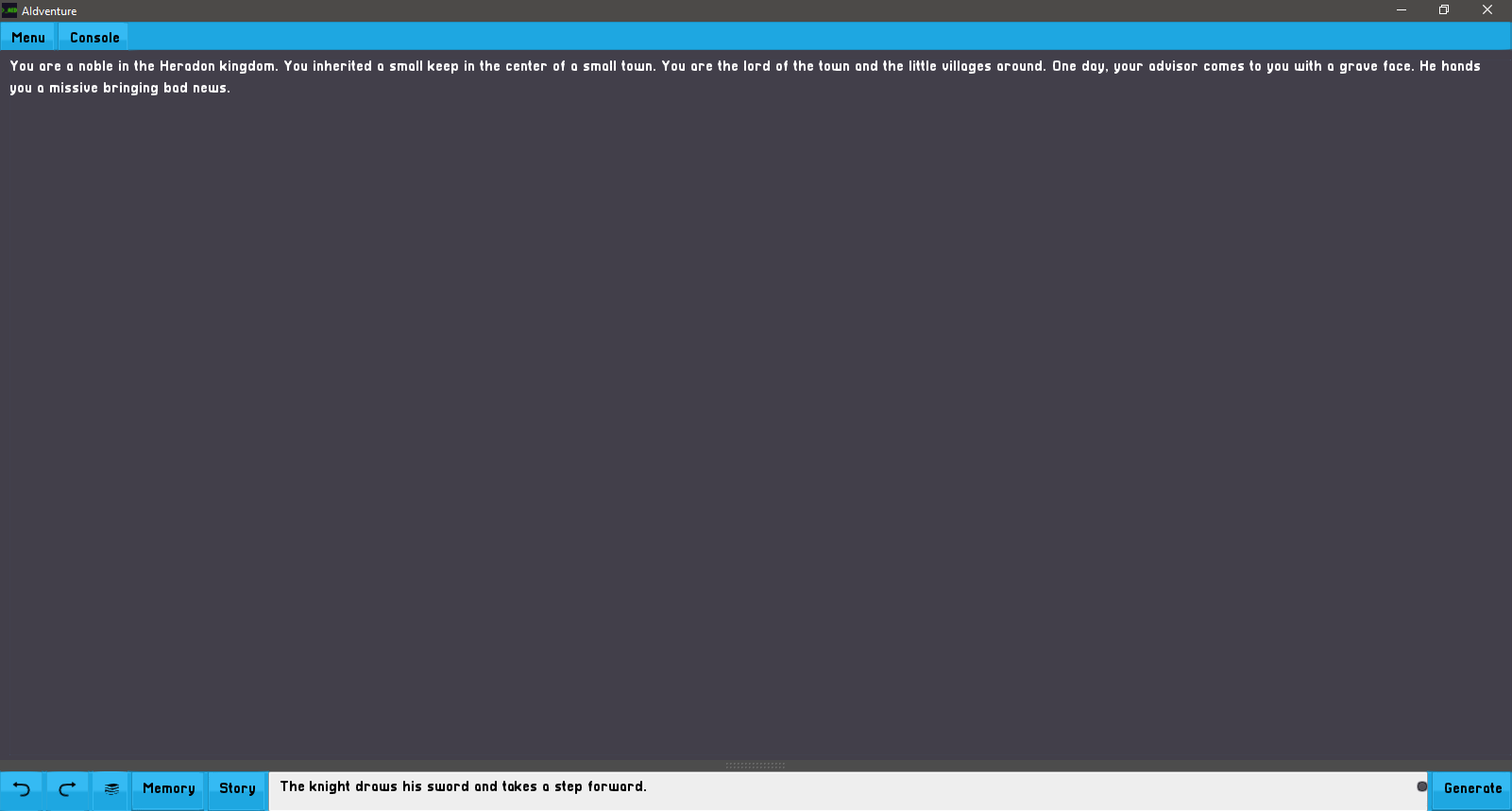
Shows scenario introductions, your previous inputs and the AI's previous outputs.

Undo
Undo the previous input/output exchange from the Text window. Undo can only undo text from the current session.

Redo
If you use the undo button, Redo does the opposite. Redo can only Redo text from the current session.

Lorebook
Opens the lorebook.
(See the section about lorebooks for more information)

Memory
Opens the memory. (See the section about memory for more details)

Story/Say/Do/Try
Allows you to send different inputs to the AI.

Story: Input your own text

Say: your character will say whatever you write (“Quotation marks” will be added for you automatically)

Do: your character will perform the action (Assume “I” or “You”[in second person] precede whatever you write here.

Try: The try function (See the section on character creation system for more information.)


Input box
Where you write your text input. (Pressing enter will act as return, going to the next line.)

Handle
Allows you to change the height of the text input box

Scrollbar
Scrolls the text input box up and down.

Generate
Sends your input, memory, story (up to the max length) and any referenced lorebook entries to the AI.


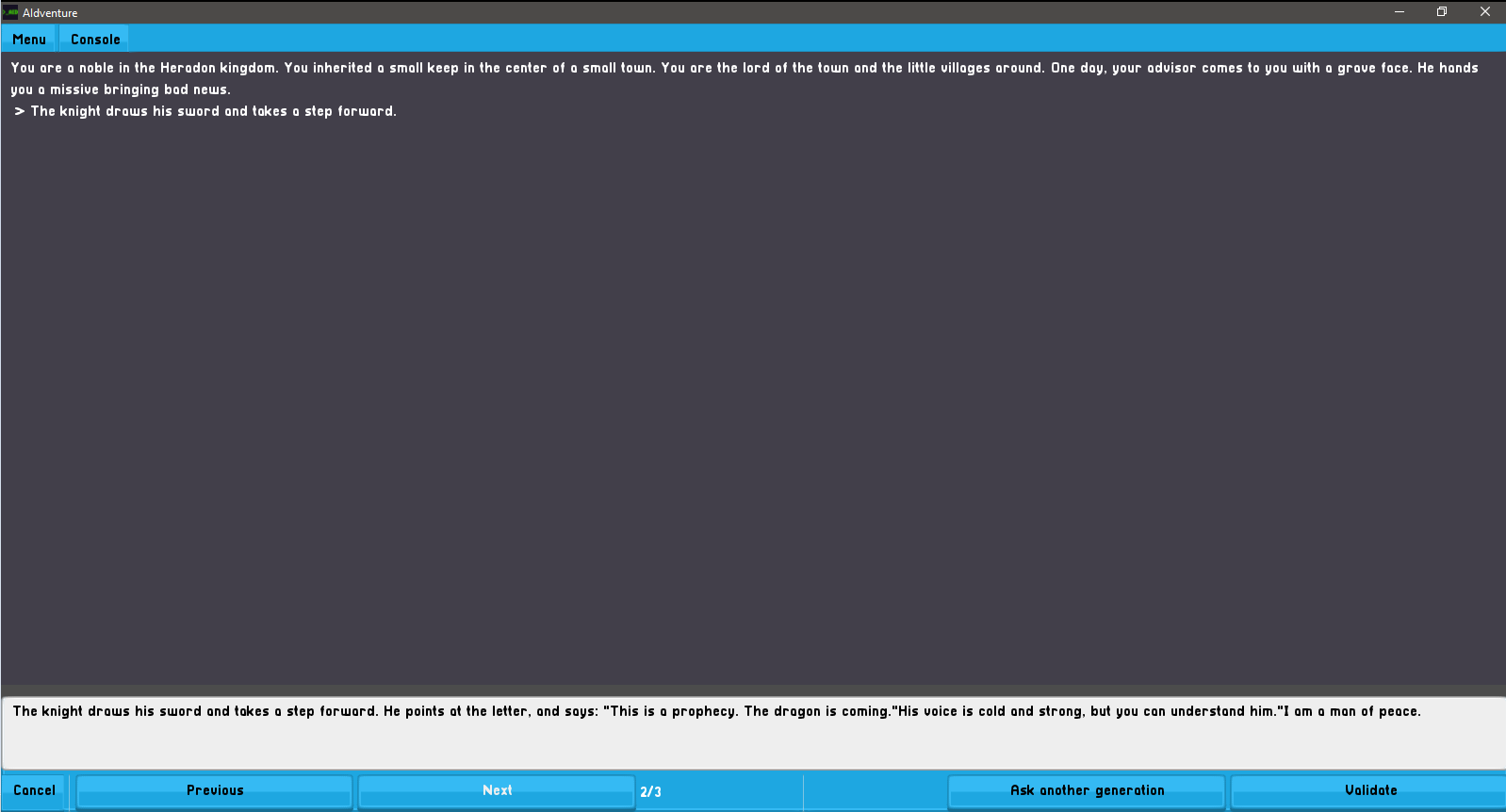
Additionally, after the AI generates an output:

Output text box
This is where the AI's output is displayed before validating.
The text output can be edited in this text box.

Cancel
Discards the AI's output as well as your last input.

Ask another generation
Generates an additional, alternate output.

Previous & Next
Scrolls through the outputs.

Output indicator
Displays which output you are viewing / total number of outputs

Validate
Sends the currently displayed text in the output text box to your story and saves your story file.


Keep in mind that you will need to pick one of the generated outputs to validate. You can however, edit an output to combine elements from ones that you like .


If you don't know what to put, clicking the generate button while the input text box is empty will still send your story (Up to the max length), your memory and any lorebook information it needs to the AI which will generate an output.


Options
The options menu can be accessed from the main menu or by clicking on the menu button or pressing ESC and selecting options while in game.

The options menu will allow you to change different facets of Aidventure.
On the top of the options menu, you will find 4 tabs.

===========================================================================
Preferences
Display
allows you to change between windowed, full screen and borderless windowed display.

Interface language
changes which language Aidventure displays in.

Hide the top bar menu
will hide the menu and console buttons while in game.

Story's point of view
will change whether the player is referred to as “I”(First person) or “you”(second person)

Font
Changes the font of the Aidventure interface


-----Story Reader Preferences----


Font
Changes the font of the input/output text in game

Font Size
Changes the font size of the input/output text in game

Font Color
Changes the font color of the input/output text in game

Selection Color
Changes the highlight color of input/output text in game

Line Separation
Changes the distance between one line of text and the one below it.

===========================================================================
AI Options
(See the section on AI knowledge for more information)

===========================================================================
Server options
Connection Delay
Don't touch this unless instructed to by the dev.

Connect to a remote server
(optional remote servers can be used to host AIdventure on a local area network only)
AIdventure server information can be found at https://github.com/LyaaaaaGames/AIdventure_Server

===========================================================================
Translation
Enable the automatic translation
Check this to enable the AI to translate text to a different language

Language selection
Select your language from the drop down menu.


Story Saves
How do stories differ from scenarios?
Think of scenarios as an open world game. You have the entire world, characters places and such all built in, thats your lorebook.

You have NPCs walking around, buildings in the distance, items sitting in your inventory. The game needs to consider what's happening with them even if the player isn't interracting with them. That's your memory.

You have an intro cutscene that sets the mood and introduces the plot , maybe a character or two. It's still part of the story, That's your scenario's introduction text.

The rest of what happens in the game is up to you. Whatever you make of the world, is in your save file. Think of your story as the save file.

Scenarios have everything you need to set up a new game while your story has everything you need to continue it.

===========================================================================
Where are my stories saved?
Steam\steamapps\common\AIdventure\saves

===========================================================================
What is saved in the story's .json file?
Story
Your entire story from the very beginning
Memory
The current contents of the memory
(See the section on memory for more information)
Character
Your character's stats.
(See the section on character creation system for more information)
Language
self explanatory Used for the auto-translation feature.
Lorebook
The contents of the lorebook
(See the section on lorebooks for more information)

===========================================================================
How are my stories saved?
Stories are first saved as a .json file when you name your story, after choosing your character's stats.
After each time you validate a response from the AI and the output is written to the story, your story file is automatically saved.
Additionally, There is a 'save as' button in the story editor that allows you to export your story to a different file name.

===========================================================================
How do I edit my stories if I want to change something?
The story editor can be opened from either the main menu, by clicking on the “Story Editor” button, or while in game, by opening the game menu and clicking on the “Edit the Story” button
From there you can edit the story text and click save. This will update the text in the story and saves your story file.
If accessing the story from the main menu, you will need to click the “Open a story” button and select a story. If accessing it from in game, it will load your current story by default.
Alternatively, you can open the .json file and manually edit the text but this isn't recommended due to json formatting.


Lorebooks
What is a lorebook?
Think of lorebooks as a wiki for the AI to reference when generating it's output.

It uses keys (or keywords) paired with descriptions to describe what something is.

The lorebook is a repository of knowledge for the AI that is available on demand.

Lorebook keys are only considered when the AI needs to reference information.

Lorebooks are saved as part of scenarios and story or as standalone .json files
(See the section on scenarios and the section on story saves for more information)

===========================================================================
What is a key?
A key is a reference word or phrase that the AI can access to find a description, Similar to looking up a word in the dictionary to find out what it means.

One thing to note is that the AI can not differentiate between singular and plural forms of a noun.
For instance:

If you have a key for “Elf” with a description explaining what an “Elf” is, and in your story you type something about “Elves”, The AI will try to look up what “Elves” is in the lorebook and won't be able to find it.

In this way, in 1.5.1 you should enter separate entries for singular and plural forms of improper/common nouns.

===========================================================================
What do you put in a lorebook?

Anything you want the AI to be able to lookup.
  • places
  • races
  • people
  • things
  • spells
  • lesser known or made up weapons
  • made up words
  • events
  • creatures
  • etc...

Anything that you want to add to the lore.
The name of the 'Key' should be present in the description.

Examples:

Nirn
Nirn is the planet which contains Tamriel. It has many diverse climates and houses many different races of people and creatures.….. bla bla bla
Tamriel
Tamriel is a continent which is seperated into 9 provinces.….. bla bla bla
Ork
Ork is the race of brutal, green-skinned people who are rumored to have once been elves. They worship Malacath as their God.….. bla bla bla
Orks
Orks are the race of brutal, green-skinned people who are rumored to have once been elves. They worship Malacath as their God.….. bla bla bla
Malacath
Malacath is the God of the Ork and Orks. He was once known as Trinimac before ….. bla bla bla
Elder Scrolls
Elder Scrolls are ….. bla bla bla

===========================================================================
How do you create or edit a lorebook?
You can create a lorebook from any story.

Click on the icon with 3 stacked books to open the lorebook.
From there, click on the + icon in the lower left. It will prompt for a name. This is the key (e.g. Tamriel)
Press OK and the key will appear in a list on the left hand side.

Click on the key and start writing your description in the text box on the right.
Enter as much information as you want. Everything is saved automatically.

Note: This will not save your story or update a standalone lorebook that you imported.

If you want to change the name of the key for any reason (like if you typed it incorrectly or want to change someone's name) you can click on the keyboard icon when the key is selected.

Want to delete one of your keys? Click the X icon when the key is selected. This prompts you for confirmation.

===========================================================================
Can I export my lorebook?
Yes! But unless you are going to use them in different stories or scenarios, there is no need to.

The information in the lorebook is saved as part of the story's .json.

In the lorebook window, there is an Export button. Click that and give it a name.

You can import your lorebook files into other ongoing stories or add them into a scenario
(See the section on Scenarios for more information)

===========================================================================
Where are lorebooks stored?
Built-in lorebooks and lorebooks you create are stored in:
Steam\steamapps\common\AIdventure\lorebooks

Lorebooks you download from the steam workshop are stored in:
Steam\steamapps\workshop\content\2114790\

(in 1.5.1 Lorebooks downloaded from the steam workshop need to be manually copied from the steam workshop folder into the local lorebooks folder before you can import them)

===========================================================================
Can I import lorebooks into stories?
Yes! One of the main features of the lorebook system in Aidventure is their ability to be imported into scenarios and ongoing stories.

While in game, press the lorebook icon.
Then click on the import lorebook button and select the .json file for your lorebook.
(For scenarios, see the section on 'Scenarios')

Making a series of star wars adventures? Pool all of your knowledge into a single lorebook and import it into any scenarios you want.

===========================================================================
Notes:
You can add as many keys as you want. The AI will only pull information from the key's it needs each time it generates an output.

Adding more information to a key will give the AI more context to generate it's response. While this is better for your story, The AI will have to process more information, which can make it take longer to generate an output. I recommend avoiding adding information that has no baring on a story.


Memory
What is a memory?
Memories are similar to lorebooks in that they are information for the AI to understand things about the story.

Memories are different however in that they are always sent to the AI along with your input.

Memory doesn't have keys, since the AI isn't trying to look up information there, It's being sent all the information.

Memories should be used to influence the story and to tell the AI things it needs to know right now, not things that are permanent such as the name of the planet.

Memory needs to be updated periodically to stay relevant to the story.

===========================================================================
What do you put in memory?
Anything you want to tell the AI so it can make a decision about what happens next.

  • Who your character is and information about them.

  • Item's in your characters inventory

  • spells they've learned

  • The status of characters at the moment

  • Names and descriptions of unimportant characters who will not be in the story much longer

  • updates and changes to things in the lorebook

  • Your current location

  • World or plot information that you want the AI to follow


Examples:
  • You are patman124, a handsome rogue whom everyone loves.

  • You carry a bandage and a radio with you.

  • John has a broken leg and can not run.

  • Jessica has a crush on you.

  • Michael is the inn keeper at the stallion inn.

  • Castle Varaneth has been destroyed by orks.

  • You are in a spaceship orbiting mars.

  • You are about to fight the dragon.

===========================================================================
How much information can I put in my memory?
The limit of the memory is set in the options menu. Default: 400 characters
(See the section on Choosing an AI for more information)

===========================================================================
How do you create or edit a memory?
Memory is saved as part of scenario and story .json files.

To edit the memory, Click the Memory button while playing.
(See the section on The Interface for more information)


Steam Workshop
What can you find in the steam workshop?
Currently, the steam workshop supports scenarios and lorebooks.
If you subscribe to a workshop item while the game is running, you will need to restart AIdventure in order for it to show up.


Workshop items are categorized in 3 ways:
The item type
Tags (Labeled as settings)
Language


The item type
Scenario – This is used for All scenarios
Lorebook – This is used for standalone lorebooks, not included in a scenario
Lorebook included – This is a tag for Scenarios that include a lorebook


Tags (Labeled as settings)
Female-Protagonist
Male-Protagonist
1st-Person
2nd-Person
Adventure
Dark
Wild-West
Uplifting
Medieval
Horror
Mystery
Thriller
Fantasy
Science-Fiction
Dystopian
Romance
LGBTQ+
Historical
Cyberpunk
Steampunk
Pirate
Zombie
Post-Apocalyptic
Modern-Era

Language
English
Afrikaans
Bislama
Catalan
Czech
Welsh
Danish
German
Ewe
Esperanto
Spanish
Estonian
Basque
Finnish
Fijian
French
Irish
Galician
Manx
Hiri Motu
Haitian
Hungarian
Indonesian
Igbo
Icelandic
Italian
Kongo
Kuanyama-Kwanyama
Ganda
Lingala
Luba-Katanga
Malagasy
Marshallese
Malayalam
Maltese
Ndonga
Dutch-Flemish
Chichewa-Chewa-Nyanja
Oromo
Rundi
Kinyarwanda
Sango
Slovak
Samoan
Shona
Albanian
Swati
Southern Sotho
Swedish
Tigrinya
Tagalog
Tswana
Tonga
Tsonga
Xhosa
Polish
Chinese
Arabic
Hebrew
Korean
Bulgarian
Macedonian
Russian
Ukrainian
Turkish


===========================================================================
How do you upload to the steam workshop?
  • From the main menu, Click on the “Steam Workshop” button.
  • To upload a new workshop Item, click on the “Share” button
(To Edit items that were uploaded on your account, click the “Edit” button.)

You will be greeted with the Share content window

  • First, under type of file drop down menu, select whether you are sharing a scenario or lorebook.

  • Then, click on the “Open...” button.

  • Highlight the scenario you want to share, then click the “Open” button

  • Type the name you want it to say on the steam workshop into the “Title of workshop item” text box.

  • Set you visibility preference, language that the story is written in.

  • Select any tags that are relevant to the scenario.

    Currently, in my testing, the preview image doesn't work and causes the upload to fail.

  • check the box agreeing to the terms of service

  • click upload to workshop and you're done.
4 Comments
Jan 13, 2024 @ 1:57pm 
Helps out a lot thanks!
patman124  [author]
Mar 20, 2023 @ 6:16pm 
Muchas gracias.
Lyaaaaaaaaaaaaaaa  [developer]
Mar 13, 2023 @ 10:15am 
An amazing and complete guide!
Feb 25, 2023 @ 10:23am 
Very well done and comprehensive guide on AIdventure. I can see this be the go-to guide for new users. Well done!